How to Fix GPT Protective Partition Error in Windows (2026)
Fix GPT protective partition error in Windows with Diskpart or EaseUS Partition Master. Convert GPT to MBR safely with clear step-by-step guidance.
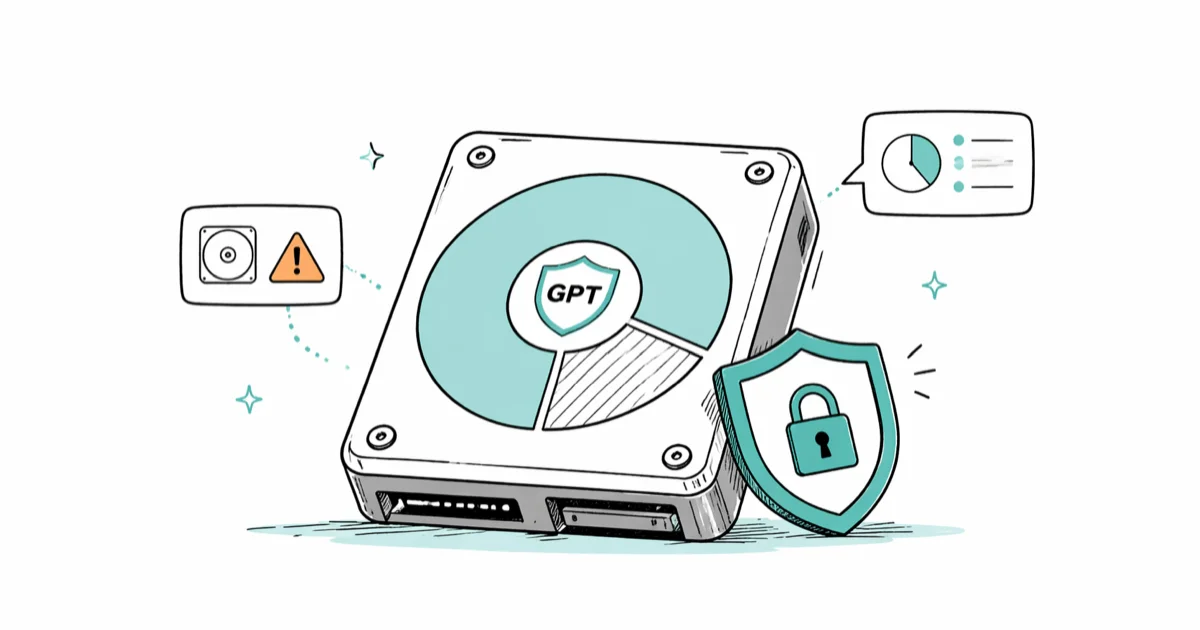
Quick AnswerGPT protective partition error appears when Windows can't read a GPT disk and labels the whole drive as protected. Convert the disk to MBR with Diskpart or EaseUS Partition Master to clear the error and get the drive working again.
The GPT protective partition error pops up when you plug a GPT-formatted drive into a Windows machine and the OS refuses to mount it as a normal disk. You’ll see one big “protective” block in Disk Management with no drive letter and no way to read the files. The fix is usually a conversion to MBR, but how you do that decides whether your data survives.
- GPT protective partition appears when a GPT disk is plugged into a system that can’t read GPT, or when the partition table is corrupted.
- Diskpart’s
clean+convert mbrclears the error quickly but wipes every file on the disk. - EaseUS Partition Master converts GPT to MBR while keeping your data, which matters if the drive holds anything you care about.
- MBR disks cap at 2 TB and 4 primary partitions, so a large drive needs a GPT-capable Windows install, not a permanent MBR conversion.
- Always image the disk to a second drive before converting. File recovery after Diskpart
cleanis unreliable on modern SSDs.
#What Is the GPT Protective Partition Error?
A GPT protective partition is a placeholder MBR record that GPT disks carry for backward compatibility. According to Microsoft’s GPT partition style documentation, every GPT disk stores a “protective MBR” in sector 0 so older tools that only understand MBR won’t mistake the disk for an unformatted drive and overwrite the GPT header.
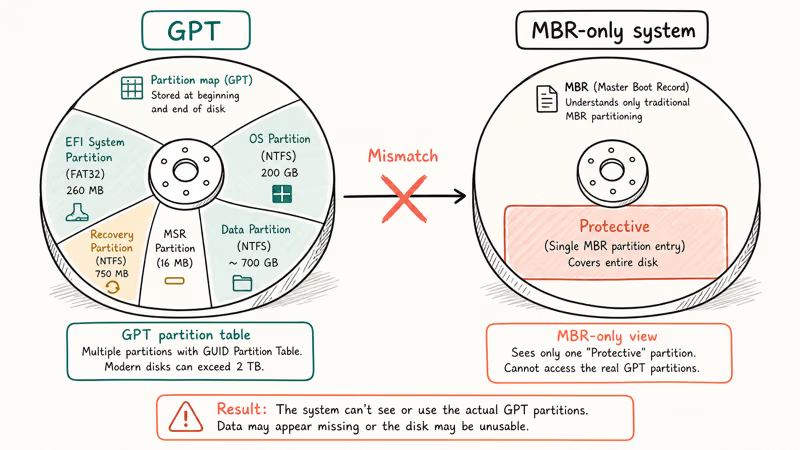
The error name itself is misleading. The protective MBR isn’t a bug.
What’s actually broken is your Windows version, your motherboard firmware, or a damaged partition table. Any of them can hide the real GPT volumes behind the protective MBR. Either way, you get a disk you can’t read.
A GPT disk can read normally on a newer Windows 10 or 11 PC while an older or misconfigured machine shows the same drive as one “GPT Protective Partition” block with no drive letter, no mount point, and no way to access the files inside. Same disk, same cable, different result, and that’s the classic signature of the error rather than a hardware failure.
#Why Does Windows Show This Error?
There are four common triggers, and the fix depends on which one you’re hitting.
Old Windows on a GPT disk. Windows XP and 32-bit Vista can’t mount GPT volumes for data and only see the protective MBR. Microsoft confirms that full GPT data support arrived in Windows Vista 64-bit and later. If your machine still runs XP, the only real fix is upgrading to a 64-bit Windows install or moving the drive to a newer PC.
Legacy BIOS on a GPT system disk. The firmware can’t boot the drive.
Corrupt GPT header or backup header. The primary header sits at sector 1, the backup at the last sector. If both are damaged, Windows falls back to the protective MBR.
Driver or firmware glitch on the controller. USB-to-SATA bridges sometimes lie about disk geometry and force Windows to read the disk as MBR. Swapping cables or enclosures fixes this without any conversion, and it’s the cheapest test you can run before you reach for partition tools.
Before you reach for Diskpart, plug the disk into a second Windows 10 or 11 machine. If it reads fine there, you’re looking at a controller or firmware problem, not a partition table problem.
#How to Fix It With Diskpart (Free, Wipes Data)
Diskpart is the Microsoft-supplied command-line tool for low-level disk operations. It ships with every Windows install from Windows 7 onward, and Microsoft’s Diskpart command reference lists every supported verb, including the two we need: clean and convert mbr. This method wipes the disk, so use it only when the data is already backed up or you don’t care about it. On a clean drive, the sequence is usually quick from start to finish.
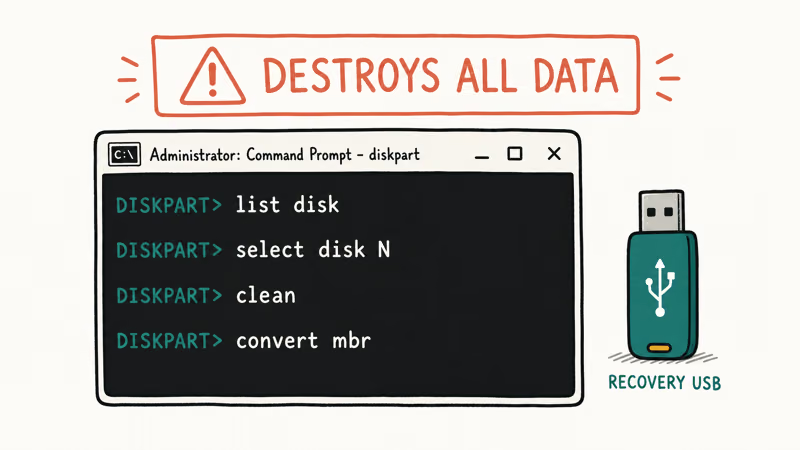
- Press
Win + Xand open Disk Management first. Note the disk number of the affected drive (Disk 1, Disk 2, etc.). Getting the wrong number here wipes the wrong disk. - Press
Win + Xagain and pick Terminal (Admin) or Command Prompt (Admin). - Type
diskpartand press Enter. The prompt changes toDISKPART>. - Run
list disk. Confirm the disk number matches what you saw in Disk Management. - Run
select disk N, replacingNwith the disk number. - Run
clean. This zeros out the partition table. - Run
convert mbr. The disk is now an empty MBR disk. - Run
exitto leave Diskpart.
Back in Disk Management, right-click the unallocated space and pick New Simple Volume to create a fresh NTFS or exFAT partition. The protective partition warning is gone.
Common Diskpart pitfalls:
cleanon the wrong disk wipes your system drive. Always runlist diskand confirm the size matches the target.- Diskpart can’t touch a disk that’s currently in use. Close File Explorer windows and any apps pointing at the drive first.
- On disks larger than 2 TB, the MBR conversion only addresses the first 2 TB. The rest becomes unallocated and unusable until you partition it back to GPT or use a GPT-capable Windows install.
#How to Convert GPT to MBR Without Losing Data
When the disk holds files you can’t afford to lose, Diskpart is the wrong tool. You want a partition manager that rewrites the partition table without touching the file system underneath. EaseUS Partition Master is the option most readers ask us about, and the Is EaseUS safe review covers the trust and pricing questions if you’re unsure about installing it.
Some links on this page are affiliate links, which means fone.tips may earn a commission at no extra cost to you.
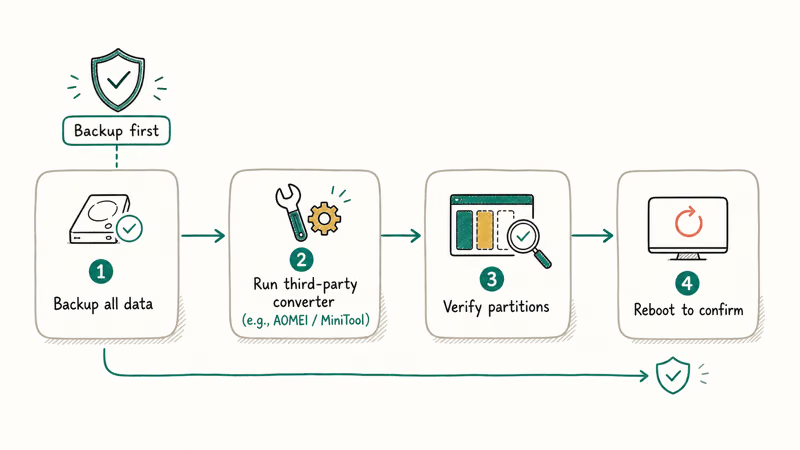
Here’s how the conversion works in EaseUS Partition Master:
- Download and install EaseUS Partition Master. The free edition handles GPT-to-MBR conversion on data disks.
- Launch the app. The affected drive shows up labeled “GPT Protective Partition” in the disk list.
- Right-click the disk header (not a partition) and pick Convert to MBR.
- The change goes into a pending queue. Click Execute Task in the top-left toolbar.
- Confirm the operation. The drive may briefly disappear from File Explorer while the tool rewrites the partition table.
After a successful conversion, the drive should mount again and the files inside the converted partition should remain accessible. EaseUS recommends imaging the disk first, and that warning matters. The tool is reliable, but a power loss mid-conversion still trashes the partition table.
A reminder on the 2 TB limit: if your drive is larger than 2 TB, converting to MBR shrinks the addressable space. The data inside the first 2 TB survives, but anything stored above the 2 TB mark becomes unreachable. For 4 TB or 8 TB drives, the better fix is updating Windows or moving the disk to a UEFI system rather than forcing MBR.
#Before You Convert, Back Up the Disk
This is the step most guides skip, and it’s the one that saves people from a permanent loss.
Image the entire physical disk to a second drive before you run Diskpart or EaseUS. A sector-by-sector image gives you a rollback if anything goes wrong with the conversion. Windows ships with wbAdmin for this, and free tools like Macrium Reflect Free or Clonezilla work too.
If the disk has already failed and you only want files off it, a partition manager won’t help. You need data recovery software that can read the raw GPT structures and pull files even when Windows can’t mount the volume. The file too large for destination file system guide covers a related FAT32 limit, and the file or directory is corrupted and unreadable walkthrough shows what to do when CHKDSK reports the partition table as damaged.
Two things to verify before you click anything:
- The backup target has at least as much free space as the source disk. A 1 TB source needs a 1 TB+ destination.
- The backup completed without errors. A half-finished image is worse than no image because it gives a false sense of safety.
#How to Stop GPT Protective Partition From Coming Back
Three habits keep the error from showing up again:
Match firmware to disk style. UEFI motherboards pair with GPT disks. Legacy BIOS pairs with MBR. If you’ve upgraded to a newer board but kept an old install, Microsoft’s MBR2GPT documentation shows how to convert the boot disk in place. Microsoft states that the tool ships with Windows 10 1703 and later and converts a BIOS-MBR system to UEFI-GPT without reinstalling Windows.
Keep Windows current. Each Windows 10 and 11 feature update ships disk-management fixes.
Don’t yank external drives. Pulling a GPT drive while Windows is writing damages the GPT header. Use the Safely Remove Hardware tray icon every time. If you’re working with Android partition manager tools on a phone-mounted drive, the same rule applies: eject before unplugging.
If you also see related disk errors like 0x0000007b INACCESSIBLE_BOOT_DEVICE or ntfs.sys blue screens on the same machine, the underlying problem is often the drive itself, not the partition table. Replace the disk before you spend more time on conversions.
#Bottom Line
If the data is expendable, run Diskpart’s clean + convert mbr sequence — it takes 90 seconds and uses tools you already have. If the data matters, install EaseUS Partition Master and use Convert to MBR on the disk header. Image the disk first, regardless of which path you pick. And if the drive is over 2 TB, fix the firmware mismatch with MBR2GPT or move the disk to a UEFI box instead of forcing it down to MBR.
#Frequently Asked Questions
Is GPT protective partition a virus?
No. The protective MBR is a normal part of every GPT disk. It exists so legacy MBR-only tools don’t mistake the disk for blank space and corrupt it. You only “see” the protective partition as an error when Windows can’t read past it to the actual GPT volumes.
Will I lose data if I convert GPT to MBR with Diskpart?
Yes. Diskpart’s clean command wipes the partition table and marks every sector as free space. Anything you didn’t back up is gone. Use a partition manager like EaseUS Partition Master if you need to keep the files.
Can Windows 10 and 11 read GPT disks natively?
Yes. Every 64-bit Windows install from Vista onward reads and writes GPT data disks without a conversion. Microsoft’s GPT documentation confirms that only Windows XP and 32-bit Vista lack full GPT data support. If you’re seeing the error on Windows 10 or 11, the cause is usually a corrupt header or a controller glitch, not a Windows version limit.
Why does my 4 TB drive only show 2 TB after MBR conversion?
MBR’s 32-bit partition table caps addressable space at 2 TB on 512-byte-sector drives. Anything above that becomes unallocated. Stay on GPT for larger disks.
Can I recover data from a GPT protective partition without converting?
Sometimes. Tools like TestDisk or Recoverit read the raw GPT headers and pull files out even when Windows refuses to mount the disk. They work best when the GPT structure is intact, and recovery success drops fast on damaged headers. The recover unsaved Excel file guide covers a smaller version of the same idea for individual files.
Does GPT protective partition mean my drive is failing?
Not on its own. The protective partition warning means Windows can’t read the partition table. The drive hardware can still be perfectly healthy. Run a SMART check with CrystalDiskInfo or your manufacturer’s diagnostic tool before assuming the disk is bad — bad sectors and reallocated counts are the real failure signals.
What’s the difference between MBR and GPT?
MBR (Master Boot Record) is the older standard, dating to the early 1980s, and caps at 2 TB disks with 4 primary partitions. GPT (GUID Partition Table) is part of the UEFI specification and supports drives up to 9.4 ZB and 128 primary partitions on Windows. For any disk over 2 TB or any modern UEFI system, GPT is the right choice. The raid 0 vs raid 1 explainer covers a separate storage question for multi-disk setups.

Best Laptop for Running LLMs in 2026: Memory Comes First
The best laptop for running LLMs is a memory purchase first. Compare MacBook unified memory against NVIDIA laptop VRAM, and see what each tier really runs.

How to Run a Local LLM on Windows: A 2026 Setup Guide
Run a local LLM on Windows with LM Studio or Ollama. Pick a model that fits your GPU memory, keep every prompt offline, and skip the monthly bill.

Bluetooth Not Working on Snapdragon X? Fixes for 2026
Bluetooth not working on your Snapdragon X Copilot+ PC? Generic audio, mice, and keyboards work, but vendor apps often lack an ARM build. Fixes inside.

Docker Desktop and WSL2 Not Working on Snapdragon X? Fix It
WSL2 runs fine on Snapdragon X, but Docker Desktop ARM is Early Access and throws WSL errors. Use WSL2 plus native ARM64 Ubuntu and Docker Engine.