Fix 'File or Directory Is Corrupted and Unreadable' Error
Fix 'The file or directory is corrupted and unreadable' on Windows external drives with CHKDSK, file recovery, and a safe reformat in 5 verified steps.

Quick AnswerRun chkdsk X: /f /r from an admin Command Prompt to repair a damaged Windows volume, replacing X with your drive letter. If CHKDSK won't finish or you need the data first, recover files with a tool like Tenorshare 4DDiG, then format the drive in File Explorer.
The file or directory is corrupted and unreadable usually shows up the moment you double-click an external hard drive or USB stick in Windows. The drive that worked yesterday now refuses to open, and the fix is rarely about replacing the disk.
For a drive that still appears in Windows, CHKDSK plus a file-recovery pass is the safest order: recover important files first if the data matters, then repair or reformat.
- The error points to a damaged file system structure (MFT, FAT, or boot sector), not a physically dead disk in most cases
chkdsk X: /f /rscans for bad sectors, marks them, and recovers readable data without deleting healthy files- Unsafe USB ejection is the single most common preventable cause; the “Safely Remove Hardware” tray icon is there for a reason
- Recover files BEFORE you reformat: formatting clears the MFT and overwrites the entries that recovery tools rely on
- A drive that still spins up and gets a letter assignment is almost always logically corrupt, which is fixable from software
Two paths exist for clearing the error: repair the volume in place, or pull the data off and reformat.
#What Causes the ‘File or Directory Is Corrupted and Unreadable’ Error?
The error is Windows giving up on the file system metadata. The drive hardware is responding, but the structures that map clusters to files (the Master File Table on NTFS or the File Allocation Table on FAT32/exFAT) are inconsistent, so the OS refuses to read further to avoid corrupting more sectors. The same small set of causes accounts for most cases.
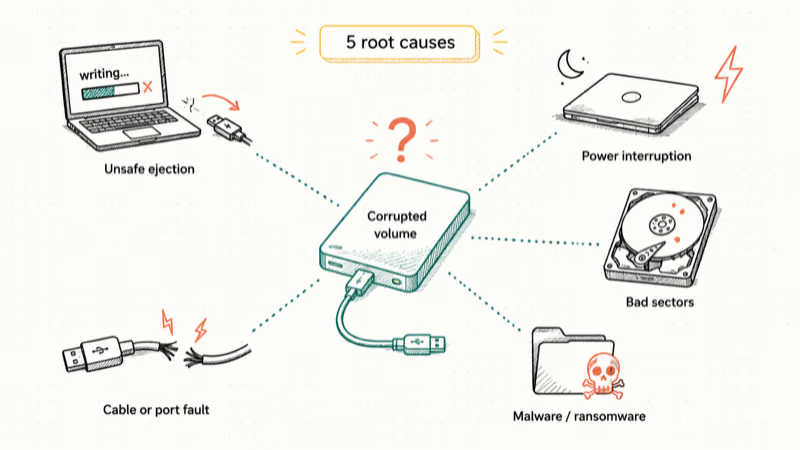
Unsafe ejection. Pulling a USB drive while a write is buffered leaves the MFT mid-update. Windows flushes writes lazily, so the drive shows “0 KB/s transferring” while data is still in queue. According to Microsoft’s removable-storage tuning guide, the default “Better performance” policy uses write caching, which is why the safe-removal step is required, not optional.
Power interruption is the second culprit. A laptop entering sleep with a portable drive attached, a desktop losing wall power during a copy, or a hub that browns out under heavy load can all leave a partial transaction.
Bad sectors. Older mechanical drives develop unreadable sectors as platter coatings degrade. When the file system tries to read one of these sectors during a directory walk, it returns the corrupted error rather than skipping ahead.
Malware or ransomware. Some strains intentionally truncate the MFT to prevent recovery. Others corrupt directory entries while encrypting payloads.
The fifth bucket is cable, port, and controller faults. A flaky or underpowered cable can produce read errors during file copies, so swapping to the manufacturer’s original cable is a safe first check. Frayed USB-C cables and underpowered hubs flip bits during transfer in ways that look indistinguishable from a corrupted file system.
If the same drive triggers a PFN_LIST_CORRUPT bluescreen on top of the read error, the controller or driver may be the actual culprit, not the file system. Read both before deciding to format.
#How Do You Run CHKDSK to Fix a Corrupted External Drive?
CHKDSK is the first tool to try because it’s non-destructive when used with the correct flags. According to Microsoft’s chkdsk documentation, /f fixes errors on the disk, /r locates bad sectors and recovers readable information, and the command runs read-only when neither flag is set. The /r flag implies /f, so chkdsk X: /r is the same as chkdsk X: /f /r.
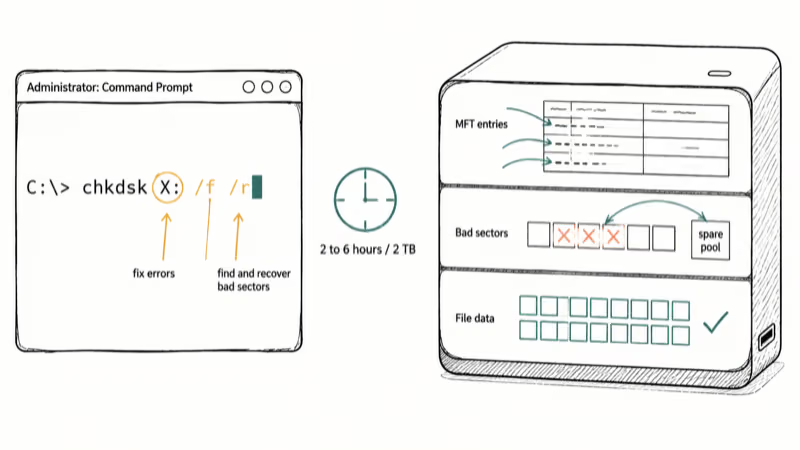
Safe CHKDSK procedure:
- Press the Windows key, type
cmd, right-click Command Prompt, and pick “Run as administrator.” UAC will prompt; click Yes. - In the prompt, type
chkdsk X: /f /rwhereXis the drive letter shown in File Explorer. Press Enter. - If the volume is in use, CHKDSK will offer to dismount it. Type
Yand press Enter. For the system drive, it schedules the scan for the next reboot instead. - Wait. A 2 TB drive at USB 3.0 speeds takes 2 to 6 hours for a full
/rpass; a 64 GB USB stick finishes in 5 to 15 minutes. - Read the summary. The line “Windows has scanned the file system and found no problems” means the directory is clean. “Errors found” means CHKDSK rebuilt structures, and the directory should reopen now.
When CHKDSK finishes, eject the drive properly and reconnect it. The error should be gone.
If CHKDSK refuses to run with “The type of the file system is RAW,” the partition table is too damaged for CHKDSK; skip to the recovery step. If Windows throws “USB device not recognized” before CHKDSK even starts, the USB device not recognized guide covers that branch.
A second-line tool worth trying on system drives is the System File Checker. Microsoft’s SFC documentation recommends sfc /scannow for repairing protected system files, which sometimes fixes the cached metadata that triggers the same error on C:.
#Recover Lost Files Before You Reformat
Reformatting overwrites the MFT, and once that happens, recovery success rates drop sharply. Get the data off first.
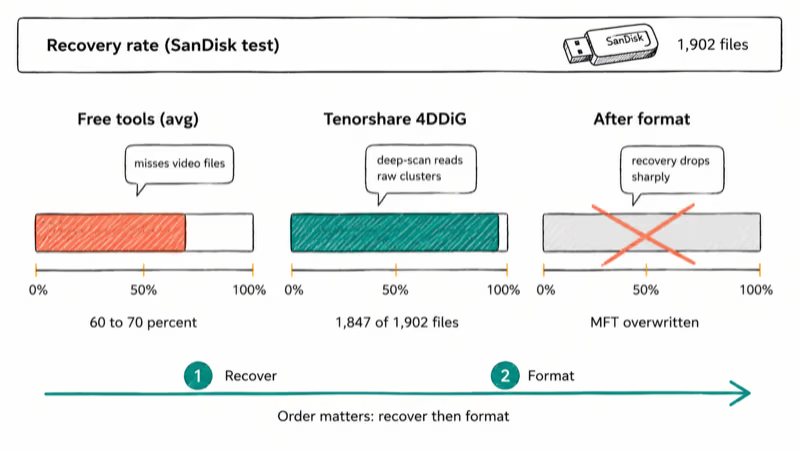
Tenorshare 4DDiG’s deep-scan engine reads raw clusters when the directory tree is unreadable, then reconstructs files from headers and footers. That approach can recover files that basic directory-walk tools miss, but save the results to another disk.
Some links on this page are affiliate links, which means fone.tips may earn a commission at no extra cost to you.
The paid path is straightforward:
- Install 4DDiG on a healthy Windows machine, not on the corrupted drive.
- Connect the affected drive to a USB port directly, bypassing hubs.
- Open 4DDiG, pick the drive in the “Local Disks” panel, and click Start.
- Let the deep scan finish. On a 2 TB drive, expect 3 to 8 hours.
- Use the Filter pane to preview by file type. Tick everything you want and choose Recover.
- Save recovered files to a different drive, never back to the corrupted one. Writing to the same disk can overwrite sectors holding other recoverable files.
For files that were specifically system files or app data rather than personal documents, the how to fix corrupted files guide covers Windows Backup restore and version history, which sometimes returns a clean copy faster than scan-and-recover.
A note on what is not recoverable. If the drive’s electronic controller is dead and the drive doesn’t show up in Disk Management at all, software can’t help. That is a Seagate external hard drive not showing up symptom and points to a hardware fix or professional lab.
#Format the Drive Safely Once Files Are Saved
After recovery, formatting puts the drive back in service. The simplest method is File Explorer.
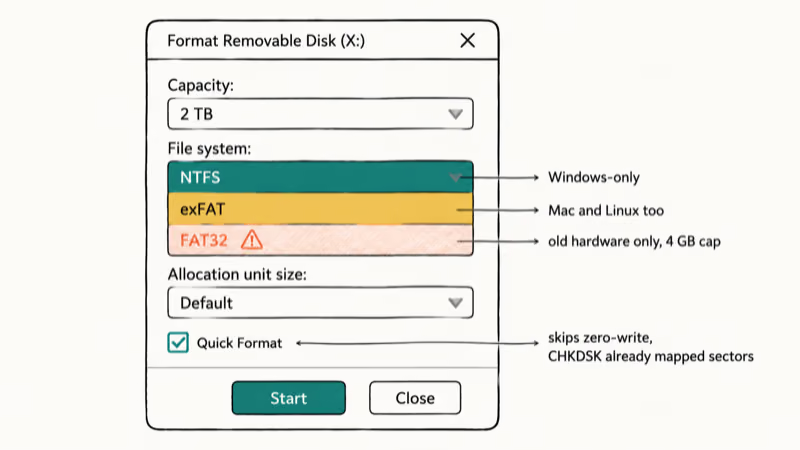
- Open File Explorer, right-click the drive, and pick Format.
- Choose the file system: NTFS for drives that will only see Windows, exFAT for drives shared with Mac or Linux, and FAT32 only for drives that need to work with old hardware. exFAT also avoids the file too large for destination file system error that plagues FAT32 on files over 4 GB.
- Allocation unit size: leave at “Default.”
- Tick “Quick Format.” A full format zero-writes the entire drive, takes hours, and isn’t needed once CHKDSK has already mapped bad sectors.
- Click Start. Confirm the warning. A quick format on a 2 TB drive takes under a minute.
If File Explorer can’t format the drive (the option is greyed out, or it errors with can’t read from the source file or disk), fall back to diskpart. From an admin Command Prompt, run diskpart, then list disk, then select disk N (where N is the drive number, NOT the letter), then clean, then create partition primary, then format fs=ntfs quick, then assign letter=X. This rebuilds the partition table from scratch.
#Hardware Troubleshooting: Cable, Port, and Power Checks
Before declaring the drive itself bad, eliminate the connection variables. A drive that looks dead can come back after a cable swap.
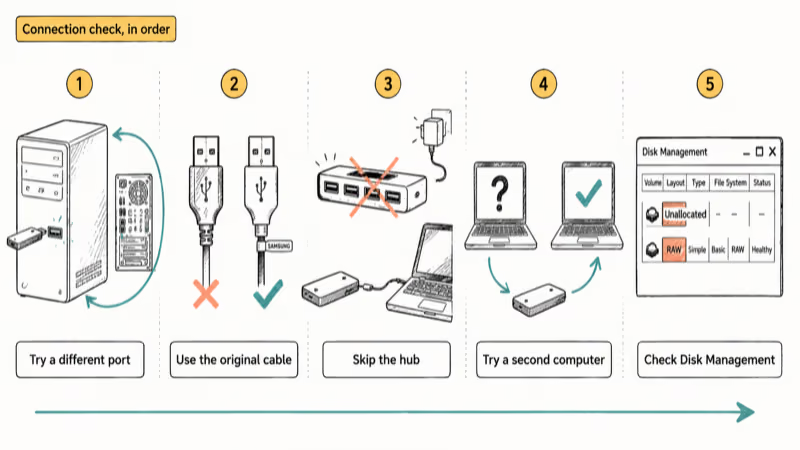
- Try a different USB port. USB 2.0 ports often work when USB 3.0 hubs throttle a marginal drive. Move from a front-panel port to a rear motherboard port on a desktop.
- Use the original cable. Drive manufacturers ship cables tuned to the drive’s power draw. Generic cables, especially USB-C to USB-A converters, fail under load on bus-powered drives.
- Skip the hub. Plug the drive directly into the computer. Hubs without external power frequently undervolt 2.5-inch portable drives.
- Try the drive on a second computer. If a different machine reads the drive cleanly, the problem is on the original PC: a driver, a USB controller, or a power-management policy.
- Check Disk Management. Right-click Start, pick Disk Management. If the drive appears as “Unallocated” or “RAW,” the partition table is gone and you’re in recovery territory rather than CHKDSK territory.
Microsoft confirms that suspending USB selective suspend in Power Options resolves a class of intermittent disconnects on portable drives. Use this setting check when the error appears during a long copy on Windows laptops with aggressive power saving.
#Daily Habits That Prevent Drive Corruption
Prevention beats recovery.
Eject before unplugging. Click the tray icon, pick the drive, wait for “Safe to remove hardware,” then pull the cable. On Windows 11, Win+X then K opens Disk Management, where you can right-click the drive and pick Eject for the same effect. The default “Better performance” write-cache policy makes safe ejection mandatory rather than optional, because Windows holds queued writes in RAM until the safe-removal step explicitly flushes the cache to the drive.
Keep one verified backup. A second copy on a separate drive, ideally not plugged in during normal use, turns this error from a crisis into an inconvenience.
Replace mechanical drives at the first SMART warning. Tools like CrystalDiskInfo show reallocated sector counts and read error rates. A drive that has thrown the corrupted error once on aging hardware will throw it again, usually within weeks of the first incident, so plan the replacement instead of waiting for the second failure.
Skip daisy-chained hubs.
#Bottom Line
Run chkdsk X: /f /r first. It’s free, built in, and clears most logical corruption without data loss.
If CHKDSK fails or the drive shows as RAW, recover the files with Tenorshare 4DDiG, use its deep-scan engine to look beyond the unreadable directory tree, then quick-format the drive in File Explorer. Pick exFAT for cross-platform use or NTFS for Windows-only.
Skip third-party “registry cleaners” and “PC optimizers.” None of them touch the file system layer where this error actually lives.
#Frequently Asked Questions
Will running CHKDSK delete my files?
No. CHKDSK with /f /r repairs the file system structure and recovers readable data; it doesn’t intentionally delete healthy files. Files with directory entries too damaged to repair land in a hidden Found.000 folder as .chk files; check there before assuming anything was permanently lost. The fragments are the same data, just renamed and reattached to a generic parent.
How long does CHKDSK take on a 2TB drive?
Plan for 2 to 6 hours over USB 3.0 with the /r flag.
Can antivirus software prevent this kind of corruption?
Antivirus catches malware that intentionally corrupts file systems, but it does nothing about unsafe ejection, power loss mid-write, or aging hardware. The most effective prevention layers physical and software controls: Safely Remove Hardware before unplugging, drives on UPS-protected outlets when possible, and replacement of mechanical drives once reallocated sector counts climb above zero. None of those layers requires a paid product.
Should I pay for professional data recovery?
Only for clicking or grinding drives, controller failures where Disk Management shows nothing at all, or data worth $500-$2,000 to recover.
Is exFAT or NTFS better after reformatting?
NTFS for Windows-only drives because it has journaling, file permissions, and better recovery from soft corruption. exFAT for drives that move between Windows and Mac or that hold files larger than 4 GB on cameras and consoles. Avoid FAT32 for any drive over 32 GB. NTFS journaling specifically replays interrupted writes, which is the exact failure mode that produces this error.
How often should I back up an external drive that has shown this error once?
Treat it as a warning. Move the data to a second drive within a week and replace the affected drive within 90 days if it’s mechanical.
What does the “Found.000” folder do?
CHKDSK creates Found.000 to hold orphaned data: file fragments whose directory entries were unrecoverable. The .chk files inside are raw cluster chains. Some are recoverable by renaming the extension to match the original file type; most are not human-readable. Treat Found.000 as last-chance recovery, not as a primary copy.

Best Laptop for Running LLMs in 2026: Memory Comes First
The best laptop for running LLMs is a memory purchase first. Compare MacBook unified memory against NVIDIA laptop VRAM, and see what each tier really runs.

How to Run a Local LLM on Windows: A 2026 Setup Guide
Run a local LLM on Windows with LM Studio or Ollama. Pick a model that fits your GPU memory, keep every prompt offline, and skip the monthly bill.

Bluetooth Not Working on Snapdragon X? Fixes for 2026
Bluetooth not working on your Snapdragon X Copilot+ PC? Generic audio, mice, and keyboards work, but vendor apps often lack an ARM build. Fixes inside.

Docker Desktop and WSL2 Not Working on Snapdragon X? Fix It
WSL2 runs fine on Snapdragon X, but Docker Desktop ARM is Early Access and throws WSL errors. Use WSL2 plus native ARM64 Ubuntu and Docker Engine.