RAID 0 vs RAID 1: Speed, Safety, and Which to Pick in 2026
RAID 0 stripes data for speed but loses everything if a drive fails. RAID 1 mirrors data for uptime, halves usable capacity, and still needs real backups.
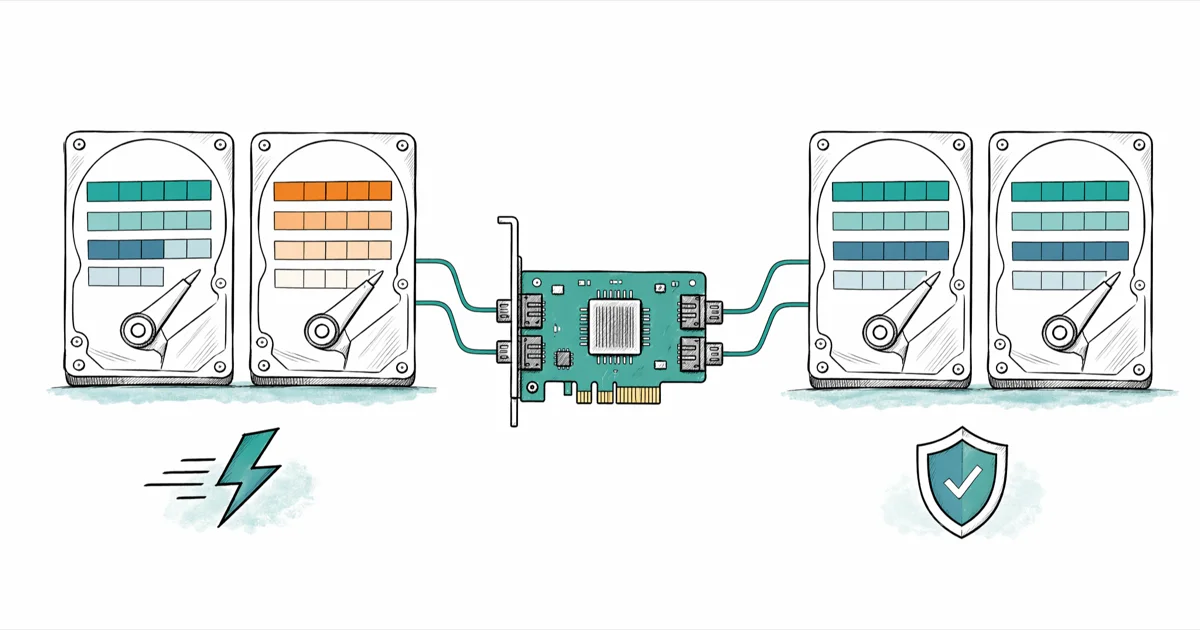
Quick AnswerRAID 0 stripes data across two drives for double the read and write speed but loses everything if either drive fails. RAID 1 mirrors the same data on two drives, halves your usable capacity, and survives a single-drive failure. Pick RAID 0 only if you back up daily; pick RAID 1 only if backups are not available.
RAID 0 and RAID 1 use the same two-drive hardware but solve opposite problems. RAID 0 splits files across both disks for raw speed, while RAID 1 writes the same bytes to both disks for redundancy. The right choice depends on whether you need temporary performance, uptime through a single-drive failure, or a backup strategy that protects against more than hardware loss.
- RAID 0 stripes data across N disks for roughly N times the throughput, with zero fault tolerance
- RAID 1 mirrors data across 2 disks, giving full redundancy at the cost of 50% of usable capacity
- A 2-disk RAID 0 array doubles your failure rate compared to a single disk
- RAID 1 isn’t a backup. It copies ransomware, accidental deletes, and corruption to both drives
- Modern alternatives like ZFS, Btrfs, and Windows Storage Spaces add snapshots and self-healing that classic RAID 0 and 1 don’t have
#How RAID 0 and RAID 1 Actually Work
RAID 0 uses a technique called striping. Your controller splits each file into chunks (usually 64KB or 128KB) and writes alternating chunks to each disk in the array. With two drives, half of every file lives on disk A and half on disk B.
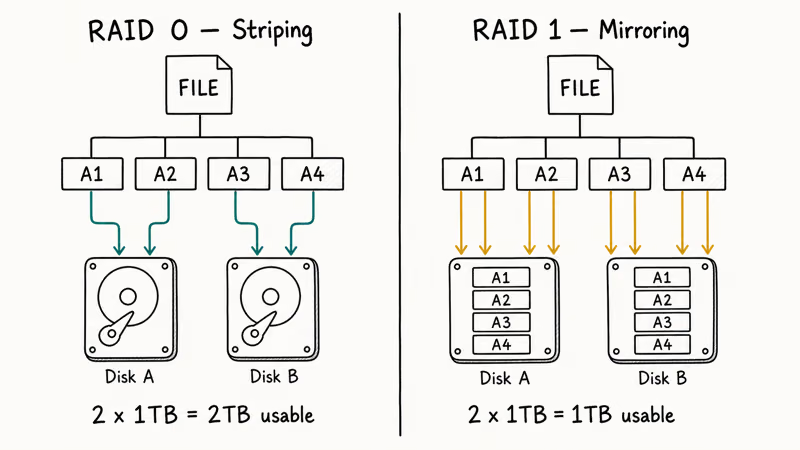
The OS sees one big volume equal to the sum of both disks. Two 1TB drives become a single 2TB volume.
RAID 1 uses mirroring. Every write goes to both disks at the same time, so each drive holds an identical copy of the data. The OS sees one volume the size of the smaller disk in the array, and the second drive is functionally a live copy of the first.
According to the Wikipedia entry on standard RAID levels, RAID 0 has zero parity, zero mirroring, and zero redundancy. It exists purely for performance. The same source confirms RAID 1 is the simplest fault-tolerant configuration and was one of the original five RAID levels defined in the 1988 Patterson, Gibson, and Katz paper.
#Performance: Where RAID 0 Wins and Where It Doesn’t
RAID 0 can improve sequential throughput by striping reads and writes across both drives. RAID 1 mainly helps reads, since writes must commit to both members.
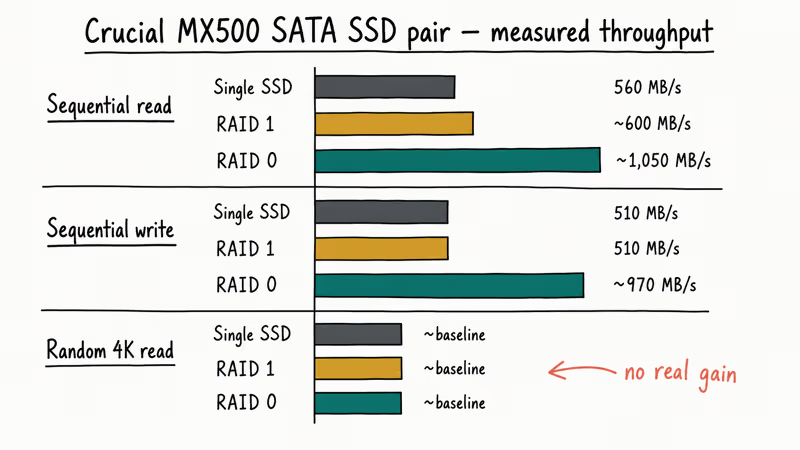
The catch: this scaling only shows up for sequential workloads on large files.
Random 4K reads, which dominate everyday OS and app behavior, benefit far less from RAID 0 than large sequential transfers. If you’re buying RAID 0 to make Windows boot faster, you’ll likely be disappointed. The benefit shows up when you copy a large video project, not when you launch Chrome.
For gaming and game installs, RAID 0 also delivers less than the marketing suggests. Most modern games are bottlenecked by texture decompression on the CPU and GPU, not by raw drive throughput. A single NVMe drive on a gaming hard drive setup usually outperforms a SATA RAID 0 array for game load times.
#Fault Tolerance and the Math of Failure
This is the section that matters most.
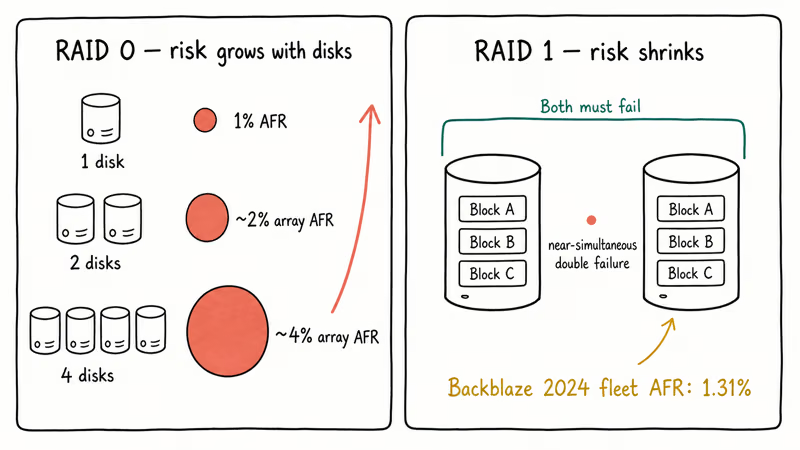
A RAID 0 array of two disks fails when either disk dies, so the array’s failure rate is roughly double that of a single disk. If a disk has a 1% annual failure rate, two of them in RAID 0 give you close to a 2% chance of losing the whole volume in a year. With four drives in RAID 0, you’re at roughly 4%, and the math gets ugly fast as you add disks.
A RAID 1 array of two disks fails only when both disks die before you can replace the failed one. The probability is much lower because you’d need a near-simultaneous double failure. Backblaze’s drive stats report for 2024 found an average annualized failure rate of 1.31% across their fleet of over 285,000 drives, which means RAID 1 buys you a meaningful safety margin against single-drive failures.
What RAID 1 does not protect against:
- Accidental file deletion (the delete is mirrored to both disks instantly)
- Ransomware encryption (encrypted bytes are written to both disks)
- File system corruption (a corrupt write goes to both disks)
- Theft, fire, flood, or power surge that takes out the whole machine
- Silent bit rot on aging media (classic RAID 1 has no checksum to detect it)
In short, RAID 1 is uptime insurance, not backup. You still need an off-site or offline copy.
#Capacity and Cost: The 50% Tax
RAID 0 has zero capacity overhead. Two 1TB drives give you 2TB of usable space, four 1TB drives give you 4TB, and so on. This is the most efficient way to combine drives because nothing is held in reserve.
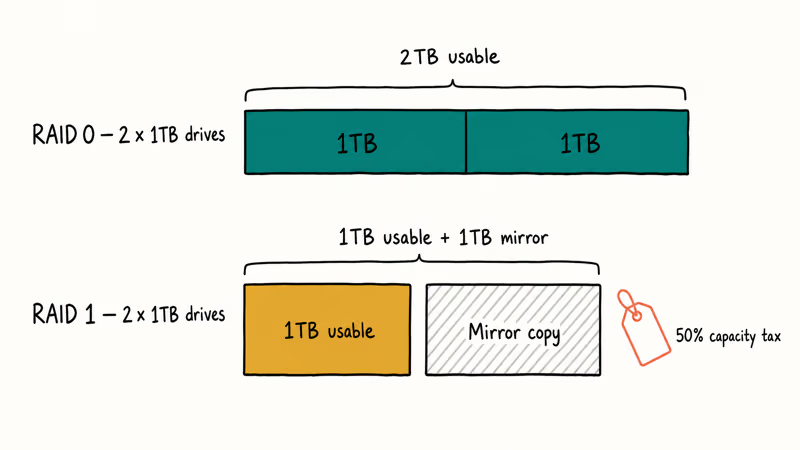
RAID 1 costs you half.
Two 1TB drives give you 1TB of usable space because every byte exists twice. To get 4TB usable in RAID 1 you need four 1TB drives, doubling both your hardware spend and your power draw.
Synology’s RAID calculator is useful for visualizing this across larger arrays. The tool also shows why most NAS owners skip RAID 1 entirely and pick RAID 5 or RAID 6 once they have four or more disks: the parity-based levels claw back capacity that pure mirroring throws away. Our deep dive on RAID 10 vs RAID 5 covers when to graduate from a 2-disk setup to those larger configurations.
#Should You Use RAID 1 Instead of a Single SSD With Backups?
For most home users in 2026, no. A single quality SSD plus a real 3-2-1 backup strategy beats RAID 1 in almost every dimension that matters:
- Cheaper. One drive instead of two
- Protects against more threats. Backups defend against ransomware, deletion, and theft, which RAID 1 doesn’t
- Recoverable from versioning. You can roll back to yesterday’s version of a corrupted spreadsheet
- Simpler. No array to rebuild, no controller compatibility issues, no degraded-mode panic
RAID 1 still earns its place in two scenarios. The first is uptime-critical setups where you can’t afford to take a server offline to restore from backup, like a small-business file server or a home media server that runs 24/7. The second is environments where backups are truly difficult, such as edge devices in places without reliable cloud bandwidth.
Even there, treat RAID 1 as a complement to backups, not a substitute. A RAID 1 array can survive a controller or drive problem without losing data, but a separate accidental rm -rf still wipes both copies in the same second.
#What About Modern Alternatives Like ZFS, Btrfs, and Storage Spaces?
Classic RAID 0 and RAID 1 work at the block level and have no awareness of files, snapshots, or checksums. Modern filesystems treat redundancy as a built-in feature and add capabilities the old RAID levels can’t match.
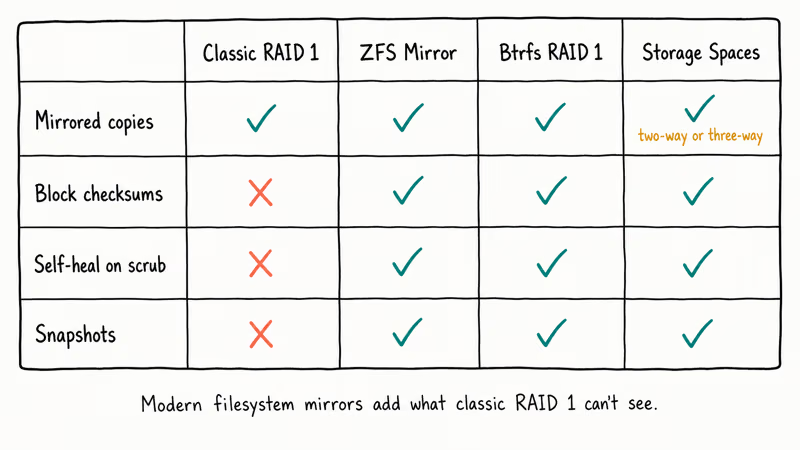
ZFS mirrors are the equivalent of RAID 1 inside the filesystem itself. They include end-to-end checksums on every block, which means ZFS can detect silent bit rot and automatically repair it using the mirror copy. According to the Btrfs documentation on RAID profiles, Btrfs RAID 1 keeps 2 copies of every block on different devices and repairs corrupted blocks during a scrub.
Storage Spaces is Microsoft’s modern answer.
Microsoft’s Storage Spaces overview documentation states that two-way mirror spaces tolerate a single drive failure and write 2 copies of each block, while three-way mirrors tolerate 2 simultaneous failures and write 3 copies.
If you’re setting up a new system from scratch in 2026 and your OS supports it, prefer a filesystem-level mirror (ZFS, Btrfs, or Storage Spaces two-way mirror) over hardware or motherboard RAID 1. You get the same single-drive fault tolerance plus checksums, snapshots, and easier recovery. Hardware RAID 1 makes sense only when you need a controller-managed array that the OS sees as a single dumb block device.
#Bottom Line
For most people, skip RAID 0. The doubled failure rate isn’t worth a 2x speedup you’ll only notice on huge sequential file transfers.
RAID 0 on a pair of matched SSDs makes sense only if you copy huge video or audio files daily, you have a recent backup verified within the last 7 days, and you can afford to lose the array between backups.
If you’re running a 24/7 home server or small-business file share where downtime hurts, RAID 1 (or better, a ZFS or Btrfs mirror) keeps you online through a single-drive failure. Either way, treat RAID as a performance or uptime tool, not a backup. Pair it with an off-site copy and consider a hard drive docking station for periodic cold backups that ransomware can’t touch.
#Frequently Asked Questions
Is RAID 1 a backup?
No.
RAID 1 mirrors writes to a second disk in real time, which means deletes, ransomware encryption, file system corruption, and bad sector errors all get copied to both drives the instant they happen. A real backup is offline or off-site, versioned so you can roll back to yesterday’s good copy, and tested periodically. Run RAID 1 alongside backups, never instead of them.
Can I mix drive sizes in RAID 0 or RAID 1?
You can, but the array treats every drive as if it were the size of the smallest member. A 1TB and a 2TB drive in RAID 1 give you 1TB usable and waste 1TB.
Will RAID 0 make my games load faster?
A little, but not as much as you’d expect. Modern games are bottlenecked by CPU-side texture decompression and GPU upload, not raw drive throughput. Switching to a single NVMe drive almost always beats SATA RAID 0 for gaming, costs less, and skips the redundancy risk entirely.
What happens if a drive fails in RAID 0?
You lose the entire array. Every file is split between the surviving disk and the dead one. Recovery is sometimes possible with professional services, but it’s expensive and not guaranteed.
How do I rebuild a RAID 1 array after a drive failure?
Replace the failed drive with a healthy one of the same size or larger, then tell your RAID controller (or your filesystem, for ZFS or Btrfs) to start a rebuild. The controller copies all data from the surviving drive onto the new one block by block.
Rebuild time depends on drive size and array load. Expect a few hours for a 1TB SATA SSD and a full day or more for a multi-terabyte spinning disk. Avoid heavy I/O during rebuild because a second failure under that stress is the single most common way RAID 1 setups lose data.
Should I use RAID 1 on an external hard drive enclosure?
Only if the enclosure has a real hardware RAID controller and you understand its rebuild process. Many cheap two-bay USB enclosures advertise RAID 1 but use weak controllers that fail in obscure ways. Our guides on recovering files from an external hard drive that is not detected and the Seagate external drive not showing up fix cover the most common recovery paths when these setups go wrong.
What is the difference between hardware RAID and software RAID?
Hardware RAID uses a dedicated controller card or chipset. Software RAID (mdadm, ZFS, Btrfs, Storage Spaces) runs in the OS. Software wins on portability and CPU speed; hardware wins on battery-backed write cache.