How to Fix File Too Large for Destination File System
Fix the "file too large for destination file system" error fast. Convert FAT32 to NTFS without data loss, or format to exFAT. Step-by-step Windows guide.
Quick AnswerThis error comes from a FAT32 drive, which caps every single file at 4 GiB regardless of free space. Convert the drive to NTFS with the built-in `convert` command, or reformat it as exFAT to remove the cap.
Your flash drive shows 64 GB free, then Windows refuses to copy a 5 GB file onto it with the “file is too large for the destination file system” error. This has nothing to do with space. It’s a file system limit baked into FAT32, and you can lift it in under five minutes without losing a single file.
Before changing these settings, use the steps only on your own device, computer, or account, or with explicit permission from the owner. Unauthorized access can violate law, privacy rights, and platform terms, so don’t use this guide to bypass someone else’s controls. When available, start with the official support option, built-in settings menu, or vendor documentation before trying manual fixes, especially if the device or account belongs to work, school, or another person.
- FAT32 caps every file at 4 GiB per Microsoft’s Win32 limits table
- The built-in
convertcommand switches FAT32 to NTFS without erasing files - Reformatting to exFAT removes the cap and works on Windows, macOS, and modern Linux
- NTFS supports files up to 2^64 minus 1 bytes per the same Microsoft reference
- 7-Zip splits one large file into sub-4 GiB parts when a device only reads FAT32
#Why Does This Error Appear at All?
One cause. The destination drive is FAT32, the file is bigger than 4 GiB.
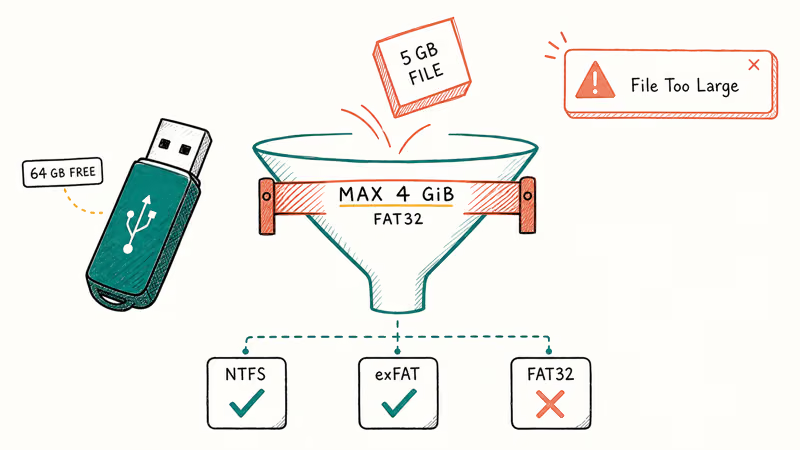
According to Microsoft’s Win32 file system comparison table, FAT32’s maximum file size is exactly 4 GiB, while NTFS and exFAT both support files up to 2^64 minus 1 bytes. Free space is irrelevant. A brand-new 128 GB FAT32 drive with nothing on it will still reject a 4.1 GB video file.
Any FAT32 drive will reject a file larger than 4 GiB, even when the drive has plenty of free space. Picking the right fix is the only real decision.
| File system | Max file size | macOS write | Best fit |
|---|---|---|---|
| FAT32 | 4 GiB | Yes | Car stereos, older gear |
| exFAT | 2^64 minus 1 bytes | Yes | Cross-platform large files |
| NTFS | 2^64 minus 1 bytes | Read only | Windows-only drives |
The volume and file size numbers in that table come straight from Microsoft’s Limits section. If you want a deeper comparison that includes when each format makes sense, our walkthrough on going from exFAT to FAT32 covers the reverse journey and the reasoning behind it in full detail, including a checklist of devices that still need FAT32 in 2026.
#How Do You Convert FAT32 to NTFS Without Data Loss?
Try this first if the drive already has files you want to keep. Windows ships with a command-line utility called convert that upgrades FAT32 volumes to NTFS in place. No reformat. No backup round-trip needed, though a current backup is still the safer move for anything important.
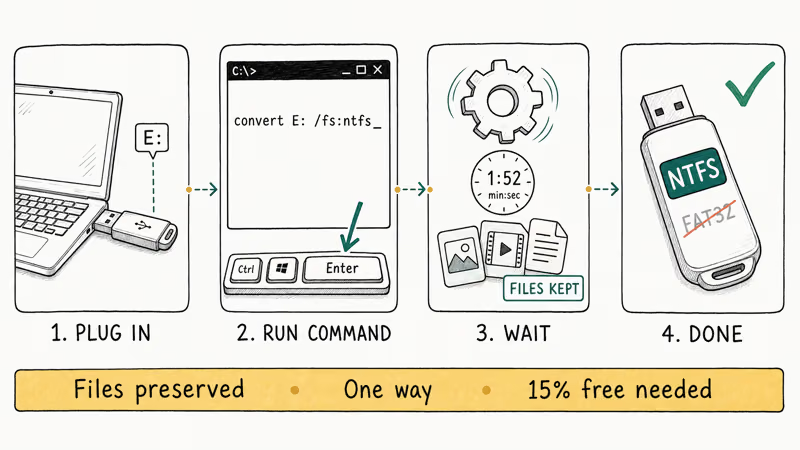
Plug the USB drive in and note its drive letter. For this walkthrough, use E: as the example drive letter. Open an elevated Command Prompt via Start > cmd > Run as administrator.
Type this command and press Enter:
convert E: /fs:ntfsSwap E: for your actual letter. The tool will prompt you for the volume label. Type it exactly as it appears in File Explorer, press Enter, and wait.
When the conversion finishes, right-click the drive in File Explorer and check Properties. The file system should show NTFS, and the 4 GiB ceiling is gone.
Microsoft’s overview of FAT, HPFS, and NTFS file systems states that NTFS is a recoverable file system that keeps a log of transactions, which is why CHKDSK rolls back to the last commit point instead of scanning the whole disk. The same page confirms NTFS extended file size limits to 2^64 bytes (about 18.4 quintillion bytes), well past anything a USB stick will ever hold.
Two things to know before running it:
- The conversion is one-way. Rolling back to FAT32 means formatting the drive and erasing everything. Plan accordingly.
- The drive needs free space for the conversion tables. Aim for at least 15 percent free. If you get an error about insufficient space, delete some files and retry.
If you hit “partition not ready” or a similar block, our guide on the GPT protective partition covers the partition-table edge cases that trip up the convert tool.
#Formatting the Drive to NTFS or exFAT
If the drive is empty, reformatting is usually quick. This is the path to pick when you want exFAT, since the convert utility only goes one direction, FAT32 to NTFS. A format rewrites the file system from scratch and erases everything on the drive, so make sure the files you care about are copied somewhere else first. Run a second copy check before hitting Format on any drive that isn’t brand new.
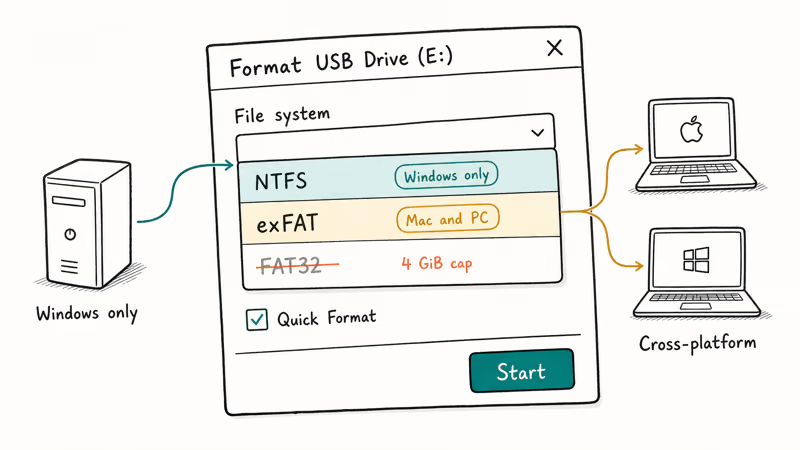
Open File Explorer and right-click the drive. Pick Format, choose NTFS for Windows-only use or exFAT for cross-platform sharing, tick Quick Format, and click Start. A quick format usually finishes within minutes on a healthy USB drive.
exFAT is the right pick for almost any drive you share between a Mac and a PC. Microsoft released the exFAT file system specification publicly, and that document confirms exFAT uses 64 bits to describe file size and allows clusters as large as 32 MB for very large storage devices. That is why modern Linux kernels (5.4 and later) ship with native exFAT read-write support, and macOS has read-write support going back years.
#Using Disk Management When File Explorer Fails
Some drives (usually older ones, or drives with non-standard partition tables) don’t show NTFS or exFAT as an option in the File Explorer Format dialog. Disk Management is the fallback.
Press Windows key + X and choose Disk Management. Find the drive in the lower panel by matching its capacity. Right-click the partition, pick Format, choose your file system, and confirm.
Disk Management can list NTFS and exFAT even when File Explorer only offers FAT32. If the drive won’t format at all, see SD card won’t format and USB device not recognized for fixes that cover dying drives and unresponsive controllers.
#Transferring Large Files on FAT32 Without Reformatting
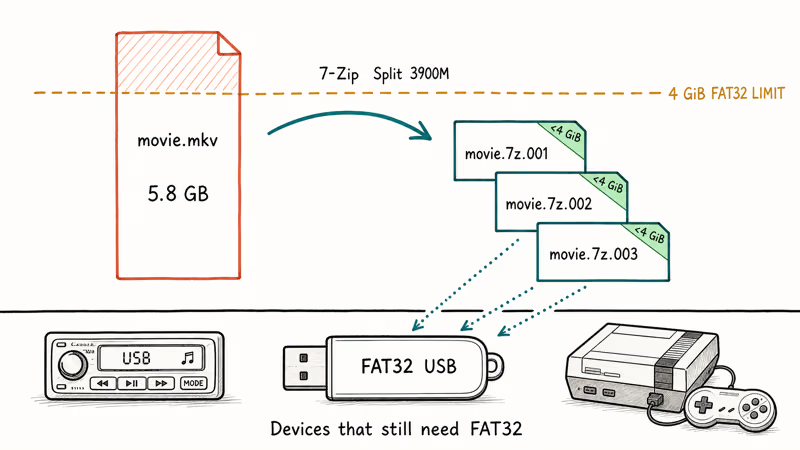
Sometimes the device on the other end only speaks FAT32. Car head units, certain cameras, older Raspberry Pi images, and legacy game consoles don’t recognize NTFS or exFAT. When that’s the case, leave the drive alone and break the file up instead.
#Splitting the File With 7-Zip
7-Zip is free. Right-click the large file in File Explorer, pick 7-Zip > Add to archive, and in the Split to volumes, bytes field, type 3900M. That keeps each part safely under the 4 GiB ceiling with headroom on both sides of the conversion, so a single part never trips the FAT32 limit even after the archive header padding.
7-Zip produces a set of numbered files (filename.7z.001, .002, and so on). Copy all of them onto the FAT32 drive. On the receiving machine, right-click filename.7z.001 and choose 7-Zip > Extract Here to rebuild the original file automatically.
Splitting a large file is fine for a one-off and tedious when you need to do it weekly, at which point the convert-to-NTFS path wins on every dimension except device compatibility.
#Cloud Storage as a Bypass
Skip the file system entirely. Google Drive gives 15 GB free and supports individual uploads up to 5 TB on paid tiers, OneDrive includes 5 GB with any Microsoft account, and Dropbox’s free tier is 2 GB.
Upload from the source machine, download on the destination, and the file system never enters the picture. For multi-drive migrations, our walkthrough on transferring Dropbox to Google Drive covers the cloud-to-cloud path.
#Choosing Between NTFS, exFAT, and FAT32
The decision comes down to where the drive will live.
NTFS is the default for internal Windows drives for good reason. It has per-file permissions, compression, encryption, and journaling.
Microsoft’s file system overview confirms the journal uses a transaction log to avoid full-disk CHKDSK runs after a crash. The tradeoff is macOS reads NTFS but can’t write to it without paid drivers like Paragon NTFS for Mac or Tuxera.
exFAT is purpose-built for removable flash storage. No 4 GiB file cap. Native read-write on Windows, macOS 10.6.5 and newer, and Linux kernel 5.4 and newer. The Microsoft exFAT specification shows exFAT uses 64 bits to describe file size, and the format supports a cluster size up to 32 MB, which is why multi-terabyte portable SSDs ship pre-formatted this way and just work the moment you plug them in on either platform without manual reformatting.
FAT32 still has a place on drives that talk to older hardware. Car audio head units, digital photo frames, some smart TVs, and older consoles only read FAT32.
Short version: NTFS for Windows-only, exFAT for cross-platform.
#Troubleshooting a Failed Convert Command
The convert command is reliable, but there are three failure modes worth knowing. Each one has a fix that takes a couple of minutes.
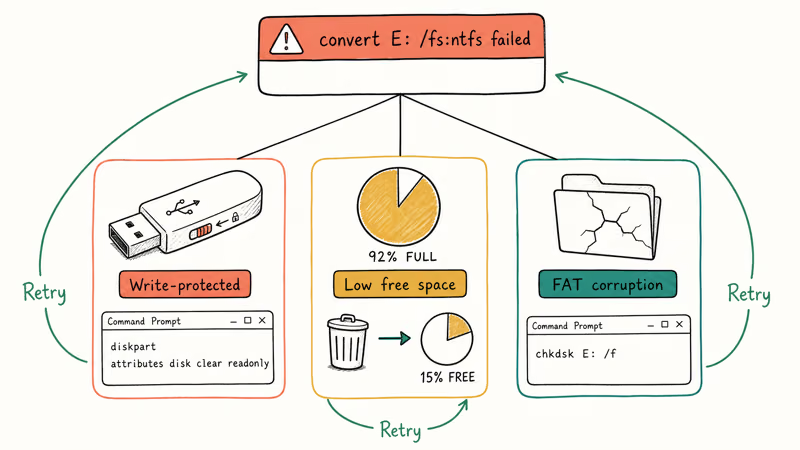
Write-protected drive. Look for a physical slider switch on the side of USB sticks or SD cards. If there’s no switch, open an admin Command Prompt and run diskpart, then list disk, select disk N (replacing N with your drive number), and attributes disk clear readonly. Exit diskpart and retry the convert.
Not enough free space. The conversion needs room for the new MFT and NTFS structures. A near-full drive will fail. Delete some files until the drive is at least 15 percent free, then retry.
File system corruption. If the FAT table itself has errors, the conversion aborts. Run chkdsk E: /f first to repair the file system, then try convert again. If you’re hitting blue screens referencing NTFS itself, our walkthrough on NTFS.sys errors covers the driver-level fixes. For drives that appear corrupted at the directory level, the file or directory is corrupted and unreadable has the recovery steps.
One more thing: if the conversion finished but some files are missing afterward, stop using the drive and run a recovery tool before writing anything new. Continued writes overwrite deleted file blocks. Our guide on recovering data from an NTFS hard drive walks through free and paid options, including PhotoRec and Recuva for the common cases and disk-imaging tools for the harder ones.
If the convert step instead surfaces a “can’t read from the source file or disk” error mid-copy, our can’t read from the source file or disk fix guide covers the long-path and bad-sector causes.
#Bottom Line
Run convert E: /fs:ntfs first if the FAT32 drive has files you want to keep. It finishes in a couple of minutes and lifts the 4 GiB cap for good.
If the drive is empty, format it as NTFS for Windows-only use or exFAT for Mac and PC sharing. Only keep FAT32 when a specific device on the receiving end refuses to read anything else. Then use 7-Zip in 3900M chunks to shuttle large files across it.
#Frequently Asked Questions
Why does my 64 GB USB drive reject a 5 GB file?
Your drive is almost certainly FAT32. The format caps every file at 4 GiB. Run convert E: /fs:ntfs to fix it.
Will the convert command delete my files?
No. Microsoft designed convert specifically to preserve data during the upgrade from FAT32 to NTFS. Still, keep a current backup before changing a drive’s file system.
Can I convert NTFS back to FAT32 later?
Not with the built-in tools. The convert utility only runs one direction. Copy files off, reformat, and copy them back is the manual path.
Should I pick NTFS or exFAT for my new USB drive?
Pick NTFS if the drive will only ever plug into Windows machines. Pick exFAT if you need to share files with a Mac, a Linux box, a smart TV, or a PS5 or Xbox Series X. exFAT has no 4 GiB file cap.
Does this error happen on Macs too?
Yes, but only when a Mac is writing to a FAT32 drive. macOS itself uses APFS or Mac OS Extended (HFS+), both of which support huge files. Plug a FAT32 stick into a Mac, drag a 5 GB file onto it, and you’ll see the same cap enforced with different wording. Reformat to exFAT in Disk Utility (Applications > Utilities) and the problem goes away.
Can I fix this on an SD card?
Same fix applies. SD cards 32 GB and smaller ship as FAT32 by default, SDXC cards (64 GB and larger) ship as exFAT. If your SD card is rejecting a 4K video clip, format it to exFAT through File Explorer or Disk Management. Some cameras require FAT32, so check the manual first.
What free space does the convert command need?
Microsoft’s documentation recommends having at least 15 percent of the volume free. Less than that and the conversion can abort with a space error.
Is exFAT a safe pick for external backups?
exFAT is fine for general-purpose external storage. It does not have the journaling NTFS uses, so a sudden power loss during a write can corrupt the allocation table. For important backups on spinning external drives, NTFS is the safer pick because of the transaction log. Flash storage rarely sees the kind of write-mid-transit failures that hurt exFAT.

Best Laptop for Running LLMs in 2026: Memory Comes First
The best laptop for running LLMs is a memory purchase first. Compare MacBook unified memory against NVIDIA laptop VRAM, and see what each tier really runs.

How to Run a Local LLM on Windows: A 2026 Setup Guide
Run a local LLM on Windows with LM Studio or Ollama. Pick a model that fits your GPU memory, keep every prompt offline, and skip the monthly bill.

Bluetooth Not Working on Snapdragon X? Fixes for 2026
Bluetooth not working on your Snapdragon X Copilot+ PC? Generic audio, mice, and keyboards work, but vendor apps often lack an ARM build. Fixes inside.

Docker Desktop and WSL2 Not Working on Snapdragon X? Fix It
WSL2 runs fine on Snapdragon X, but Docker Desktop ARM is Early Access and throws WSL errors. Use WSL2 plus native ARM64 Ubuntu and Docker Engine.