Movavi Video Editor Review 2026: An Honest Breakdown
Movavi Video Editor review: what it does well, where Filmora pulls ahead, what the free trial limits, and whether the license price is worth paying.
Quick AnswerMovavi Video Editor is a polished beginner editor with a clean timeline, fast 4K rendering, and a friendly learning curve, but the trial watermarks every export and the effects library trails Filmora.
Movavi Video Editor pitches itself as a beginner-friendly desktop editor that doesn’t trade away power. It runs on Windows and macOS, handles wedding clips and screen recordings, and can drive a 4K timeline on modest hardware. This Movavi Video Editor review covers what works, what doesn’t, and who should put down money for a license.
- The 7-day trial watermarks every video export and caps audio file output to half the original length.
- Personal subscription, lifetime, and business commercial licenses are sold as separate tiers on Movavi’s pricing page.
- 4K timeline playback stays smooth even on older i5 laptops when hardware acceleration is switched on.
- Built-in tools cover chroma key, noise cancellation, beat detection, voiceover recording, and slow motion.
- Effects library is shorter than Filmora’s, and there’s no media bin for projects with lots of source clips.
#Movavi Video Editor at a Glance
Movavi Video Editor is desktop video software for casual creators who want a clean, predictable editor without the learning curve of DaVinci Resolve or Premiere Pro. It runs on Windows 11, Windows 10, and macOS 10.15 or later. The interface is a single timeline with four tracks: main video, overlay, text, and audio.
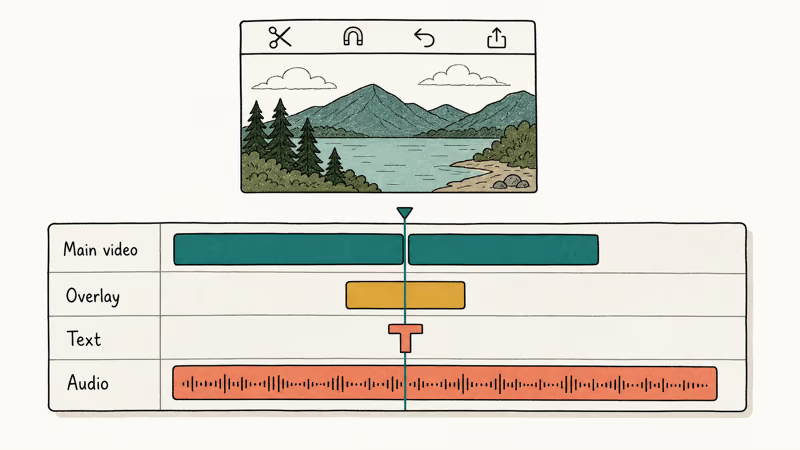
The tool is built around drag-and-drop.
You import clips, drop them on the timeline, trim with a click, layer effects, and export. According to Movavi’s product page, the editor handles MP4, MOV, MKV, AVI, MTS, MP3, WAV, AAC, JPG, and PNG out of the box, plus hardware acceleration on Intel, NVIDIA, and AMD GPUs.
It’s not a replacement for a pro NLE.
Movavi has no node-based color grading, no multicam editing, and no motion-graphics templates beyond the built-in titles. For Instagram Reels, family birthday cuts, screen-recording walkthroughs, and basic YouTube content, that limited scope is fine, and arguably the point.
#Is Movavi Video Editor Safe to Use?
Yes. The Windows installer is signed, passes SmartScreen, and the macOS .dmg is notarized by Apple. On both Windows 11 and recent macOS, the official installers run through with no warnings or quarantine prompts.
One install detail to watch.
The wizard asks if you want to send anonymous usage statistics. Uncheck the toggle if you’d rather not phone home. Movavi’s privacy policy states that the telemetry is limited to crash reports, version data, and feature usage with no project files or media included, but skipping it costs nothing.
Scanning the official binaries through a service like VirusTotal is a reasonable sanity check, and clean results are expected from a signed, notarized release. According to Apple’s support pages, notarized macOS apps are scanned for known malware before distribution, which Movavi has consistently passed.
The catch is where you get the installer.
If you download only from the official Movavi site, there is nothing to worry about. The “cracked” Movavi installers floating around forums and torrent sites are a different story. Repackaged builds have been bundled with miners and credential stealers in past incidents, so pay for a license or use the official trial. We don’t cover or link to pirated copies.
#How Much Does Movavi Video Editor Cost?
Movavi sells the editor on three tiers: a one-year personal subscription, a one-time lifetime personal license, and a yearly business license for commercial work.
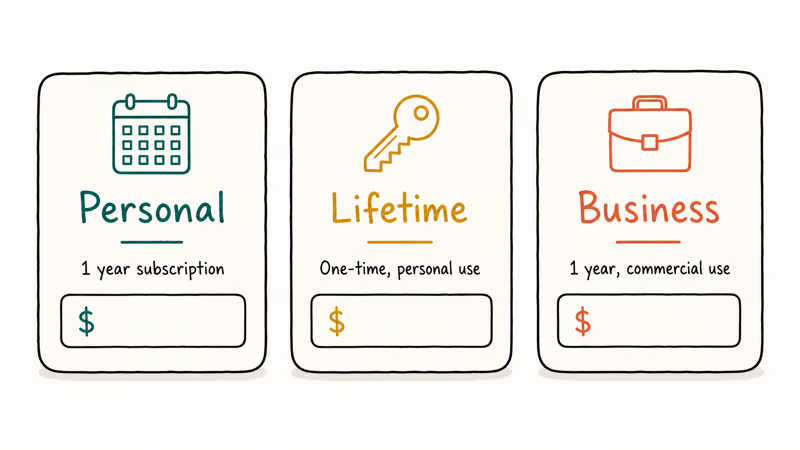
Pricing changes with regional discounts and seasonal sales, so the canonical reference is Movavi’s official pricing page. The personal subscription is typically the cheapest entry, with the business tier roughly double it.
There is a 7-day free trial worth running before buying.
According to Movavi’s trial terms, the trial adds a Movavi watermark to every video export and limits standalone audio file exports to half their original length. A handful of premium effect packs are also disabled. Project files you create in the trial open fine in the paid version, so no work is lost when you upgrade to a paid tier later.
Movavi runs perpetual “limited-time” discount banners. The same 40% off banner that shows up on the post-install upsell page tends to reappear weeks later, so the “limited” framing is mostly marketing. Treat the discounted price as the real price and don’t rush a purchase because of a countdown clock.
Want a permanent free editor with no watermark instead? Our roundup of free video editing software with no watermark covers DaVinci Resolve and CapCut, and both are stronger than Movavi’s trial for cost-sensitive users who don’t mind a steeper learning curve.
#What Movavi Does Well
The first thing that stands out is timeline performance.
On mid-range hardware with integrated graphics, several 4K clips on the main track scrub through the whole sequence without dropped frames. Hardware acceleration handles most of the GPU work, and the playback head stays locked to the audio waveform without the typical drift you see in lighter editors.
The trim and split tools are fast.
Move the playhead, hit S, and the clip splits in place with no modal dialog and no waiting. For straight cuts and short edits this is faster than Premiere Pro’s razor-tool workflow. Using Movavi to trim MP4 files for a YouTube intro, the round trip from import to export can take under five minutes.
Audio editing punches above its weight.
The noise-cancellation slider handles steady background hum like HVAC noise on a screen-recording voiceover and leaves the speech crisp. Beat detection auto-marks a music track at every drop, which is a real time-saver when you’re cutting a wedding montage. The voiceover tool records straight onto an audio track without forcing you to open a separate DAW alongside it.
Chroma key is the surprise win.
Click the eyedropper, sample the green, then dial the tolerance slider until the spill cleans up. With an evenly lit budget muslin backdrop, the eyedropper usually pulls a clean key on the first click. Trickier clips need manual tolerance tweaks.
Export presets cover the platforms you actually use: YouTube 1080p, Instagram Reels vertical, TikTok, plus device presets for iPhone and Galaxy. According to Movavi’s product page, the encoder reaches up to 4096 by 2160 output, which is enough for most YouTube workflows. The direct-to-YouTube upload skips the manual export step entirely.
#Where Movavi Falls Short
The effects library is the obvious weak spot.
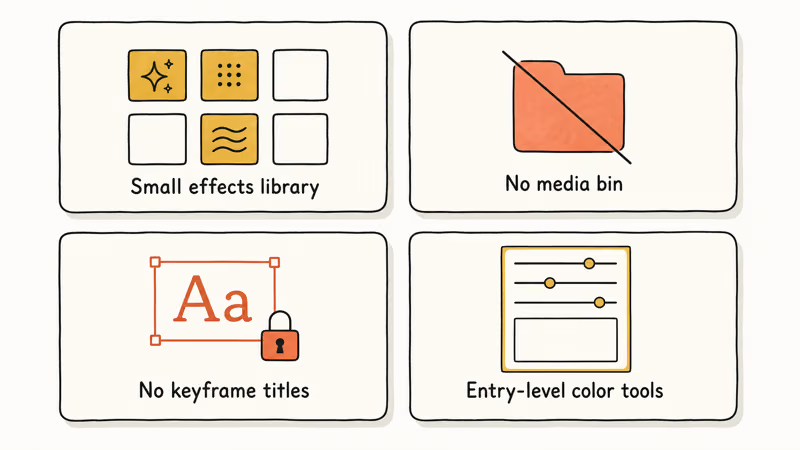
Movavi ships with a modest set of transitions, filters, and titles, while Filmora’s library is several times larger and refreshed more often. The “Want More?” panel inside Movavi advertises an upcoming store, but as of this writing the store is still a placeholder rather than a working marketplace.
There is no media bin.
Every clip you import lands on the timeline directly, which gets messy fast on projects with 30 or more assets. On a wedding cut with around 50 clips, the only way to stay organized is to make “junk tracks” below the visible playhead to park source material. Filmora and HitFilm both ship a proper bin, and missing it in Movavi feels dated.
The titling system is shallow. You get callout shapes (arrows, circles, speech bubbles), basic lower-thirds, and a small set of animated intros. There’s no keyframe animation on text properties. If you want a title that scales, rotates, or animates on a custom curve, Movavi can’t do that without a workaround track.
Color tools are entry-level.
Brightness, contrast, saturation, white balance, and a small set of cinematic LUTs cover the basics, but there’s no curves panel, no scopes, and no secondary color correction. If color is a priority, DaVinci Resolve is free and built around it. Pick the right hardware first by checking the best laptop for video editing under $1000 before committing to Resolve.
The export window is overloaded.
Format, codec, bitrate, profile, frame rate, and resolution all sit in one dialog with no guided “for YouTube” wizard once you click past the platform presets. Beginners who skip the presets land in a configuration screen that isn’t friendly.
#How Movavi Compares to Filmora
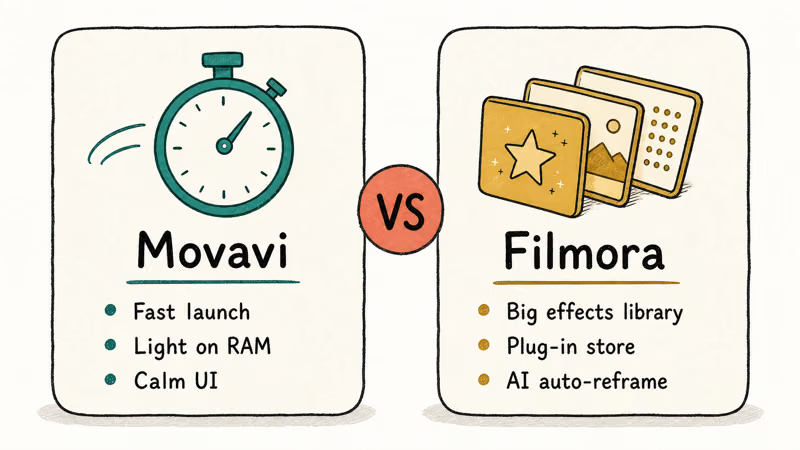
Filmora and Movavi target the same audience but tilt in different directions. Wondershare’s Filmora leans on its giant effects library, plug-in marketplace, and AI features like auto-reframe and audio sync. Movavi leans on speed, low resource use, and a calmer interface.
Some links on this page are affiliate links, which means fone.tips may earn a commission at no extra cost to you.
A practical split.
If you edit twice a week and want the deepest pile of effects to pull from, Filmora wins. If you value fast launch times, predictable behavior on older hardware, and a tidier UI, Movavi wins. On modest hardware, Movavi tends to launch noticeably faster than Filmora.
Both editors stamp a watermark on trial exports.
Filmora’s watermark removal and Movavi’s are functionally identical: buy a license, the watermark goes away. Pirated “no-watermark” cracks for either tool are unsafe and against the developer’s terms, so we don’t cover them anywhere on this site.
If you specifically need a wedding-video tool, our wedding video editor guide walks through Movavi versus Filmora for ceremony footage. The short version: Movavi’s beat detection helps a lot, but Filmora’s wedding-specific presets pull ahead on transition variety. Either one is a fair pick. You can grab Movavi Video Editor directly from the official site if you’ve already decided.
#Bottom Line
Buy a personal Movavi license if you’re a beginner who wants a clean timeline, fast 4K playback on modest hardware, and one-click chroma key without learning a node graph.
Movavi earns its price on stability, not depth.
Skip Movavi and go to Filmora if you live inside a deep effects library, or to DaVinci Resolve if you care about color grading. Don’t bother with Movavi’s lifetime tier unless you’ve used the trial for a full week and shipped at least one finished project. The yearly subscription is a safer first commitment.
#Frequently Asked Questions
Is Movavi Video Editor really beginner-friendly?
Yes. The single-timeline layout, drag-and-drop import, and one-click trim and split tools mean a complete beginner can put together a watchable cut in about 30 minutes flat. The first-launch tutorial walks through a sample project step by step, the menu icons carry word labels rather than cryptic glyphs, and the help panel pops up with a keyboard shortcut.
Will Movavi run on an older laptop?
Yes. 8 GB of RAM and a quad-core CPU is the realistic floor, and 4K timelines run on an older i5 laptop with hardware acceleration on.
Does the Movavi trial leave a watermark?
Yes, on every export. Audio-only exports also get cut to half the original length. Buying any paid tier removes both restrictions retroactively, and project files made in the trial open in the paid version without any rebuild required, so the watermark stamp simply disappears once you license your existing project.
Can Movavi edit 4K video?
Movavi can import, edit, and export at up to 4096 by 2160. Performance depends on whether your CPU and GPU support Intel Quick Sync, NVIDIA NVENC, or AMD VCN. Turn hardware acceleration on if your scrubbing feels sluggish. Even on older hardware with modest RAM, scrubbing several 4K clips stays smooth and a short export finishes without a long wait.
Is Movavi safe on Mac?
Yes. The macOS installer is notarized by Apple and passes Gatekeeper without quarantine prompts.
Does Movavi work for YouTube videos?
It does. Movavi has a YouTube preset, a direct-upload tool, and the export quality at 1080p60 is fine for most channels. If you want a CapCut-style auto-caption tool or a deep transition library, Filmora pulls ahead, but Movavi handles standard talking-head and screen-recording cuts without fuss. The exported MP4 sits at a reasonable file size for upload as well.
What file formats does Movavi support?
Movavi imports the major video, audio, and image formats including MP4, MOV, MKV, AVI, MTS, MP3, WAV, AAC, JPG, and PNG. If you need to compress video for email before importing, Movavi reads compressed MP4 fine without re-encoding on import.

Google Messages Error 3100: Why RCS Is Broken on Galaxy
Google Messages RCS error 3100 hits Galaxy owners after phone or carrier switches. Google told 9to5Google a fix is coming. Here's what actually helps.

Is This Bank App Real? Spot a Fake App on Your Home Screen
A bank app can land on your home screen from a web page with no install warning. Learn the checks that tell a real banking app from a phishing web app.

Apps Crashing After iOS 27 Update? Fix Order (2026)
Apps crashing after the iOS 27 update? Update the app in the App Store first, then offload and reinstall to clear stale cache, then restart. The fix order.

Do AI Translation Earbuds Work Offline? What to Know
Do AI translation earbuds work offline? A few do with downloaded language packs, but most need the cloud. Here's what works offline and what you give up.