Apple Intelligence Not Working on iPhone? Fixes (2026)
Apple Intelligence not working on iPhone after iOS 27? Turn off Low Power Mode, stay on Wi-Fi while charging, and free up 7 GB. Step-by-step fixes.
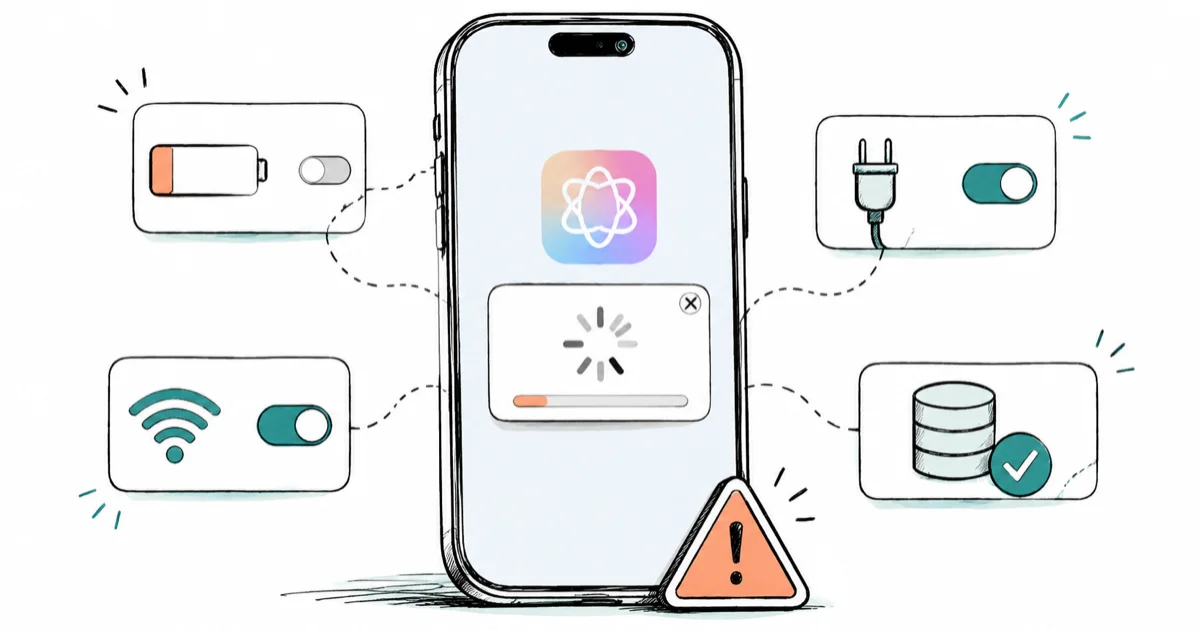
Quick AnswerTurn off Low Power Mode, stay on Wi-Fi, and plug in to charge. The on-device model download pauses on Low Power Mode and needs 7 GB free, so the toggle often looks stuck until those three conditions are met.
Apple Intelligence not working on iPhone after updating to iOS 27 almost always traces back to a few causes, and most aren’t bugs. The toggle won’t stay on, Siri sits on “Preparing” for hours, or features do nothing because the model hasn’t downloaded yet. Our iOS 27 AI features guide covers everything you’re trying to unlock.
- Low Power Mode pauses the on-device model download even on Wi-Fi, so turn it off first.
- Apple Intelligence needs 7 GB of free storage for the local models to install.
- The features require an iPhone 15 Pro or any iPhone 16, not just iOS 27.
- Your device language and Siri language must be set to the same supported language.
- A VPN or restrictive carrier network can block the download, so stay on plain Wi-Fi while it finishes.
#Why Is Apple Intelligence Stuck on “Preparing”?
The “Preparing” state is the single most common complaint, and it’s usually expected behavior, not a failure.
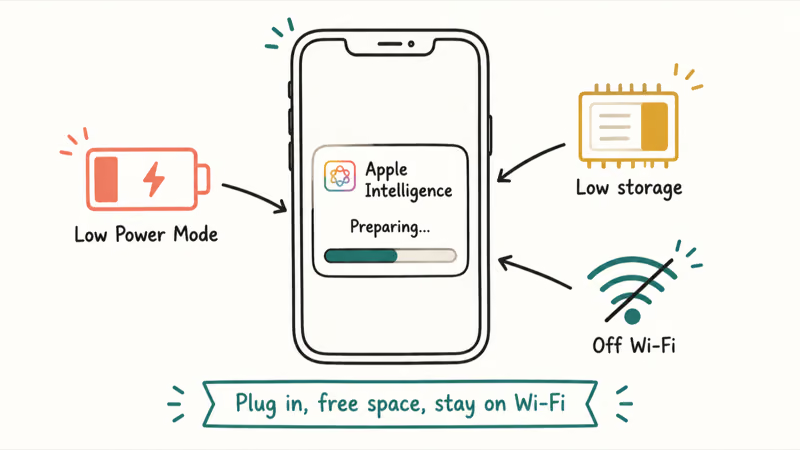
When you turn Apple Intelligence on for the first time, your iPhone downloads several gigabytes of on-device models in the background. That download is throttled. According to Apple’s Low Power Mode support page, Low Power Mode pauses automatic downloads and background app refresh to save battery, and the model download is exactly that kind of background task. So even if you’re on fast Wi-Fi, the “Preparing” spinner can sit there indefinitely while the battery icon is yellow.
Turn Low Power Mode off, plug the iPhone in to charge, and leave it on Wi-Fi with the screen locked. Those conditions let the background model download continue instead of being paused by battery-saving settings.
The same conditions matter for the download itself, not just the toggle. If you’re hitting other post-update issues alongside this, our iOS 27 beta battery drain guide covers why the first day after an update is rough on battery and background tasks.
#Your iPhone Might Not Support Apple Intelligence
This catches more people than any software fix, because iOS 27 and Apple Intelligence have different hardware floors.
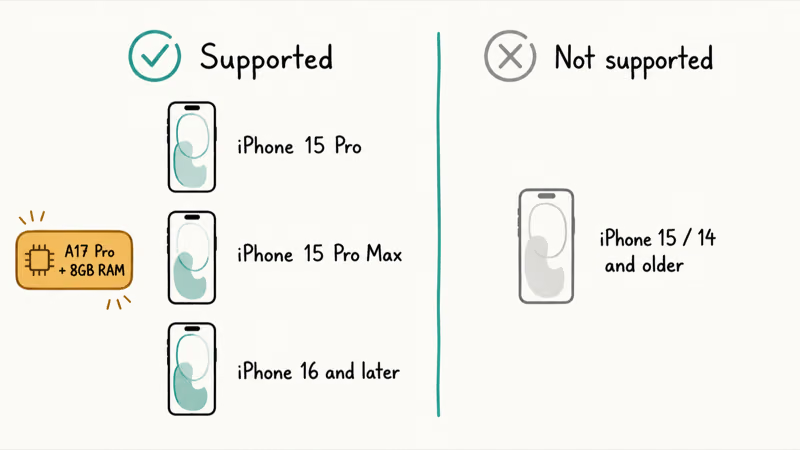
iOS 27 itself runs on iPhone 11 and the second-generation SE and up. Apple Intelligence doesn’t. According to Apple’s “How to get Apple Intelligence” support page, the features require “iPhone 15 Pro models, and iPhone 16 models or later.” That means an iPhone 14, an iPhone 15, or an iPhone 15 Plus will install iOS 27 cleanly and still show no Apple Intelligence settings at all.
The dividing line is the chip and the RAM. The iPhone 15 Pro was the first to ship the A17 Pro with 8 GB of memory, which is what the on-device models need. So if your iPhone is older than the 15 Pro, nothing in this article will turn the feature on, because the hardware can’t run it. Check your model in Settings > General > About, and cross-reference our iOS 27 compatible iPhones guide for the full update list.
If you do have a supported phone but the menu is still missing, the problem is almost always one of the software causes below.
#The Fixes, in Order
Here’s a symptom-to-cause-to-fix map for Apple Intelligence failures after an update. Each row is an independent fix, so you can scan the left column for whatever your iPhone is actually doing and jump straight to the matching cause and fix without working through the others first.
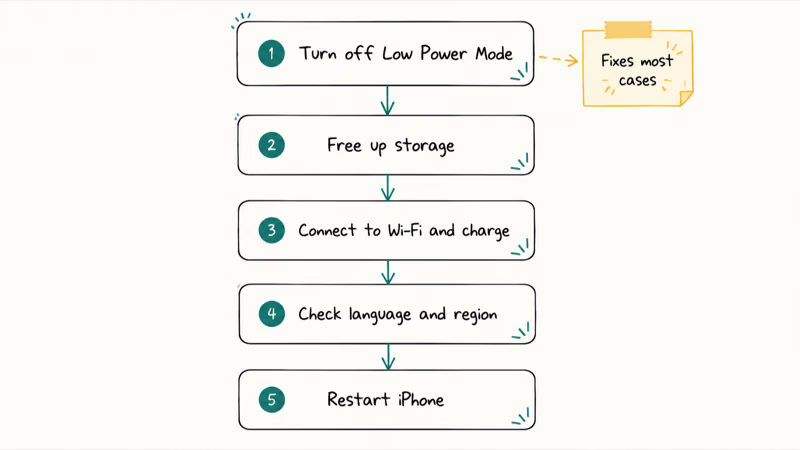
| Symptom | Likely cause | Fix |
|---|---|---|
| Stuck on "Preparing" for hours | Low Power Mode pausing the download | Turn off Low Power Mode, plug in, stay on Wi-Fi |
| Toggle turns itself back off | Not enough free storage | Free up 7 GB, then re-enable |
| No Apple Intelligence menu at all | Unsupported iPhone model | Needs iPhone 15 Pro or any iPhone 16 |
| Features greyed out or absent | Device and Siri language mismatch | Set both to the same supported language |
| Download never starts or fails | VPN, cellular, or carrier restriction | Disconnect VPN, switch to plain Wi-Fi |
| Everything looks right but nothing responds | Stale install after the update | Restart the iPhone while charging |
#Fix Storage, Language, and Network
Three of the six fixes are quick settings changes you can make right now. Work through them before you assume the install is broken.
Free up storage. Apple’s support page lists “7 GB of storage on device” as a hard requirement, and a nearly full iPhone makes the download fail quietly. Clear space in Settings > General > iPhone Storage, then re-enable the toggle. Our iPhone storage almost full guide covers what to delete first.
Match your languages. Apple Intelligence only works when, per the same Apple support page, your “device language and Siri language set to the same supported language.” If your phone language is English but Siri is set to another, the features won’t appear. Line them up in Settings > General > Language & Region and Settings > Apple Intelligence & Siri. Apple also notes that changing the Siri language leaves the features unavailable until the new language finishes downloading.
Drop the VPN and stay on Wi-Fi. A restrictive network is a frequent culprit. As macReports’ guide to Apple Intelligence stuck downloading advises, keep the device “on a reliable Wi-Fi network” and plugged in rather than on cellular, and the same guide flags VPN interference and carrier restrictions as common blockers. Turn the VPN off, switch off cellular data for the download, and let plain Wi-Fi carry it.
#Should You Just Restart the iPhone?
Yes, and it’s worth doing before you assume something is broken. A restart clears the stale state that an iOS update can leave behind.
Restart while charging. The order matters a little. Power the iPhone off, wait about 30 seconds, then power it back on while it’s plugged into the charger. macReports recommends this exact power-off-while-charging sequence for a download that’s been idle. If Siri itself is the part misbehaving rather than Apple Intelligence as a whole, our Hey Siri not working guide has the Siri-specific resets.
If a restart, a charge cycle, and free storage still leave you stuck, toggle Apple Intelligence off in Settings, restart once more, then turn it back on to force a fresh download. If you’d rather leave the feature off for good, our how to turn off Apple Intelligence walkthrough covers the Settings path and the related Siri switches.
#What Apple Intelligence Needs to Run
It helps to know the full checklist, because “not working” usually means one box on this list is unchecked. Apple describes Apple Intelligence as a system of on-device generative models built into iOS, which you can read about on Apple’s Apple Intelligence page.
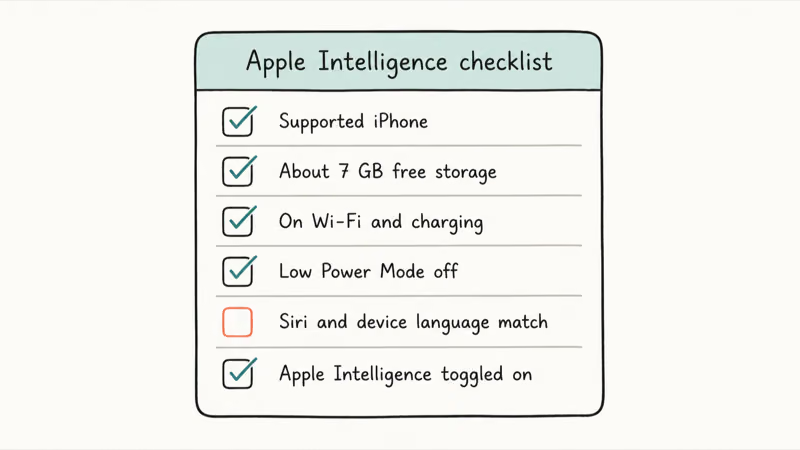
Here’s the complete requirement set on iPhone:
- An iPhone 15 Pro, iPhone 15 Pro Max, or any iPhone 16 or later
- iOS 27 (or iOS 18.1 and later, where the feature launched)
- 7 GB of free storage for the on-device models
- Device language and Siri language set to the same supported language
- An Apple Account region where Apple Intelligence is available
- Time, Wi-Fi, and power for the first download to finish
Miss any one and the feature looks dead even though the others are fine. Once it’s running, you can move on to the iOS 27 third-party AI guide to pick Gemini, Claude, or ChatGPT as the model behind Siri, or the iOS 26 Apple Intelligence requirements guide if you’re comparing against last year’s rollout.
#Bottom Line
For most people, the fix is the first one: turn off Low Power Mode, plug the iPhone in, and leave it on Wi-Fi. That gives the “Preparing” spinner and the toggle-won’t-stick problem the conditions they need to clear, because the model download is a background task that Low Power Mode actively pauses.
If the menu is missing entirely and you’re on an iPhone 14 or older, stop troubleshooting. The hardware can’t run it.
Everyone else: free up 7 GB, match your languages, drop any VPN, and give it one restart while charging.
iOS 27 Beta
#Frequently Asked Questions
Why is Apple Intelligence stuck on “Preparing” on my iPhone?
The on-device models are still downloading, and the download is throttled. Low Power Mode pauses it, low storage stalls it, and a weak or restricted connection slows it. Turn off Low Power Mode, free up 7 GB, plug in, and stay on Wi-Fi.
Does Apple Intelligence work on iPhone 14?
No. Apple Intelligence requires an iPhone 15 Pro, iPhone 15 Pro Max, or any iPhone 16 or later. iPhone 14 runs iOS 27 but won’t show any Apple Intelligence settings, because it lacks the A17 Pro chip and 8 GB of RAM the on-device models need.
How much storage does Apple Intelligence need?
Apple’s support page lists 7 GB of free storage on device. If your iPhone is nearly full, the download fails quietly and the toggle flips back off. Clear space in Settings > General > iPhone Storage and try again.
Why does the Apple Intelligence toggle keep turning off?
The two usual reasons are not enough free storage and Low Power Mode interrupting the install. Free up at least 7 GB, disable Low Power Mode, plug the iPhone in, then re-enable the toggle and leave it to finish on Wi-Fi.
Does Low Power Mode really stop Apple Intelligence from downloading?
Yes. Apple’s own documentation says Low Power Mode pauses automatic downloads and background app refresh, and the model download counts as a background task. Even on Wi-Fi, the install won’t progress until you turn Low Power Mode off.
Can a VPN block Apple Intelligence?
It can. A VPN or a restrictive carrier network can interfere with the model download. Disconnect the VPN, switch off cellular data, and run the download on a plain Wi-Fi network with the iPhone plugged in.
Do I need to change my language settings for Apple Intelligence?
Only if they don’t match. Your device language and Siri language must be set to the same supported language. If you change the Siri language, Apple Intelligence stays unavailable until that language finishes downloading and lines up with the device language.
Will Apple Intelligence work without Wi-Fi?
The first download essentially needs Wi-Fi, since Apple recommends a reliable Wi-Fi network over cellular for it. After the on-device models are installed, basic features like Writing Tools run locally without a connection, though heavier requests still route through Apple’s servers and need internet.

Apps Crashing After iOS 27 Update? Fix Order (2026)
Apps crashing after the iOS 27 update? Update the app in the App Store first, then offload and reinstall to clear stale cache, then restart. The fix order.

Genmoji or Image Playground Not Working? iOS 27 Fix
Genmoji or Image Playground not working on iOS 27? Turn on Apple Intelligence, free up 7 GB, drop Low Power Mode, and let the image model finish.
iOS 27 Problems and How to Fix Each of Them (2026)
iOS 27 problems? Battery drain, overheating, Wi-Fi drops, crashing apps, and Apple Intelligence stuck. Each problem with its top fix and full guide here.
iPhone Overheating After iOS 27 Update? Why and Fixes
iPhone overheating after the iOS 27 update is usually normal background indexing for the first day or two. How to tell normal heat from a real problem.