iPhone Internal Storage Empty on PC? 5 Proven Fixes
Fix iPhone internal storage showing empty on a Windows PC. Five proven methods to reach the DCIM folder, transfer photos, and unblock File Explorer.
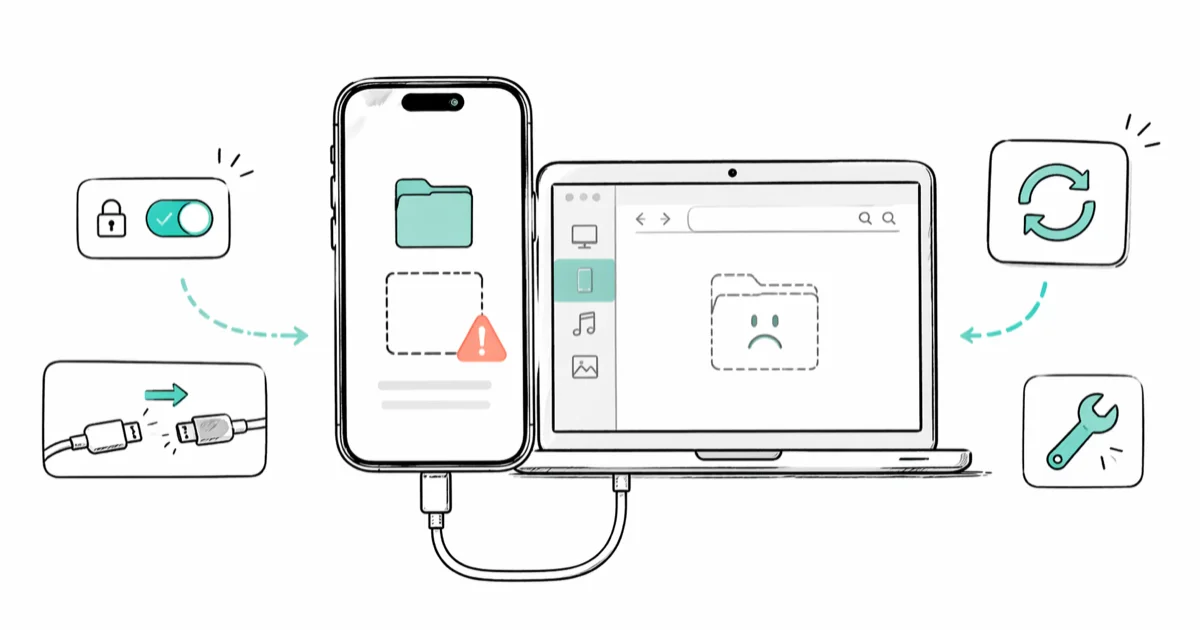
Quick AnswerUnlock your iPhone, reconnect the USB cable, and tap Trust This Computer when prompted. The DCIM folder only appears after the device is unlocked and the PC is authorized.
You plug your iPhone into a Windows PC, double-click Internal Storage, and the folder is blank. No DCIM, no thumbnails, just an empty pane. On a current iPhone paired with a Windows 11 PC, the screen lock is usually the entire problem, and the fix takes about two minutes once you know what File Explorer actually shows.
This guide is for working with your own device; accessing a phone you don’t legally own without permission is illegal in most jurisdictions.
- DCIM only appears after you unlock the iPhone and tap Trust on the device
- Optimize iPhone Storage hides full-resolution photos behind iCloud, leaving DCIM almost empty
- Reinstalling the Apple Mobile Device USB Driver clears most Windows 10 and Windows 11 detection failures
- A bad or charge-only Lightning cable is a common cause of empty-storage cases, even when the phone still charges
- iCloud for Windows or icloud.com sidesteps the DCIM folder entirely
#Why Does iPhone Internal Storage Show as Empty?
Three causes account for almost every empty-storage report across iOS 16, 17, and 18 paired with Windows 10 and 11. Pinning yours down first saves you from rebooting drivers you didn’t need to touch, and the symptoms diverge enough that the right diagnosis halves the time to a working DCIM. Pause for a second on which symptom matches yours.
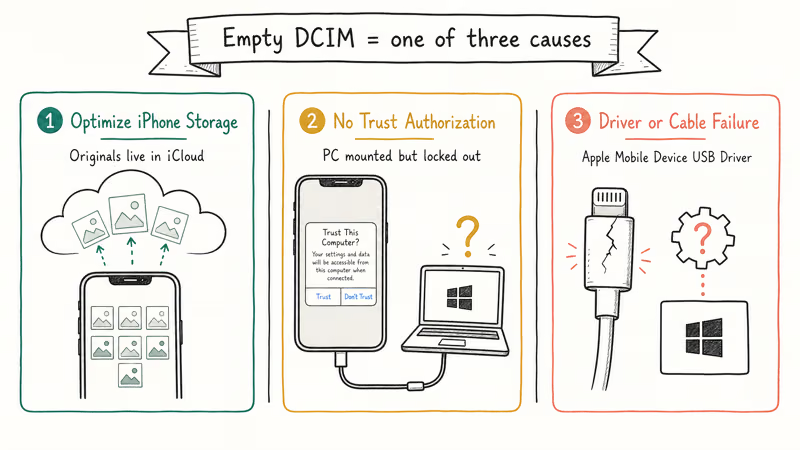
Cause one is iCloud Photos with Optimize iPhone Storage. With this setting on, your iPhone keeps low-resolution previews on the device and parks the originals in iCloud. File Explorer only sees photos sitting in physical storage, so a 50,000-photo library can show as a near-empty DCIM. According to Apple’s iCloud Photos overview, iOS uses Optimize iPhone Storage to “automatically replace full-resolution photos and videos with smaller, device-sized versions” once local space tightens. Those device-sized versions aren’t exported through MTP, which is the protocol Windows uses to read iPhone storage.
Cause two is missing trust authorization. Your iPhone treats every new computer as untrusted until you tap Trust on the device and enter the passcode.
Did you dismiss the prompt, ignore it on a locked screen, or use a PC that was reimaged? Then Windows can mount the drive but can’t read its contents until you re-authorize.
Cause three is a driver or cable failure. Apple’s Mobile Device USB Driver lets Windows talk to iOS hardware, and a stale or missing copy makes the storage look empty even when everything else works. Apple’s Windows iPhone troubleshooting guide confirms that this driver is required for any version of Windows to enumerate iPhone storage.
#Unlock Your iPhone and Re-Authorize the PC
The lock-screen fix works for most readers. Usually the DCIM folder fills in within seconds of unlocking the device and tapping Trust.
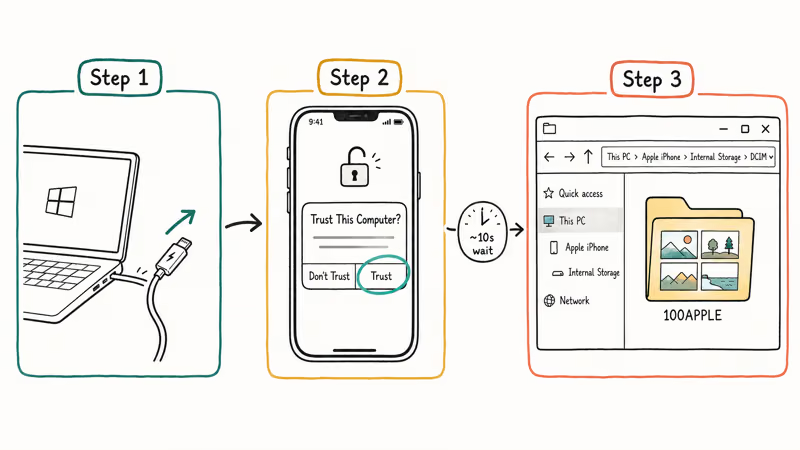
Start by unplugging the cable. Wake the iPhone with Face ID, Touch ID, or your passcode, and keep the screen on while you replug. Watch the iPhone screen. The Trust This Computer dialog appears within a few seconds when the PC is recognized.
Tap Trust and enter the passcode if iOS asks. Wait roughly ten seconds for Windows to remount the device, then open File Explorer → This PC → Apple iPhone → Internal Storage → DCIM. Photos should now be visible inside subfolders like 100APPLE.
If the Trust prompt never shows, the existing trust record is corrupted. Reset it from the iPhone: Settings → General → Transfer or Reset iPhone → Reset → Reset Location & Privacy. Disconnect, reconnect, and the prompt will reappear.
While you’re deep in Settings, this is also a good moment to grab nearby credentials. The same iOS area is where you can see your Wi-Fi password on iPhone without opening another device. Stuck on a different surface where the prompt loops endlessly? Our guide on Trust This Computer keeps popping up covers the certificate-store fix.
#Turn Off Optimize iPhone Storage
When DCIM stays mostly empty even after a clean trust, iCloud’s space-saving feature is almost always the reason. You have two clean ways out: pull the originals back to the iPhone, or skip the cable entirely and download from iCloud on the PC.
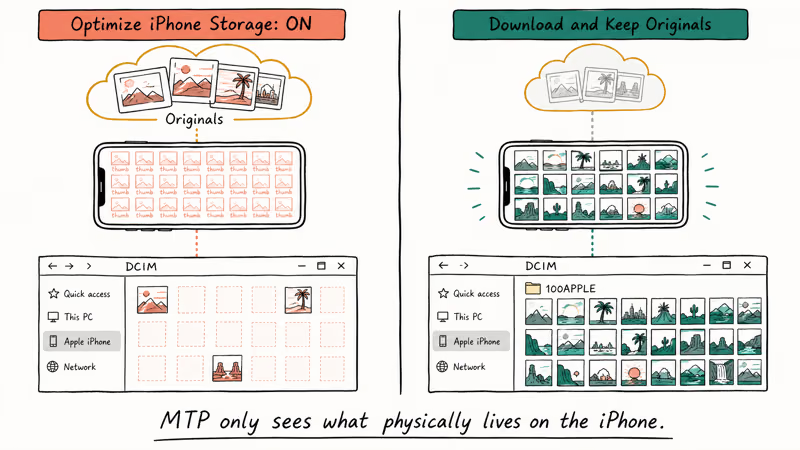
Option A: download originals to the iPhone. Go to Settings → Photos, scroll to the iCloud Photos block, and choose Download and Keep Originals instead of Optimize iPhone Storage.
iOS now starts pulling full-resolution copies onto the device. A 5,000-photo library typically needs 15-25 GB of free space, and a download of that size can take an hour or more on home Wi-Fi. Wait for the progress bar at the bottom of the Photos tab to finish before reconnecting the cable. The DCIM folder will then list every JPEG and HEIC.
Watch your headroom. This approach eats storage quickly, so confirm space under Settings → General → iPhone Storage first. If the iPhone is already running tight or your iCloud storage is full, clear space before flipping the switch. Otherwise photos pause halfway and DCIM stays partial.
Option B: skip DCIM by downloading from iCloud.com. Open icloud.com in any browser on the PC, sign in with the Apple ID, and click Photos. Select photos in batches of 1,000 or fewer, click the download icon, and pick Unmodified Originals to preserve metadata and HEIC quality. This route doesn’t require the cable or any iPhone storage adjustment, which is why we recommend it for libraries above 30 GB.
#Reinstall the Apple Mobile Device USB Driver
When the iPhone is unlocked, trusted, and Optimize Storage is off but DCIM still reads as empty, the driver is almost always the culprit. Reinstalling it forces Windows to redetect the device cleanly.
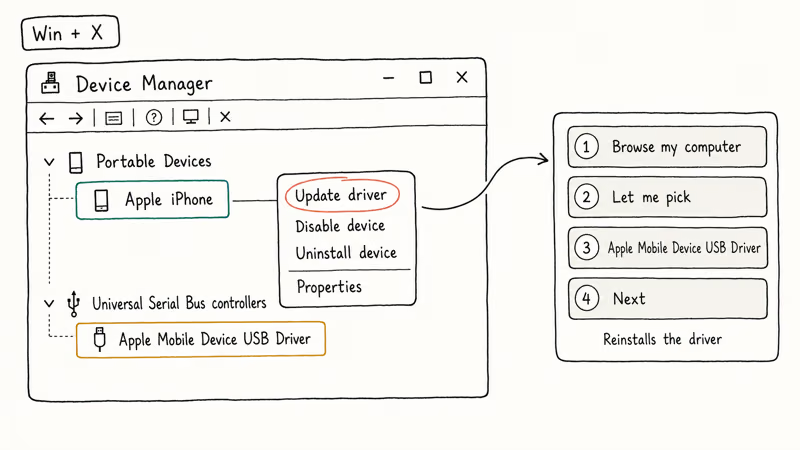
Plug the iPhone into the PC and unlock it. Press Windows + X and choose Device Manager. Expand Portable Devices, locate Apple iPhone, right-click, and select Update driver. Pick Browse my computer for drivers, then Let me pick from a list of available drivers. Choose Apple Mobile Device USB Driver and click Next.
Windows reseats the entry and the storage usually comes back online without a reboot. If Apple iPhone is missing from Portable Devices, expand Universal Serial Bus controllers and look for Apple Mobile Device USB Driver. Right-click it, select Uninstall device, tick Delete the driver software for this device, and confirm. Unplug the iPhone, restart Windows, and reconnect.
When Windows still doesn’t enumerate the device, reinstall the driver bundle from scratch. Apple’s Windows iPhone driver page walks through the iTunes versus Apple Devices app split. Microsoft Store installs use the Apple Devices app, while older standalone iTunes installers use a separate driver path. Use whichever bundle matches your install, and confirm the service Apple Mobile Device Service is set to Automatic in services.msc after the install.
#Try a Different USB Cable and Port
Cables fail more often than people expect. The failure mode is sneaky: the iPhone charges fine, Windows mounts the drive, and File Explorer still shows nothing. A worn or low-quality Lightning cable can produce an empty DCIM every time, even though it charges at full speed, so swapping cables is worth trying before you touch drivers.
Buy quality first. Use the original Apple cable that shipped with the device, or any MFi-certified replacement. Plug it directly into a USB port on the PC rather than going through a hub, dock, or keyboard pass-through. USB 3.0 ports are usually marked with a blue tongue or an SS logo, and they’re more reliable than USB 2.0 for the MTP handshake. A Type-A 3.0 port also halves the time a 50 GB transfer takes.
Newer laptops with USB-C complicate this. Some USB-C ports on Windows machines are charge-only and never expose data lines. Apple’s iPhone connection support page recommends testing a different port on the PC and a known-good cable when the device shows up but contents stay empty. If a USB-C port still misbehaves, fall back to a USB-A port with an Apple Lightning-to-USB cable.
#What if the DCIM Folder Shows Up but Is Missing Photos?
A partial DCIM is a different problem and gets misdiagnosed as empty storage. The folder is there, but the count looks tiny next to what the Photos app shows.
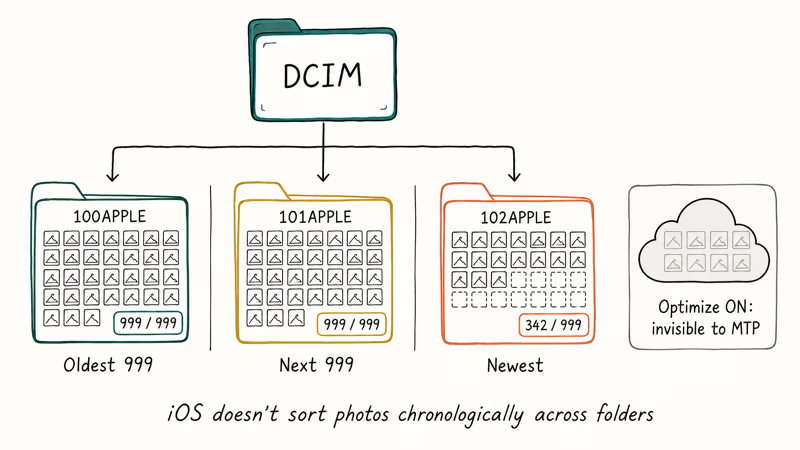
DCIM groups photos into subfolders that hold up to 999 files each: 100APPLE, 101APPLE, 102APPLE, and so on. With Optimize iPhone Storage on, only recently captured shots and photos you’ve opened on the device appear here. Everything else lives in iCloud and is invisible to File Explorer. The same applies to videos shared from other devices, AirDrop saves, and screenshots that were offloaded to iCloud.
Check every subfolder. iOS doesn’t sort photos chronologically across folders, so a clip from last week may be in 105APPLE while yesterday’s screenshot lives in 100APPLE. Chasing erased footage too? See our walkthrough on recovering deleted videos from phone memory. File Explorer never shows deleted items even when DCIM is otherwise complete.
The Windows Photos app sometimes catches files that File Explorer misses. Open Photos → Import → From a USB device, wait for the scan to finish, and review the preview before importing.
Photos uses the Apple Camera Connection API rather than raw MTP enumeration, so it can pull in shared albums and Live Photos that File Explorer ignores. For a deeper sync, our transfer photos from iPhone to PC on Windows 10 guide compares the Photos app, iCloud for Windows, and File Explorer side by side.
#Alternative Transfer Methods That Skip DCIM Entirely
When DCIM refuses to cooperate, three alternatives move photos to the PC without touching File Explorer.
iCloud for Windows is the cleanest swap-in. Install it from the Microsoft Store, sign in, and turn on Photos. The full library syncs to a folder under %UserProfile%\Pictures\iCloud Photos. Apple’s iCloud for Windows setup page states that downloads default to full resolution and update in the background as new photos hit the iPhone, which makes this the right answer for active libraries.
AirDrop or email covers small transfers. AirDrop only works to a Mac, and email caps out around 20 to 25 MB per message on most providers. For a handful of vacation shots, this is faster than fighting drivers.
Web-based wireless transfer handles the cross-platform middle ground. Snapdrop and similar tools run in the browser, work on any Wi-Fi network, and need no installs on either side. They’re also a good cleanup tool. Once you have everything on the PC, you can delete photo albums from your iPhone without losing the originals.
Got photos from a shared workspace? Our notes on saving images from a Google Doc cover that route too.
#Bottom Line
Walk it from the simplest fix to the loudest: unlock the iPhone and tap Trust, kill Optimize iPhone Storage if DCIM stays light, then rebuild the Apple Mobile Device USB Driver. If File Explorer still refuses to cooperate after all three, install iCloud for Windows and stop fighting the cable. It’s the most reliable path for libraries above 30 GB and for anyone working off a laptop with charge-only USB-C ports.
#Frequently Asked Questions
Why does my iPhone show up in File Explorer but the internal storage is empty?
The iPhone is detected over MTP but hasn’t authorized the PC. Unlock the device, watch for the Trust This Computer prompt, and tap Trust. If the prompt never appears, reset trust under Settings, General, Transfer or Reset iPhone, Reset, Reset Location & Privacy, then reconnect. The prompt reappears so you can authorize the PC and reach DCIM.
Does the DCIM folder contain all my iPhone photos?
Only when Download and Keep Originals is enabled in Settings, Photos. With Optimize iPhone Storage on, the DCIM folder shows recently captured or recently viewed photos, and the rest stay in iCloud where File Explorer can’t reach them.
Can I access iPhone internal storage without iTunes?
Yes. On Windows 10 and Windows 11, the iPhone shows up in File Explorer without iTunes installed. The only requirement is the Apple Mobile Device USB Driver, which ships with iTunes, with the Apple Devices app, or as a standalone bundle. Open This PC, Apple iPhone, Internal Storage to find DCIM.
Why do I only see some photos in the DCIM folder?
Optimize iPhone Storage keeps low-resolution previews on the device and stores full-resolution originals in iCloud. The DCIM folder lists only the files that exist in full resolution on the iPhone, so the count is usually a small fraction of what the Photos app shows.
How do I fix the Trust This Computer prompt not appearing?
Reset trust under Settings, General, Transfer or Reset iPhone, Reset, Reset Location & Privacy. Disconnect and reconnect the cable. The iPhone will treat the PC as a new computer and surface the prompt again.
Is it safe to reset Location and Privacy settings?
Yes, this reset only clears which computers and apps have trust or location access. No photos, contacts, or messages are deleted. You’ll re-authorize apps the next time they ask for location, and re-trust computers the next time you plug in, which takes about a minute.
Can I transfer photos wirelessly instead of using a USB cable?
Yes. iCloud for Windows from the Microsoft Store syncs the entire library at full resolution over Wi-Fi and keeps it updated in the background. For one-off transfers of a few photos, browser tools like Snapdrop send files directly between the iPhone and the PC on the same network with no installs and no accounts. AirDrop works only with Macs and has no native Windows equivalent.
Why does iPhone internal storage show a different amount than what Settings says?
File Explorer reports only the DCIM folder, which holds photos and videos the iPhone exposes over MTP. Settings, General, iPhone Storage shows the full picture, including apps, system files, cached content, and offloaded data. The two numbers will never match, and the gap usually equals everything iOS keeps off-limits to MTP.

Mac mini M6 vs M5 Pro: Which Model Should You Buy?
Mac mini M6 vs M5 Pro compared on price, memory, ports, displays, and real workloads. Find the better 2026 Mac mini for your desk and budget.

Apple Siri Settlement: Who Qualifies and How to Claim
Apple's $250 million Siri settlement covers iPhone 15 Pro and iPhone 16 models bought June 2024 to March 2025. See who qualifies and how claims work.

iOS 26.6.1 Security Update: What Apple Fixed and Who Gets It
Apple released iOS 26.6.1 on August 17 with 29 security fixes, including an IPSec interception bug. See what it patches, who gets it, and how to update.

iPhone Adaptive Power: How It Works and When to Use It
Learn how iPhone Adaptive Power works, which models support it, what it changes, and when Low Power Mode is still the better battery-saving choice.