How to Turn Off Apple Intelligence on iPhone (2026)
Turn off Apple Intelligence on iPhone in Settings, or disable single features like Writing Tools and notification summaries. Reclaim storage and privacy.
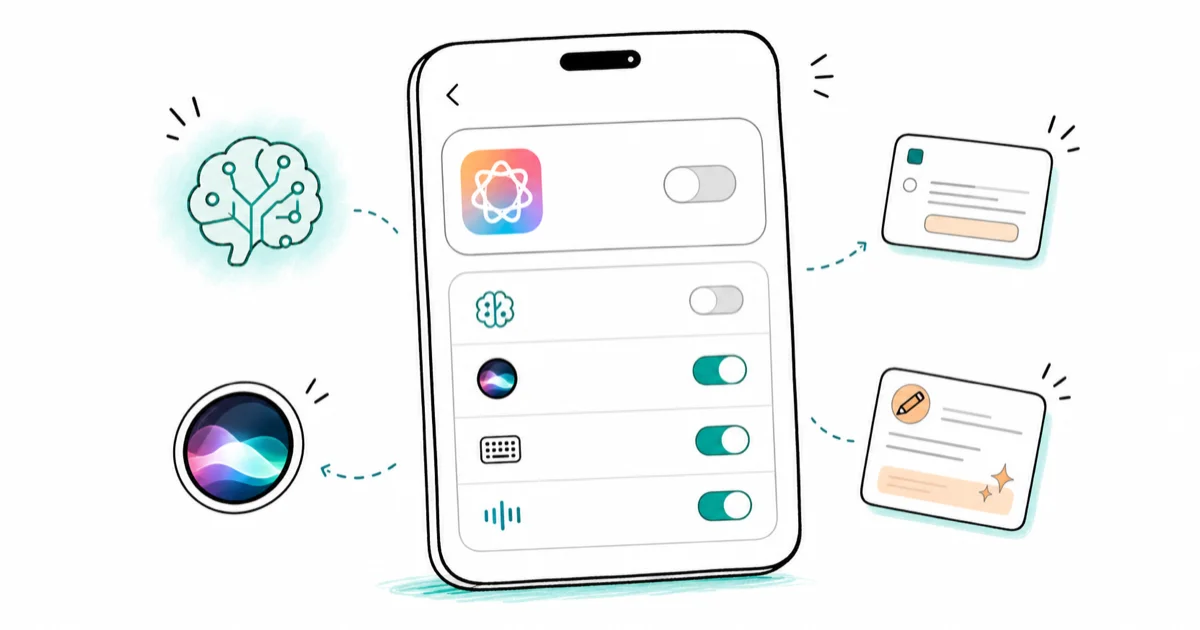
Quick AnswerGo to Settings > Apple Intelligence & Siri and toggle off Apple Intelligence, then confirm. To keep some features, disable individual ones like Writing Tools or notification summaries instead of switching everything off.
Want to turn off Apple Intelligence on your iPhone? The full switch lives in Settings > Apple Intelligence & Siri, and flipping it off takes about 10 seconds. That one toggle disables every AI feature at once and stops the on-device models from reloading.
- The master switch is in
Settings>Apple Intelligence & Siri, where one toggle disables every feature at once - You can disable single features instead, like Writing Tools, notification summaries, or ChatGPT integration, while keeping the rest
- Apple Intelligence reserves several gigabytes of storage for on-device models, which the system frees only after you turn it off and wait
- Notification summaries are turned off separately under
Settings>Notifications, not the main Apple Intelligence toggle - Disabling Apple Intelligence keeps Siri working, since the two are now bundled but controlled independently
#How Do You Turn Off Apple Intelligence Completely?
Here’s the fast path. Open Settings, tap Apple Intelligence & Siri, then toggle Apple Intelligence off and tap Turn Off Apple Intelligence to confirm.
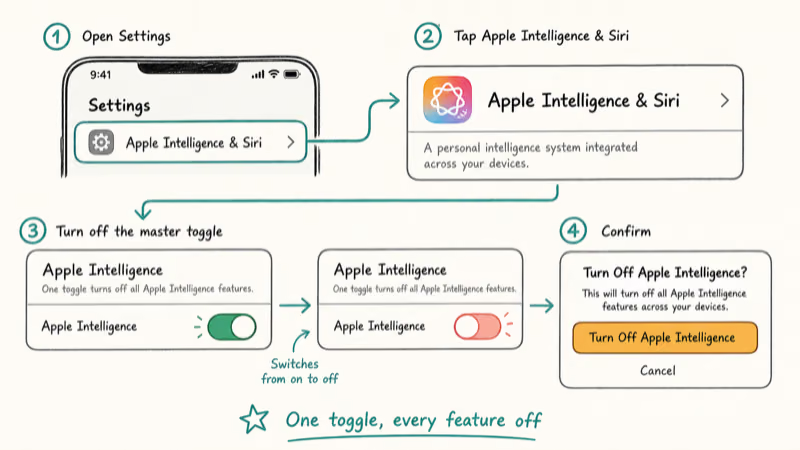
That single switch disables Writing Tools, image generation, notification summaries, the smarter Siri responses, and ChatGPT integration in one move. Your iPhone keeps working exactly as it did before the feature arrived.
The toggle takes effect immediately, and the AI-related options disappear from the menus right away. According to Apple’s Apple Intelligence support page, the feature is controlled from this single Settings location, so you don’t have to hunt through submenus to kill it.
#Disable Just One Feature Instead
This is the better move if you like some of it but not all. You don’t have to choose all-or-nothing.
For Writing Tools, go to Settings > Screen Time > Content & Privacy Restrictions, turn on Content & Privacy Restrictions, tap Intelligence & Siri, then tap Writing Tools and select Don’t Allow. According to Apple’s Screen Time guide for blocking Apple Intelligence features, the same menu also locks Image Creation tools like Image Playground and Genmoji. If the option is stuck, our fix for Writing Tools greyed out covers why that happens.
For ChatGPT integration, open Settings > Apple Intelligence & Siri, tap ChatGPT under Extensions, and toggle off Use ChatGPT. This leaves Apple’s own features on while cutting the third-party connection.
The granular controls let you keep, say, the writing suggestions while blocking the parts you find creepy or distracting.
#Stopping Notification Summaries
Notification summaries are the AI-generated one-line recaps that sometimes mangle your messages. They have their own switch, separate from the master toggle.
Go to Settings > Notifications and turn off Summarize Previews. You can disable it globally or per app, so you can keep summaries for news while killing them for personal texts. If your notifications feel unreliable in general, our guide on Hey Siri not working covers related Siri and notification glitches worth checking.
The summaries are inconsistent enough with personal messages that many people turn them off entirely and never look back.
#Reclaiming Storage After You Turn It Off
This is the reason a lot of people want it gone. Apple Intelligence downloads on-device AI models that take up real space.
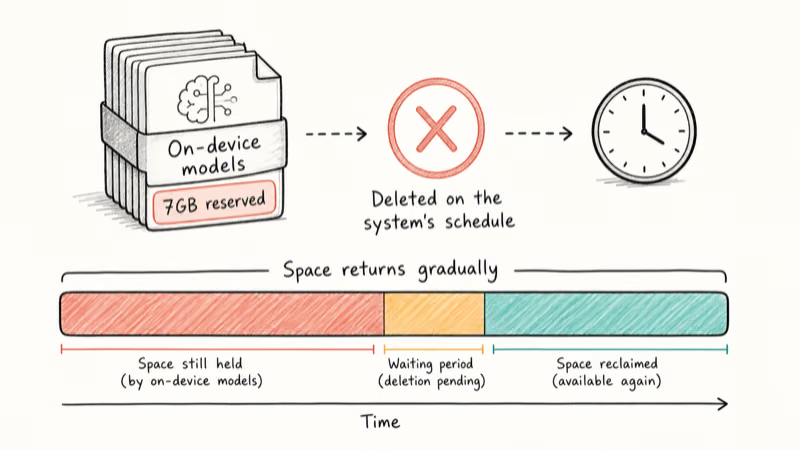
When Apple introduced the feature in iOS 18.1, it required a minimum of 4GB of free space. According to Pocket-lint’s reporting on the storage models, that requirement jumped to 7GB with iOS 18.2 as the models grew. That’s a meaningful chunk on a 128GB iPhone.
Here’s the catch. Turning off Apple Intelligence doesn’t instantly reclaim the space. The local models get deleted eventually, but the system decides when, and there’s no button to force it.
If your storage is critically full right now, our guide on iOS 26 system data storage full walks through faster ways to clear room while you wait. For iCloud-side cleanup, see fixing a full iCloud storage too.
#Does Disabling Apple Intelligence Break Siri?
No, Siri keeps working. Apple bundled Apple Intelligence and Siri under one Settings menu, which makes people nervous, but they’re controlled independently.
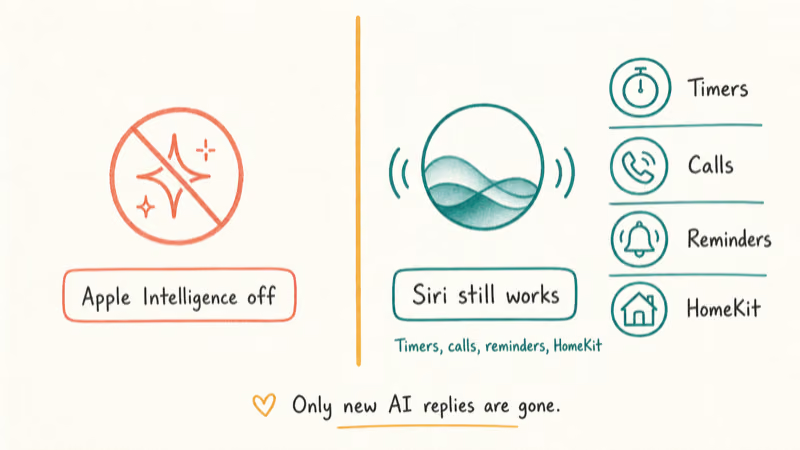
When you toggle off Apple Intelligence, classic Siri stays fully functional for timers, calls, reminders, and HomeKit. You just lose the newer conversational responses and the on-screen awareness features. Basic voice control is untouched.
If you’re comparing what each assistant actually does, our breakdown of Apple Intelligence vs Windows Copilot lays out the feature differences side by side.
#Turning Apple Intelligence Back On Later
Changed your mind, or want to try a single feature again? Re-enabling is just as quick as switching it off.
Head back to Settings > Apple Intelligence & Siri and toggle Apple Intelligence on. The on-device models download again in the background, so give it a few minutes and keep the phone on Wi-Fi. Any per-feature locks you set in Screen Time stay in place until you flip those back too, which lets you bring back only the parts you actually want.
#Bottom Line
If you want Apple Intelligence gone entirely, open Settings > Apple Intelligence & Siri and toggle it off. That kills every feature in one tap and stops the models from reloading.
If you only dislike specific parts, turn off Writing Tools through Screen Time restrictions and Summarize Previews under Notifications, and leave the rest on. Don’t expect the 7GB of model storage back immediately, since the system deletes those files on its own schedule.
#Frequently Asked Questions
Where is the Apple Intelligence toggle on iPhone?
It’s in Settings > Apple Intelligence & Siri, near the top of that menu. Flip the Apple Intelligence switch off and confirm to disable every related feature at once.
Does turning off Apple Intelligence delete Siri?
No. Siri stays fully functional for timers, reminders, calls, and HomeKit. You only lose the newer AI-powered responses, not the core voice assistant.
How much storage does Apple Intelligence use?
The on-device models reserve several gigabytes. Apple set the minimum free space at 4GB when the feature launched in iOS 18.1, then raised it to 7GB with iOS 18.2 as the models grew larger. On a smaller-capacity iPhone, that’s a noticeable amount of space tied up by a single feature.
Why didn’t my storage free up after disabling Apple Intelligence?
Because the system removes the local models on its own timeline, not instantly. There’s no button to force deletion, so the space comes back gradually after you turn the feature off. If you need room right away, clear photos, offload unused apps, or empty caches in the meantime.
Can I turn off Apple Intelligence notification summaries only?
Yes. Notification summaries have a separate switch under Settings > Notifications called Summarize Previews. Turn it off globally or app by app, and the rest of Apple Intelligence stays untouched.
Will Apple Intelligence turn itself back on after an update?
It can. Some iOS updates re-enable Apple Intelligence by default, so check the toggle after each major update. If it switched back on, just disable it again in the same Settings location.
Is it safe to turn off Apple Intelligence?
Completely safe. It’s an optional layer on top of iOS, and disabling it doesn’t affect your apps, data, or core phone functions. Many people turn it off for privacy or storage reasons with no downside.

iPhone Adaptive Power: How It Works and When to Use It
Learn how iPhone Adaptive Power works, which models support it, what it changes, and when Low Power Mode is still the better battery-saving choice.
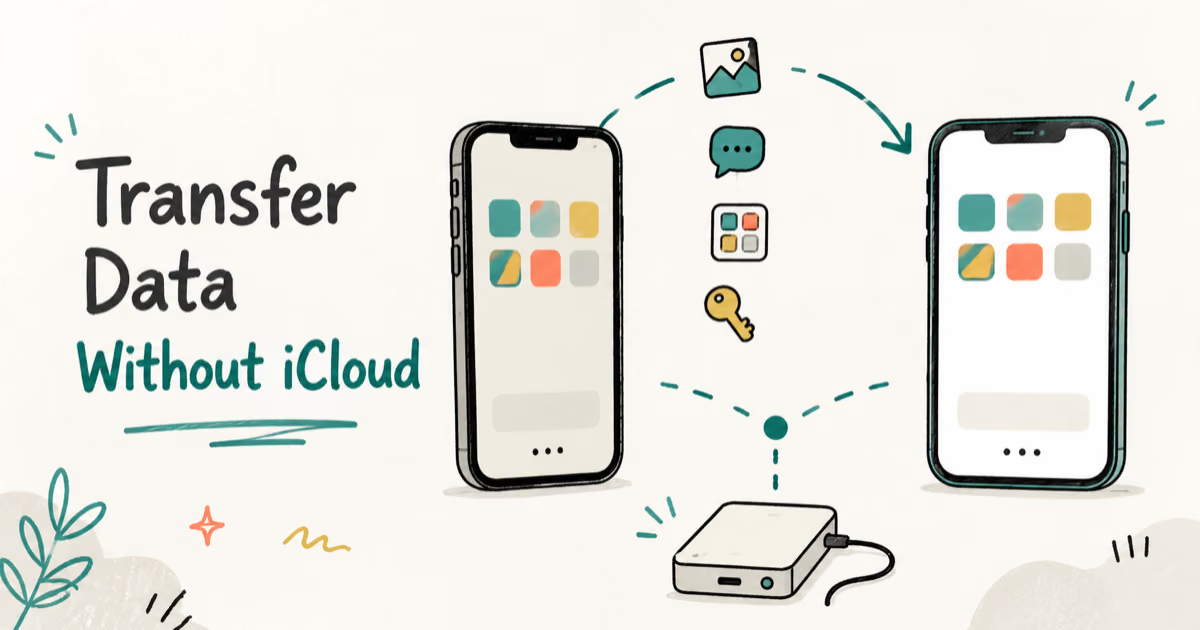
How to Transfer Data to a New iPhone Without iCloud
Move everything to your new iPhone without iCloud: Quick Start device-to-device transfer, wired migration, and encrypted Finder or iTunes backups.

Group Text Not Working on iPhone? 8 Fixes That Work
Group text not working on iPhone? Turn on MMS Messaging and Group Messaging, check iMessage vs SMS routing, and fix mixed Android group chats fast.
Best Power Bank for iPad in 2026: Pro, Air, and Mini
Best power bank for iPad in 2026. Compare mAh tiers and USB-C PD wattage for iPad Pro, Air, and mini, plus airline Wh math, cables, and travel tips.