iPhone Cellular Data Not Working for Some Apps? 8 Fixes
Some iPhone apps refuse to load on cellular while others work fine. Check the per-app cellular toggle, Low Data Mode, VPN profiles, and Screen Time.
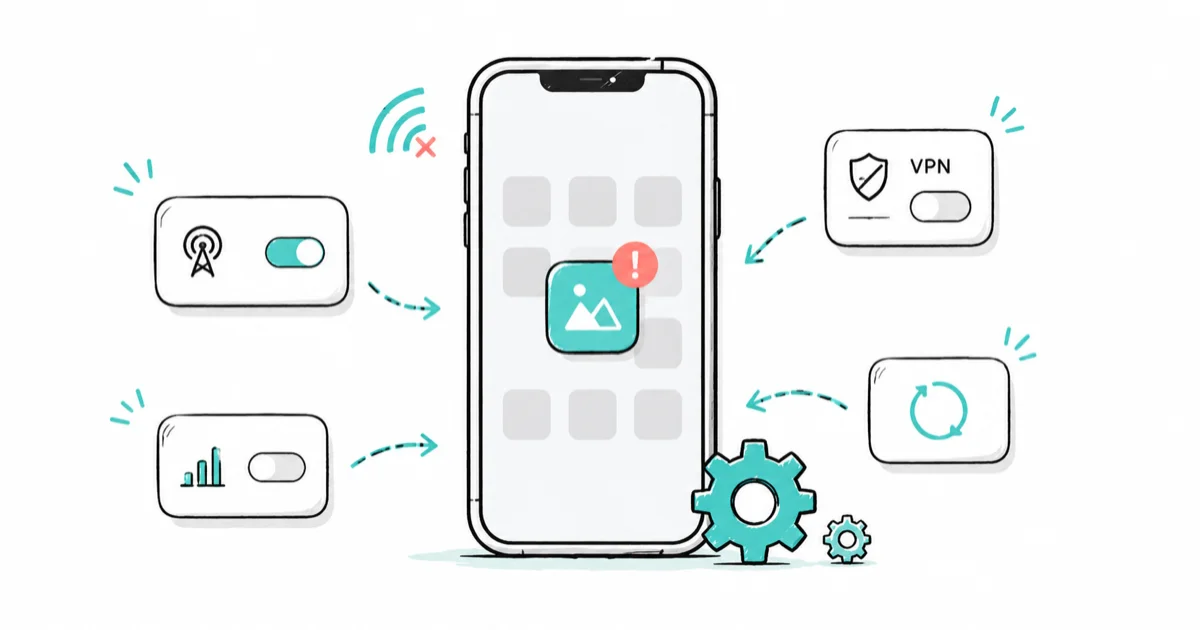
Quick AnswerOpen Settings > Cellular and scroll down to the app list. Any app with its toggle off is blocked from cellular data. Turn it on, then disable Low Data Mode and remove any VPN profile if the app still fails.
iPhone cellular data not working for some apps is a permissions problem far more often than a network problem. Your signal bars are full, Safari loads fine, and yet TikTok or your banking app sits there spinning the moment you leave Wi-Fi. iOS keeps a separate cellular switch for every app you install, and one flipped switch is usually the whole story.
Settings>Cellularholds a per-app toggle list; a single switched-off toggle blocks that one app from cellular data until you turn it back on.- Low Data Mode turns off Background App Refresh and automatic downloads, which makes apps look broken on cellular even when their toggles are green.
- A leftover VPN profile can black-hole traffic for certain apps; remove it under
Settings>General>VPN & Device Managementinstead of just switching it off. - Screen Time’s Content & Privacy Restrictions can block apps in a way that looks identical to a cellular data failure on a managed phone.
- Reset Network Settings wipes every saved Wi-Fi password, so treat it as the last step, not the first.
#Why Do Some Apps Lose Cellular Data While Others Work?
iOS manages cellular access app by app. Every app has its own cellular data permission, and iOS enforces it silently: no banner, no badge, the app just acts like it’s offline.
Wi-Fi ignores these permissions completely. That’s why everything works at home and breaks on the bus.
Run a quick triage before you touch any settings. Turn off Wi-Fi, open Safari, and load any website. If Safari loads but one specific app won’t, you’re in the right place. If nothing loads in any app, you should follow the cellular data not working entirely guide instead.
The causes below run from most to least common.
#Check the Per-App Cellular Data Toggle First
Go to Settings > Cellular and scroll down to the app list. Any toggle that’s off bans that app from cellular data.
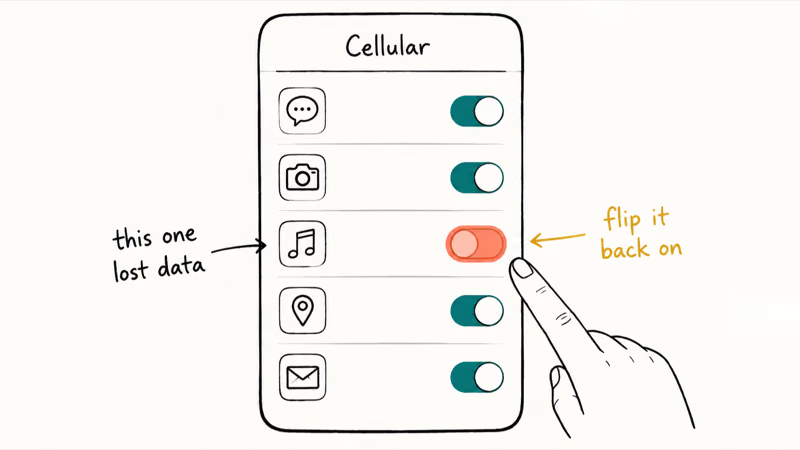
According to Apple’s cellular data settings guide, this screen (labeled Mobile Data in some regions) is where you turn cellular data on or off for all apps or for individual apps. For the App Store and the Apple services it lists, Apple’s connection troubleshooting guide says cellular users should make sure cellular data is turned on for the app they’re using.
If an app’s cellular toggle is off, iOS can throw a “Cellular Data Is Turned Off” alert when the app tries to refresh on cellular. Turning the toggle back on clears that block without a restart.
That alert only shows while the app is in the foreground, so a background failure gives you zero clues.
#When the Toggle Is Greyed Out or Missing
A greyed-out toggle usually means a restriction is locking it. Screen Time’s Content & Privacy Restrictions and workplace management profiles are the two usual suspects, and Dual SIM setups can also grey out app toggles until you pick a default data line.
A missing row is different: apps only appear in the cellular list after they’ve requested network access at least once.
Delete the app, reinstall it from the App Store, and open it while you’re on cellular. iOS re-triggers the permission prompt and rebuilds the row, which also clears any corrupted permission state the app was carrying around from an old install.
#Is Low Data Mode Quietly Blocking Your Apps?
Low Data Mode never announces itself. Check Settings > Cellular > Cellular Data Options > Data Mode.
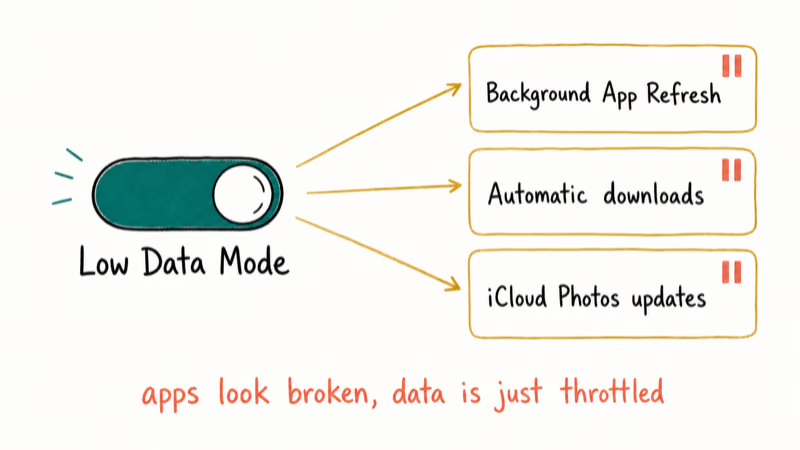
According to Apple’s Low Data Mode documentation, the setting restricts background network use: it turns off Background App Refresh, stops automatic downloads and backups, and pauses updates for services such as iCloud Photos. Apps that depend on background syncing look half-broken on cellular even though their toggles are green.
Low Data Mode can pause iCloud Photos syncing and hold App Store automatic updates until the data mode returns to Standard.
Streaming apps drop video quality under it too. If videos suddenly look soft on cellular, this is why.
#Check VPN Profiles and iCloud Private Relay
A VPN can black-hole traffic for some apps while others slip through on direct routes. This happens when the VPN disconnects halfway or its configuration goes stale, and it’s hard to diagnose because the VPN icon isn’t always visible while it’s interfering.
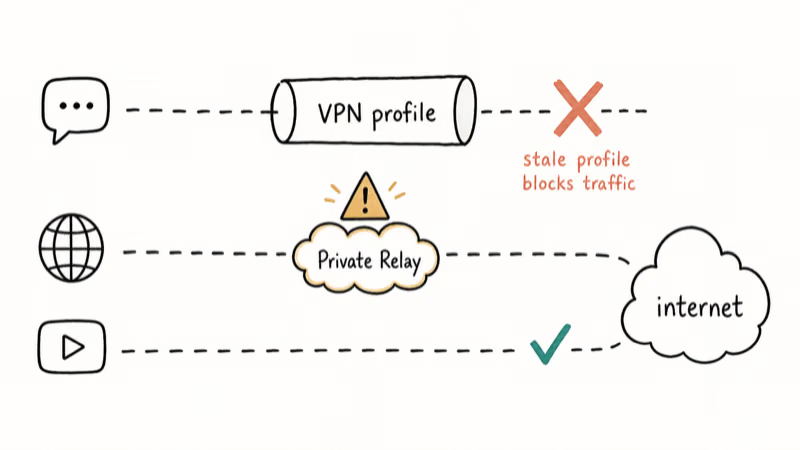
Users on Apple’s support forums report that removing the VPN profile entirely fixes cases where toggling the VPN off changed nothing. Go to Settings > General > VPN & Device Management, tap the configuration, and delete it. You can always reinstall the VPN app afterward; if the app itself is misbehaving, the VPN not working on iPhone guide covers that side.
iCloud Private Relay creates the reverse symptom.
Apple’s About iCloud Private Relay page confirms that without it, your DNS records and IP address can be seen by your network provider, because Private Relay’s whole job is routing Safari traffic through relays. Other apps skip those relays entirely.
So if Safari alone fails on cellular while every other app works, turn Private Relay off under your iCloud settings and retest. Wondering whether you need it alongside a VPN at all? The iCloud Private Relay vs VPN comparison breaks down what each one actually protects. And if Safari keeps failing after that, work through Safari not loading pages.
#Check Screen Time and Content Restrictions
On a kid’s phone or a managed device, Screen Time can block an app in a way that looks identical to a data failure. The app opens, spins, and loads nothing.
Apple’s parental controls overview states that Content & Privacy Restrictions manage the apps and other content a child can access. Open Settings > Screen Time > Content & Privacy Restrictions and check Allowed Apps plus any app limits that expired for the day. If the panel itself misbehaves or won’t save changes, see the Screen Time not working fix.
#Fixes When Every Toggle Is Already On
When the toggle, Low Data Mode, VPN, and Screen Time all check out, the problem usually lives on the app’s side. Work through this list:
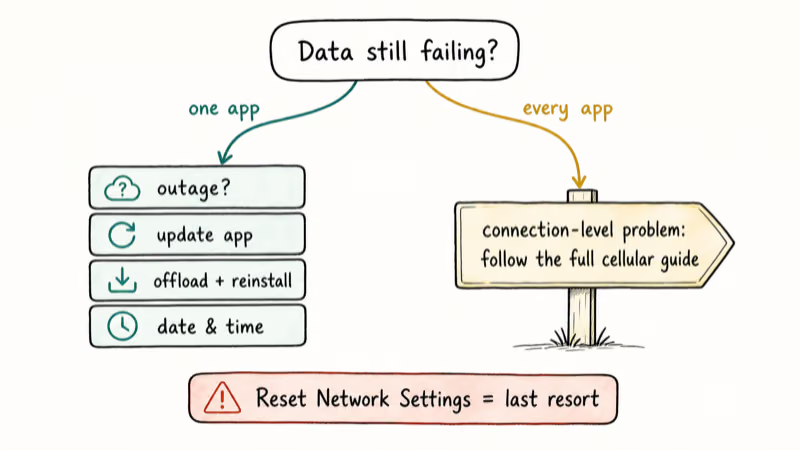
- Check for a server outage: if the service is down, cellular gets blamed unfairly. The TikTok keeps crashing and Instagram keeps crashing guides cover the outage-versus-device diagnosis for two of the most reported apps.
- Update the app: open the App Store, tap your profile icon, and pull down to refresh the pending updates list.
- Clear a corrupted cache: offload the app under
Settings>General> iPhone Storage, then reinstall it. Offloading keeps your documents and data. - Verify date and time: Apple’s connection troubleshooting steps include the date check because a wrong clock breaks secure connections. Go to
Settings>General>Date & Time andturn on Set Automatically.
Reset Network Settings is the true last resort. It wipes every saved Wi-Fi password, Bluetooth pairing, and VPN configuration to fix what’s usually a one-toggle problem, so run it only after everything above fails. You’ll find it under Settings > General > Transfer or Reset iPhone > Reset. If you’re also seeing dropped calls or cellular network not available errors, you’re past per-app territory and into connection-level trouble.
#Bottom Line
Check Settings > Cellular first, every time. The per-app toggle explains most one-app failures, and ruling it out takes about 30 seconds.
If the toggle is already green, the next two culprits in order are Low Data Mode and a leftover VPN profile; delete the profile under VPN & Device Management rather than just switching it off.
Save Reset Network Settings for last, because wiping every saved Wi-Fi password to fix one flipped switch is a bad trade. If every app has lost data rather than a few, you’re in a different failure class entirely, so follow the full cellular data troubleshooting flow from the parent guide instead.
#Frequently Asked Questions
Why do some apps only work on Wi-Fi?
The app is almost always blocked from cellular data by its own toggle in Settings > Cellular. Low Data Mode, a stale VPN profile, or a Screen Time restriction can produce the same symptom. Wi-Fi ignores all of those cellular-side switches, which is why the app springs back to life at home.
How do I allow an app to use cellular data on iPhone?
Open Settings > Cellular, scroll past your plan details, and tap the toggle next to the app so it turns green. The change takes effect immediately, without restarting the app or the phone.
Why is the cellular data toggle greyed out for some apps?
A Screen Time or device management restriction is usually locking it. Check Settings > Screen Time > Content & Privacy Restrictions first, then ask your IT admin if it’s a work phone. Dual SIM users sometimes see greyed toggles until a default data line is set. If the row is missing entirely, the app has never requested network access, and reinstalling it re-triggers the permission prompt.
Does Low Data Mode stop apps from using cellular data?
Not entirely, but it restricts background activity: Background App Refresh stops, automatic downloads pause, and iCloud Photos stops syncing. Low Data Mode has shipped with every iOS since iOS 13, so it exists on any iPhone you’re likely to hold. Foreground use still works, though streaming quality drops and sync-heavy apps feel broken until you switch back to Standard.
Can a VPN block cellular data for certain apps?
Yes. A stale or half-connected VPN configuration can route some app traffic into a dead tunnel while other apps use direct connections. Users on Apple’s support forums report that deleting the configuration under Settings > General > VPN & Device Management fixes cases where simply toggling the VPN off did nothing.
Why does Safari work on cellular but other apps do not?
In most cases Safari’s cellular toggle is on while the failing apps’ toggles are off. The reverse pattern points to iCloud Private Relay, which only carries Safari traffic. Compare which apps fail against the toggle list in Settings > Cellular before blaming your carrier.
Do I need to reset network settings if only one app has no data?
Almost never. Reset Network Settings wipes every saved Wi-Fi password and Bluetooth pairing to fix what’s usually a single flipped toggle. Try the per-app toggle, Low Data Mode, and VPN checks first; that whole sequence takes about 5 minutes. Save the reset for the point where every fix on this page has failed.

Apple Event September 9, 2026: Time and What We Know
Apple Event September 9, 2026: confirmed start time, global time zones, official watch options, and a clear line between facts and product rumors.

Mac mini M6 vs M5 Pro: Which Model Should You Buy?
Mac mini M6 vs M5 Pro compared on price, memory, ports, displays, and real workloads. Find the better 2026 Mac mini for your desk and budget.

Apple Siri Settlement: Who Qualifies and How to Claim
Apple's $250 million Siri settlement covers iPhone 15 Pro and iPhone 16 models bought June 2024 to March 2025. See who qualifies and how claims work.

iOS 26.6.1 Security Update: What Apple Fixed and Who Gets It
Apple released iOS 26.6.1 on August 17 with 29 security fixes, including an IPSec interception bug. See what it patches, who gets it, and how to update.