The Practical Guide to YouTube to MP4 Conversion in 2026
Convert YouTube to MP4 within copyright limits. Learn when offline conversion is legal, which codecs survive in modern MP4, and the tools worth using.
Quick AnswerMP4 is the right target when you need universal playback or a small file for editing. Stick to videos you uploaded, Creative Commons titles, or content the rights holder has cleared for download under YouTube's Terms of Service.
YouTube to MP4 conversion is the right call when you need a universally playable file, a clip for editing, or an offline copy from your own account or with explicit permission. Family clips, conference recordings, and Creative Commons footage all move cleanly through an MP4 pipeline. The same three rules keep holding: pick a permitted source, write to H.264 or H.265 inside the MP4 container, and run a tool that won’t quietly drop you to 480p.
- ISO published MP4 as ISO/IEC 14496-14 in 2003, building on Apple’s QuickTime File Format from 1998; MP4 itself is a container, not a codec.
- H.264 (AVC) plays on virtually every device made since 2010, while H.265 (HEVC) and AV1 deliver smaller files at the same quality but need newer decoders.
- Only convert YouTube videos that you uploaded yourself, that carry a Creative Commons license, or that the rights holder has cleared in writing for download.
- YouTube’s Terms of Service permit offline access only through the official Download button inside the YouTube app or via a YouTube Premium subscription; third-party converters fall outside that grant for any other content.
- For batch jobs, yt-dlp plus FFmpeg keeps the output codec and bitrate under your control, unlike most ad-funded online converters that re-encode aggressively.
#Understanding the MP4 Container Format
MP4 stands for MPEG-4 Part 14. It’s a multimedia container that bundles a video stream, one or more audio streams, subtitles, and metadata into a single ISO base media file.
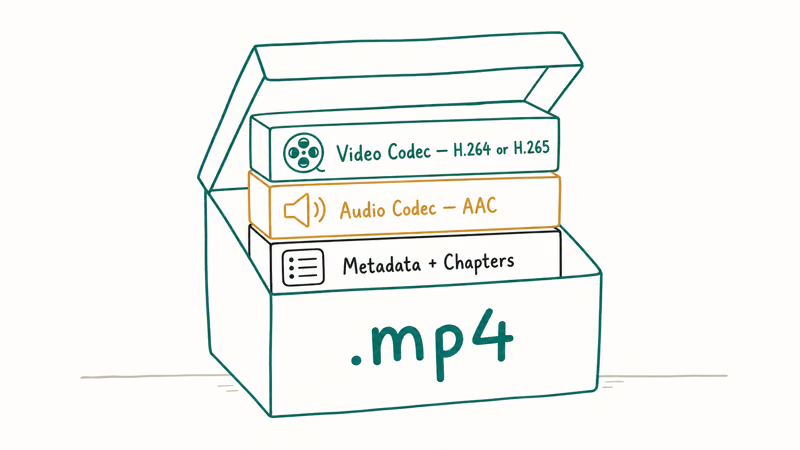
Wikipedia’s MP4 file format article confirms that ISO published MP4 as ISO/IEC 14496-14 in October 2003, building on Apple’s QuickTime File Format from 1998. The same source notes that MP4 uses .mp4 by default, plus .m4v for video-only files and .m4a for audio-only files.
The container itself doesn’t define picture quality. The codec inside MP4, usually H.264, H.265, or AV1, does. A 1080p H.264 MP4 and a 1080p H.265 MP4 carry the same picture, but the H.265 file is roughly half the size on disk.
#Why People Convert YouTube to MP4
MP4 imports cleanly into iMovie, DaVinci Resolve, Premiere, Final Cut, Shotcut, and Adobe Rush:
- Universal playback on iPhone, Android, smart TVs, and any HTML5 browser
- Editing in any modern NLE without converter detours
- Smaller files than older containers like AVI or WMV when paired with H.264
If you need a different container, the WebM and AVI sections later in this guide cover the alternatives. Our MP4 vs MOV breakdown digs into the modern container choice if you’re already inside the Apple ecosystem.
#Is It Legal to Convert YouTube Videos to MP4?
The format isn’t the issue. Copyright is.
According to the YouTube Terms of Service, you may not “access, reproduce, download, distribute, transmit, broadcast, display, sell, license, alter, modify or otherwise use any part of the Service or any Content except as expressly authorized by the Service or with prior written permission.” The only built-in authorization is the official Download button inside the YouTube mobile app or via a YouTube Premium subscription.
Three categories are safe to convert:
- Videos you uploaded yourself. You own the copyright, so converting your own clip is fine.
- Creative Commons (CC BY) videos. YouTube lets uploaders tag clips with the Attribution license. Google’s Creative Commons help article states that CC BY videos can be reused with credit under the license terms, which is why a sizable library of clips on the platform is cleared for reuse.
- Content the rights holder cleared in writing. A school, employer, or uploader may grant permission for a specific use.
Everything else is off-limits. Full music videos, paid course content, and DRM-protected streams fall outside the safe lane, and any converter that advertises “bypass” features is best avoided. The companion piece on whether YouTube to MP3 is legal digs into the audio side of the same question.
#How Can You Tell If a YouTube Video Is Creative Commons?
Two checks confirm the license.
Open the video on YouTube’s web player and expand the description box. CC-licensed clips display the line “Creative Commons Attribution license (reuse allowed)” beneath the publish date.
You can also run a license-filtered search: type your query into YouTube, click Filters, and select Creative Commons under “Features.” If neither check turns up the label, treat the clip as fully copyrighted regardless of length or view count.
#Choosing a Codec Inside MP4
The container is half the story.
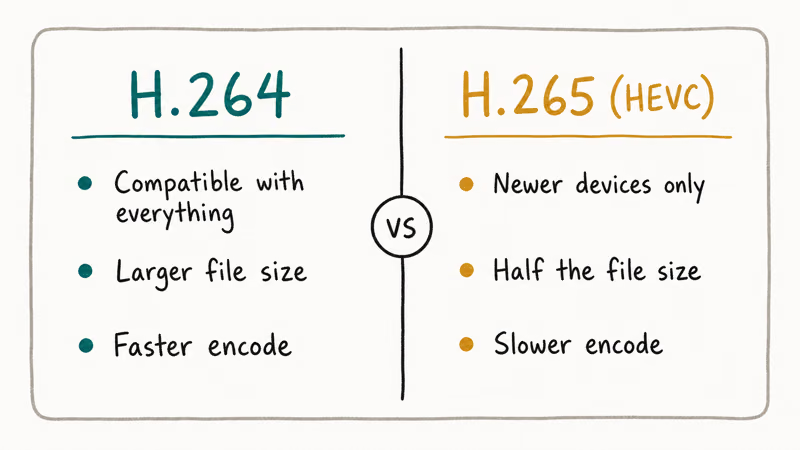
At 1080p, file sizes diverge sharply between codecs at matched visual quality:
- H.264 (AVC): ~600 MB per hour. Universal playback, decent quality, the safe default.
- H.265 (HEVC): ~300 MB per hour. Same picture as H.264 at half the bitrate, but some older Android phones won’t decode it without third-party players.
- AV1: ~250 MB per hour. Royalty-free, smaller still, but slow to encode and not yet supported by every TV.
- MPEG-4 ASP (Xvid in MP4): ~900 MB per hour. Larger and worse-looking than H.264; there’s no reason to pick it on modern hardware.
For everyday MP4 output, H.264 is the safe default. For archival or storage-constrained workflows, H.265 makes sense as long as downstream players can decode it.
#The Tools We Trust for MP4 Conversion
Most “free online YouTube to MP4” sites are thin web wrappers over youtube-dl or yt-dlp, plastered with pop-ups and stripped of metadata. Two desktop workflows are far more reliable because you control them end-to-end. Both assume you’re working with content you have rights to download.
#Workflow 1: yt-dlp Plus FFmpeg
This is the workhorse for batch jobs. The yt-dlp project is an actively maintained fork of youtube-dl, hosted at github.com/yt-dlp/yt-dlp. Once you’ve fetched a permitted source file, FFmpeg handles the codec choice:
ffmpeg -i input.webm -c:v libx264 -crf 20 -preset slow -c:a aac -b:a 192k output.mp4That command writes an H.264 MP4 at near-visually-lossless quality with AAC stereo audio at 192 kbps. Swap libx264 for libx265 if you want a smaller HEVC file, or libsvtav1 for AV1.
#Workflow 2: HandBrake
HandBrake is the desktop GUI most readers ask about. It ships H.264 and H.265 encoders out of the box and supports .mp4 as a native output container. It’s the better choice whenever a one-off job doesn’t justify writing commands. The defaults are sensible; nudge Constant Quality to RF 20 for a high-quality output.
#Other YouTube Conversion Formats We Cover
If MP4 isn’t the right target, we’ve written guides for the other common output formats. For audio-only extraction see our YouTube to AAC guide, and for the older Windows container check the YouTube to WMV guide.
For short-form clips, our TikTok to MP4 walkthrough follows the same workflow with the same rights checks.
#What If You Need WebM Output Instead?
WebM is the open-codec alternative: VP9 or AV1 video with Opus audio inside a Matroska-based container. YouTube itself serves most streams as WebM, so for cleared content a direct yt-dlp download often hands you a WebM with no re-encode at all. When you need to produce one from another source, FFmpeg handles it:
ffmpeg -i input.mp4 -c:v libvpx-vp9 -crf 30 -b:v 0 -c:a libopus output.webmThe output usually lands smaller than H.264 MP4 at matched quality.
WebM plays natively in Chrome, Firefox, and Edge, but hardware support is the catch: older iPhones and many smart TVs lack VP9 decoders, so test on the target device or stick with MP4 for broad playback. The same license rules apply here too, so convert only your own uploads, Creative Commons clips, or content the rights holder cleared in writing before you run any of these commands.
#What About AVI for Legacy Software?
AVI is the 1992-era Video for Windows container. The only modern reason to target AVI is feeding old editing software like VirtualDub or early Vegas Movie Studio. For a cleared source file, this FFmpeg command produces a DV-coded AVI with uncompressed 48 kHz audio, the closest thing to a universal import-into-anything file:
ffmpeg -i input.mp4 -c:v dvvideo -pix_fmt yuv411p -c:a pcm_s16le -ar 48000 output.aviSwap dvvideo for mjpeg if your editor prefers Motion JPEG, or libxvid for a smaller file. Expect big output.
#How Do You Convert YouTube to MP4 Step by Step?
Here’s the workflow to run once a video is cleared for download:
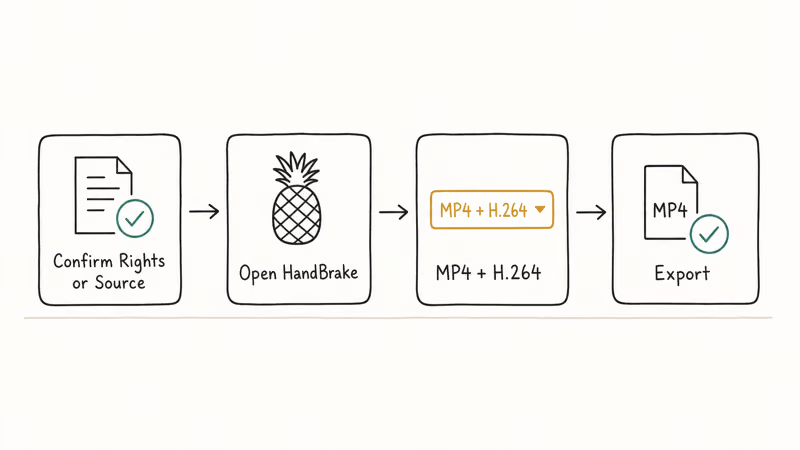
- Verify the license. Confirm it’s your own upload, marked Creative Commons, or covered by written permission. Stop here otherwise.
- Download the source file. Use the YouTube Download button (Premium), YouTube Studio’s download for your own uploads, or
yt-dlpfor CC sources. Pick the highest-quality MP4 or WebM available. - Open a terminal in the same folder as the downloaded file.
- Run the FFmpeg command above, substituting
input.webmfor your actual filename. Adjust-crfif you want a larger or smaller output. - Verify the output. Play the MP4 in VLC, then test it on the target device. If playback stutters, swap the codec or lower the resolution.
If VLC chokes on the output, our list of VLC alternatives covers players that ship their own decoder bundles. Already have an MP4 in the wrong codec? Our video to MP4 guide covers the rewrap without re-encoding.
#Common Conversion Problems and Fixes
A few failure modes keep showing up in reader emails:
- “Codec not supported” on a smart TV: Older TVs don’t decode H.265 or AV1. Re-encode to H.264.
- Audio and video drift apart: The source frame rate didn’t match the output rate. Add
-r 29.97(or whatever rate your target wants) to the FFmpeg command. - File too big for upload: Lower the CRF setting (
-crf 23is still high quality) or switch to H.265 with-c:v libx265. - Output plays in VLC but not in your editor: The audio codec might be Opus. Force AAC with
-c:a aacso older editors can decode the file.
If your real problem is YouTube playback rather than offline conversion, our guide to why YouTube keeps pausing usually fixes the root cause without any conversion at all.
#Legitimate Options When YouTube Blocks Downloads
If the video isn’t yours, isn’t Creative Commons, and the uploader won’t grant permission, you still have honest paths.
YouTube Premium unlocks the official Download button on most videos, and the cached file plays inside the YouTube app for offline viewing. The license doesn’t grant you the right to export that file to a standalone MP4 for external use, but it covers offline playback inside the app.
Email the uploader directly. A polite request often unlocks a source file, especially from educational channels and small creators.
Pull from Creative Commons libraries. YouTube’s CC filter, plus public-domain archives like the Internet Archive and Wikimedia Commons, cover a surprising amount of stock footage, music, and lecture content. Pair that with our link to MP4 converter guide for video rips from cleared sources.
#Bottom Line
MP4 with H.264 is the default container and codec pair for almost every YouTube conversion job, and H.265 is the right pick when storage matters more than universal playback. Convert only content you own, content licensed under Creative Commons, or material the rights holder has cleared in writing. Run the FFmpeg command we documented, swap to HandBrake when you want a GUI, and steer clear of online converters that re-encode aggressively or strip metadata.
#Frequently Asked Questions
Is it legal to convert YouTube videos to MP4?
It’s legal when you own the video, when it’s licensed under Creative Commons, or when the rights holder has cleared the download in writing. YouTube’s Terms of Service prohibit downloading other content outside the official Download button or YouTube Premium offline cache. The format you convert into doesn’t change the underlying copyright analysis.
Can I convert my own YouTube uploads to MP4?
Yes. Open YouTube Studio, find the video, click the three-dot menu, and choose Download. You’ll get the original MP4. Run it through HandBrake or FFmpeg only if you need a different codec or resolution.
What’s the difference between MP4 and WebM?
MP4 wraps H.264, H.265, or AV1 video with AAC audio inside an ISO base media container, while WebM wraps VP9 or AV1 video with Opus audio inside a Matroska-based container. Both play in modern browsers, but MP4 has wider hardware decoder support, especially on older iPhones and smart TVs. WebM is the better pick when your audience is exclusively on Chrome, Firefox, or Edge and you want smaller file sizes from VP9 or AV1 without paying the H.265 licensing premium.
Why is my MP4 download lower quality than the YouTube original?
Most online converters re-encode video as part of the conversion, and that second pass throws away detail. To keep the source quality, run yt-dlp -f "bestvideo+bestaudio" --merge-output-format mp4 so the download is a direct mux rather than a re-encode.
Can I extract just audio from a YouTube video as an MP4?
You can wrap audio inside an MP4 container, but the standard extension for audio-only MP4 is .m4a. Run yt-dlp -x --audio-format m4a <URL> to extract AAC audio inside an MP4-based container. If you want MP3 output instead, swap the flag to --audio-format mp3 so yt-dlp transcodes to MPEG Layer 3 after the download.
Will MP4 files play on my iPhone, Android, and smart TV?
H.264 plays on almost any device made since 2010. H.265 and AV1 need newer decoders.
How long does a YouTube to MP4 conversion take?
It depends on length, codec, and CPU. On a modern laptop, a 10-minute 1080p clip re-encoded to H.264 (CRF 20, slow preset) typically finishes in a few minutes. H.265 takes longer, and AV1 takes longer still. A direct download with no re-encode finishes in under a minute on any decent connection.
Are online YouTube to MP4 converters safe to use?
They’re a mixed bag. Many free sites are ad-funded wrappers around yt-dlp that inject pop-ups, log your IP, or quietly transcode you down to 480p. Running yt-dlp and FFmpeg locally is the safer route because the toolchain is open-source and the output quality is yours to set. If you do use an online converter, stick to single-video jobs and check the output dimensions before publishing anything.

Google Messages Error 3100: Why RCS Is Broken on Galaxy
Google Messages RCS error 3100 hits Galaxy owners after phone or carrier switches. Google told 9to5Google a fix is coming. Here's what actually helps.

Is This Bank App Real? Spot a Fake App on Your Home Screen
A bank app can land on your home screen from a web page with no install warning. Learn the checks that tell a real banking app from a phishing web app.

Apps Crashing After iOS 27 Update? Fix Order (2026)
Apps crashing after the iOS 27 update? Update the app in the App Store first, then offload and reinstall to clear stale cache, then restart. The fix order.

Do AI Translation Earbuds Work Offline? What to Know
Do AI translation earbuds work offline? A few do with downloaded language packs, but most need the cloud. Here's what works offline and what you give up.