YouTube Keeps Buffering? Here Are the Best Ways to Fix It
Fix YouTube keeps buffering on PC, Android, and iPhone with these proven solutions for slow playback, lag, and constant streaming interruptions.
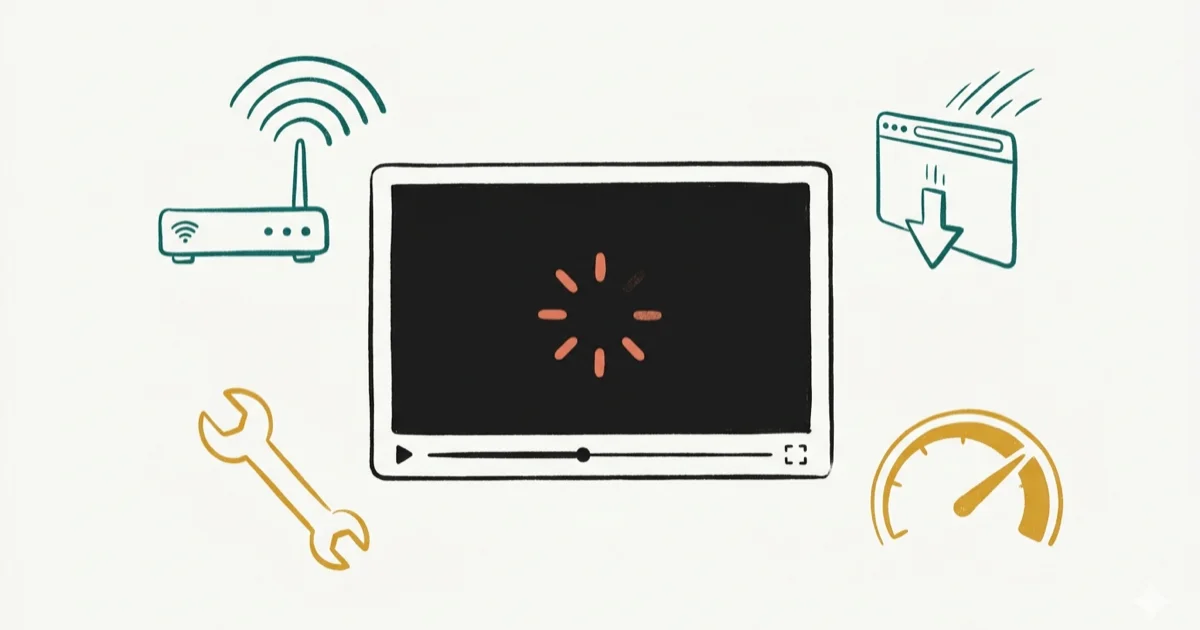
Quick AnswerClose extra browser tabs, restart your router, switch to a 5GHz Wi-Fi network, and lower the video quality. On mobile, restart the device and update the YouTube app.
YouTube is supposed to run smoothly so you get an uninterrupted viewing experience. But there can be various reasons that keep YouTube from functioning properly, and it’s really frustrating. If you’re experiencing YouTube keeps buffering and wonder what to do, this is a must-read.
- YouTube requires a minimum speed of 0.5 Mbps for standard video and 5 Mbps for HD playback
- Closing extra browser tabs is the fastest fix for buffering on desktops and laptops
- Switching from 2.4GHz to 5GHz Wi-Fi can reduce buffering by cutting network congestion
- Clearing your browser cache and cookies resolves most playback glitches without a full reinstall
- Freeing at least 500MB of storage on mobile devices helps YouTube run without lag
#Why Does YouTube Keep Buffering?
YouTube buffering can often be seen when you play HD video on a relatively slower network. According to Google’s YouTube Help center, you need at least 5 Mbps for HD and 20 Mbps for 4K streaming. Even videos with normal resolution can buffer on an occasional basis due to various reasons.
Interestingly, YouTube buffering can happen even if you have a high-speed internet connection. That can happen due to slower servers from their end, and your connection speed doesn’t affect that.
As we already know, YouTube is equipped with the most powerful internet connections in the world. Also, their servers and other infrastructure come with top-tier technology. However, that doesn’t prevent YouTube from experiencing occasional hiccups, particularly when there is heavy traffic.
In fact, when plenty of users visit YouTube and watch videos simultaneously, the performance of the servers is tested. In that case, the servers have to communicate with all the clients and transfer data constantly. If something goes wrong, the users will experience various issues, and YouTube keeps buffering is one of those issues.
You’ll know that YouTube keeps buffering when you see a wheel in the center of the video. Also, you’ll notice a blue color banner with ‘Experiencing interruptions?’ text. If you have noticed such an error, don’t worry. You are not the only one to experience it; there are plenty of others who suffer from the same.
As a matter of fact, YouTube buffering mainly occurs due to an error on the user’s end. If there is an issue on YouTube’s end, we can’t address it other than just inquiring about what’s happening.
In other words, we can’t fix the errors that take place on YouTube’s end. Nevertheless, here are some ways to fix YouTube buffering issue that occurs on your end.
Also, get to know how to put a YouTube video on repeat and whether is it legal to download YouTube videos.
#Part 1: How to Fix YouTube Keeps Buffering on PC
In fact, there is no shortage of solutions to consider when you need to fix the YouTube buffering issue. Mentioned below are the most effective methods you can try.
#01. Close the Other Browser Tabs You Are Using
If you have opened too many tabs in the web browser, your computer obviously requires more power to browse. Closing unused tabs frees memory, CPU time, and network activity for the YouTube tab.
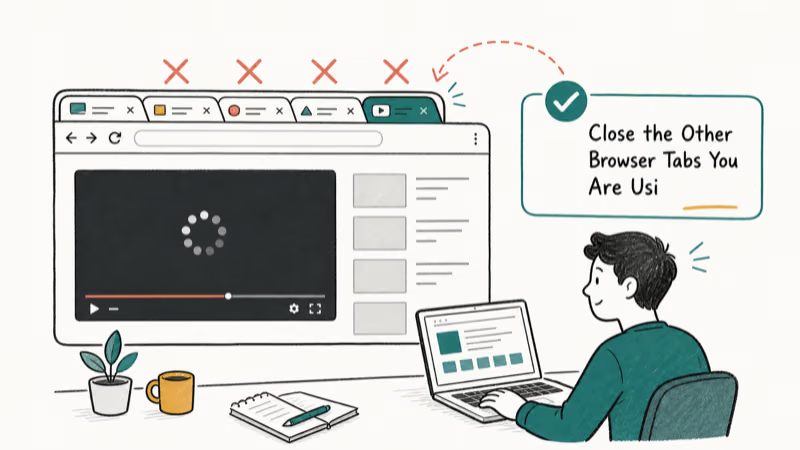
As a result, YouTube videos might show a significant showdown. This is exactly when you’ll experience YouTube buffering. To minimize bandwidth consumption, the best thing you can do is to close the other browser tabs.
This issue becomes very common when you try to use 4K video playback or videos with 60FPS. As you would realize, such videos require a significant amount of processing power from the computer.
So, closing down the tabs will minimize resource distribution and direct more power toward the YouTube page. As a result, a YouTube video will start to play without slowing down.
PS: here, you’ll also figure out how to fix issues like there was an issue signing you into YouTube.
#02. Restart the Web Browser
If the issue is related to the web browser you are using, restarting would be one of the solutions. When the restarting is done, the browser will be refreshed, so you can expect YouTube to work again.
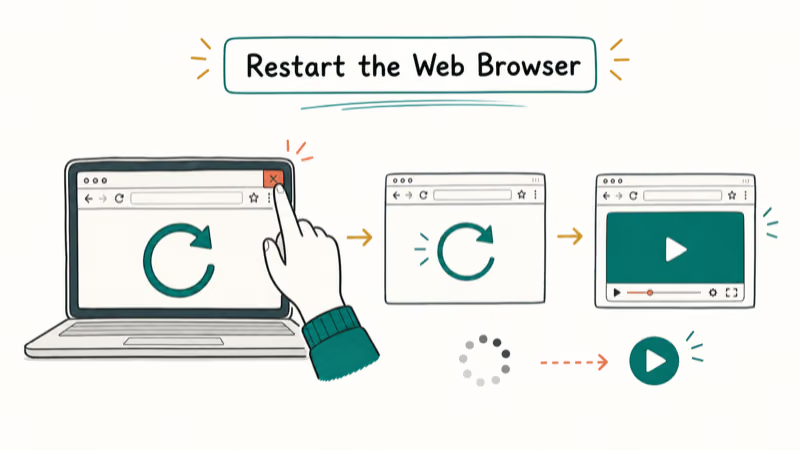
However, this option might not work every time. In other words, you need a little bit of luck for this option to work.
#03. Restart the Router
There are many times when the internet can experience some issues due to router troubles. If this situation describes you, you can try restarting the router and see if the issue is resolved.
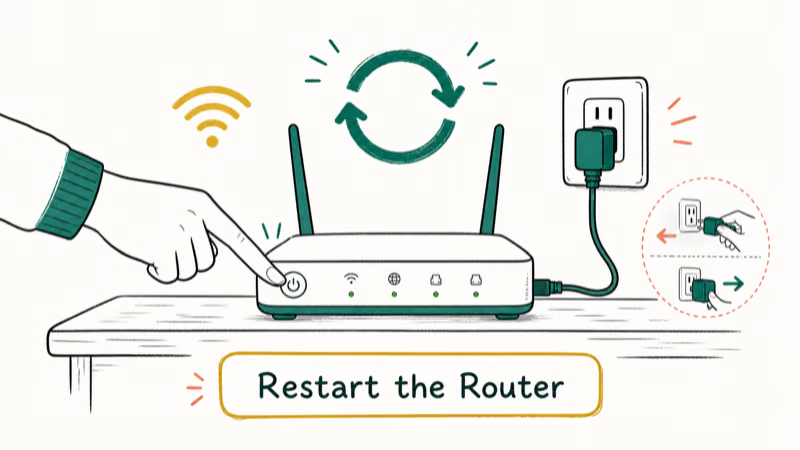
Well, restarting may fix minor issues associated with your router – be it a wired or wireless device. When restarting your router, ensure that you give it about 30 seconds at the least.
With that, the router will be able to reinitialize properly and start fresh without trouble. In fact, restarting can fix slow internet issues in many cases if nothing else is wrong.
#04. Reboot the Computer
Sometimes, the culprit can be your computer itself, causing YouTube buffering issues and making you annoyed. For instance, think about a minor error in your video card. It’s true that such issues are rare.
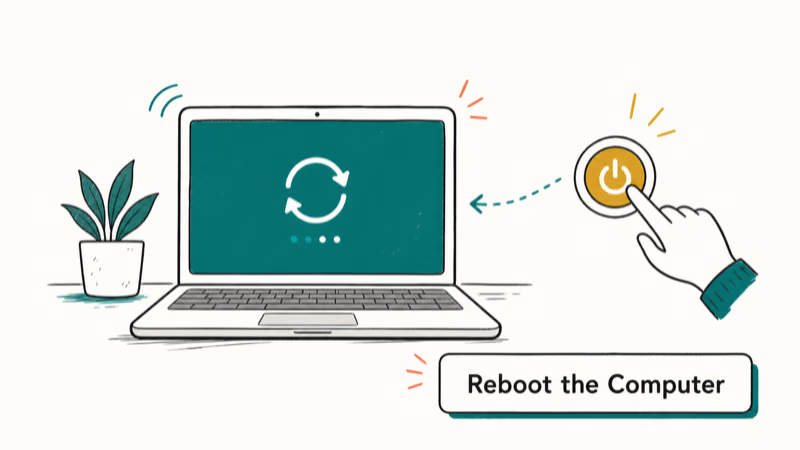
But there are enough examples of such situations. These issues can be pretty common, particularly with outdated, low-end machines.
If you assume it’s the case, you can simply perform a restart on the computer. As a result, the drivers of the video card will get refreshed and perform a bit better.
#05. Update the Browser and Plugins
If you have not updated your browser for some time or it has some outdated media plugins, issues occur. Compatibility issues of the browser and the plugins can necessarily make YouTube malfunction. The only way to solve outdated browser issues is simply to update it and see what happens.
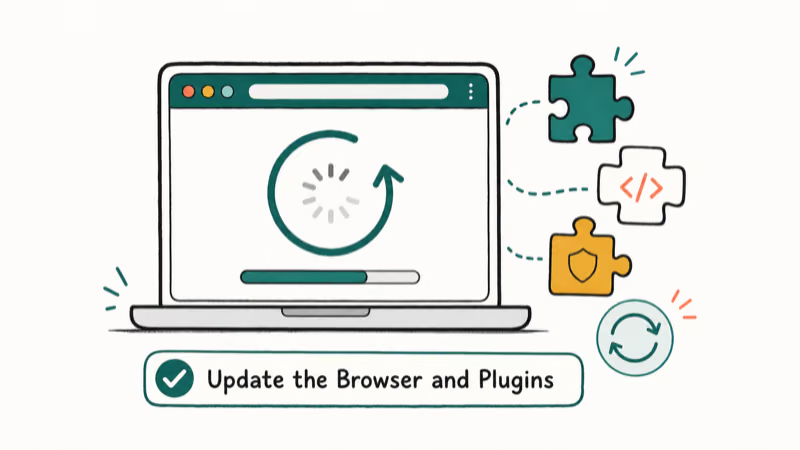
With the introduction of HTML5, YouTube can work without Flash. However, some time ago, Flash was a mandatory aspect for YouTube to play. In other words, if you didn’t have Flash, YouTube didn’t work those days.
You should remember that this issue has become less common because Flash is no longer required. However, an outdated web browser can still come into play to make YouTube videos play slower.
Therefore, it’s highly recommended to keep your browser updated, which is good for overall performance.
#06. Use Google Chrome Browser
There are various browsers in the market, and different browsers come with different features. Some browsers are highly compatible with YouTube, and some don’t.
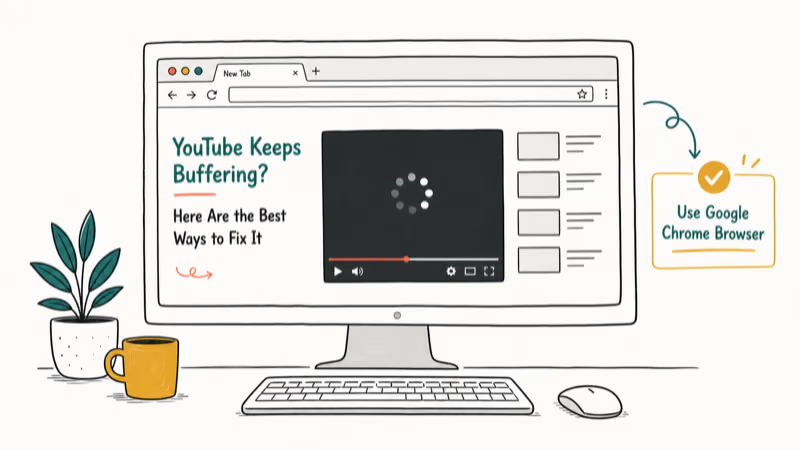
Google recommends Chrome for the best YouTube experience, and Google’s browser support page confirms that Chrome receives YouTube feature updates first. So, if you’re using a browser other than Chrome, switch to Chrome and check if that helps.
#Other Solutions Worth Trying
Here are some other suggestions to consider if you still face issues with YouTube videos.
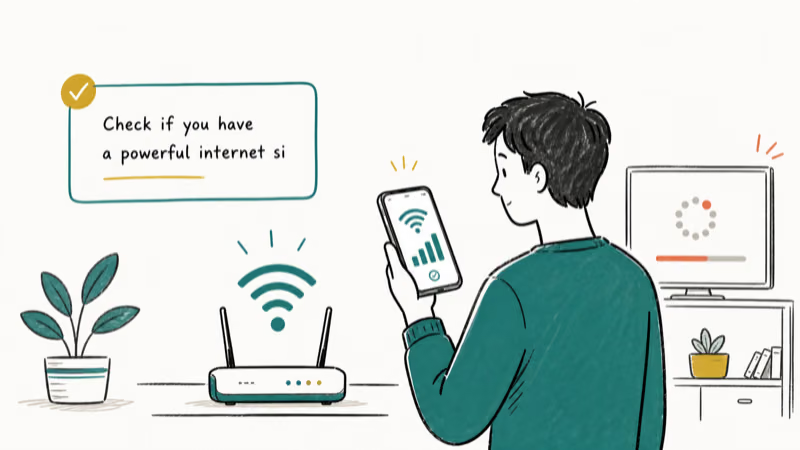
#Check if you have a powerful internet signal
If you are using a wireless internet connection, the strength of the signals you get on the device can vary. So, if you see YouTube keeps buffering, it’s better to check if you have strong enough signals.
#Change the quality of the video
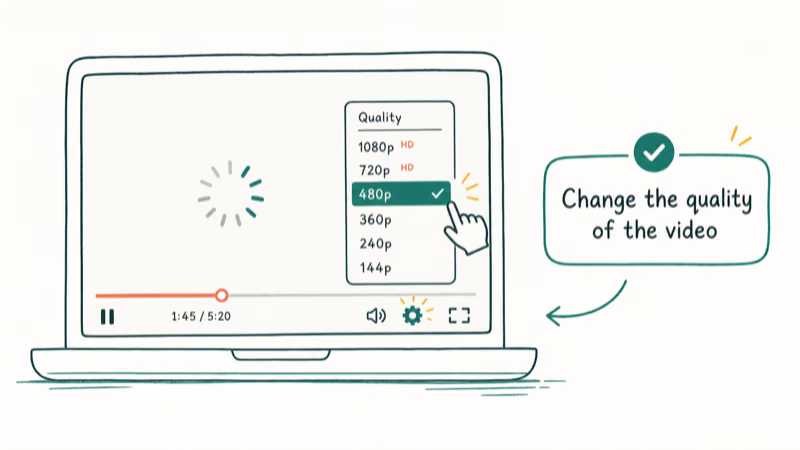
When you watch YouTube clips with the highest possible quality, you may experience some lags. This is specifically true if you use a relatively slow internet connection with poor bandwidth. So, just try to switch to lower quality, anything less than HD, and see if it works.
#Change the DNS Server
Is your DNS server configured to block some domains, and YouTube is one of them? If so, you can’t necessarily play the videos. In this case, you may even see that the website loads bot video doesn’t play.
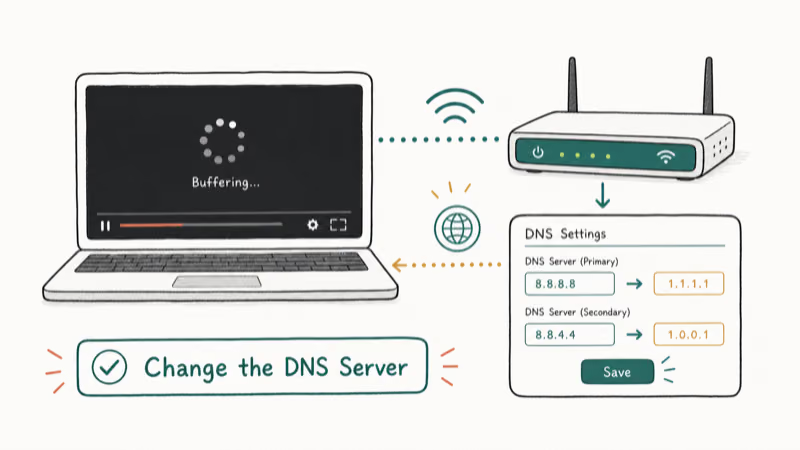
So, you’ll have to check the DNS server and change it. You can change the DNS server either through the Wi-Fi settings or through the internal settings of the router. You should change it to the Google DNS server (8.8.8.8 or even 8.8.4.4). Google’s public DNS documentation explains that its global anycast servers and large cache often resolve queries faster than a slow ISP default, though Google recommends benchmarking it yourself.
#Make use of a VPN
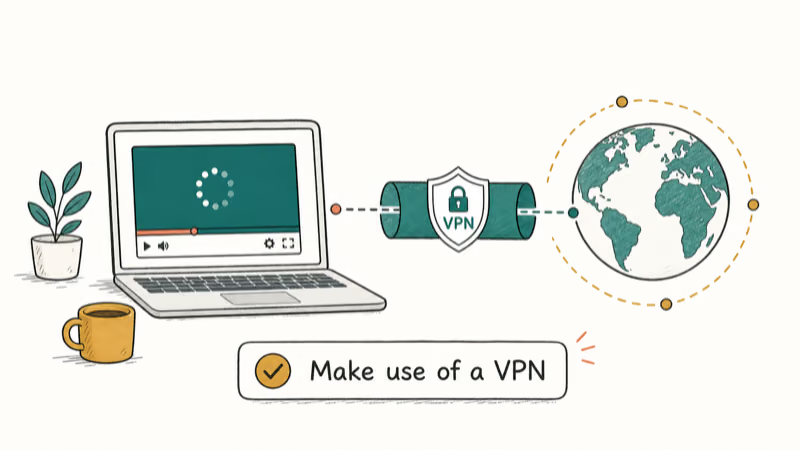
If you are using your office network, the chances are that a network admin blocks YouTube. It can be true with your school network as well. Anyways, if you are using a network on which YouTube is blocked, you may experience YouTube buffering. The best way to overcome this issue is to use a VPN.
#Use a different PC
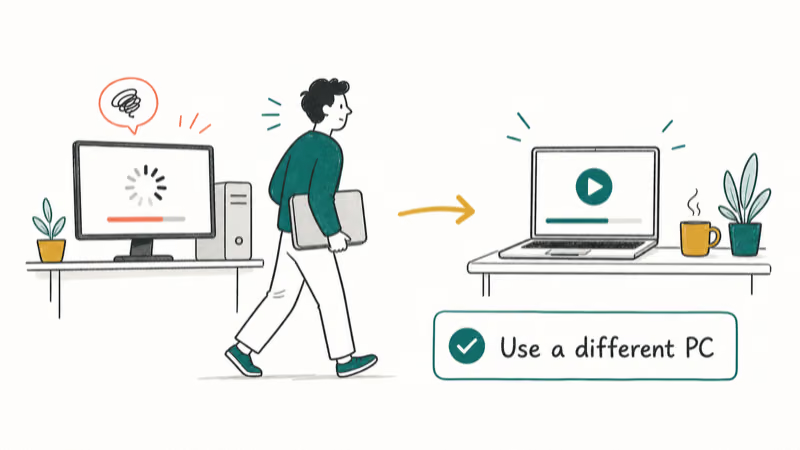
If you are still unable to find a solution, you’ll also have to try another PC. Because your PC might be too old, too slow, or have some other unidentified issues. If YouTube plays on a different computer perfectly, the issue is with your machine.
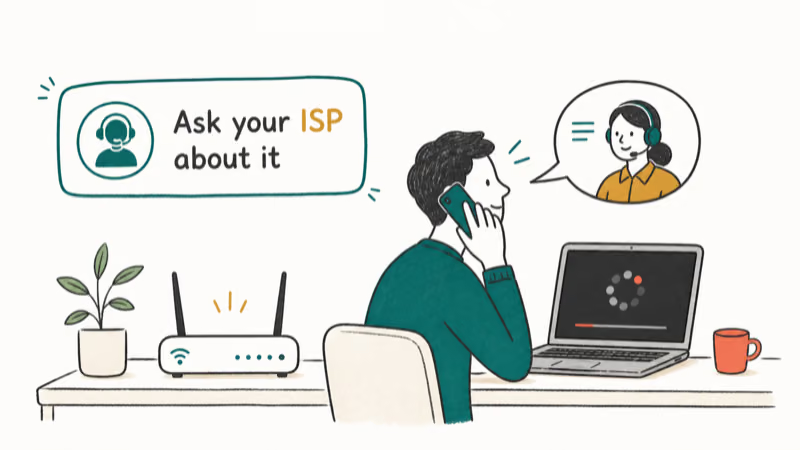
#Ask your ISP about it
If you didn’t have luck yet, the last resort would be to contact your ISP. Before that, check your internet connection speed using a testing tool. Then, if the connection is slower than they have promised, contact your ISP and request an explanation.
By the way, here is everything about OGYouTube for your information.
#How Do You Stop YouTube Buffering on Mobile?
The above section of our article explains how to tackle YouTube buffering issues on a desktop or a laptop. However, this section is useful if you experience the same issue on your mobile device (Android or iPhone). So, let’s get into the list of possible solutions straightaway.
#01. Restart the Device
Restarting the device can be the most obvious solution for iPhones and Androids to resolve minor glitches. A reboot clears temporary app and network state, which can help when buffering comes from a stuck background process.
Also, performing a reboot on your Android or iOS device doesn’t cause any damage. So, it’s absolutely worth trying a restart as the first solution.
#02. Try Mobile Internet
If the YouTube buffering issue has occurred while you were on the Wi-Fi network, switch to mobile internet instead. Well, it’s always better to try a different network when YouTube keeps buffering. So, switching to mobile internet is the easiest method.
#03. Check if Any Software Update is Available
If switching to the mobile network doesn’t work, you should check if a software update is available. To check it, you should go to Google Play or App Store for Android and iOS devices, respectively. Then, check if there is an update for the YouTube app and download it if available.
To find out why YouTube is not working, these are just for you.
#04. Uninstall the YouTube App and Install it Again
You should consider a complete reinstall if the update doesn’t work (or if there is no update available). Some users have unknowingly used beta versions and experienced some issues.
So, it’s always better to uninstall the app and reinstall a fresh copy of YouTube once again. Also, you may try visiting YouTube using a web browser instead of the app.
#05. Free the Storage
If the problem related to YouTube persists, you should try freeing up your device’s storage. It’s always better to leave at least about 500MB free for the overall smooth performance of the device.
So, check for it and delete unwanted files if the required free space is not there. You may also transfer the available files into external storage or the cloud to free the device.
#Recommended Internet Speeds for YouTube
Different video qualities need different speeds. According to Google, YouTube recommends at least 5 Mbps for 1080p and about 20 Mbps for 4K, as its system requirements explain. Here’s a quick reference:
- SD (480p): 1.1 Mbps
- HD (720p): 2.5 Mbps
- Full HD (1080p): 5 Mbps
- 4K (2160p): 20 Mbps
Run a speed test at Google’s speed test and compare your results against these targets.
#Tips for Preventing Future Buffering
Keep your browser and YouTube app updated at all times. Set YouTube’s default playback quality to Auto so it adapts to your current bandwidth. If you’re on Wi-Fi, position your device closer to the router or use a Wi-Fi extender for rooms that are far away.
#Bottom Line
YouTube buffering usually comes down to network speed, browser issues, or device limitations. Start by closing unnecessary tabs, restarting your router, and switching to a 5GHz Wi-Fi connection. On mobile, a quick restart and app update fix most problems.
#Frequently Asked Questions
Why does my YouTube keep buffering even with a good internet connection?
Your browser or the YouTube app could be the issue. Try updating them or clearing the cache and cookies. In some cases, browser extensions also interfere with video playback.
Is my device causing YouTube to buffer?
If you’re using an older device, it might struggle to stream high-quality videos. Try lowering the video quality or consider upgrading your device.
How can I improve my internet speed to reduce buffering?
Reduce the load on your internet by making sure no other devices are heavily using the network. You could also consider upgrading your internet plan or switching to a 5GHz Wi-Fi band.
What is the minimum internet speed required to stream YouTube videos smoothly?
You need a minimum speed of 0.5 Mbps for standard definition. For HD videos, you’ll need at least 5 Mbps, and 4K content requires 20 Mbps or more.
How can I avoid YouTube buffering in the future?
Make sure your internet speed is sufficient, update your browser or YouTube app regularly, and confirm your device can handle the video quality you select.
Does clearing the cache actually fix YouTube buffering?
Yes, clearing your browser cache removes old data that can conflict with YouTube’s player. It’s one of the simplest fixes and works on both desktop browsers and the YouTube mobile app.

Google Messages Error 3100: Why RCS Is Broken on Galaxy
Google Messages RCS error 3100 hits Galaxy owners after phone or carrier switches. Google told 9to5Google a fix is coming. Here's what actually helps.

Is This Bank App Real? Spot a Fake App on Your Home Screen
A bank app can land on your home screen from a web page with no install warning. Learn the checks that tell a real banking app from a phishing web app.

Apps Crashing After iOS 27 Update? Fix Order (2026)
Apps crashing after the iOS 27 update? Update the app in the App Store first, then offload and reinstall to clear stale cache, then restart. The fix order.

Do AI Translation Earbuds Work Offline? What to Know
Do AI translation earbuds work offline? A few do with downloaded language packs, but most need the cloud. Here's what works offline and what you give up.