Mac Wi-Fi Connected but No Internet: 2026 Fix Guide
Mac Wi-Fi connected but no internet? Prove whether the fault is your Mac, the browser, the network, or a VPN before resetting anything. Ordered 2026 fixes.
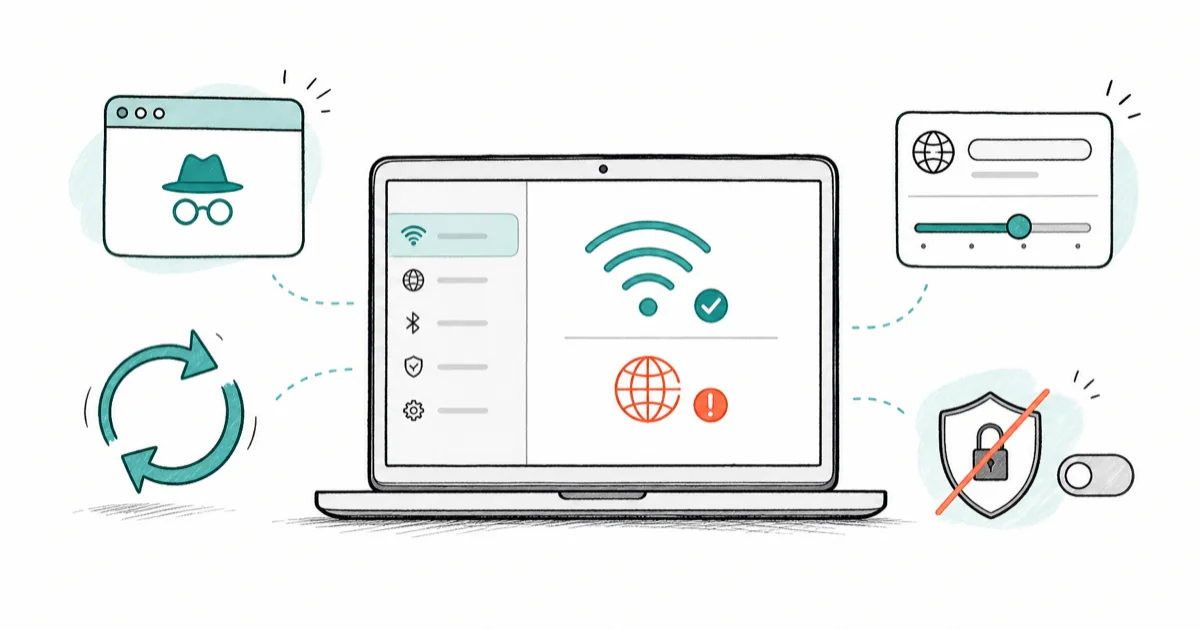
Quick AnswerOpen a private browser tab to trigger any captive portal, then renew the DHCP lease in Network settings. If Safari still fails, switch DNS to 1.1.1.1 and disable any VPN.
A Mac Wi-Fi connected but no internet problem means your Mac reached the router but can’t get past it. The menu bar shows full bars, yet Safari spins and Mail won’t sync. A stale captive-portal login is one common cause on public Wi-Fi.
The trick is proving where the break is before you reset anything. Four layers can fail: your Mac’s network config, the browser, the router, or a VPN or security app sitting in the middle. Work through them in order and you’ll usually fix it in a few minutes.
- Full Wi-Fi bars with no internet usually means a DHCP lease problem, a DNS failure, an unfinished captive portal login, or a VPN holding the connection
- Open a private browsing window first, since a stale captive portal page is the single most common cause on hotel, café, and airport networks
- Renewing the DHCP lease in Network settings fixes most home-router cases in about 30 seconds without erasing any saved networks
- Switching DNS to 1.1.1.1 or 8.8.8.8 confirms whether your provider’s DNS server is the real point of failure
- Reset network settings only as a last resort, after you have ruled out the browser, the router, and any VPN or content filter
#Why Is Your Mac Connected to Wi-Fi With No Internet?
Your Mac says “connected” the moment it joins the router’s local network. That handshake is separate from actually reaching the internet, so the menu bar can show full bars while every site times out.
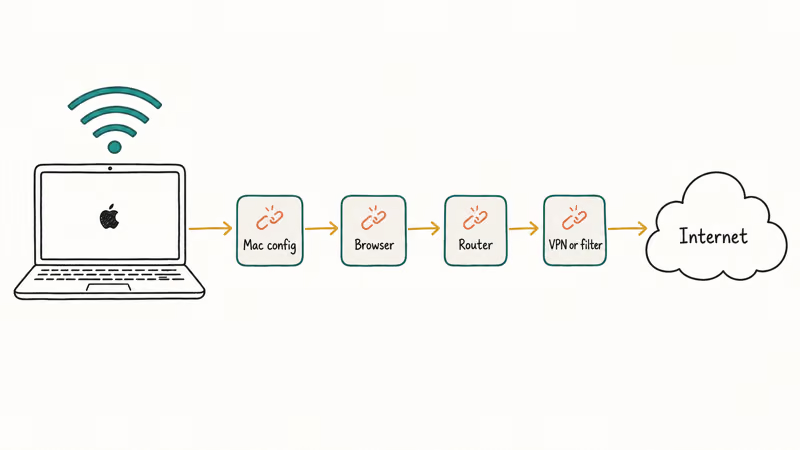
Most cases trace to one of four breaks. A stale DHCP lease leaves your Mac holding an address the router no longer recognizes, while a DNS failure means your Mac can’t translate names like apple.com into the numbers it needs to find a server. Both leave the Wi-Fi icon looking perfectly healthy even though nothing loads.
The other two are sneakier. A captive portal holds you on a login page you never finished. A VPN or filter can silently drop traffic.
Apple’s own guidance backs this layered view. According to Apple’s support documentation, if your Mac can’t connect to the internet over Wi-Fi, the first step is to confirm the network itself works on another device, then restart both the Mac and the router before changing any settings. That order saves you from chasing a Mac problem that’s really a router outage.
The fastest way to start is a one-second test. Try loading a site on your phone using the same Wi-Fi. If the phone also fails, the network is down and no Mac setting will help. If the phone works, the fault is on your Mac, and the sections below walk through it in order.
#Is the Problem Your Mac or the Network?
Isolating the layer first stops you from resetting things that were never broken. Run these checks top to bottom and stop at the first one that points you somewhere.
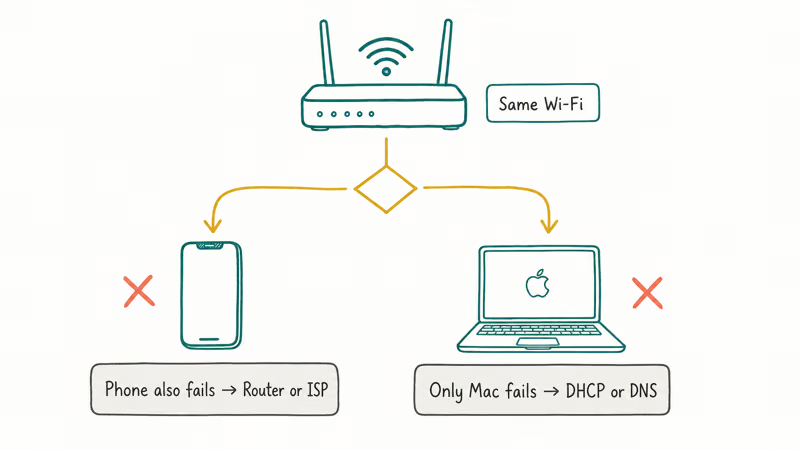
This is a quick diagnostic split between the common causes and the edge cases worth knowing about.
Diagnostic table separating common Mac connected-but-offline causes from edge cases
| Symptom | Likely layer | First move |
|---|---|---|
| Phone on same Wi-Fi also fails | Router or ISP | Restart the router, check for an outage |
| Only this Mac fails, phone works | Mac DHCP or DNS | Renew DHCP, then change DNS |
| Fails only on café, hotel, airport Wi-Fi | Captive portal | Open a private browsing tab |
| Safari fails but Messages and Mail sync | Browser-level | See Safari guides below |
| Broke right after installing a VPN | VPN or filter | Disconnect the VPN, then retest |
If only this Mac is offline, the problem is local config. If the symptom is browser-specific, where Safari fails but other apps still reach iCloud, that’s a different class of issue. The Safari secure connection error guide covers the browser-side causes in detail.
One honest caveat: this won’t help if your whole neighborhood lost service. Don’t delete network plists during an ISP outage. Check the outage first.
If your Mac never joins the network rather than connecting with dead pages, the Mac Wi-Fi join failure fixes cover that separate case.
#Fix DNS, DHCP, and Captive Portal Issues
Start with the captive portal. It’s both the most common public-Wi-Fi cause and the fastest to fix. Open a new private browsing window in Safari, then go to a plain HTTP site like http://neverssl.com. A login or terms page should pop up, and finishing it puts you back online.
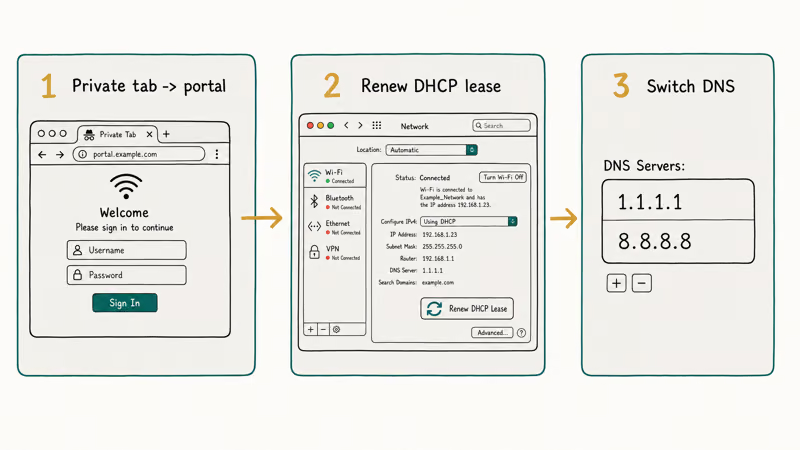
Why a private window? A normal tab often loads a cached copy of the portal page and never re-triggers the login. A private window starts without that cached portal state, so the login page has a better chance to appear.
Next, renew the DHCP lease. Open System Settings > Wi-Fi, click Details next to your network, choose TCP/IP, and click Renew DHCP Lease. This asks the router for a fresh address. It’s a high-yield step for a home network where there’s no captive portal to blame, and it doesn’t forget saved networks.
If pages still won’t load but the connection looks healthy, suspect DNS. In the same TCP/IP or DNS panel, add 1.1.1.1 and 8.8.8.8 as DNS servers, then remove any old entries. Reload a site, and if it works now, your provider’s DNS was the broken link.
According to Cloudflare’s 1.1.1.1 setup guide, the resolver uses the exact addresses 1.1.1.1 and 1.0.0.1, and you can point any device at them for free. If the error reads DNS_PROBE_FINISHED_NO_INTERNET in your browser, the DNS probe error fix guide covers that exact message in more depth, including the Chrome-specific quirks that don’t apply to Safari but can confuse you if you test in both browsers.
Still stuck? Try a different network entirely. Apple’s Wi-Fi connection guide states that you can forget a saved network and rejoin it from the Wi-Fi menu, which forces macOS to request a clean profile and a fresh address.
#What if only some apps work?
Sometimes Messages and Mail sync fine while web pages fail. That split usually means DNS is partly working but your browser cache is stale, so the apps reach Apple’s servers through a different path than your browser uses for the open web. Clear the browser cache or test in a private window before assuming the whole network is broken, since a one-app failure rarely points to a true connection problem.
#Check VPNs, Filters, and Security Apps
A VPN is the quietest cause here. When its tunnel drops but the app stays “on,” your Mac routes traffic into a dead connection. Quit or disconnect the VPN fully, then reload a page to test.
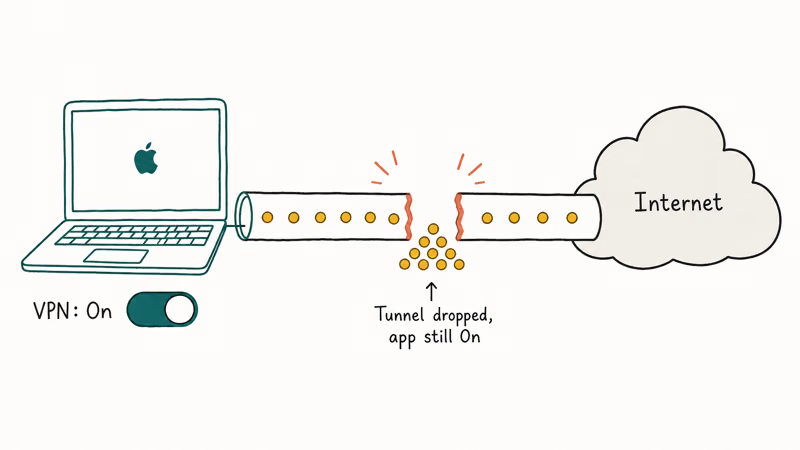
Content filters and parental-control tools work the same way. Check System Settings > General > Login Items & Extensions for any network extension you don’t recognize, then disable it to test.
Antivirus suites deserve a hard look too. Some security apps can keep a network filter active after the main app is quit, leaving the Mac connected with no internet until the filter is switched off. Installed anything network-related right before the trouble started? That timing is your strongest clue.
If the trouble began with a saved-network authentication prompt rather than a silent drop, the Authentication Error Wi-Fi guide covers the credential-side fixes that overlap with this scenario. And if you only see the problem on café or hotel networks, it’s worth knowing whether you need a VPN on public Wi-Fi before you install one that causes this in the first place.
#Did this start right after an update?
A macOS update can reset network extension permissions. If the timing lines up, re-grant the VPN or filter its permissions in Login Items & Extensions, or remove and reinstall the app so it registers cleanly.
#Reset Network Settings Only as a Last Resort
A network reset is the nuclear option, so save it for last. It erases saved Wi-Fi networks, passwords, VPN configs, and custom DNS, which means you’ll re-enter everything afterward. Reach for it only after the browser, DHCP, DNS, captive portal, and VPN checks above have all come up empty.
To do a clean reset, forget the network in System Settings > Wi-Fi > Details > Forget This Network, then restart the Mac and rejoin. For a deeper reset, removing the SystemConfiguration preference files forces macOS to rebuild the network stack, but that’s an advanced step. If your Mac also keeps dropping the connection entirely rather than just losing internet, Mac Wi-Fi Keeps Disconnecting handles that distinct symptom.
#Knowing When to Stop and Call Apple Support
Know when the trail goes cold. If a private-tab portal, a DHCP renew, a DNS swap, and a VPN disconnect all fail while your phone still reaches the internet on the same Wi-Fi, you’ve ruled out everything you can reasonably fix yourself, and pushing further usually does more harm than good.
At that point the fault is likely hardware or a deeper config issue. Contact Apple Support or your ISP rather than deleting more system files. Erasing plists past this stage rarely helps and can leave you re-entering every saved network for nothing.
#Bottom Line
Open a private browsing window first. On public Wi-Fi that single step clears the captive portal stall. At home, renew the DHCP lease before anything else.
Treat a full network reset as the last resort, not the first instinct. If your phone reaches the internet on the same network but your Mac still can’t after the DHCP, DNS, and VPN checks, escalate to Apple Support rather than erasing more settings.
#Frequently Asked Questions
Mac Wi-Fi connected but no internet, what is the first thing to check?
Open a new private browsing window and load a plain HTTP site. This forces any captive portal login page to appear, which is the top cause on hotel, café, and airport networks. Finish the login and you’re usually back online in seconds. On a home network with no portal, skip straight to renewing the DHCP lease instead.
Why did this start after a macOS update?
A macOS update can reset the permissions for VPNs and network filters, leaving them half-loaded so traffic dies silently. Open Login Items and Extensions, then re-grant or remove any network extension you don’t recognize. Reinstalling the affected app forces it to register cleanly and usually clears the problem for good. If the timing of the update and the outage lines up exactly, this is almost always your cause.
Does this require resetting my Mac?
No. Renewing the DHCP lease, changing DNS, and disconnecting a VPN fix the large majority of connected-but-offline cases without erasing anything.
What official support page should I check first?
Start with Apple’s support article on a Mac that can’t reach the internet over Wi-Fi. Its most useful step is telling you to test another device first, which separates a Mac problem from a router outage.
What should I avoid doing?
Don’t delete network preference files or reset everything as your first move. People lose twenty minutes editing system files during what turns out to be an ISP outage. Always test another device on the same Wi-Fi before you assume the fault is your Mac, since a router or provider outage looks identical to a Mac-side problem from where you’re sitting. The two-second phone test rules that out before you waste any time.
When should I contact Apple Support?
Contact Apple Support once a private-tab portal check, a DHCP renew, a DNS swap, and a VPN disconnect have all failed and your phone still reaches the internet on the same Wi-Fi. At that point the fault is likely hardware or a deeper config issue that needs a technician.

macOS 27 Compatible Macs: Every Supported Model (2026)
macOS 27 Golden Gate runs only on Apple Silicon Macs. Here is the full list of supported M-series models and the four Intel Macs that lose support.

macOS 27 Golden Gate: Every Major New Feature Confirmed
macOS 27 Golden Gate goes Apple Silicon only, adds a Gemini-powered Siri, refines Liquid Glass, and rebuilds Spotlight. Here is every confirmed change.

macOS 27 Liquid Glass: Every Readability Fix Explained
macOS 27 Golden Gate refines Liquid Glass with an intensity slider, better contrast, cleaner window corners, and edge-to-edge sidebars to fix readability.
macOS 27 Performance: What Golden Gate Makes Faster
macOS 27 Golden Gate speeds up AirDrop, network file browsing, Safari, and Spotlight, with core system improvements on the Apple Silicon-only release.