How to Fix DNS_PROBE_FINISHED_NO_INTERNET in Chrome
Fix DNS_PROBE_FINISHED_NO_INTERNET with 7 methods: flush DNS cache, change DNS servers, reset TCP/IP, update network drivers, and clear Chrome cache.
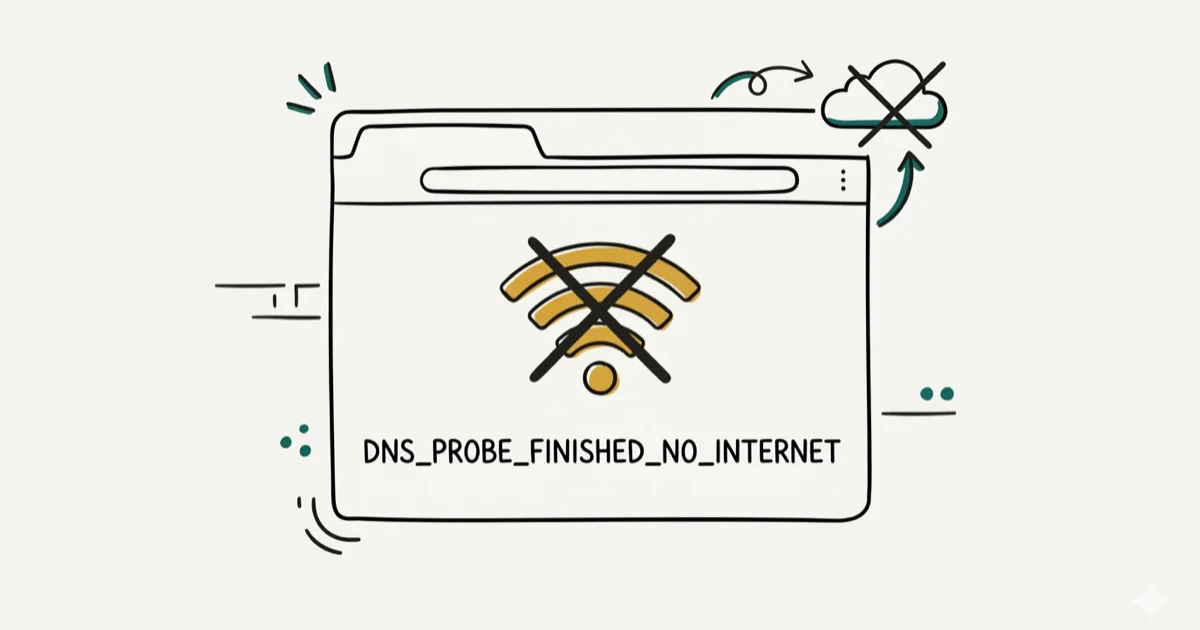
Quick AnswerDNS_PROBE_FINISHED_NO_INTERNET means Chrome resolved the DNS lookup but your device has no internet connection. The fastest fixes are to flush the DNS cache with ipconfig /flushdns, change your DNS server to Google (8.8.8.8), and reset TCP/IP with netsh commands.
The DNS_PROBE_FINISHED_NO_INTERNET error in Chrome means your device can find the DNS server but has no working internet path. The fixes below start with DNS cache, router, and network stack checks before moving to drivers and Chrome settings.
- DNS_PROBE_FINISHED_NO_INTERNET differs from BAD_CONFIG because DNS resolution succeeds but the connection itself fails
- Flushing DNS cache and renewing your IP address with ipconfig commands is the fastest first fix for many local network errors
- Changing your DNS server to Google (8.8.8.8) or Cloudflare (1.1.1.1) bypasses ISP DNS failures that block connections
- Resetting TCP/IP with netsh commands fixes corrupted network stack settings left by VPN or security software
- Outdated network adapter drivers cause persistent connection failures that no DNS fix can resolve — update drivers before reinstalling Chrome
#What Does DNS_PROBE_FINISHED_NO_INTERNET Mean?
This error tells you two things: Chrome successfully reached a DNS server, and that DNS server returned valid data. The problem is that the actual internet connection from your device is broken. Chrome’s network stack labels this as “no internet” rather than “bad config” or “name not resolved” because the DNS component worked fine.
According to Wikipedia, DNS has operated on UDP port 53 as the standard protocol for translating domain names to IP addresses since RFC 1034/1035 in 1987 (DNS article). When DNS works but the connection path fails, Chrome reports NO_INTERNET instead of the name-lookup errors.
Common causes:
- Corrupted DNS cache with stale entries that pass lookup but fail connection
- Incorrect DNS server address that resolves names but routes to dead-end IPs
- VPN or proxy software that creates a broken network tunnel
- Outdated network adapter driver that fails under current Windows builds
- ISP-side connectivity issue affecting your specific connection
#How to Fix DNS_PROBE_FINISHED_NO_INTERNET
Start with DNS cache flushing and TCP/IP reset because they target the most common local causes. Work through these methods in order.
#Fix 1: Flush the DNS Cache and Renew Your IP
Open Command Prompt as administrator (right-click, Run as administrator), then run these commands one at a time:
ipconfig /flushdns
ipconfig /release
ipconfig /renew
The flush removes stale DNS entries. The release and renew force your device to request a fresh IP address and DNS configuration from your router. Restart Chrome after running all three commands.
#Fix 2: Reset TCP/IP Stack
This fix rebuilds your network configuration from scratch. Open Command Prompt as administrator and run:
netsh int ip reset
netsh winsock reset
ipconfig /flushdns
ipconfig /release
ipconfig /renew
Restart your computer after all five commands complete. This removes corrupted TCP/IP settings that VPN clients, security software, or Windows updates sometimes leave behind. Most NO_INTERNET errors that survive Fix 1 are resolved here.
#Fix 3: Change DNS Server to Google or Cloudflare
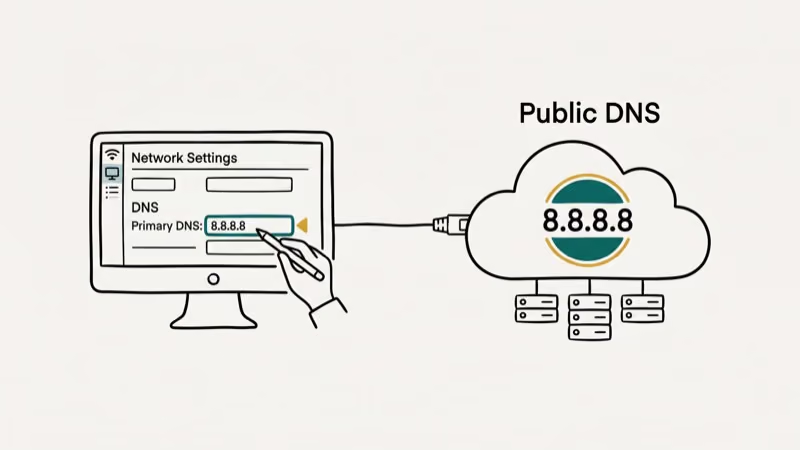
Your current DNS server may be routing lookups through a dead path. Switching to a public server bypasses the issue.
On Windows:
- Press Win + R, type
ncpa.cpl, and press Enter. - Right-click your active connection and select Properties.
- Select Internet Protocol Version 4 (TCP/IPv4) and click Properties.
- Choose Use the following DNS server addresses.
- Enter
8.8.8.8(primary) and8.8.4.4(secondary). - Click OK and restart Chrome.
On macOS:
- Go to System Settings > Network.
- Click your active connection > Details > DNS.
- Click + and add
8.8.8.8and8.8.4.4.
Cloudflare’s 1.1.1.1 and 1.0.0.1 are a fast alternative. According to Cloudflare’s DNS documentation, Cloudflare states that 1.1.1.1 averaged under 14 milliseconds for DNS queries globally in 2023 (Cloudflare 1.1.1.1 overview).
#Fix 4: Check and Power Cycle Your Router
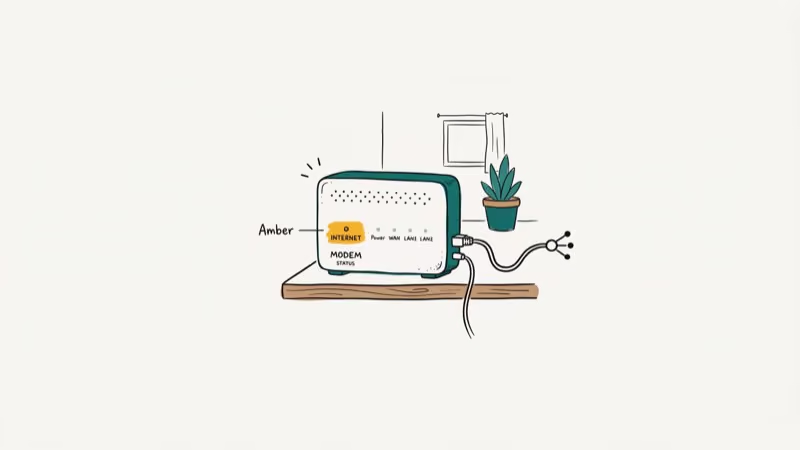
Unplug your router and modem from power for 30 seconds. While they’re off, test whether another device on the same network can load websites. If no device can connect, the issue is your ISP or router, not your computer.
Plug the router back in. Wait 2 full minutes.
#Fix 5: Update Network Adapter Driver
An outdated driver can cause persistent NO_INTERNET errors that no DNS fix resolves.
- Press Win + X and select Device Manager.
- Expand Network Adapters.
- Right-click your network adapter and select Update driver.
- Choose Search automatically for drivers.
- Restart your computer after the update completes.
If Windows finds no update, visit your laptop or motherboard manufacturer’s website to download the latest driver manually. Driver updates are worth checking when NO_INTERNET errors survive DNS, TCP/IP, and router fixes.
#Fix 6: Disable VPN and Proxy Settings
VPN apps create virtual network tunnels. If the tunnel breaks while the VPN software stays active, Chrome reports NO_INTERNET even though your physical connection is fine.
Disable your VPN completely (not just pause it). Then verify no proxy is set: go to Chrome Settings > System > Open your computer’s proxy settings and disable all proxy entries. Restart Chrome after disabling both.
#Fix 7: Clear Chrome Cache and Reset Chrome
Corrupted cached data can block Chrome’s connection attempts even after DNS and TCP/IP are fixed. Press Ctrl + Shift + Delete, select All time, check Cached images and files and Cookies and other site data, then click Clear data.
If clearing cache doesn’t help, reset Chrome: go to Settings > Reset settings > Restore settings to their original defaults. This disables all extensions and resets flags that may block connections. Extensions like ad blockers or privacy tools are a common cause of NO_INTERNET errors that survive DNS and TCP/IP fixes because they intercept network requests at the application layer. Re-enable extensions one by one after the reset to identify which one caused the problem.
#Browser-Specific Behavior for This Error
This is a Chrome-specific error code, but the underlying connection failure affects all browsers. Firefox shows “The connection has timed out” and Edge shows “Hmmm… can’t reach this page” for the same underlying issue. The DNS_PROBE_FINISHED_BAD_CONFIG error is a related Chrome error that appears when DNS settings are misconfigured rather than when the connection itself is broken.
#Why Does This Error Appear After a Windows Update?
Windows updates sometimes reset network adapter settings or install updated drivers that conflict with existing configurations. Post-update DNS failures are a documented issue requiring TCP/IP stack resets. After a Windows update triggers NO_INTERNET, running Fix 2 (TCP/IP reset) followed by Fix 5 (driver update) resolves most cases.
#Diagnosing Whether the Problem Is Local or ISP-Side
Before spending time on TCP/IP resets, confirm where the fault lies. Open Command Prompt and run ping 8.8.8.8. If replies come back, your internet connection is working and the issue is DNS configuration. If the ping times out, the problem is at your router or ISP level.

For router-level issues, test whether other devices on the same network can load websites. If no device can connect, the router itself is the problem. Unplug the router for 30 seconds and plug it back in. If other devices work fine but yours doesn’t, your computer’s network configuration is the issue, and you should continue through all 7 fixes listed here. See the ERR_ADDRESS_UNREACHABLE guide if Chrome reports it can’t reach the server IP directly.
#Related Chrome Network Errors
DNS_PROBE_FINISHED_NO_INTERNET is one of several Chrome connection errors that share common fixes. The ERR_CONNECTION_RESET error appears when Chrome connects but the server drops the connection. The ERR_CACHE_MISS error involves form resubmission issues.
The ERR_EMPTY_RESPONSE error is another close relative. It occurs when the server accepts the connection but sends no data back, which usually points to server-side timeouts rather than local network problems.
If you’re experiencing slow Chrome performance alongside this error, the Chrome being slow guide covers cache and extension-related slowdowns that sometimes coincide with DNS errors. For SSL certificate issues you may see alongside NO_INTERNET, check the ERR_CERT_DATE_INVALID guide.
#Bottom Line
Start with Fix 1 (flush DNS + renew IP) and Fix 2 (reset TCP/IP). These two steps resolve most NO_INTERNET errors within 5 minutes. If those fail, change your DNS server to 8.8.8.8 and power cycle your router. Update your network adapter driver if the error persists across all browser and connection types, since driver issues don’t respond to DNS fixes.
#Frequently Asked Questions
What is the difference between DNS_PROBE_FINISHED_NO_INTERNET and BAD_CONFIG?
NO_INTERNET means DNS resolved but the internet path is broken. BAD_CONFIG means the DNS server address itself is wrong. Different root causes, different fixes.
Can a VPN cause DNS_PROBE_FINISHED_NO_INTERNET?
Yes. VPN apps that crash or disconnect improperly often leave the network adapter in a broken state where Chrome can’t route traffic. Fully disabling the VPN and running ipconfig commands usually restores the connection within a minute.
Does this error mean my computer has a virus?
Not necessarily. This error is most commonly caused by corrupted TCP/IP stack settings, outdated network drivers, or ISP connectivity failures, none of which involve malware. That said, some DNS hijacking malware modifies network adapter settings in ways that produce NO_INTERNET errors. Running a Windows Defender scan takes 10-15 minutes and is worth doing after you’ve restored the connection if you suspect something unusual.
Why does the error only affect Chrome and not other apps?
Chrome performs DNS probing independently of the operating system and reports specific error codes based on what probe stage fails. Other apps rely on the OS for network error messages. The underlying connection failure affects all apps equally, but only Chrome labels it with DNS_PROBE_FINISHED_NO_INTERNET.
How do I fix DNS_PROBE_FINISHED_NO_INTERNET on Android?
On Android, go to Settings > Network > Private DNS and enter dns.google as a private DNS host. This bypasses carrier DNS settings that may be misconfigured. If the error persists after setting private DNS, toggle airplane mode on for 10 seconds and back off to force a fresh mobile network connection. On iOS, go to Settings > Wi-Fi > tap your network > Configure DNS > Manual and add 8.8.8.8.
How long does the TCP/IP reset take?
Under 5 minutes total. The commands themselves run in under 30 seconds; the restart takes 2-3 minutes.
Will fixing DNS_PROBE_FINISHED_NO_INTERNET delete my files?
No. None of the fixes above affect personal files. Flushing DNS, renewing IP, resetting TCP/IP, updating drivers, and clearing browser cache only affect network configuration and browser data, not documents, photos, or other files.

Best Laptop for Running LLMs in 2026: Memory Comes First
The best laptop for running LLMs is a memory purchase first. Compare MacBook unified memory against NVIDIA laptop VRAM, and see what each tier really runs.

How to Run a Local LLM on Windows: A 2026 Setup Guide
Run a local LLM on Windows with LM Studio or Ollama. Pick a model that fits your GPU memory, keep every prompt offline, and skip the monthly bill.

Bluetooth Not Working on Snapdragon X? Fixes for 2026
Bluetooth not working on your Snapdragon X Copilot+ PC? Generic audio, mice, and keyboards work, but vendor apps often lack an ARM build. Fixes inside.

Docker Desktop and WSL2 Not Working on Snapdragon X? Fix It
WSL2 runs fine on Snapdragon X, but Docker Desktop ARM is Early Access and throws WSL errors. Use WSL2 plus native ARM64 Ubuntu and Docker Engine.