Netflix Keeps Buffering? Fix Constant Loading in 2026
Netflix keeps buffering? Separate network, device, app, and account causes, fix Wi-Fi placement and data usage, and learn when it is really your ISP.
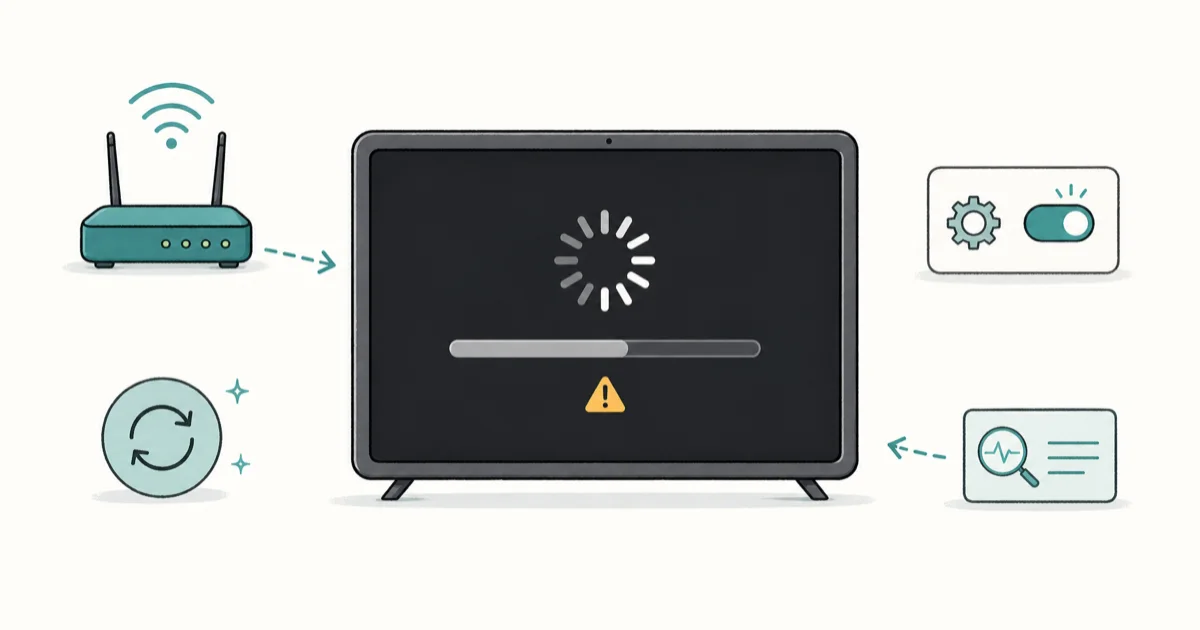
Quick AnswerNetflix keeps buffering mostly from weak Wi-Fi at the streaming device, a stale app cache, or a low in-app data-usage setting. Move the device closer to the router, then raise the data-usage limit.
Netflix keeps buffering when the video stalls, drops to a blurry resolution, or shows the spinning loader mid-stream. The cause is rarely “your internet is down.” It’s usually one of four separate things: weak Wi-Fi reaching the device, a stale app cache, a low data-usage setting, or a real ISP slowdown. This guide separates them so you fix the right one instead of guessing.
- Weak Wi-Fi at the streaming device, not total bandwidth, causes most buffering
- A wired device that streams cleanly proves the problem is your Wi-Fi, not your ISP
- Netflix lists about 5 Mbps for HD and 15 Mbps for 4K per stream
- Raising the in-app data-usage setting to High stops Netflix from self-limiting quality
- Restarting the router and streaming device clears most temporary stalls in under five minutes
#Why Does Netflix Keep Buffering?
Buffering happens when Netflix can’t download the next few seconds of video fast enough to keep playing. The app builds a buffer ahead of where you’re watching, and when that buffer empties, playback pauses to refill it.
The trigger is usually the link between your router and the device you watch on. A 300 Mbps plan does nothing if the TV in the back bedroom only sees two bars of Wi-Fi.
A second common cause is the app cache. The Netflix app on smart TVs and sticks stores local data, and a corrupted cache can stall one device while every other app runs fine. The third is deliberate: Netflix has a per-profile data-usage control that can cap quality low enough to look like buffering.
A weak signal at the streaming device can trigger buffering even when the router connection is fast. That’s why device-side signal matters more than the speed result you see next to the router.
#Is It Your Network or the App?
This is the single most useful test. Run it first.
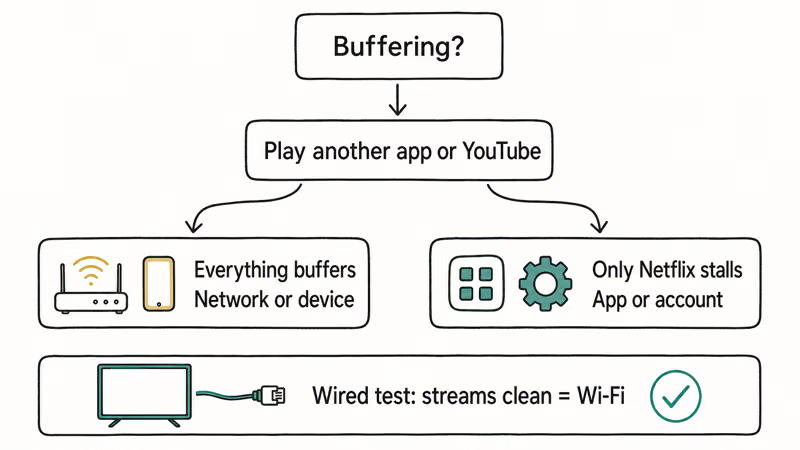
Open a different streaming app on the same device, or play a YouTube video. If that buffers too, the problem is your network or that specific device, not Netflix. If only Netflix stalls while everything else is smooth, the Netflix app or your account’s data-usage setting is the culprit.
Next, check a wired device. If you have a console, laptop, or smart TV you can connect with an Ethernet cable, run Netflix on it. A wired device that streams 4K cleanly while your wireless device stalls is proof the issue is Wi-Fi coverage, not your internet plan. This one test rules out an ISP problem faster than any speed test, and it costs nothing but a spare cable.
If the wired device also buffers, the problem sits upstream of your home.
#Fix Wi-Fi Placement and Signal Strength
Most buffering dies here. The goal is a strong signal at the device that actually plays Netflix.
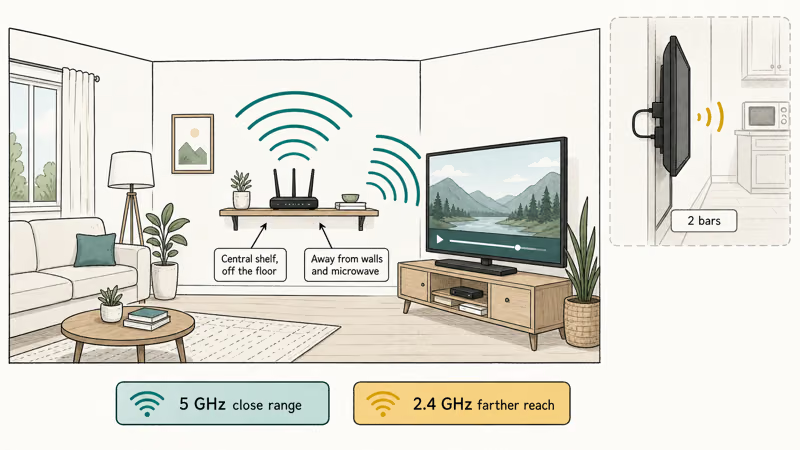
Move the streaming device closer to the router, or lift the router off the floor and away from walls, metal shelves, and microwaves. A stick tucked behind a wall-mounted TV often sits in the worst possible spot. Tom’s Guide confirms that simply repositioning a router from the floor to a central shelf restored streaming in back bedrooms where buffering had been constant, in its Netflix buffering fixes guide.
If your router broadcasts both bands, connect to 5 GHz for short range and high speed. Stay on 2.4 GHz only when the device sits far from the router, since that band travels farther but carries less data, and the trade-off matters once you’re more than a room or two away from the access point.
Then restart the network. Unplug the router and modem, wait 60 seconds, plug the modem back first, wait for its lights, then the router. This clears temporary modem/router stalls without changing Netflix settings.
#Check Whether Your Speed Is Enough
Speed matters less than placement, but it sets the floor. Netflix’s recommended speeds page states that HD needs about 5 Mbps and 4K needs about 15 Mbps per stream.
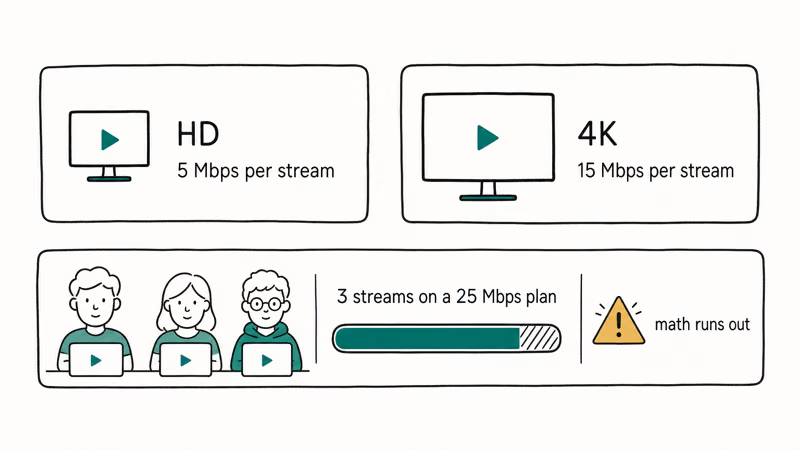
Run a speed test on the buffering device itself, not on your phone next to the router. If three people stream at once on a 25 Mbps plan, the math runs out before Netflix does. The official Netflix speed guide lists these per-stream figures, and Netflix’s slow-streaming help page recommends restarting the device and network before anything else.
Sometimes the link itself drops, not just the speed. If your Wi-Fi keeps falling off the network entirely, the guide on Wi-Fi keeps disconnecting covers deeper fixes. A Wi-Fi connected but no internet state is a different router-level fault worth ruling out.
#Adjust Netflix Data Usage and Clear the Cache
If only Netflix buffers, two settings inside the app fix most cases.
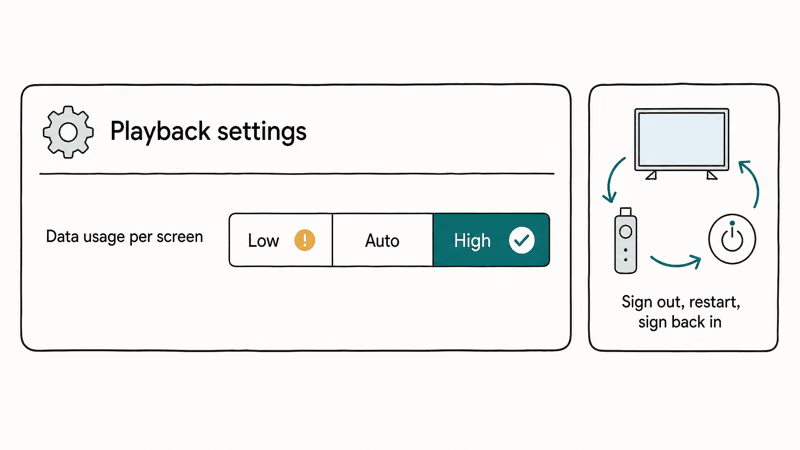
First, raise the data-usage limit. Each profile has its own playback-quality control, and a setting left on Low or Auto can hold video at a low bitrate that looks like constant buffering. Open netflix.com in a browser, go to Account, pick the profile, open Playback settings, and set Data usage per screen to High. Save it, then fully close and reopen the app on your TV.
Second, clear the app cache or reinstall. On a smart TV or stick, sign out of Netflix, restart the device, and sign back in. On a phone, deleting and reinstalling the app does the same job since iOS won’t let you clear a cache manually; the Netflix app not working guide covers the full reinstall sequence.
A clean diagnostic: if Netflix works after a reinstall, corrupted local data was the problem. While you’re in the app, clearing old titles helps the home screen load faster, and the walkthrough on how to clear Continue Watching covers that cleanup.
For trips with no reliable Wi-Fi, download shows ahead of time with the official in-app button.
#What If It’s an ISP or Account Problem
You reach this section only after the wired-device test pointed upstream.
If a wired device buffers and its speed test comes back far below your plan, the problem is your ISP. Test at different times of day, since evening congestion throttles real-world speed.
Account-side problems look different. If Netflix loads, plays, then stops with a location or device error rather than a slow spinner, that’s not buffering at all. That’s the household check, and the guide on the Netflix Household error covers it. Buffering is a speed problem; the household error is a permission problem, and they need different fixes.
#Bottom Line
Restart the streaming device and router and move the device closer to the router first, because weak Wi-Fi at the device causes most Netflix buffering. Run the wired-device test to rule your ISP in or out before you blame your internet plan. If only Netflix stalls, raise the per-profile data-usage setting to High and reinstall the app. Suspect your ISP only after a wired device on the same network streams cleanly.
#Frequently Asked Questions
Why does Netflix keep buffering on my TV?
Usually a weak Wi-Fi signal at the TV or stick. Move the device or router closer, switch to 5 GHz, and restart both.
Is buffering my internet or the app?
Test it directly. Play another app or a YouTube video on the same device. If everything buffers, it’s your network or that device. If only Netflix stalls, the Netflix app cache or your data-usage setting is the cause, and a quick reinstall plus a High data-usage setting usually clears it within a minute or two of reopening the app.
Does Wi-Fi placement affect Netflix buffering?
Yes, a great deal. Walls, floors, and metal furniture all weaken the signal, and a weak signal at the device is the most common reason Netflix buffers on a connection that tests fast at the router. Moving the router or the device often fixes it outright.
How do I change Netflix data usage?
Open netflix.com in a browser, go to Account, select the profile, open Playback settings, and set Data usage per screen to High. Restart the app afterward.
Why does only Netflix buffer and not other apps?
That points to the Netflix app or your account rather than your connection. The likeliest causes are a corrupted app cache on that device or a data-usage setting left on Low. Reinstall the app and raise the limit to High to rule both out.
When is it my ISP throttling Netflix?
Suspect your ISP when a wired device buffers and a speed test there returns far below your plan, especially in the evening. Test at noon and again at 9 PM to compare.

Is This Bank App Real? Spot a Fake App on Your Home Screen
A bank app can land on your home screen from a web page with no install warning. Learn the checks that tell a real banking app from a phishing web app.

Apps Crashing After iOS 27 Update? Fix Order (2026)
Apps crashing after the iOS 27 update? Update the app in the App Store first, then offload and reinstall to clear stale cache, then restart. The fix order.

Do AI Translation Earbuds Work Offline? What to Know
Do AI translation earbuds work offline? A few do with downloaded language packs, but most need the cloud. Here's what works offline and what you give up.
How to Set Up Translation Earbuds (Pairing and Modes)
How to set up translation earbuds: charge, install the app, pair over Bluetooth, pick two languages, and choose a mode. A step-by-step first-use guide.