Fix 'Recovery: Your PC Needs to Be Repaired' Error
Fix the Windows Recovery screen by checking BCD, Startup Repair, SFC, CHKDSK, drivers, restore points, reset options, and drive health on Windows 10/11.
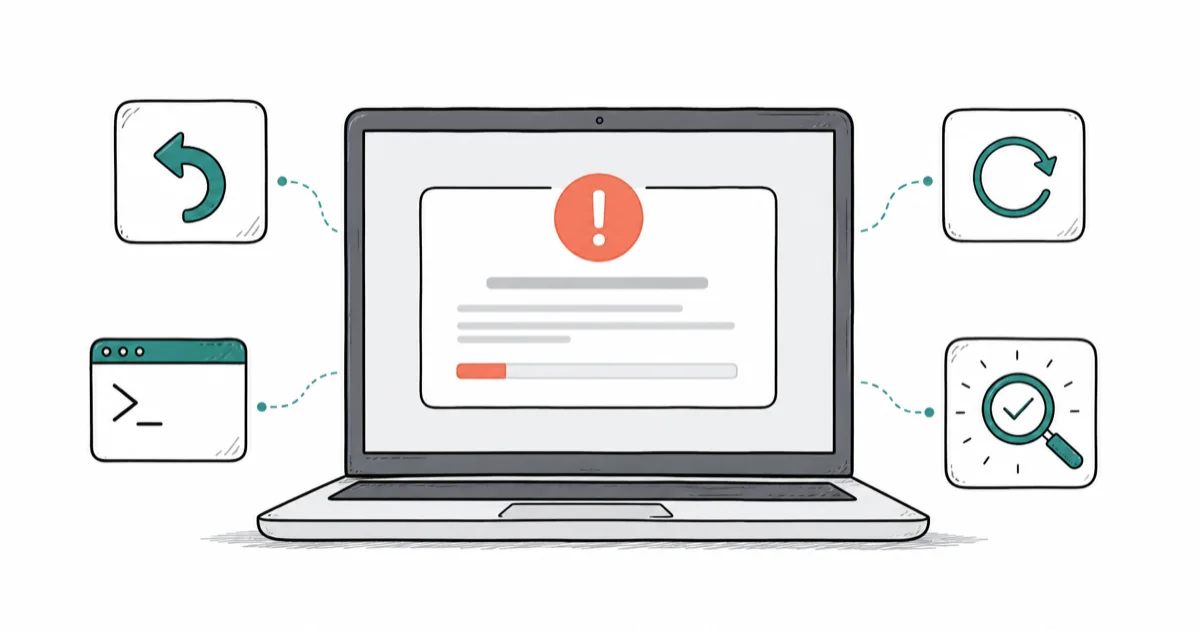
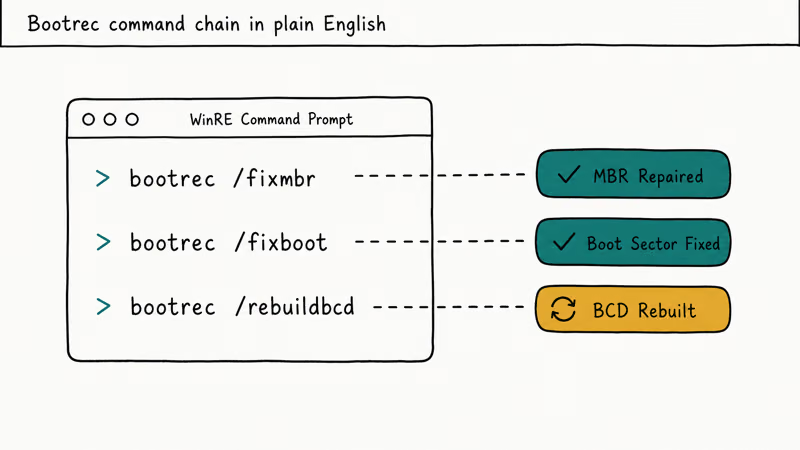
Quick AnswerBoot from Windows installation media, open Command Prompt, and run bootrec /fixmbr, bootrec /fixboot, and bootrec /rebuildbcd to repair the Boot Configuration Data.
The “Recovery: Your PC needs to be repaired” error appears when Windows can’t find essential boot files. The fixes below cover BCD repair, Startup Repair, SFC, CHKDSK, Safe Mode, reset options, and drive checks. These methods work for your own computer or systems you own and have authorization to repair, and also apply to related errors like bootmgr is missing and boot device not found issues.
- Error codes 0xc000014C, 0xc000000f, and 0xc0000034 indicate corrupted Boot Configuration Data (BCD) requiring command prompt repair
- Running bootrec /fixmbr, bootrec /fixboot, and bootrec /rebuildbcd repairs many BCD-related boot failures
- System File Checker (sfc /scannow) combined with CHKDSK repairs corrupted Windows files that block normal startup
- Windows Startup Repair tool automatically fixes common boot issues without manual command entry
- Hard drive failure causes a small share of cases and requires physical replacement when software fixes fail
#What Causes the “Recovery: Your PC Needs to Be Repaired” Error?
This blue screen error appears with specific hexadecimal codes that pinpoint the root cause. According to Microsoft’s Startup Repair documentation, the repair tool aimed at this screen diagnoses corrupted system files and boot configuration errors, which is where these codes point, and it wants your BitLocker key first if the drive is encrypted. The most common patterns match those seen in BCD error 0xc00000e9 situations:
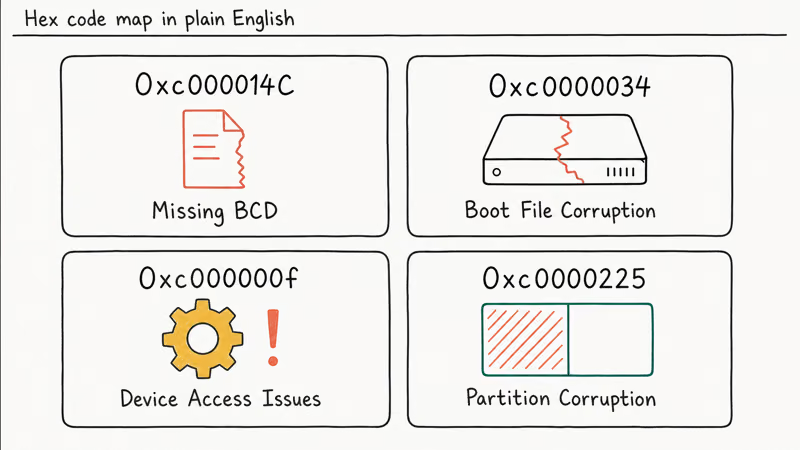
- 0xc000014C - Missing or corrupted Boot Configuration Data
- 0xc0000034 - Boot file corruption or hard drive errors
- 0xc000000f - Device access issues or driver problems
- 0xc0000225 - System partition corruption
BCD corruption often follows power outages during critical file writes, failed Windows updates, hardware problems, third-party partition software, or malware interference.
The error means Windows can’t locate Boot Configuration Data (BCD) - the database that tells your PC how to start. These files live in a hidden system partition and get corrupted when:
#Power Outages During Updates
Sudden power loss while Windows writes critical boot files damages the BCD.
#Failed Windows Updates
When system updates don’t complete properly, they can overwrite or corrupt boot files.
#Hard Drive Failure
Physical hard drive problems prevent Windows from reading boot files correctly. SMART diagnostics can reveal bad sectors on drives that consistently produce 0xc0000034 errors.
#Incorrect Partition Changes
Using third-party partition tools incorrectly can damage the system reserved partition where BCD files reside.
#Signs Your Hard Drive Has Failed
Before trying software fixes, check if your hard drive is failing.
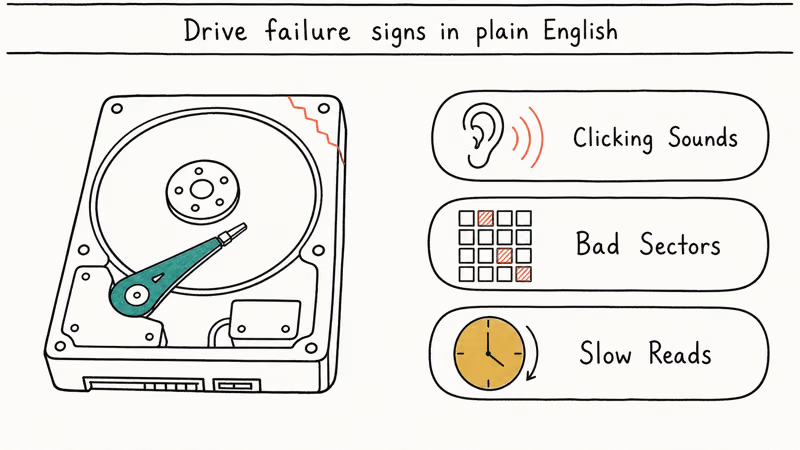
Signs of hard drive failure include clicking or grinding noises during boot attempts, multiple blue screen errors with different codes appearing randomly, BIOS failing to detect the drive consistently across restarts, and boot processes that take over 5 minutes before failing completely. Some physical drive problems can’t be fixed by software.
Run a SMART test using built-in Windows diagnostic tools to check drive health before attempting software repairs:
- Open Command Prompt as administrator by right-clicking Start button
- Type
wmic diskdrive get statusand press Enter to query all connected drives - Look for drives showing “Pred Fail” status instead of the normal “OK” response, which indicates imminent hardware failure
#How Do You Fix the “Recovery: Your PC Needs to Be Repaired” Error?
#Method 1: Use Windows Startup Repair
Windows includes an automatic repair tool that fixes common boot issues without manual commands.
Use this first because it automatically handles common boot issues without manual commands.
- Create a Windows 10/11 installation USB using Microsoft’s Media Creation Tool on another working computer
- Boot from the USB drive (press F12 during startup to access the boot device selection menu)
- Select your preferred language and region settings, then click “Next” to continue
- Click “Repair your computer” instead of “Install now” to access recovery options
- Choose “Troubleshoot” > “Advanced options” > “Startup Repair” from the menu hierarchy
- Select your target Windows installation and wait 5-15 minutes for the automated repair process to complete
The repair takes 5-15 minutes and automatically fixes BCD corruption, missing boot files, and registry errors.
#Method 2: Rebuild Boot Configuration Data
When automatic repair fails, manually rebuilding BCD files often solves the problem.
- Boot from Windows installation media
- Go to “Troubleshoot” > “Advanced options” > “Command Prompt”
- Type these commands one by one, pressing Enter after each:
bootrec /fixmbr bootrec /fixboot bootrec /rebuildbcd - When prompted, type “Y” to add installations to boot list
- Type
exitand restart your computer
These commands rebuild the master boot record, fix boot sectors, and recreate the BCD database with proper Windows entries.
#Method 3: Run System File Checker and CHKDSK
Corrupted Windows system files can prevent normal startup. Running SFC and CHKDSK repairs these files and checks for disk errors.
- Boot from Windows installation USB
- Go to “Troubleshoot” > “Advanced options” > “Command Prompt”
- Type
sfc /scannowand press Enter - Wait for the scan to complete (takes 15-30 minutes)
- Type
chkdsk c: /f /rand press Enter - Type “Y” when prompted to schedule scan on restart
- Type
exitand restart normally
According to Microsoft’s System File Checker documentation, SFC can detect and repair most corrupted Windows system files when run from installation media.
#Method 4: Fix Active Partition Problems
Sometimes the wrong partition is marked as active, preventing Windows from booting. This can happen after partition software marks the wrong partition as active.
Access the Command Prompt interface from your Windows installation media first.
- Type
diskpartand press Enter to launch the disk partitioning utility - Type
list diskto see all available storage drives connected to your system - Type
select disk 0(replace 0 with your Windows drive number shown in the list) - Type
list partitionto see all partitions on the selected drive - Type
select partition Xwhere X represents the partition containing Windows (usually the largest partition by size) - Type
activeto mark the selected partition as the active boot partition - Type
exittwice to close diskpart and Command Prompt, then restart your computer
#Method 5: Disable Driver Signature Enforcement
Incompatible or unsigned drivers can cause boot failures with recovery errors, similar to runtime errors from specific drivers. Disabling driver signature enforcement allows Windows to start with problematic drivers.
- Boot from Windows installation media
- Go to “Troubleshoot” > “Advanced options” > “Command Prompt”
- Type
bcdedit.exe /set nointegritychecks on - Type
bcdedit.exe /set testsigning on - Restart and see if Windows boots normally
This bypass works temporarily. Once Windows starts, update or remove problematic drivers through Device Manager.
#Method 6: Use Safe Mode for System Restore
If you created restore points before the error occurred, Safe Mode lets you roll back Windows to a working state.
- Power on your PC and force shutdown when Windows logo appears
- Repeat this 3 times to trigger Automatic Repair
- Choose “Troubleshoot” > “Advanced options” > “Startup Settings”
- Click “Restart” and press F4 when options appear
- In Safe Mode, type “rstrui” in Start menu search
- Select a restore point from before the error started
- Follow prompts to complete restoration
Safe Mode loads only essential drivers and services, bypassing the corrupted files causing boot problems.
#Method 7: Reset Windows While Keeping Files
When other methods fail, Windows Reset removes corrupted system files while preserving your personal data.
- Boot from Windows installation USB
- Go to “Troubleshoot” > “Reset this PC”
- Choose “Keep my files”
- Select “Remove apps and settings”
- Choose “Just remove my files” when prompted
- Click “Reset” and wait for the process to complete
This reinstalls Windows while keeping documents, photos, and other personal files in their original locations.
#Method 8: Replace the Hard Drive
When all software fixes fail and SMART tests show drive errors, physical replacement is the only solution. Consider professional Windows 10 performance optimization before replacing hardware if the system boots but runs poorly.
Signs you need a new drive:
- Multiple different error codes appear
- Windows installation fails with disk errors
- BIOS shows “No bootable device found” intermittently
- Drive makes unusual clicking or grinding sounds
#When System Restore Fails
System Restore requires existing restore points created when Windows was working properly. According to Microsoft’s System Restore documentation, automatic restore point creation is disabled by default on drives smaller than 64GB, and restore points consume approximately 3-5% of available drive space. This process differs from iOS restore procedures which reset devices to factory settings.
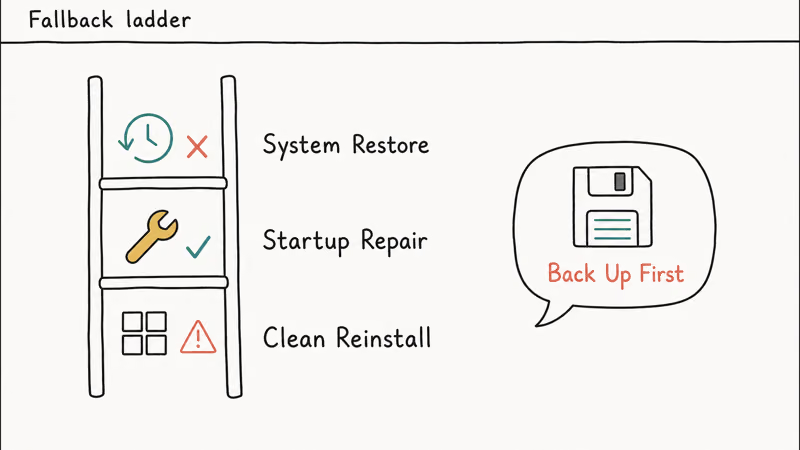
Even with restore points available, System Restore fails when:
- Boot partition corruption prevents accessing restore data
- Hard drive has physical errors in restore point storage areas
- Windows can’t authenticate restore point integrity
System Restore is most useful when the recovery error was caused by recent software changes, not hardware problems or deep system corruption.
#Prevention Methods That Work
These prevention methods reduce the chance of future recovery errors:
Regular System Maintenance
- Create restore points monthly when system runs smoothly
- Run
sfc /scannowmonthly to catch file corruption early - Update drivers through Device Manager, not third-party tools
Hardware Protection
- Use an uninterruptible power supply (UPS) during Windows updates
- Run CHKDSK quarterly to identify bad sectors before they cause failures
- Monitor hard drive health using built-in Windows SMART tools
Update Management
- Enable automatic Windows updates but pause them during critical work
- Install updates one at a time rather than accumulating multiple pending updates
- Create restore points before major feature updates
#Bottom Line
Start with Windows Startup Repair - it’s the fastest fix and clears the majority of cases. If that fails, rebuild your Boot Configuration Data using the three bootrec commands. For persistent errors, run System File Checker and CHKDSK to repair corrupted Windows files.
When multiple error codes appear or drives make unusual noises, test your hard drive health before attempting software fixes. A failing drive won’t respond to any software solution and requires replacement.
#Frequently Asked Questions
How long does it take to fix the “Recovery: Your PC needs to be repaired” error?
Automatic Startup Repair typically completes within 15 minutes. Manual BCD rebuilding takes 5-10 minutes plus restart time. System File Checker requires 30-45 minutes for full scans. Windows Reset preserving files takes 1-2 hours depending on system specs.
Will I lose my files when fixing this error?
Most repair methods preserve your personal files. Startup Repair, BCD rebuilding, and System Restore don’t touch documents or photos. Only hard drive replacement results in complete data loss unless you restore from backups.
Can this error happen on Windows 11?
Yes, Windows 11 uses the same Boot Configuration Data system as Windows 10. Error codes and repair methods remain identical. Windows 11’s enhanced Startup Repair tool has slightly higher success rates but follows the same troubleshooting process.
What should I do if none of these methods work?
If all software fixes fail, the issue is likely hardware-related. Test your hard drive using Windows built-in diagnostics or third-party tools like CrystalDiskInfo. Replace the drive if SMART errors appear. Consider professional data recovery services if important files weren’t backed up.
How can I tell if my boot files are corrupted versus a hardware problem?
Corrupted boot files typically produce consistent error codes and respond to software fixes like BCD rebuilding. Hardware problems show multiple different error codes, intermittent BIOS detection issues, and unusual drive noises. Run SMART diagnostics to confirm hardware status.
Is it safe to disable driver signature enforcement?
Disabling signature enforcement is safe temporarily to identify problematic drivers. However, re-enable it after troubleshooting by running bcdedit.exe /set nointegritychecks off and bcdedit.exe /set testsigning off in Command Prompt. Unsigned drivers can introduce security vulnerabilities.

Best Laptop for Running LLMs in 2026: Memory Comes First
The best laptop for running LLMs is a memory purchase first. Compare MacBook unified memory against NVIDIA laptop VRAM, and see what each tier really runs.

How to Run a Local LLM on Windows: A 2026 Setup Guide
Run a local LLM on Windows with LM Studio or Ollama. Pick a model that fits your GPU memory, keep every prompt offline, and skip the monthly bill.

Bluetooth Not Working on Snapdragon X? Fixes for 2026
Bluetooth not working on your Snapdragon X Copilot+ PC? Generic audio, mice, and keyboards work, but vendor apps often lack an ARM build. Fixes inside.

Docker Desktop and WSL2 Not Working on Snapdragon X? Fix It
WSL2 runs fine on Snapdragon X, but Docker Desktop ARM is Early Access and throws WSL errors. Use WSL2 plus native ARM64 Ubuntu and Docker Engine.