How to Fix Atibtmon.exe Runtime Error on Windows 10
Fix the atibtmon.exe runtime error on Windows 10 and 11. Covers AMD Vari-Bright, driver updates, power plan tweaks, and safe fallback workarounds.
Quick AnswerAtibtmon.exe runtime error happens when AMD brightness monitor conflicts with Windows power settings. Disable Vari-Bright in Catalyst Control Center or update AMD display drivers.
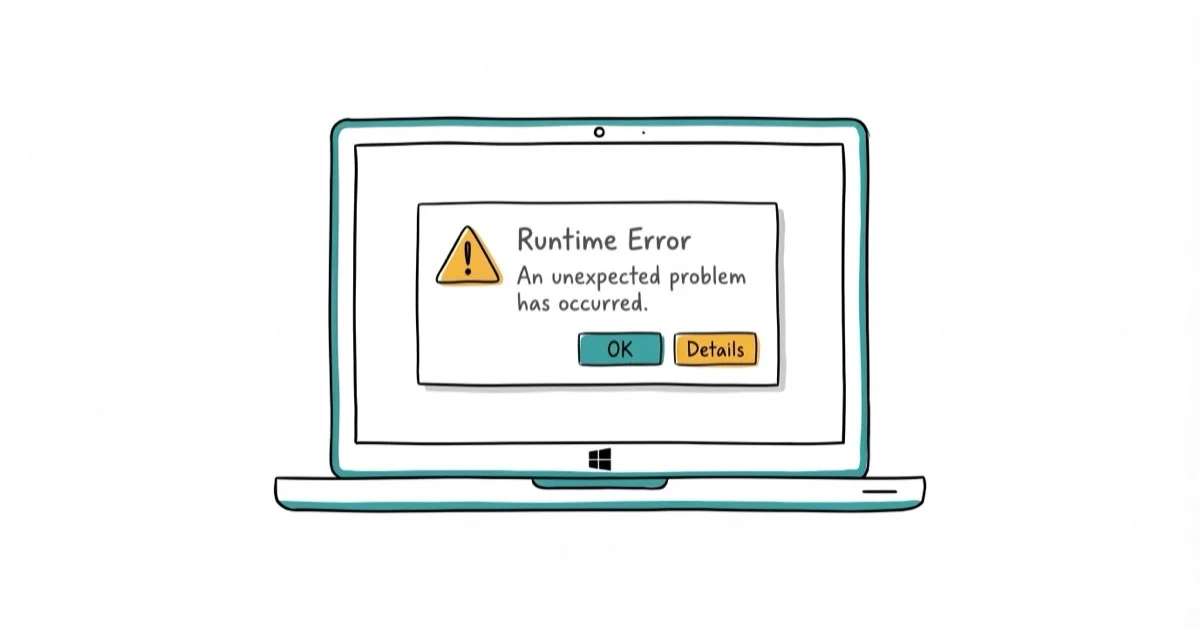
The atibtmon.exe runtime error pops up on Windows laptops with AMD graphics when you unplug the power cable.
Start with Vari-Bright and driver settings before using broader workarounds.
- Atibtmon.exe is AMD’s brightness monitor that dims the screen when you unplug from AC power
- The runtime error stems from a conflict between AMD and Windows brightness control
- Disabling Vari-Bright in Catalyst Control Center fixes it in under a minute
- Reinstalling AMD display drivers resolves it when Vari-Bright isn’t accessible
- Renaming atibtmon.exe in System32 works as a permanent workaround
#What Is Atibtmon.exe and Why Does It Crash?
Atibtmon.exe stands for ATI Brightness Monitor. It’s a background process installed by AMD (formerly ATI Technologies) as part of the Catalyst Control Center driver package, and the file lives in C:\Windows\System32 where it launches automatically at startup.
When you unplug your laptop from AC power, atibtmon.exe dims the screen to save battery. The problem? Windows 10 and 11 try to do the exact same thing simultaneously, and two programs fighting over brightness control at the same moment causes the Visual C++ runtime error that pops up on your screen.
According to Microsoft’s community forums, this error became widespread after Windows 10 build 1903 took over brightness management from third-party utilities. You see the error dialog every time you disconnect the charger.
You might also see it after a Windows Update. Not dangerous. Won’t damage anything.
#Disable Vari-Bright in AMD Catalyst Control Center
This is the fastest fix. Vari-Bright is AMD’s adaptive brightness feature that works through atibtmon.exe, and turning it off stops the conflict entirely.
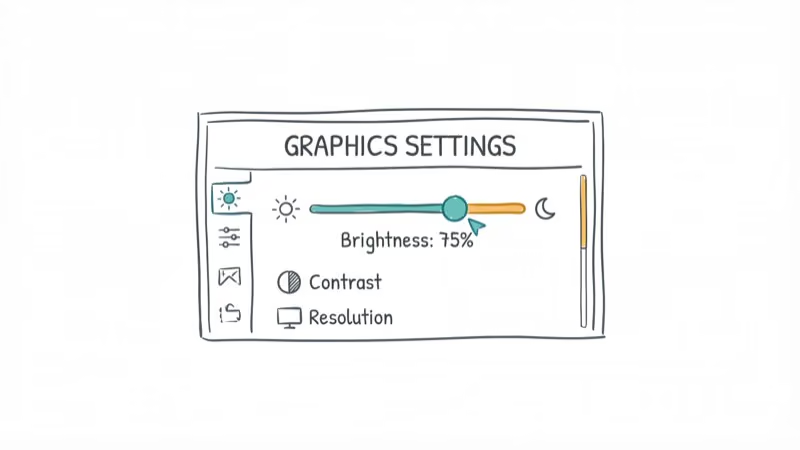
- Right-click your desktop and select AMD Catalyst Control Center.
- Go to Power > PowerPlay, uncheck Enable Vari-Bright(tm), and click Apply.
Done. If Vari-Bright is the source of the conflict, the runtime dialog should stop after unchecking that single option.
If you don’t see the Vari-Bright option, your AMD driver version may be too old or too new. Older Catalyst versions label it differently, and newer AMD Adrenalin software moved away from this feature entirely. Skip to the driver update section below.
This fix also resolves related brightness issues. If your laptop brightness won’t change on Windows 10, the same Vari-Bright conflict could be the cause.
#Update or Reinstall AMD Display Drivers
Outdated AMD drivers are the second most common cause. A driver mismatch between the installed atibtmon.exe version and your current Windows build creates instability that shows up as a runtime crash whenever the process tries to adjust brightness settings.
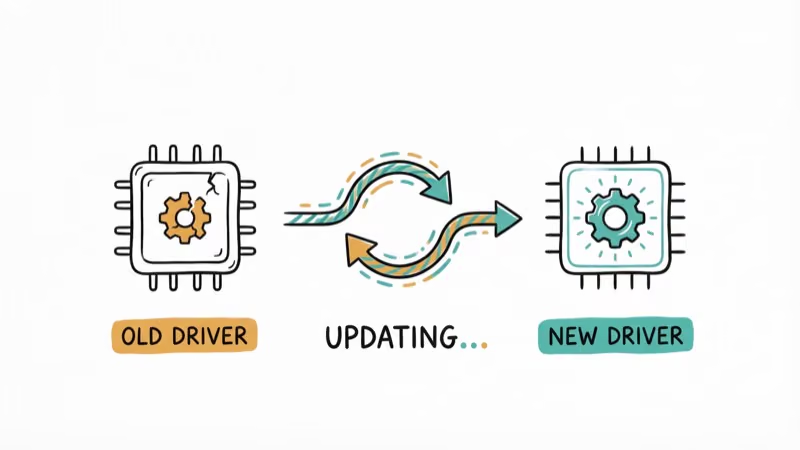
#Uninstall the Current Driver
- Press Windows + X, select Device Manager, and expand Display adapters.
- Right-click your AMD graphics card, select Uninstall device, check Delete the driver software, and click Uninstall.
Restart your PC. Windows will install a basic display driver after reboot.
#Install the Latest AMD Driver
- Go to AMD’s driver download page, select your GPU model, and download the recommended driver.
- Run the installer, choose Factory Reset when prompted, and restart when finished.
According to AMD’s support documentation, using the Factory Reset option clears residual files that cause conflicts like the atibtmon.exe error. Takes about 10 minutes total.
If you’re dealing with other AMD audio driver issues, the same driver reinstall process fixes those too.
#Rename Atibtmon.exe as a Workaround
Renaming atibtmon.exe prevents the file from running at all. It won’t break Windows or your graphics card because the file isn’t essential for display output.
- Open File Explorer, go to
C:\Windows\System32, find atibtmon.exe. - Right-click it, select Rename, and change it to atibtmon.exe.bak (administrator permissions required).
If Windows blocks the rename, boot into Safe Mode first.
AMD driver updates can restore the original file, which means the error comes back after an update. You’d need to rename it again each time, so for a permanent solution the Vari-Bright or driver update methods are better long-term choices.
This approach works best for users running older AMD hardware where updated drivers aren’t available anymore. If your GPU is from the ATI Radeon HD era (pre-2013), AMD stopped releasing driver updates and renaming the file is the most practical option left.
#Disable AMD External Events Service
The AMD External Events service manages hardware event notifications for AMD components. Disabling it stops atibtmon.exe from receiving the power-state change signals that trigger the crash.
- Press Windows + R, type services.msc, press Enter, and find AMD External Events Utility.
- Double-click it, set Startup type to Disabled, click Stop, then Apply and OK.
Restart your PC afterward.
According to Microsoft’s clean boot guide, selecting Hide all Microsoft services and then Disable all isolates third-party services without touching core Windows components.
Microsoft’s clean boot troubleshooting steps recommend disabling third-party services when diagnosing application errors like this one.
#How to Perform a Clean Boot?
A clean boot starts Windows with only Microsoft services. Useful for confirming whether atibtmon.exe or another program is the real culprit behind the error.
Open the Run dialog with Windows + R, type msconfig, and press Enter. On the Services tab, check Hide all Microsoft services and click Disable all. Then go to Startup, click Open Task Manager, and disable each startup item. Close Task Manager, click Apply and OK, then restart your PC.
If the error disappears after a clean boot, atibtmon.exe was the cause. Re-enable services one by one to pinpoint which one triggers the conflict, then reverse the clean boot steps when you’re done.
Clean booting also helps diagnose other Windows errors. If you’re troubleshooting a DPC Watchdog Violation on Windows 10 or a Bad Pool Caller error, the same procedure isolates the culprit.
#Change Windows Power Plan Settings
Adjusting your power plan prevents AMD’s power settings from conflicting with Windows, stopping the error without disabling any services or renaming files.
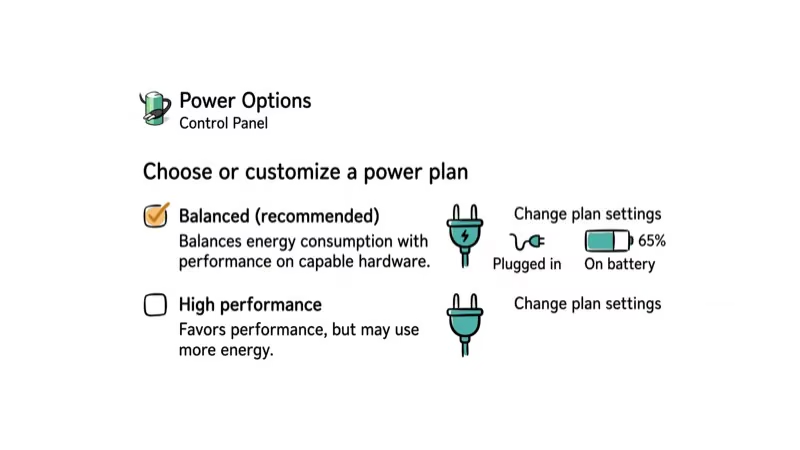
- Type Power in the Start menu, select Power & Sleep Settings, click Additional power settings, then Change plan settings next to your active plan.
- Click Change advanced power settings, expand ATI Graphics Power Settings (if available), and set ATI Powerplay Settings to Maximum Performance for both On Battery and Plugged In.
Setting ATI Powerplay to Maximum Performance tells the AMD driver to stop managing power states. Your battery life might decrease slightly because the GPU won’t throttle down automatically, but the trade-off is worth it if you’re seeing the runtime error multiple times per day.
If you don’t see ATI Graphics Power Settings in the advanced options, your driver version doesn’t expose this setting.
For users experiencing .NET Runtime Optimization Service high CPU usage alongside this error, changing power plan settings can reduce both issues since they share the same power management subsystem.
#Bottom Line
Start with disabling Vari-Bright because it directly addresses the root conflict and takes under a minute. If Vari-Bright isn’t available in your AMD software version, update your drivers using the Factory Reset option. The atibtmon.exe file isn’t essential for your graphics card to work, so renaming it or disabling the AMD External Events service are both safe fallbacks. Whichever method you choose, the error should stop appearing the next time you unplug your laptop.
#Frequently Asked Questions
Is atibtmon.exe a virus or malware?
No, it’s a legitimate AMD process. The file normally lives in C:\Windows\System32 and manages brightness when switching between AC and battery power. If you find the file anywhere other than System32, run a full antivirus scan because malware sometimes uses the same filename.
Will disabling atibtmon.exe affect my screen brightness?
Barely. You’ll lose AMD’s automatic dimming when unplugging from power, but Windows has its own brightness controls built in. Your slider and keyboard shortcuts keep working.
Why does the error only appear when I unplug my laptop?
Atibtmon.exe activates specifically during the switch from AC to battery power. It tries to dim the screen to save energy, but Windows is already doing the same thing, and that conflict crashes the Visual C++ runtime. The error never shows up while you’re plugged in because there’s no power transition to trigger it.
Does this error occur on Windows 11?
Yes. Windows 11 users should look for AMD Adrenalin software instead of Catalyst Control Center since the newer driver package has a different settings interface. All six methods in this guide work on both operating systems.
Can I just delete atibtmon.exe permanently?
Renaming to atibtmon.exe.bak is safer. Easier to reverse if needed. AMD driver updates may recreate the file either way.
What AMD graphics cards are affected by this error?
Laptops with AMD Radeon HD series and older Radeon R-series GPUs that shipped with ATI Catalyst Control Center see this error most often. Newer AMD GPUs using the Adrenalin driver package rarely encounter it because AMD replaced the atibtmon.exe brightness system with a completely different power management implementation that doesn’t conflict with Windows.
Do I need to run System File Checker after fixing this?
Not for this error. It’s a driver conflict, not file corruption. But if you renamed or deleted atibtmon.exe and want to restore it later, running sfc /scannow from an elevated Command Prompt brings it back from the Windows component store.
Will a Windows Update fix this error automatically?
No. Microsoft considers this an AMD driver issue. Updates may install generic display drivers that temporarily remove atibtmon.exe, but the file returns when you reinstall AMD drivers.

Best Laptop for Running LLMs in 2026: Memory Comes First
The best laptop for running LLMs is a memory purchase first. Compare MacBook unified memory against NVIDIA laptop VRAM, and see what each tier really runs.

How to Run a Local LLM on Windows: A 2026 Setup Guide
Run a local LLM on Windows with LM Studio or Ollama. Pick a model that fits your GPU memory, keep every prompt offline, and skip the monthly bill.

Bluetooth Not Working on Snapdragon X? Fixes for 2026
Bluetooth not working on your Snapdragon X Copilot+ PC? Generic audio, mice, and keyboards work, but vendor apps often lack an ARM build. Fixes inside.

Docker Desktop and WSL2 Not Working on Snapdragon X? Fix It
WSL2 runs fine on Snapdragon X, but Docker Desktop ARM is Early Access and throws WSL errors. Use WSL2 plus native ARM64 Ubuntu and Docker Engine.