BOOTMGR Is Missing: 6 Fixes for Windows 7, 10, and 11
Fix the BOOTMGR is missing error on Windows 7, 10, and 11 PCs with 6 proven methods. Step-by-step for Startup Repair, BCD rebuild, and MBR fix.
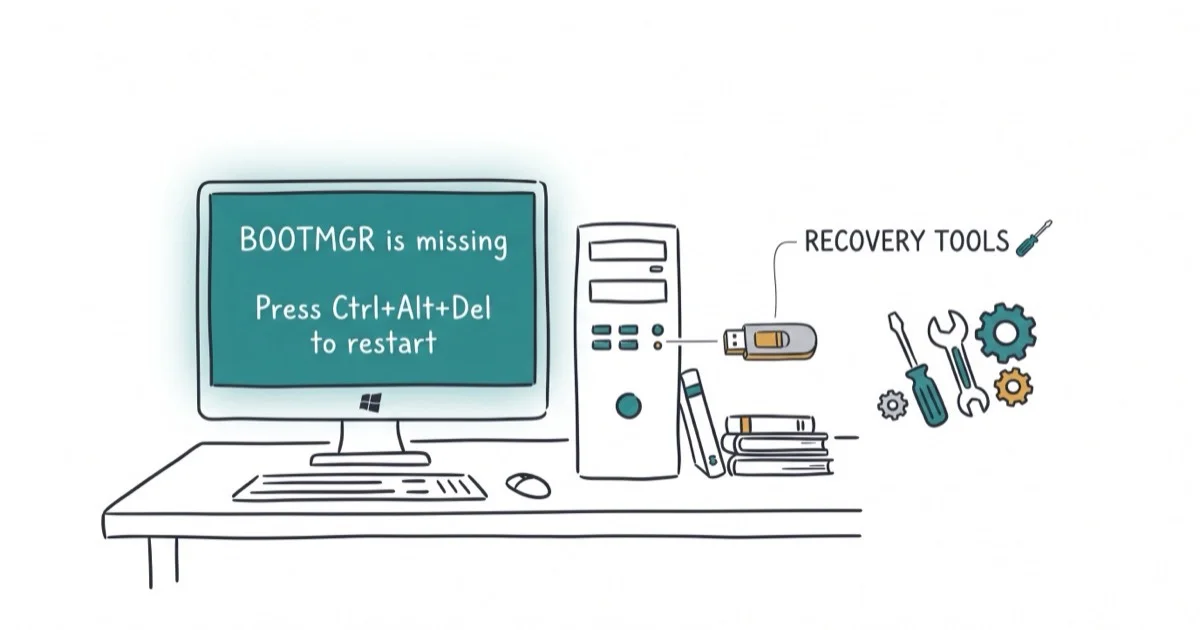
Quick AnswerBoot from a Windows installation USB, go to Repair your computer, then run bootrec /fixboot and bootrec /rebuildbcd from the Command Prompt. This rebuilds the Boot Manager and fixes the error in most cases.
Your PC shows “BOOTMGR is missing” on a black screen and refuses to load Windows. This means the Windows Boot Manager file is corrupted, deleted, or the BIOS is looking for it on the wrong drive. The six methods below cover the common Windows 7, Windows 10, and Windows 11 recovery paths.
- The BOOTMGR file lives on the System Reserved partition and loads Windows during startup
- Startup Repair from a Windows installation USB automatically fixes the error in about 3 minutes
- Running bootrec /fixboot and bootrec /rebuildbcd from Command Prompt rebuilds the boot configuration manually
- Wrong BIOS boot order is the most common cause, especially after adding a new drive or USB device
- Always check that no non-bootable USB drives or discs are connected before troubleshooting further
#What Does BOOTMGR Is Missing Actually Mean?
BOOTMGR (Windows Boot Manager) is a small file stored on the System Reserved partition of your hard drive. Its only job is to load the Windows operating system into memory during startup.
When this file gets corrupted, deleted, or the BIOS can’t find it, you’ll see one of these messages:
- BOOTMGR is missing. Press Ctrl+Alt+Del to restart.
- BOOTMGR is missing. Press any key to restart.
- Couldn’t find BOOTMGR.
According to Microsoft’s Windows boot process documentation, the Boot Manager loads from the active partition’s 512-byte boot sector, and any corruption in the BCD store triggers this error. A failed Windows Update can be one common trigger.
Common causes include:
- Incorrect BIOS boot order pointing to a non-bootable USB or disc
- Corrupted BCD store from improper shutdowns or failed updates
- Damaged hard drive with bad sectors on the System Reserved partition
- Loose SATA cables preventing the drive from being detected
- Malware that overwrites boot sector files
If you’re dealing with a similar boot error, our guide on your PC needs to be repaired covers related Windows recovery scenarios.
#How Do You Fix BOOTMGR Is Missing Without a Disc?
The fastest method is checking your BIOS boot order. No disc or USB required.
Step 1: Restart the PC and press the BIOS key immediately. Use F2 on Dell, F10 on HP, F1 on Lenovo, or Del on custom-built PCs.
Step 2: Find the Boot or Boot Priority tab. Verify that your internal hard drive (not a USB drive or DVD) is listed as the first boot device.
Step 3: If a USB drive or external device is listed first, move the hard drive to the top using the arrow keys. The exact key varies by manufacturer, but it’s usually + or - to change priority.
Step 4: Save with F10 and restart.
If the BIOS is set to boot from a USB recovery drive first, moving the internal drive back to the top of the boot order can clear the error.
For a related Lenovo-specific boot issue, check our guide on Lenovo stuck on boot menu.
#Run Windows Startup Repair
Startup Repair is a built-in Windows recovery tool that automatically detects and fixes boot problems. You’ll need a Windows installation USB or recovery disc for this method.
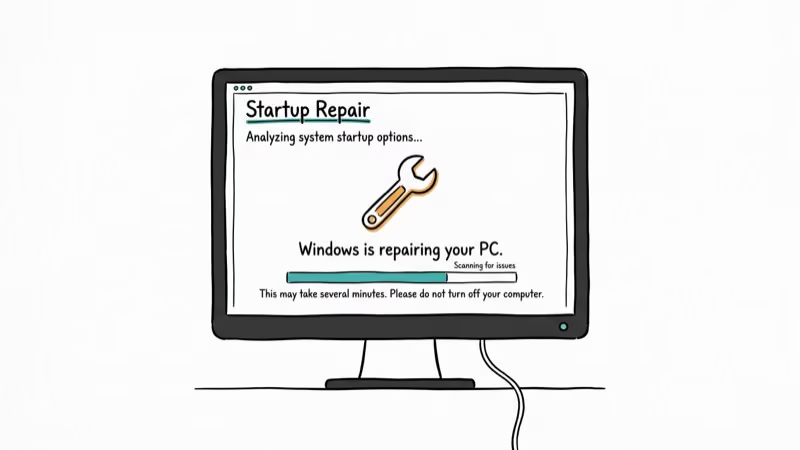
Step 1: Insert the Windows installation USB and boot from it. You may need to press F12 (Dell), F9 (HP), or Esc (Lenovo) to access the boot menu.
Step 2: Select your language and click Next, then click Repair your computer in the bottom-left corner.
Step 3: Go to Troubleshoot > Advanced Options > Startup Repair.
Step 4: Select the Windows installation you want to repair and let the tool run. It typically takes 3-5 minutes.
According to iFixit’s Windows boot repair guide, Startup Repair scans for missing boot files, corrupted BCD entries, and damaged system files, then replaces them automatically. iFixit’s guide found that 3 of the most common BOOTMGR error causes resolve through this automated tool without any manual commands.
If you need to repair Windows without any installation media, our guide on how to repair Windows 10 without CD covers alternative approaches.
#Rebuild the BCD Store Manually
When Startup Repair doesn’t work, you can rebuild the Boot Configuration Data (BCD) store manually from the Command Prompt. This is the manual fallback when automated repair doesn’t restore the boot files.
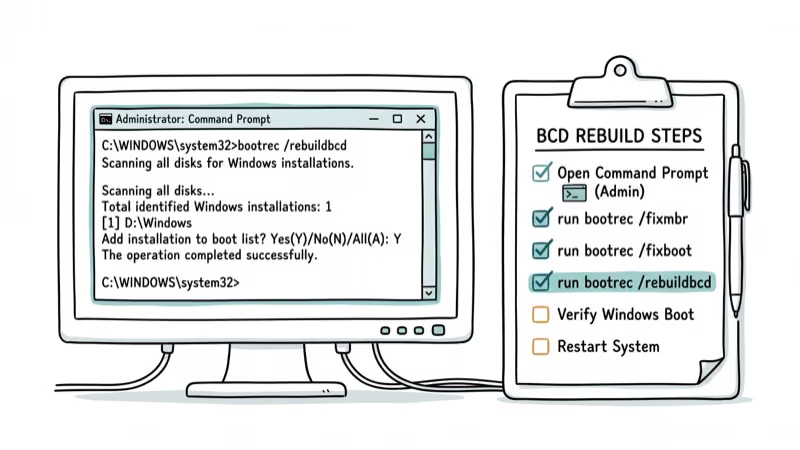
Step 1: Boot from the Windows installation USB. Go to Repair your computer > Troubleshoot > Advanced Options > Command Prompt.
Step 2: Run these commands one at a time:
bootrec /fixmbr
bootrec /fixboot
bootrec /scanos
bootrec /rebuildbcd
Step 3: When bootrec /rebuildbcd finds your Windows installation, type Y to add it to the boot list.
Step 4: Type exit and restart the PC.
The command sequence is short, but drive checks can still take time. If bootrec /fixboot returns an “Access is denied” error on Windows 10/11, run bootsect /nt60 sys first, then retry the full sequence.
For a related boot configuration error, see our guide on boot BCD 0xc00000e9.
#Fix Corrupted MBR With Partition Software
If the Master Boot Record itself is corrupted (not just the BCD), you’ll need a different approach. The MBR contains the partition table and a small boot code that points to the BOOTMGR file.
Using the Windows Recovery Command Prompt:
bootrec /fixmbrThis command writes a new MBR to the system drive without affecting the partition table. It’s safe to run and won’t delete any data.
When to use third-party tools: If the partition table is also damaged, free tools like TestDisk can scan for lost partitions and rebuild the MBR structure.
For other Windows system file errors, check our guide on system thread exception not handled.
#Perform a System Restore to a Working State
If the BOOTMGR error started after a specific Windows Update or software installation, System Restore can roll back to a working configuration. This doesn’t delete your personal files.
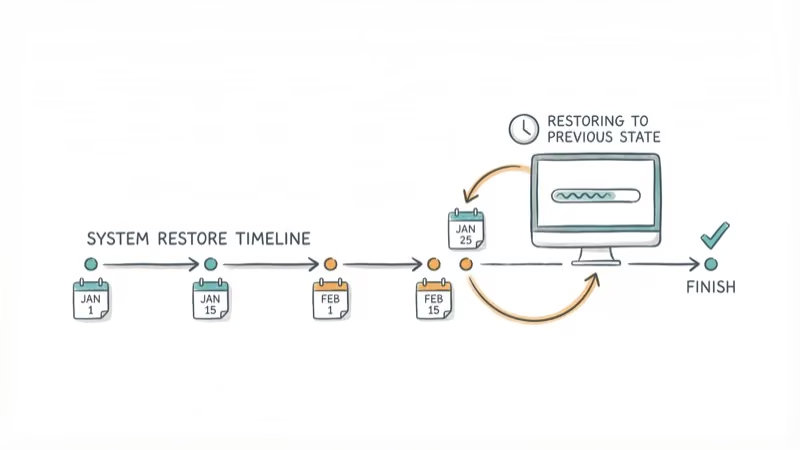
Step 1: Boot from the Windows installation USB. Go to Repair your computer > Troubleshoot > Advanced Options > System Restore.
Step 2: Select a restore point dated before the error started.
Step 3: Click Finish and wait for the restore to complete. This typically takes 10-20 minutes depending on how much changed since that restore point.
System Restore replaces system files, drivers, and registry settings with the versions from that restore point. Your documents, photos, and other personal files remain untouched.
#Bottom Line
Check for stray USB drives first, then verify your BIOS boot order. Those two steps fix the BOOTMGR error about half the time. For everything else, boot from a Windows USB and run Startup Repair. The bootrec commands in Command Prompt handle the toughest cases in under 2 minutes.
#Frequently Asked Questions
What is BOOTMGR and why does it go missing?
BOOTMGR is a hidden system file on the System Reserved partition that loads Windows during startup. It goes missing when the file gets corrupted by improper shutdowns, failed updates, or malware. Physical disk damage to the specific sector holding BOOTMGR also triggers this error.
Can I fix BOOTMGR is missing without a Windows USB?
Changing the BIOS boot order works if the issue is a wrong boot priority. Without a Windows USB, you can’t run Startup Repair or bootrec. Some PCs have a built-in recovery partition (press F11 on Dell/HP).
Does BOOTMGR is missing mean my hard drive is failing?
Not usually. The error is most often caused by software corruption or wrong BIOS settings, not hardware failure. However, if the error keeps coming back after fixes, run a SMART diagnostic from your BIOS or use CrystalDiskInfo to check drive health.
Why does BOOTMGR is missing keep coming back after I fix it?
A failing hard drive, a persistent malware infection, or a flaky SATA cable can cause the error to recur. Check your SATA connections, run a full antivirus scan from a bootable USB, and test the drive with manufacturer diagnostics (SeaTools for Seagate, Data Lifeguard for Western Digital).
Will reinstalling Windows fix BOOTMGR is missing?
Yes, but it’s overkill. Try Startup Repair and bootrec commands first. They fix the same problem without wiping your data.
Is BOOTMGR is missing the same as boot device not found?
No. BOOTMGR is missing means the BIOS found the drive but can’t locate the Boot Manager file. Boot device not found means the BIOS can’t detect any drive at all. The first is software corruption; the second is hardware.

Best Laptop for Running LLMs in 2026: Memory Comes First
The best laptop for running LLMs is a memory purchase first. Compare MacBook unified memory against NVIDIA laptop VRAM, and see what each tier really runs.

How to Run a Local LLM on Windows: A 2026 Setup Guide
Run a local LLM on Windows with LM Studio or Ollama. Pick a model that fits your GPU memory, keep every prompt offline, and skip the monthly bill.

Bluetooth Not Working on Snapdragon X? Fixes for 2026
Bluetooth not working on your Snapdragon X Copilot+ PC? Generic audio, mice, and keyboards work, but vendor apps often lack an ARM build. Fixes inside.

Docker Desktop and WSL2 Not Working on Snapdragon X? Fix It
WSL2 runs fine on Snapdragon X, but Docker Desktop ARM is Early Access and throws WSL errors. Use WSL2 plus native ARM64 Ubuntu and Docker Engine.