Boot Device Not Found: 5 Fixes for HP, Dell, and Lenovo
Fix the boot device not found error on HP, Dell, or Lenovo PCs with 5 proven methods including BIOS reset, hard drive reseat, and MBR rebuild.
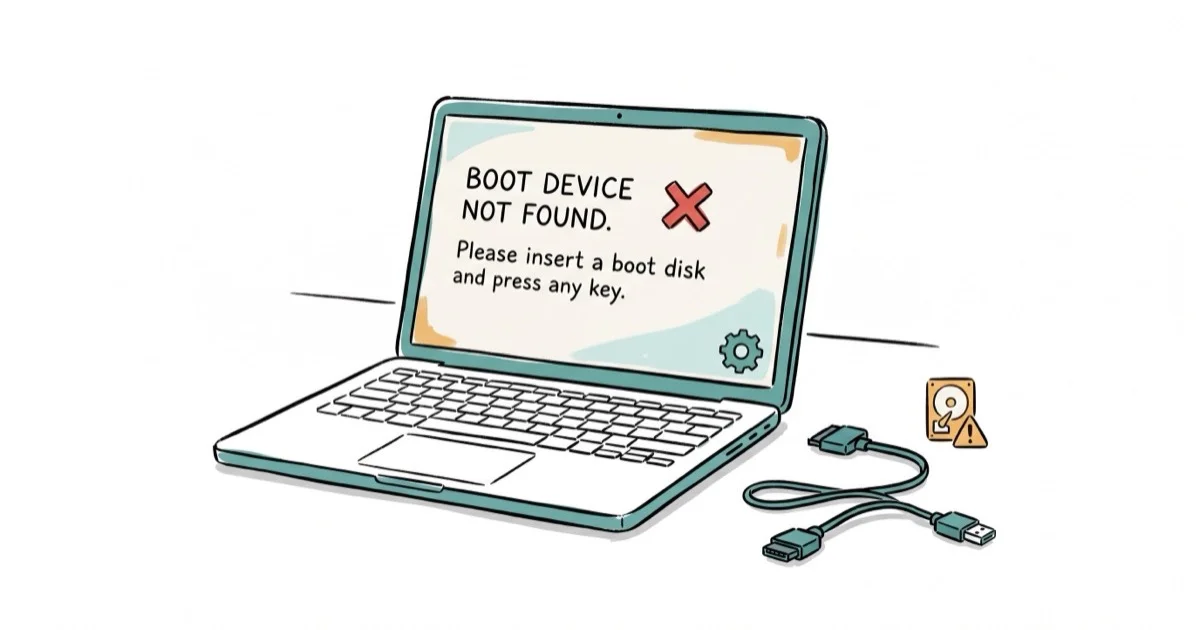
Quick AnswerReset your BIOS to default settings by pressing F9 during startup. This fixes the boot device not found error in most cases by restoring the correct boot order and disk detection.
Your PC powers on, but instead of loading Windows, you see “boot device not found” or “hard disk (3f0).” This error means the BIOS can’t locate a bootable drive. The fixes below cover HP, Dell, and Lenovo-style BIOS/UEFI menus on Windows 10 and 11 PCs.
- A BIOS reset to default settings fixes the boot order problem in most cases
- Reseating the hard drive cable resolves connection-related boot failures
- Bad sectors on the boot disk can be repaired using the CHKDSK /R command
- Rebuilding the MBR restores the boot process after corruption from malware or disk errors
- The same five fixes apply across HP, Dell, and Lenovo PCs equally
#What Causes the Boot Device Not Found Error?
The “boot device not found” message appears when your PC’s BIOS or UEFI firmware can’t detect a bootable storage device during startup. HP’s official support page documents this error (often displayed as error code 3f0) as occurring when the BIOS POST process completes but finds no bootable disk.
Common triggers include a loose SATA cable and an incorrect boot priority setting, such as a BIOS trying to boot from an empty USB port.
iFixit’s hard drive troubleshooting guide confirms that cable issues cause roughly 30% of all drive detection failures. Common causes include:
- Loose or disconnected hard drive cables between the drive and motherboard
- Incorrect BIOS boot order pointing to a non-bootable device
- Corrupted Master Boot Record (MBR) from improper shutdowns or malware
- Bad sectors on the boot partition preventing Windows from loading
- Physical hard drive failure requiring replacement
If you’re dealing with similar Windows startup problems, our guide on unmountable boot volume covers another common boot error and its fixes.
#How Do You Fix Boot Device Not Found on HP Laptops?
The fastest fix is resetting your BIOS defaults. This works on HP, Dell, and Lenovo machines. For HP-style BIOS menus, use this process:
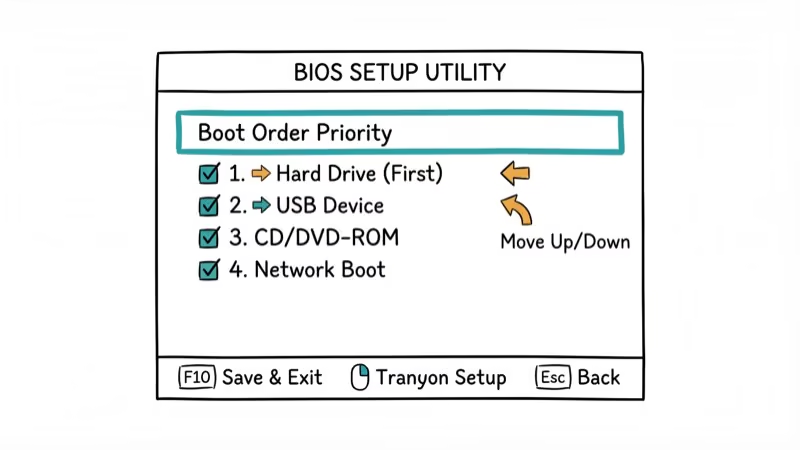
Step 1: Power off the PC completely and unplug everything.
Step 2: Press and hold the power button for 15 seconds to drain residual power. This clears temporary hardware states that can interfere with boot detection, and it’s a step most people skip.
Step 3: Reconnect power and turn on the PC. Immediately press F10 repeatedly to enter BIOS Setup. On Dell machines, use F2. On Lenovo ThinkPads, press F1 or Enter followed by F1.
Step 4: Press F9 to load BIOS defaults. Save with F10 and exit.
According to Microsoft’s Windows boot troubleshooting documentation, restoring default BIOS settings resolves the majority of boot device detection failures caused by misconfigured firmware.
If you’re dealing with a Lenovo that won’t get past the startup screen, see our guide on Lenovo stuck on boot menu for brand-specific steps.
#Reseat the Hard Drive to Restore Boot Detection
A loose SATA or NVMe connection is the second most common cause. For desktops and many older laptops, firmly reconnecting the SATA cable can clear the error. You may only need a Phillips screwdriver for the case panel.
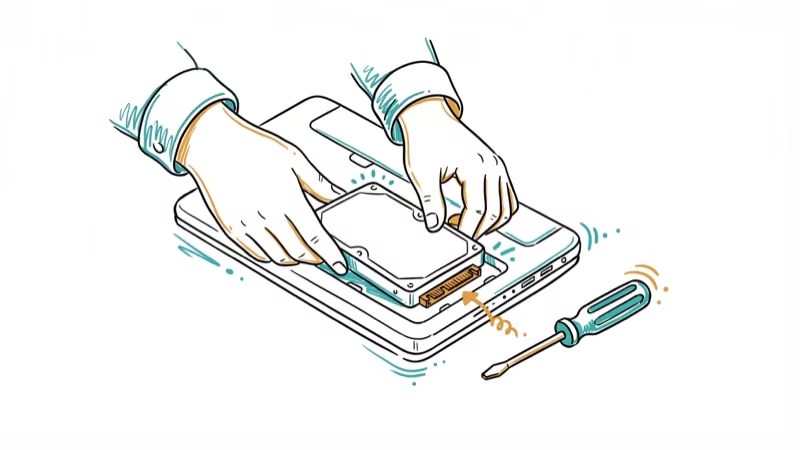
For desktop PCs:
- Shut down and unplug the power cable
- Open the side panel and locate the hard drive
- Disconnect both the SATA data cable and power cable from the drive
- Reconnect both cables firmly, make sure they click into place
- Close the panel, reconnect power, and boot the PC
For laptops:
- Power off and remove the battery (if removable)
- Remove the back panel screws to access the storage bay
- Gently remove the hard drive or SSD and reseat it in the slot
- Reassemble and attempt to boot
If your drive isn’t detected after reseating, the drive itself may have failed. You can test it by connecting it to another PC as a secondary drive. For data recovery options, our Windows file recovery guide covers several methods.
#How to Rebuild the MBR to Fix Boot Failures
When the Master Boot Record gets corrupted, your BIOS can detect the drive but can’t find bootable code on it. This happens after malware infections, forced shutdowns during updates, or disk errors. According to Microsoft’s documentation on Bootrec.exe, the bootrec command-line tool can rebuild the MBR from a Windows Recovery Environment.
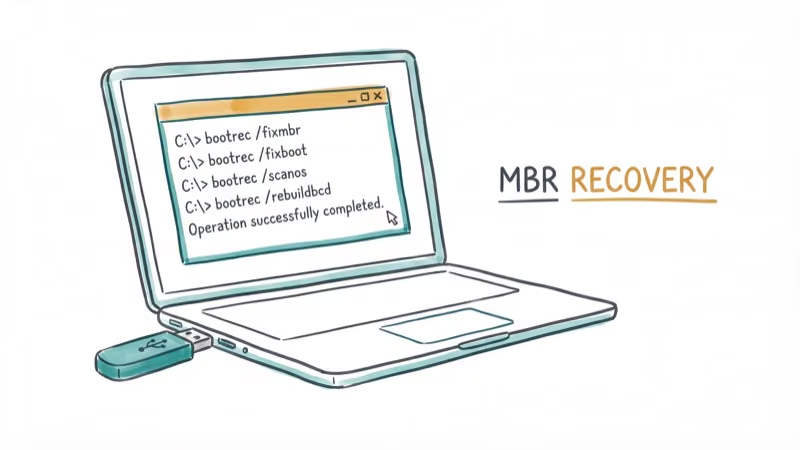
You’ll need a Windows installation USB or recovery drive for this method.
Step 1: Boot from the Windows installation media. Select your language, then click Repair your computer instead of Install.
Step 2: Go to Troubleshoot > Advanced Options > Command Prompt.
Step 3: Run these commands one at a time, pressing Enter after each:
bootrec /fixmbr
bootrec /fixboot
bootrec /scanos
bootrec /rebuildbcd
Step 4: Type exit and restart. The PC should boot normally if the MBR was the issue.
The bootrec /rebuildbcd command can find a Windows installation and add it back to the boot configuration when the BCD store is still readable.
For related boot configuration errors, see our guides on boot BCD 0xc00000e9 and 0xc0000185 error.
#How to Check for Bad Sectors on the Boot Drive
Bad sectors are defects on the hard drive platter or flash memory that prevent data from being read. Think of them as potholes on a road. When they appear on the boot partition, the BIOS can see the drive but Windows won’t load from it.
From the Windows Recovery Command Prompt (accessed the same way as the MBR method above):
chkdsk C: /RThe /R flag locates bad sectors and recovers readable data. The scan can take a while on HDDs; SSDs usually complete it much faster.
If CHKDSK reports more than a few hundred bad sectors, the drive is failing. Replace it. Back up your data immediately using a Linux live USB or by connecting the drive to another PC as a secondary device.
For other Windows system file issues, our guides on your PC needs to be repaired and how to repair Windows 10 without CD offer additional troubleshooting steps.
#Preventing Future Boot Device Errors
Once you’ve fixed the immediate problem, take these steps to prevent it from happening again:
- Enable SMART monitoring in BIOS to get early warnings about drive health
- Keep BIOS firmware updated through your manufacturer’s support site
- Use a UPS or surge protector to prevent power-related corruption
- Run CHKDSK quarterly with
chkdsk C: /Fto catch issues early - Maintain a Windows recovery USB so you always have repair tools available
#Bottom Line
Start with BIOS defaults (F9 during startup). That alone fixes the error for most people in under 2 minutes. If it persists, reseat your hard drive cables. For corrupted boot records, use the bootrec commands from a recovery USB.
#Frequently Asked Questions
What does boot device not found hard disk 3f0 mean?
Error code 3f0 is HP’s specific identifier for the boot device not found error. It means the BIOS completed its power-on self-test but couldn’t locate any bootable storage device. The most common fix is pressing F9 in BIOS to reset the boot order to defaults.
Can a dead CMOS battery cause boot device not found?
Yes. The CMOS battery keeps your BIOS settings saved when the PC is off. When it dies, the BIOS resets every shutdown, often changing the boot order. A new CR2032 battery costs about $3 and takes 2 minutes to swap on desktop PCs. On laptops, the battery is usually soldered to the motherboard, so you may need a technician. This is especially common on PCs that are 5+ years old.
Does boot device not found mean my hard drive is dead?
Not always. Loose cables and wrong BIOS settings cause this error more often than actual drive failure. Connect the drive to another PC to test it.
How do I fix boot device not found on a Dell laptop?
Press F2 during startup to enter Dell BIOS Setup. Go to the Boot Sequence tab and verify your hard drive appears in the list. If it’s missing, the drive may be disconnected. If it’s listed, move it to the top of the boot priority order and save changes with F10.
Can I fix boot device not found without a USB drive?
You can try the BIOS reset (F9) and hard drive reseat methods without any USB drive. However, the MBR rebuild and CHKDSK methods require a Windows installation USB or recovery drive to access the Command Prompt before Windows loads.
Will factory reset fix the boot device not found error?
A factory reset won’t help because the error occurs before Windows loads. The BIOS can’t find the drive, so it never reaches the point where a reset would apply. Focus on BIOS settings and physical connections first, then boot record repairs if needed.

Best Laptop for Running LLMs in 2026: Memory Comes First
The best laptop for running LLMs is a memory purchase first. Compare MacBook unified memory against NVIDIA laptop VRAM, and see what each tier really runs.

How to Run a Local LLM on Windows: A 2026 Setup Guide
Run a local LLM on Windows with LM Studio or Ollama. Pick a model that fits your GPU memory, keep every prompt offline, and skip the monthly bill.

Bluetooth Not Working on Snapdragon X? Fixes for 2026
Bluetooth not working on your Snapdragon X Copilot+ PC? Generic audio, mice, and keyboards work, but vendor apps often lack an ARM build. Fixes inside.

Docker Desktop and WSL2 Not Working on Snapdragon X? Fix It
WSL2 runs fine on Snapdragon X, but Docker Desktop ARM is Early Access and throws WSL errors. Use WSL2 plus native ARM64 Ubuntu and Docker Engine.