How to Fix Windows Update Error 0x800705b4 (8 Methods)
Windows Update Error 0x800705b4 stops updates mid-install. Start with the troubleshooter, reset the update cache, and repair system files safely.
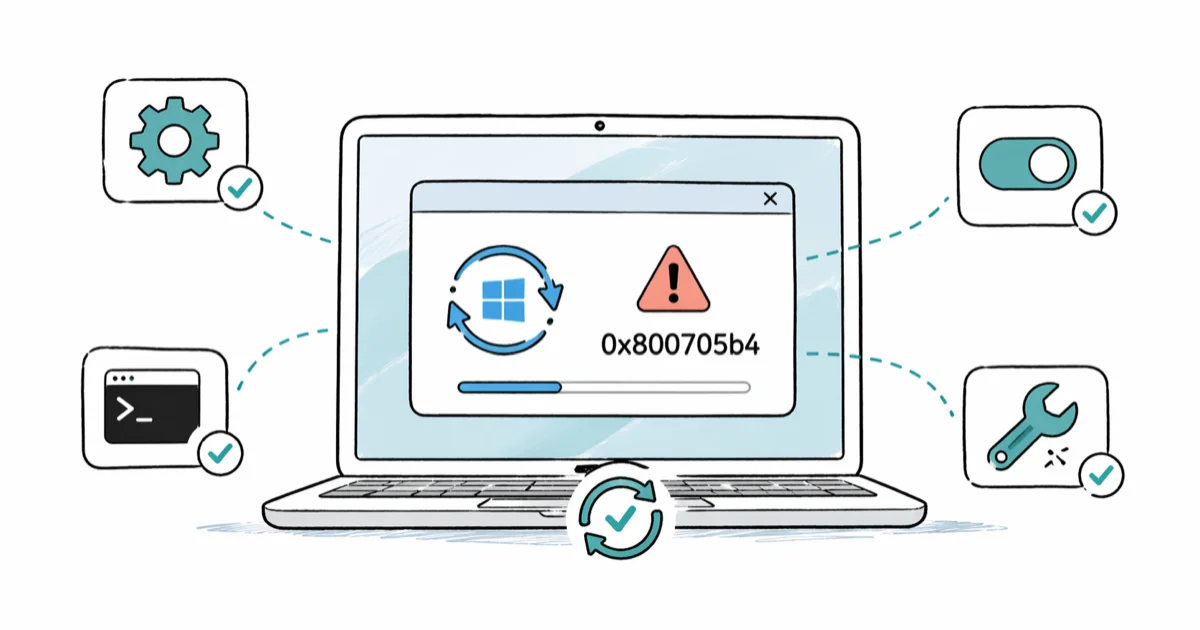
Quick AnswerWindows Update Error 0x800705b4 usually clears after you run the built-in Windows Update Troubleshooter and reset the SoftwareDistribution folder with the update services stopped. If the error returns, run SFC and DISM scans from an elevated Command Prompt, then re-register the Windows Update components.
Windows Update Error 0x800705b4 is the Update service refusing to finish a download or install on Windows 10 and Windows 11. The code points to corrupted update files, a stopped service, or a security tool blocking the connection. The safest repair order is to start with built-in tools, then reset the update cache before moving to heavier component repairs.
The error usually shows up in Settings > Update & Security > Windows Update, sometimes after a forced restart or an interrupted feature update. Cumulative updates, .NET framework patches, and Defender definition updates are the most common triggers.
- 0x800705b4 means the Update service can’t read or apply a downloaded payload, most often because the SoftwareDistribution folder holds a half-finished file.
- The built-in Windows Update Troubleshooter can resolve the error before any command-line steps are needed.
- Resetting SoftwareDistribution forces Windows to redownload the failed update from a clean state, which is the single most reliable fix.
- SFC and DISM scans repair corrupted system files that block the update process, but they take 15 to 30 minutes per pass on a typical SSD.
- A third-party antivirus or VPN running in the background can lock update files and trigger this code, so disable them before retrying.
#What Causes Windows Update Error 0x800705b4?
The error is the Windows Update Agent’s way of saying it can’t complete a download or installation cleanly. A common root cause is a partial cumulative-update payload stuck in the SoftwareDistribution folder. The agent keeps retrying the same broken file until the cache is reset.
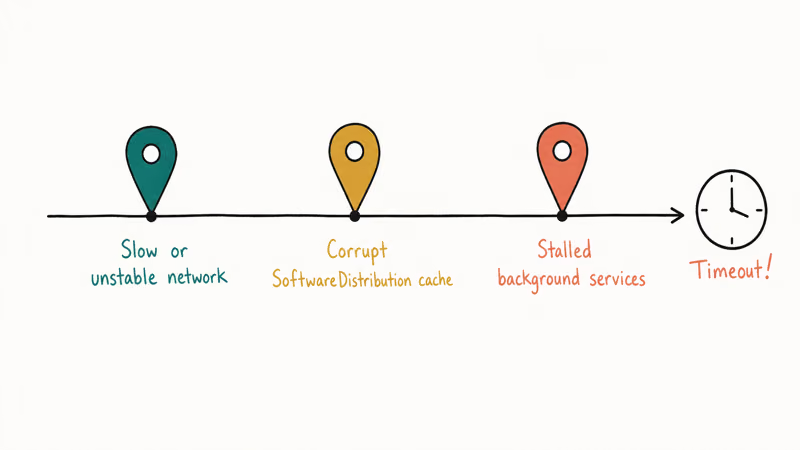
According to Microsoft, 4 Windows Update services (BITS, wuauserv, cryptsvc, appidsvc) must restart cleanly after any cache reset, as the Windows Update FAQ describes. Most 0x800705b4 reports trace back to corrupted system components, missing dependencies, or a service that has stopped responding. The five common triggers are below.
| Trigger | What it looks like | Quickest fix |
|---|---|---|
| Corrupted SoftwareDistribution cache | Same error repeats every retry | Reset the folder |
| Windows Update service stopped | Update screen freezes at 0% | Restart wuauserv |
| Third-party antivirus blocking | Error appears right after AV update | Pause AV, retry |
| Damaged system files | SFC flags integrity violations | Run SFC and DISM |
| Outdated Windows Update Agent | Older Windows 10 builds (1909 and earlier) | Manual install via catalog |
Table: Common causes of 0x800705b4 and the matching fix.
Two things matter here. First, this error never points to hardware. Second, the order of fixes matters: cheap steps before expensive ones.
#Run the Built-In Repair Tools
Work through these in order. Stop as soon as one succeeds and the update installs.
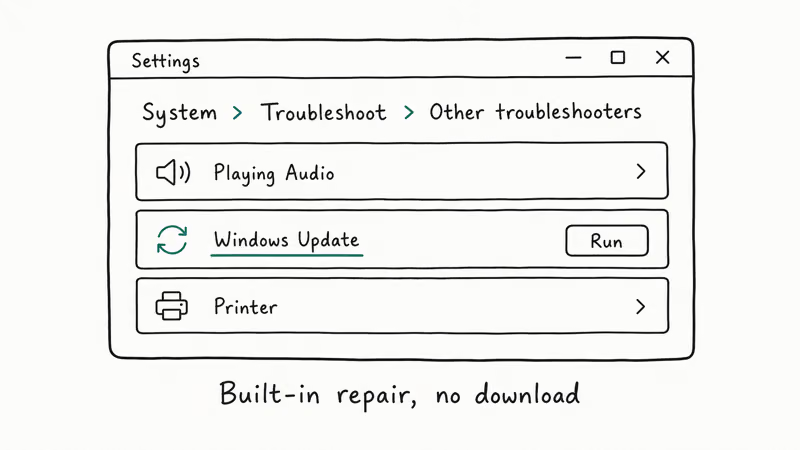
#1. Run the Windows Update Troubleshooter
The troubleshooter checks the update service status, BITS, and the cache folder, then tries the obvious resets without manual command-line work. Run it first because it can apply the common service and cache repairs automatically.
- Open
Settings>System>Troubleshoot>Othertroubleshooters (Windows 11) orSettings>Update & Security>Troubleshoot>Additionaltroubleshooters (Windows 10). - Click Windows Update, then Run.
- Wait for the wizard to finish. It takes about four to six minutes on an SSD.
- Restart, then retry the update.
If the wizard reports “Problems detected: Service registration is missing or corrupt” and applies a fix, you’re typically done. If it says no problems found but the error still appears, move on.
#2. Disable Third-Party Antivirus Temporarily
Norton, McAfee, ESET, and Kaspersky all hold open handles on Windows Update files during scans. That lock often shows up as 0x800705b4 the next time the Update service tries to write the same file.
Pause your antivirus from its system tray icon for one hour, then retry the update. If that resolves it, add wuauserv.exe, svchost.exe, and the C:\Windows\SoftwareDistribution folder to the antivirus exclusion list before re-enabling protection. Microsoft Defender doesn’t need this exclusion and almost never causes the error on its own.
#Reset the Update Cache
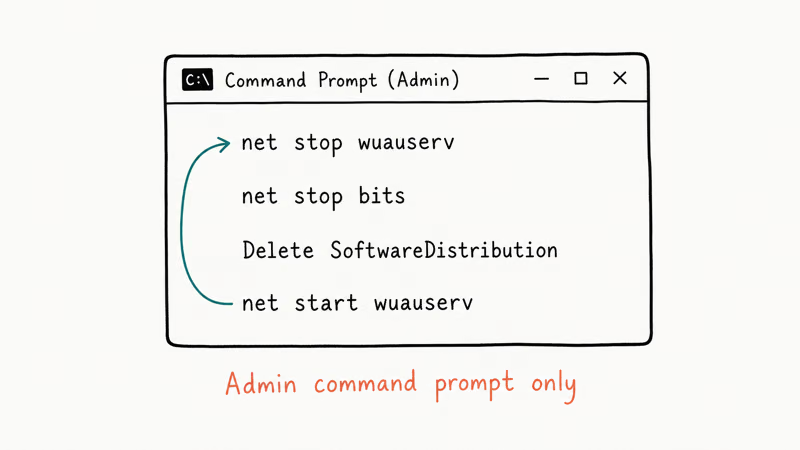
#3. Reset the SoftwareDistribution Folder
This is the single most reliable fix when the troubleshooter can’t clear the error. The folder holds every downloaded update payload, and a half-written file there will block every retry.
- Open Command Prompt as administrator.
- Stop the services:
net stop wuauserv net stop bits net stop cryptsvc - Rename the cache so Windows rebuilds it from scratch:
ren C:\Windows\SoftwareDistribution SoftwareDistribution.old ren C:\Windows\System32\catroot2 catroot2.old - Restart the services:
net start wuauserv net start bits net start cryptsvc - Reboot and check Windows Update again.
You can delete the renamed folders a week later once you’re sure updates are working again. For background on what these folders hold, see our guide on how to delete Windows Update files completely.
#Repair System Files and Services
#4. Run SFC and DISM Scans
System File Checker (SFC) compares your protected system files against Microsoft’s reference manifests and replaces any corrupted ones. DISM repairs the Windows component store that SFC depends on. Microsoft’s System File Checker documentation recommends running DISM first when SFC alone isn’t enough.
- Open Command Prompt as administrator.
- Run DISM first:
DISM /Online /Cleanup-Image /RestoreHealth - Wait. DISM can take 15 to 30 minutes and may stall at 62% for several minutes. That’s normal.
- Then run SFC:
sfc /scannow - Reboot and retry Windows Update.
If DISM itself errors out with code 87, follow our walk-through for DISM error 87 before retrying SFC.
#5. Enable Windows Defender and Related Services
Windows Update talks to several supporting services. If Defender, the cryptographic service, or BITS is stopped, you’ll see 0x800705b4 even when the update file is fine.
- Press Windows key + R, type
services.msc, and press Enter. - Find each service below, double-click it, set Startup type to Automatic, and click Start if it isn’t running:
- Background Intelligent Transfer Service
- Windows Update
- Cryptographic Services
- Windows Defender Antivirus Service
- Click OK on each one.
- Reboot.
This fix matters most on machines where someone disabled Defender to “speed up” the system. Once Defender is back, the update agent’s dependency chain is whole again.
#Reset Components or Install Manually
#6. Reconfigure Update Settings
A misconfigured “deliver other Microsoft product updates” toggle can leave the agent waiting on a payload from a different update channel.
- Open
Settings>Update & Security>Windows Update>Advancedoptions. - Toggle off the option labeled Receive updates for other Microsoft products when you update Windows.
- Restart.
- Go back to Windows Update and click Check for updates. Let the cumulative update install.
- After the install finishes, toggle the option back on and click Check for updates one more time.
This staged approach gets the OS update through first, then picks up Office and Visual C++ patches separately. It helps when an Office or Visual C++ patch is the actual blocker.
#7. Reset Windows Update Components
If the cache reset in fix 3 didn’t stick, a full component reset re-registers every DLL the update agent depends on. This is the same procedure Microsoft recommends in its Windows Update troubleshooting guidance for stubborn errors.
- Open Command Prompt as administrator.
- Stop the services:
net stop bits net stop wuauserv net stop appidsvc net stop cryptsvc - Delete the BITS queue manager files:
Del "%ALLUSERSPROFILE%\Application Data\Microsoft\Network\Downloader\qmgr*.dat" - Re-register the update DLLs. Microsoft lists the full set; the ten that matter most are
wuapi.dll,wuaueng.dll,wups.dll,wups2.dll,wuwebv.dll,qmgr.dll,qmgrprxy.dll,wucltui.dll,softpub.dll, andwintrust.dll. Register each with:regsvr32.exe /s wuapi.dll - Reset Winsock:
netsh winsock reset - Restart the services:
net start bits net start wuauserv net start appidsvc net start cryptsvc - Reboot.
This works but it’s the heaviest fix and almost always overkill. Try steps 1, 3, and 4 first. For related update errors that share the same component chain, our guides on Windows Update Error 0x8024001e and the 0x80070422 update error cover similar resets.
#8. Install the Update Manually
When the agent refuses to cooperate, sideloading the update bypasses it.
- Note the KB number from the failed update on the Windows Update screen.
- Open the Microsoft Update Catalog.
- Search for the KB number.
- Download the version that matches your build (x64 or ARM64).
- Double-click the
.msufile and follow the prompts.
The manual installer uses a different path than the Windows Update Agent. If you have also seen related codes like 0x80072EFE or the potential Windows Update database error detected message, the catalog method bypasses both for the same reason.
#Which Fix Should You Try First?
For 0x800705b4, the lowest-risk order is:
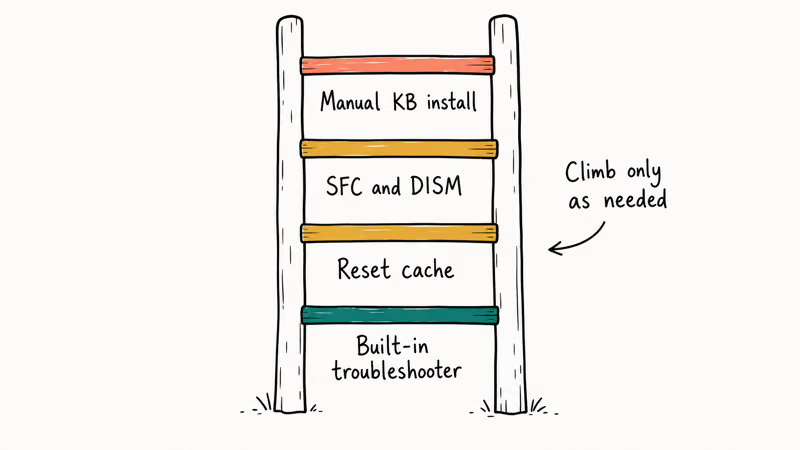
- Reboot, then run the Windows Update Troubleshooter.
- Pause third-party antivirus and retry.
- Reset the SoftwareDistribution folder.
- Run DISM followed by SFC.
SFC and DISM usually become necessary only when the system has been hit by a power outage during a previous update or has survived an aborted in-place upgrade.
#Bottom Line
Start with the Windows Update Troubleshooter, then reset the SoftwareDistribution folder if that doesn’t resolve it. Those two steps handle the vast majority of 0x800705b4 cases without touching command-line tools.
Move to SFC and DISM only when you suspect system file damage, and reserve the full component reset for systems where every other fix failed. If you keep hitting the error after that, the cleanest path is to download the specific KB from the Microsoft Update Catalog and install it manually.
#Frequently Asked Questions
Is 0x800705b4 the same error on Windows 10 and Windows 11?
Yes. The Update Agent uses the same error codes across both versions. The fix steps are identical, though the menu paths differ slightly: Windows 10 uses Settings > Update & Security, while Windows 11 uses Settings > Windows Update.
Will resetting Windows Update components delete my files?
No. Resetting the SoftwareDistribution folder and re-registering the update DLLs only affects update cache data and service configuration. Your documents, photos, installed apps, and Windows settings stay intact.
Why does the error come back after I fix it?
Two reasons usually. Either a third-party antivirus is still locking update files, in which case you should add SoftwareDistribution to its exclusion list, or the underlying system files are corrupted and you need the full DISM-plus-SFC pass to repair the component store before any cache reset will hold.
Can I just turn off Windows Update to avoid this error?
Skipping the error isn’t worth it. Security patches close real exploits within weeks of release, and feature updates carry driver and platform fixes. If a specific update keeps failing, install it manually from the Microsoft Update Catalog instead of disabling the service.
How long should DISM and SFC take?
DISM typically runs 15 to 30 minutes on an SSD and longer on spinning disks, often stalling at 20 percent or 62 percent before jumping ahead. SFC is faster at 5 to 15 minutes. Run them with the laptop plugged in. Don’t kill them midway; an interrupted DISM run leaves the component store in worse shape than when you started.
Does Windows 11 23H2 still hit 0x800705b4?
Yes, especially right after a feature update where the SoftwareDistribution folder is rebuilt. The cache reset in fix 3 is still the fastest resolution. Fresh 23H2 installs can also show this code when they’re missing the latest servicing-stack update.
Is it safe to delete SoftwareDistribution.old after the fix?
After a week of successful updates, yes. The renamed folder is the old cache; Windows has already built a clean replacement at C:\Windows\SoftwareDistribution. Delete it from File Explorer with admin permission, or leave it. It typically holds 1 to 5 GB depending on how many updates were queued.

Best Laptop for Running LLMs in 2026: Memory Comes First
The best laptop for running LLMs is a memory purchase first. Compare MacBook unified memory against NVIDIA laptop VRAM, and see what each tier really runs.

How to Run a Local LLM on Windows: A 2026 Setup Guide
Run a local LLM on Windows with LM Studio or Ollama. Pick a model that fits your GPU memory, keep every prompt offline, and skip the monthly bill.

Bluetooth Not Working on Snapdragon X? Fixes for 2026
Bluetooth not working on your Snapdragon X Copilot+ PC? Generic audio, mice, and keyboards work, but vendor apps often lack an ARM build. Fixes inside.

Docker Desktop and WSL2 Not Working on Snapdragon X? Fix It
WSL2 runs fine on Snapdragon X, but Docker Desktop ARM is Early Access and throws WSL errors. Use WSL2 plus native ARM64 Ubuntu and Docker Engine.