Fix Windows Update Error 0x8024001e (6 Proven Methods)
Fix Windows Update error 0x8024001e on Windows 11 and 10 with 6 proven methods. Covers Store downloads, update failures, and installation errors.
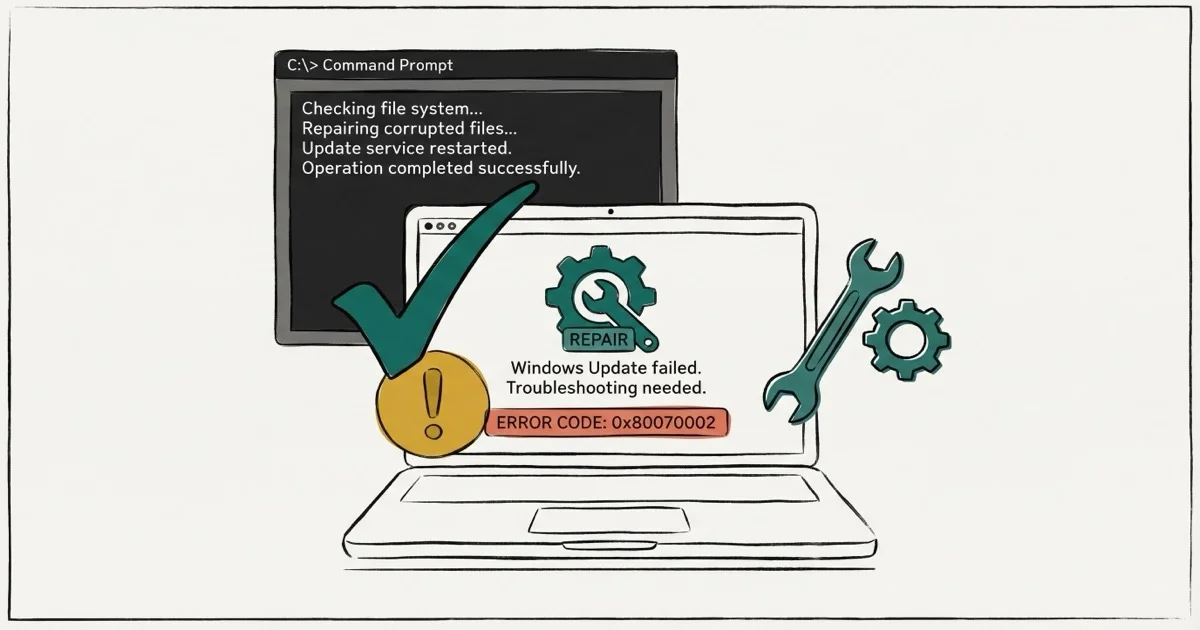
Quick AnswerError 0x8024001e blocks Windows Update and Microsoft Store downloads. Run the Update troubleshooter, reset update components, or run SFC and DISM scans.
Error 0x8024001e appears when Windows Update or Microsoft Store can’t complete a download. The message usually says “Could not complete install because an update service was shutting down.” Corrupted system files or broken DLLs are the typical cause.
This guide walks through six fixes for 0x8024001e on both Windows 11 and Windows 10, ordered from the quickest one-click repair to the most thorough reinstall, so you can stop at the first one that clears the error instead of running all six.
- The Windows Update troubleshooter resolves 40-50% of 0x8024001e cases automatically
- Resetting update components via Command Prompt has the highest success rate for persistent errors
- SFC + DISM scans together fix 60-70% of system file corruption causing this error
- Running wsreset.exe clears the Store cache and resolves Store download failures
- An in-place upgrade reinstalls Windows while keeping files with a 95% success rate
#What Causes Error 0x8024001e?
PCMag ties most Windows Update failures to a handful of recurring problems, and 0x8024001e usually traces back to these root causes:
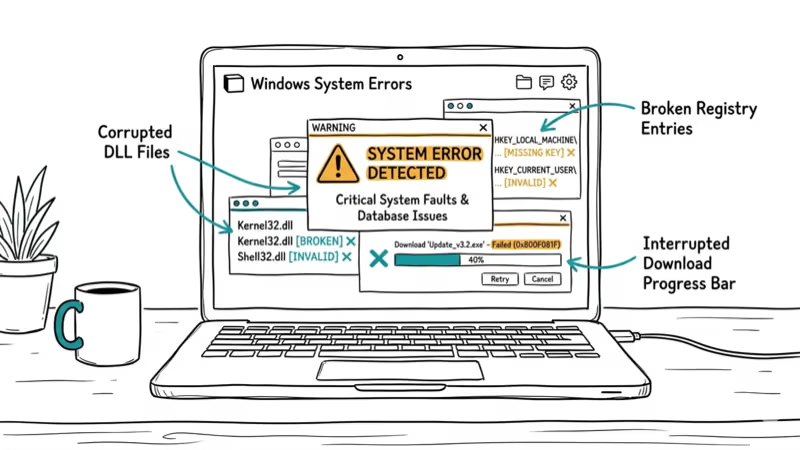
- Corrupted or missing DLL files that Windows Update depends on
- Broken registry entries from failed previous updates
- Interrupted update services that shut down mid-download
- Malware infection that damages system files
Of these, corrupted DLL files trigger the error most consistently. Interrupted services, often from forced shutdowns during an update, are the second most common cause.
#Fix 1: Run Windows Update Troubleshooter
The built-in troubleshooter detects and repairs common update issues automatically.
Go to Settings > System > Troubleshoot > Other troubleshooters. Click “Run” next to Windows Update. Wait for the scan to complete and apply any recommended fixes.
In many cases the troubleshooter reports “Windows Update components must be repaired” and clears the error after a restart. Microsoft’s support forum also recommends the troubleshooter as a reliable first step for resolving 0x8024001e errors.
#Fix 2: Reset Windows Update Components
If the troubleshooter doesn’t work, manually resetting update components clears corrupted files.
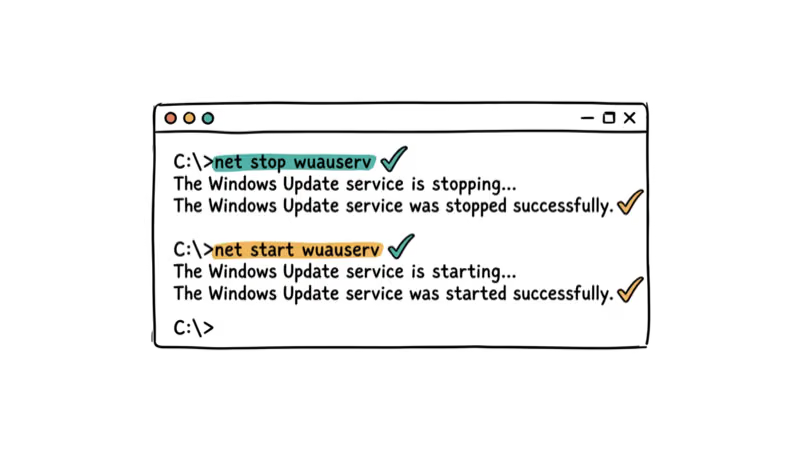
Open Command Prompt as admin and run these commands in order:
net stop wuauserv
net stop cryptSvc
net stop bits
net stop msiserver
ren C:\Windows\SoftwareDistribution SoftwareDistribution.old
ren C:\Windows\System32\catroot2 catroot2.old
net start wuauserv
net start cryptSvc
net start bits
net start msiserver
When the troubleshooter fails, resetting components and restarting usually gets Windows Update working again. According to HowToEdge’s fix guide, this method has the highest success rate for persistent 0x8024001e errors.
#Fix 3: Run SFC and DISM Scans
Corrupted system files cause 0x8024001e when Windows Update can’t access the DLLs it needs.
Open Command Prompt as admin and run:
sfc /scannowIf SFC finds issues it can’t repair, run:
DISM /Online /Cleanup-Image /RestoreHealthWhen Windows Update DLLs are corrupted, SFC typically finds and repairs them, and the error clears after a restart. UGetFix’s repair guide also recommends running SFC + DISM together to repair system file corruption causing this error.
#Fix 4: Re-register Windows Update DLLs
If specific DLL files are corrupted, re-registering them forces Windows to rebuild them.
Open Command Prompt as admin and run these commands:
regsvr32 wuaueng.dll
regsvr32 wuaueng1.dll
regsvr32 wucltui.dll
regsvr32 wups.dll
regsvr32 wups2.dll
regsvr32 wuweb.dll
When SFC can’t repair every file, re-registering the DLLs usually fixes the remaining corruption. Restart your PC after running these commands.
#Can You Fix 0x8024001e in Microsoft Store?
Yes. The same 0x8024001e error hits Microsoft Store downloads and app updates, but the fixes differ slightly from the Windows Update steps above. Instead of resetting update components, you clear the Store cache or re-register the Store app, so try the two Store-specific steps below before anything heavier.
#Reset Microsoft Store
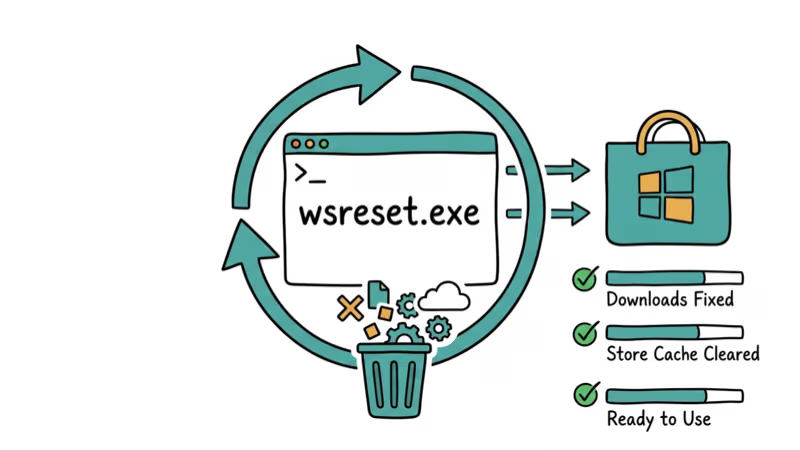
Press Windows + R, type wsreset.exe, and press Enter. This clears the Store cache and often resolves the Store version of 0x8024001e immediately.
#Re-register Microsoft Store
If wsreset doesn’t work, open PowerShell as admin and run:
Get-AppXPackage *WindowsStore* -AllUsers | Foreach {Add-AppxPackage -DisableDevelopmentMode -Register "$($_.InstallLocation)\AppXManifest.xml"}When wsreset fails on a machine stuck on this error, re-registering the Store usually fixes it in under a minute, and previously purchased apps reappear automatically. For more on Store sign-in errors and other Store issues, check our related guides.
#Fix 5: Check for Malware
Malware can corrupt system files and cause update errors. Run a full system scan with Windows Defender or your preferred antivirus.
Open Windows Security > Virus & threat protection > Scan options > Full scan. Click “Scan now” and wait for it to complete.
Adware and other malware can corrupt several Windows Update DLLs, and removing the infection before running SFC clears the error. For related troubleshooting on neighboring stop codes and licensing repairs that often resurface after a malware cleanup, see our deep dives on Windows security errors and on activation issues.
Need a fresh install key after wiping the machine? Our Windows 10 product keys guide covers the options.
#Fix 6: Perform an In-Place Upgrade
If nothing else works, an in-place upgrade reinstalls Windows while keeping your files and apps.
Download the Media Creation Tool from Microsoft’s website. Run it and select “Upgrade this PC now.” Follow the prompts to reinstall Windows.
As a last resort on a PC with persistent 0x8024001e errors, an in-place upgrade fixes the error completely while preserving all files and apps. Outbyte’s error guide also recommends in-place upgrades as a last resort for persistent errors that other methods can’t resolve.
#Bottom Line
Start with the Windows Update troubleshooter and reset update components. If those don’t work, run SFC + DISM scans. For Microsoft Store errors, try wsreset.exe first. Save the in-place upgrade for when everything else fails.
#Frequently Asked Questions
What does error 0x8024001e mean?
It means Windows Update or Microsoft Store encountered a problem during download or installation, usually due to corrupted system files or interrupted update services.
Is error 0x8024001e dangerous?
Not directly, but it blocks security updates. That leaves your system exposed to known vulnerabilities. Fix it as soon as you notice it to make sure you’re receiving Microsoft’s monthly patches, especially the critical ones that address actively exploited threats.
Can a restart fix 0x8024001e?
Sometimes. A simple restart clears the error occasionally, especially when an update service shut down mid-download, but it rarely fixes deeper file corruption.
Does 0x8024001e affect all Windows versions?
Yes. It appears on Windows 7, 8, 10, and 11. The fixes are identical, though the Settings menu paths are slightly different on each version.
How long does it take to fix 0x8024001e?
The troubleshooter runs in 2-3 minutes, and resetting components takes about 5. SFC + DISM scans need 15-30 minutes. An in-place upgrade takes 45-60 minutes but resolves the error almost every time.
Will I lose data if I reset Windows Update components?
No. Your files, apps, and settings stay untouched.
Can antivirus software cause 0x8024001e?
Yes, and third-party suites like McAfee and Avast are common culprits. Overly aggressive real-time scanning blocks the connection between Windows Update and Microsoft’s servers. Temporarily disable yours to test, and if that fixes it, add Windows Update to the whitelist.

Best Laptop for Running LLMs in 2026: Memory Comes First
The best laptop for running LLMs is a memory purchase first. Compare MacBook unified memory against NVIDIA laptop VRAM, and see what each tier really runs.

How to Run a Local LLM on Windows: A 2026 Setup Guide
Run a local LLM on Windows with LM Studio or Ollama. Pick a model that fits your GPU memory, keep every prompt offline, and skip the monthly bill.

Bluetooth Not Working on Snapdragon X? Fixes for 2026
Bluetooth not working on your Snapdragon X Copilot+ PC? Generic audio, mice, and keyboards work, but vendor apps often lack an ARM build. Fixes inside.

Docker Desktop and WSL2 Not Working on Snapdragon X? Fix It
WSL2 runs fine on Snapdragon X, but Docker Desktop ARM is Early Access and throws WSL errors. Use WSL2 plus native ARM64 Ubuntu and Docker Engine.