Fix Windows+Shift+S Not Working: 8 Snipping Tool Fixes
Windows+Shift+S not working? Restart Snipping Tool, fix notifications, and re-enable clipboard history. 8 proven fixes plus 3 screenshot alternatives.
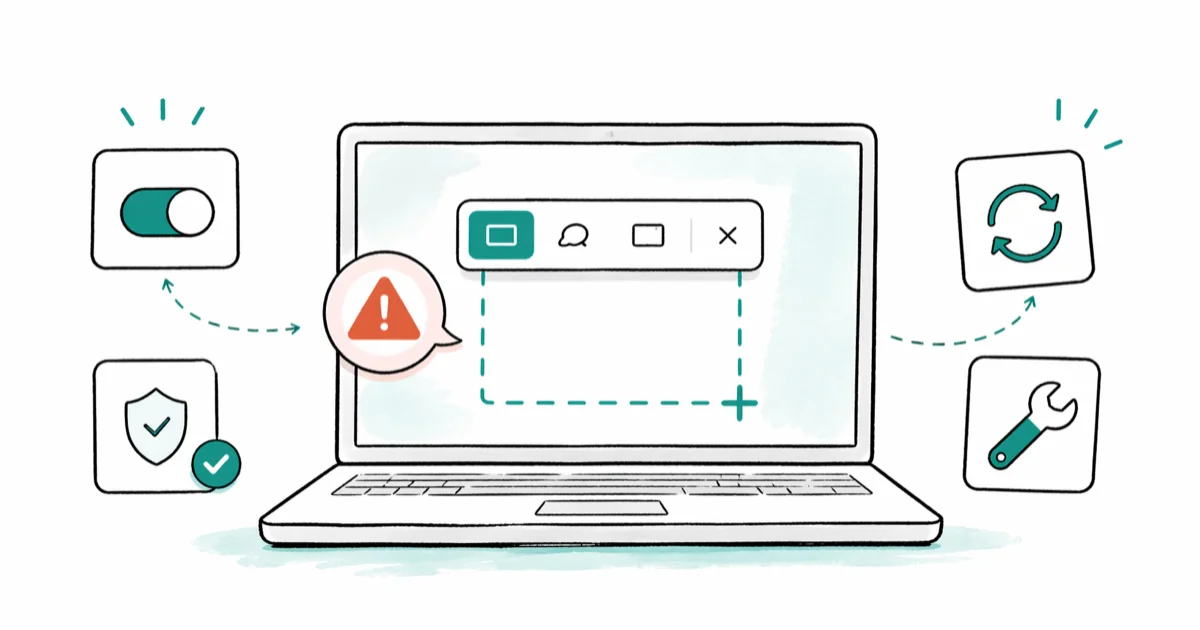
Quick AnswerWindows+Shift+S stops working when the Snipping Tool app crashes, its notifications are off, or another capture tool has grabbed the same hotkey. Restart the Snipping Tool process from Task Manager, then repair the app under Settings > Apps to restore the shortcut.
Windows+Shift+S not working is almost always a Snipping Tool problem, not a keyboard problem. The shortcut hands the capture job to the Snipping Tool app (still called Snip & Sketch on older Windows 10 builds), so if that app crashes or another tool grabs its hotkey, the keystroke goes nowhere visible. Start with the app process, notifications, and clipboard history before moving to repair or reinstall steps.
- The Snipping Tool background process handles Win+Shift+S, and ending it in Task Manager is the fastest low-risk first fix.
- A silent capture is usually a notifications setting, not a broken shortcut: the screenshot still lands on your clipboard even without a toast.
- Repair from
Settings>Appspreserves your settings; Reset wipes them; reinstalling from the Microsoft Store rebuilds the package from scratch. - Conflicting capture utilities like Greenshot, ShareX, Lightshot, FastStone, and OneDrive’s screenshot upload often grab the same hotkey at boot.
- Print Screen and the Xbox Game Bar (Win+G) both capture screenshots without the Snipping Tool, so you are never blocked while you troubleshoot.
#Why Does Windows+Shift+S Stop Working?
Win+Shift+S is owned by the Snipping Tool app, not Windows itself. According to Microsoft’s Snipping Tool documentation, pressing Windows logo key + Shift + S “opens the snipping tool overlay to capture an image snapshot.” Break any link in that chain and the hotkey looks dead.
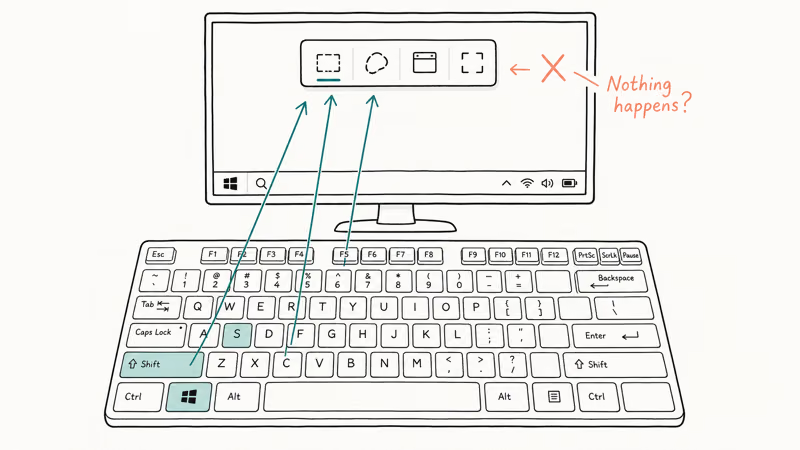
Five causes account for most Win+Shift+S failures:
- The Snipping Tool background process has crashed and Windows has not respawned it.
- App notifications are off, so the screenshot is sitting on the clipboard with no toast to tell you.
- Clipboard history is disabled, so two captures overwrite each other before you can paste.
- Another screenshot utility is registering Win+Shift+S at startup.
- App data is corrupted after a Windows or Microsoft Store update.
Fixes below run fastest to slowest. Stop the moment the shortcut works again.
#Fix 1: Restart the Snipping Tool Process
Start here. Snipping Tool runs as a background process that wakes up on the hotkey, and a stuck process does nothing when you press Win+Shift+S.
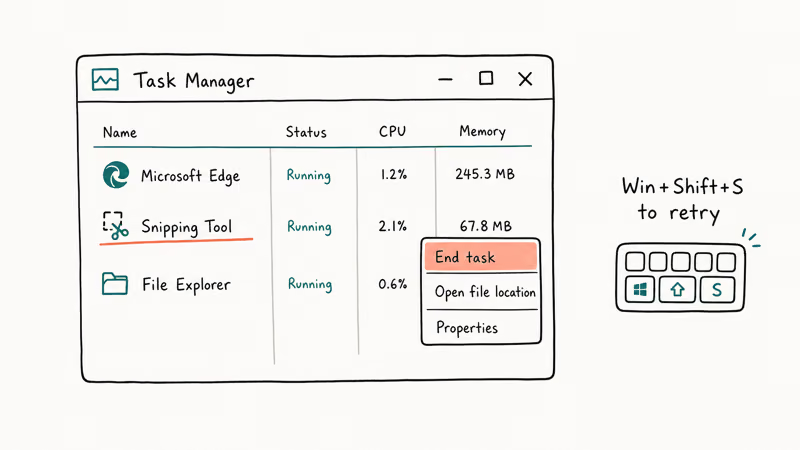
- Press Ctrl+Shift+Esc to open Task Manager.
- Open the Processes tab and sort by Name.
- Find Snipping Tool (or Screen Snipping on older builds) and select it.
- Click End task in the bottom-right.
- Press Win+Shift+S again. The overlay should appear within a second or two.
Ending the Snipping Tool process and pressing the shortcut again can recreate the overlay without a reboot or signed-out session. If the process is not listed at all, the app has not launched yet on this session and Fix 4 is the better place to jump to.
#Fix 2: Re-enable Snipping Tool Notifications
A silent shortcut feels broken but is often working fine. The screenshot lands on the clipboard; you just don’t see the toast that opens the editor. Flipping notifications back on is the lightest fix.
- Press Win+I to open Settings.
- Go to
System>Notifications. - Scroll to “Notifications from apps and other senders.”
- Find Snipping Tool (or Snip & Sketch on Windows 10) in the list.
- Turn the toggle on.
Test the shortcut. The editor toast should appear in the lower-right corner. If Snipping Tool is missing from the notifications list entirely, the app is gone from your install and you should jump to Fix 5.
#Fix 3: Turn On Clipboard History
Clipboard history is a separate Windows feature, but it matters here because Win+V is the only way to see captures you took while notifications were off. Microsoft’s clipboard support article confirms that clipboard history stores up to 25 entries per device and that the feature must be turned on locally, even if you have it enabled elsewhere through account sync.
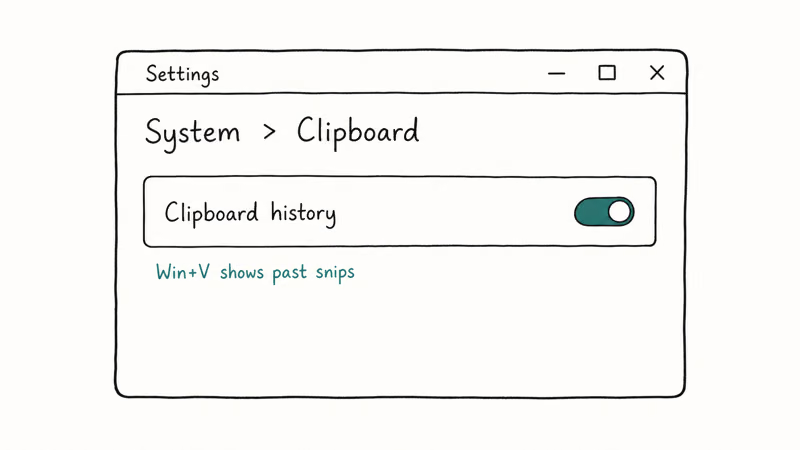
- Press Win+I to open Settings.
- Go to
System>Clipboard. - Turn Clipboard history on.
Press Win+Shift+S, drag a selection, then press Win+V. The screenshot should appear at the top of the history panel along with the last 25 copy actions, which proves the shortcut is working and only the toast was suppressed. If the panel is empty after a capture, the keystroke itself is not reaching the clipboard, so the next fix is where the real issue lives and you should jump straight there rather than burn time on more toggles.
#Fix 4: Repair or Reset the Snipping Tool App
Process restart did nothing? Repair the app itself next. Windows offers two levels: Repair keeps your settings, and Reset wipes everything. Try Repair first.
- Press Win+I to open Settings.
- Go to
Apps>Installedapps (orApps>Apps &features on Windows 10). - Search for Snipping Tool.
- Click the three-dot menu next to it and choose Advanced options.
- Scroll to the Reset section.
- Click Repair first. Wait for the check mark.
- Test Win+Shift+S. If it still does nothing, return to this screen and click Reset.
Repair is the safer default because it keeps Snipping Tool settings and recent snip history. Reset wipes app data and any custom default save location, so only escalate to Reset when Repair returns with no change.
#Fix 5: Reinstall Snipping Tool from the Microsoft Store
If Repair and Reset both leave the shortcut dead, the install itself is corrupted at the package level. Uninstalling and pulling a fresh copy from the Microsoft Store rebuilds the app, refreshes its dependencies, and re-registers the hotkey from scratch.
- Click Start and right-click Snipping Tool.
- Select Uninstall and confirm.
- Open the Microsoft Store.
- Search for Snipping Tool.
- Click Get or Install.
- After install completes, press Win+Shift+S.
Reinstalling rebuilds the URI protocol that Windows uses to wake the app on the hotkey, which is why this works even when in-place fixes have failed several times in a row. On a job-issued laptop where capture is blocked by workplace policy rather than a broken app, our guide on why you can’t take a screenshot due to security policy covers the management-controlled side of the same problem and walks through what an IT admin needs to relax first.
#Fix 6: Install Pending Windows Updates
Microsoft has fixed Win+Shift+S regressions in cumulative updates several times. The Windows Update support article states that a manual check also pulls the Snipping Tool servicing package, which ships separately on managed devices.
- Press Win+I to open Settings.
- Click Windows Update.
- Click Check for updates.
- Install anything queued.
- Restart when prompted.
Test the shortcut after the restart. If your Windows install is months behind, this single step often clears Win+Shift+S along with a handful of unrelated bugs. For the cleanup that follows a long-deferred upgrade, our walkthrough on how to delete Windows Update files completely helps when the update cache has ballooned and the system drive is tight.
#Fix 7: Disable Conflicting Screenshot Software
Third-party screenshot apps often claim Win+Shift+S as their default hotkey. Common conflicts include Greenshot, ShareX, Lightshot, FastStone Capture, and OneDrive’s “save screenshots” feature. When two apps want the same shortcut, whichever launches last wins, and the Snipping Tool falls silent.
To find the culprit:
- Press Ctrl+Shift+Esc and click Startup apps.
- Look for any screenshot or capture utility in the list.
- Right-click and choose Disable.
- Sign out and back in, then test the shortcut.
For OneDrive specifically, the setting lives inside the OneDrive app. Right-click the OneDrive tray icon, choose Settings, open the Backup tab, and uncheck “Automatically save screenshots I capture to OneDrive.” OneDrive’s screenshot hook is a common offender on consumer Windows installs.
If the keystroke itself is not registering at all, the issue might be the hardware. Our guide on the Windows 10 keyboard not working covers driver, layout, and physical-key problems on the desktop side. Chromebook users hitting a similar block can use Chromebook keyboard not working as a cross-reference for diagnostic order.
#Fix 8: Run the Microsoft Store Apps Troubleshooter
Microsoft includes a built-in troubleshooter that resets Store app registrations, and it’s buried in Settings but worth running before deeper steps.
- Press Win+I to open Settings.
- Go to
System>Troubleshoot>Othertroubleshooters. - Find Windows Store Apps and click Run.
- Follow the prompts. The tool will scan and apply fixes automatically.
Microsoft recommends running this troubleshooter for any Store app misbehaving, and it can clear stuck Snipping Tool registrations when Repair alone does nothing. If you also see the “please wait for the GPSVC” message during boot or sign-in, that often signals a broader Windows servicing issue; our writeup on the GPSVC error at sign-in walks through the related fixes.
#How Can I Take Screenshots Without Win+Shift+S?
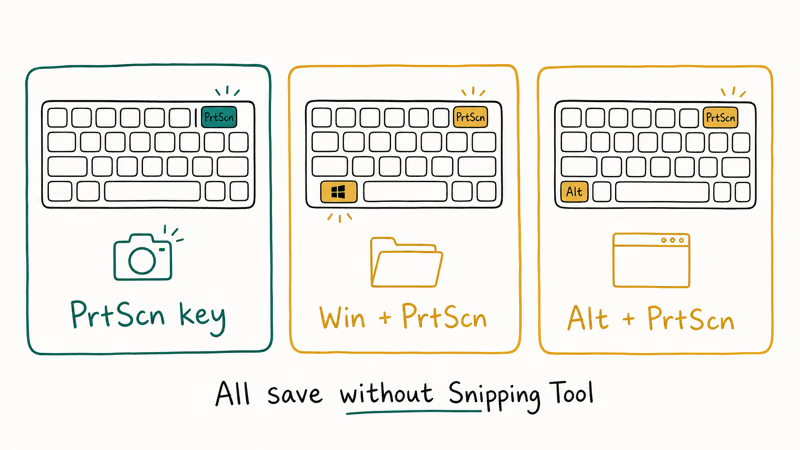
Three built-in alternatives capture screenshots without touching the Snipping Tool, so you are never blocked while a fix waits. Use any of them in parallel with the steps above.
#Print Screen Key
Press the PrtScn (or Print Screen) key. The whole screen copies to the clipboard. Open Paint, Word, or any image app and press Ctrl+V to paste.
To remap PrtScn so it opens the Snipping Tool overlay instead of the full-screen grab:
- Press Win+I to open Settings.
- Go to
Accessibility>Keyboard(orEase of Access>Keyboardon Windows 10). - Turn on “Use the Print Screen button to open screen snipping.”
After this, PrtScn behaves like Win+Shift+S even when the original shortcut is dead. Set it now if you have a demo or a support call later today; you’ll thank yourself.
#Xbox Game Bar (Win+G)
Win+G opens the Xbox Game Bar on every Windows 10 and 11 install, and the Game Bar has a capture widget that grabs the active window with Win+Alt+PrtScn. According to Microsoft’s Xbox Game Bar capture guide, a shot taken that way lands in the Captures folder as a PNG. The Game Bar is sandboxed away from Snipping Tool, so it keeps working even when Win+Shift+S is completely dead.
#Snipping Tool from the Start Menu
The Snipping Tool also opens by name: press Start, type Snipping Tool, and hit Enter. Click New from the app window to start a capture, which bypasses the hotkey entirely and confirms whether the app itself is functional. If the app opens and the New button works, the issue is hotkey registration, not the capture engine, and Fix 5 will most likely sort it.
For device-specific screenshot help, our walkthroughs on how to screenshot on a Lenovo Yoga laptop and how to screenshot on an HP laptop cover hardware-key combos that work without any app installed.
#Bottom Line
Start with Fix 1 every time: restart the Snipping Tool process in Task Manager. It’s the fastest reversible fix and often clears a stuck shortcut before any settings or app data changes are needed.
If the shortcut still does nothing, work through Fix 2 (notifications) and Fix 3 (clipboard history) before touching the app install. Save Repair, Reset, and a full reinstall for cases where the first three fixes fail in sequence; doing them upfront wipes your snip history without checking whether the problem was simpler.
Heading into a demo? Remap PrtScn under Accessibility > Keyboard to open the snipping overlay. It gives you a built-in capture fallback while you troubleshoot Win+Shift+S.
#Frequently Asked Questions
Does Win+Shift+S still work on Windows 11?
Yes. The shortcut behaves the same on Windows 10 22H2 and every released Windows 11 build, including 24H2.
Why does my screenshot not appear after I press Win+Shift+S?
The capture probably worked, but the notification toast is suppressed. Press Win+V to open clipboard history, and the screenshot should sit at the top of the list. To bring the toast back, re-enable Snipping Tool notifications in Settings > System > Notifications.
Is Snip & Sketch the same as Snipping Tool?
Snip & Sketch was the Windows 10 successor to the legacy Snipping Tool, a separate app with its own icon and notifications. In Windows 11, Microsoft merged the two into a single app called Snipping Tool that handles both the legacy capture modes and the Win+Shift+S hotkey. When you troubleshoot on Windows 10, look for Snip & Sketch in Settings; on Windows 11, look for Snipping Tool.
Can I change the Win+Shift+S keyboard shortcut?
Windows does not let you remap Win+Shift+S directly. The two workarounds are using AutoHotkey to bind any key combination to launch the Snipping Tool, or remapping PrtScn under Accessibility > Keyboard so it opens the snipping overlay instead.
Why does the shortcut fire but the editor never opens?
Notifications for Snipping Tool are off. The screenshot is on your clipboard, but the toast that opens the editor is suppressed. Re-enable the toggle under Settings > System > Notifications and the editor will appear again on the next capture.
Does this shortcut work in a Remote Desktop session?
Not reliably. Win+Shift+S is often intercepted by the local Remote Desktop client. Use the client’s built-in screenshot button instead, or its own hotkey.
What if Repair, Reset, and Reinstall all fail?
The shortcut registration may be broken at the OS level. Run “DISM /Online /Cleanup-Image /RestoreHealth” followed by “sfc /scannow” from an elevated command prompt. If the SFC scan reports unrepairable files, an in-place upgrade install over your current Windows is the next step; it preserves files and apps while rebuilding system components.
Does Win+Shift+S save screenshots to a folder?
Not by default. The shortcut copies the capture to the clipboard and waits for you to paste it or to click the editor toast. Choose Save in the editor to drop the file into a folder you pick. If you want every capture saved automatically, use the Xbox Game Bar (Win+G) instead; it writes PNGs straight to Videos > Captures.

Best Laptop for Running LLMs in 2026: Memory Comes First
The best laptop for running LLMs is a memory purchase first. Compare MacBook unified memory against NVIDIA laptop VRAM, and see what each tier really runs.

How to Run a Local LLM on Windows: A 2026 Setup Guide
Run a local LLM on Windows with LM Studio or Ollama. Pick a model that fits your GPU memory, keep every prompt offline, and skip the monthly bill.

Bluetooth Not Working on Snapdragon X? Fixes for 2026
Bluetooth not working on your Snapdragon X Copilot+ PC? Generic audio, mice, and keyboards work, but vendor apps often lack an ARM build. Fixes inside.

Docker Desktop and WSL2 Not Working on Snapdragon X? Fix It
WSL2 runs fine on Snapdragon X, but Docker Desktop ARM is Early Access and throws WSL errors. Use WSL2 plus native ARM64 Ubuntu and Docker Engine.