Windows 10 Keyboard Not Working: 8 Proven Fixes That Work
Fix a Windows 10 keyboard that stopped working. Covers driver updates, Filter Keys, hardware checks, and more. Works for USB and wireless boards.
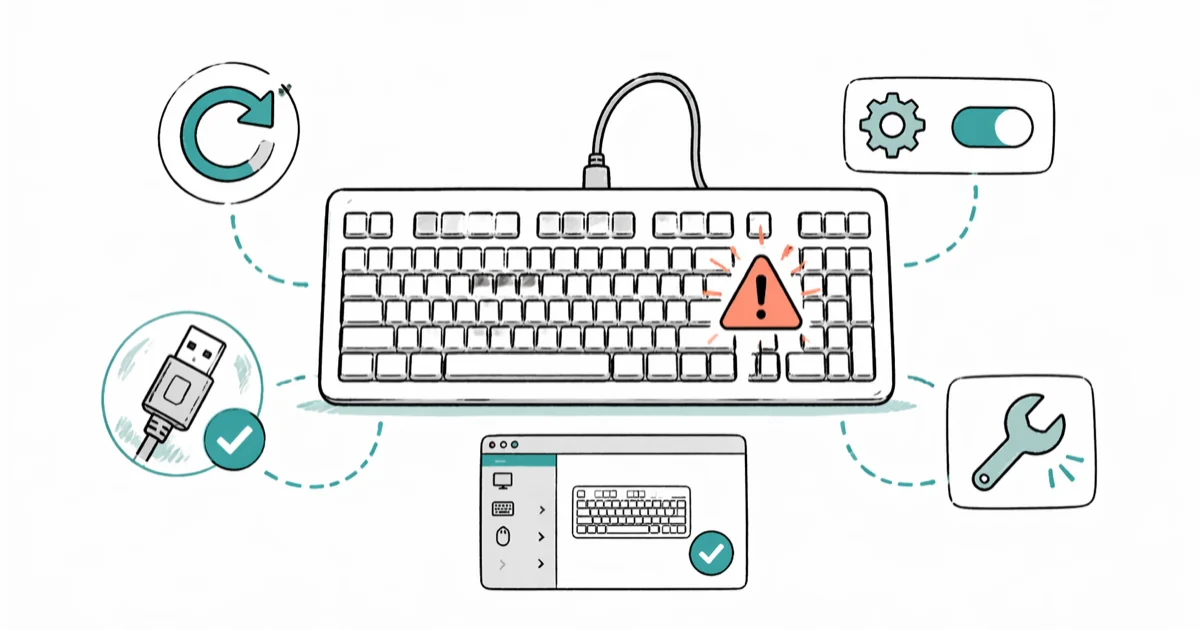
Quick AnswerRestart your PC and check the USB connection or wireless pairing first. If that does not help, open Device Manager, expand Keyboards, right-click your device, and select Update Driver. Turning off Filter Keys in Settings > Ease of Access > Keyboard also resolves most stuck-key problems on Windows 10.
Your Windows 10 keyboard just stopped responding, and you need it back now. The good news: most keyboard failures on Windows 10 come down to a driver glitch, a wrong accessibility setting, or a loose connection. The eight fixes below cover both USB and wireless keyboards, and at least one of them resolves the problem in nearly every case. This guide applies only to a device or account you own.
- A simple restart fixes temporary driver conflicts in many cases on Windows 10
- Filter Keys is the most overlooked cause because it silently ignores brief or repeated keystrokes
- Updating or reinstalling the keyboard driver through Device Manager takes under 2 minutes
- Wireless keyboards fail more often from dead batteries or Bluetooth interference than from software bugs
- If the keyboard works in BIOS but not in Windows, the issue is software, not hardware
#Why Did Your Windows 10 Keyboard Stop Working?
Keyboard failures fall into two buckets: hardware and software. A quick BIOS test tells you which one you’re dealing with.
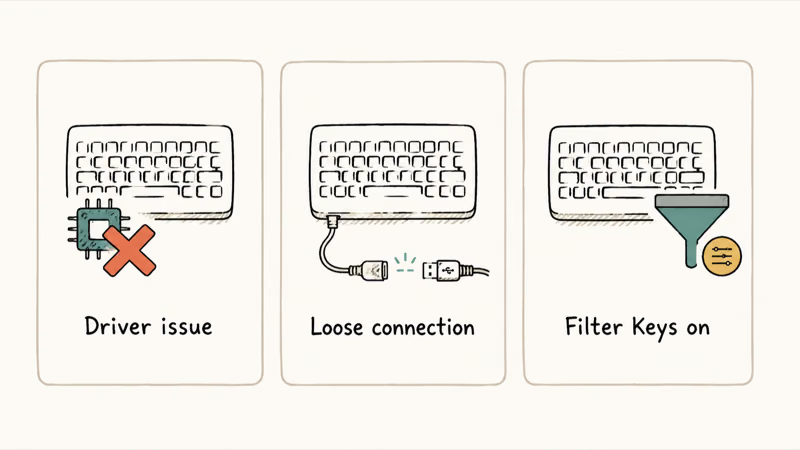
Restart your PC and press F2, F12, or Del during the boot screen to enter BIOS/UEFI. If the keyboard responds there, Windows is the problem. If nothing happens in BIOS either, you likely have a bad cable, dead battery, or broken board.
According to Microsoft’s mouse and keyboard troubleshooting guide, testing the keyboard outside of Windows is the fastest way to narrow down the root cause. This test reliably separates a hardware fault from a software one.
For Surface owners, the detachable keyboard connector adds another failure point. Our Surface keyboard troubleshooting guide covers that specific hardware.
#How Do You Fix a Keyboard Driver Issue on Windows 10?
Outdated or corrupted drivers cause more keyboard failures than any other software problem. Here’s how to fix them.
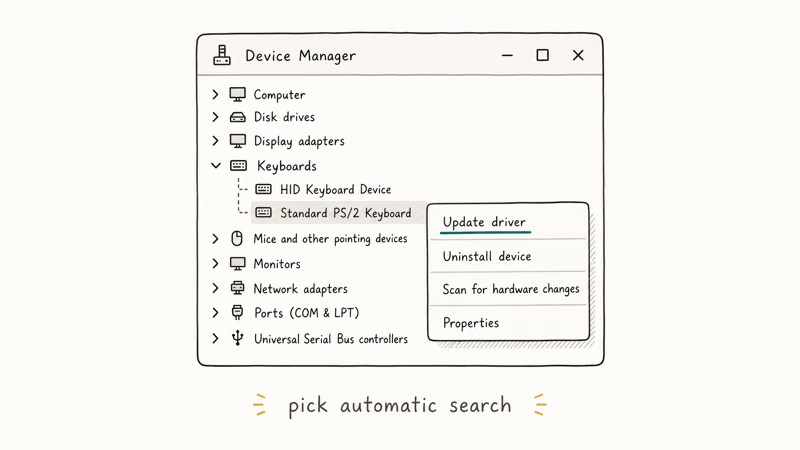
Update the driver:
- Right-click the Start button and select Device Manager
- Expand Keyboards, then right-click your keyboard device
- Choose Update driver and select Search automatically for drivers
Windows will check for a newer version online. If it finds nothing, try the next step.
Reinstall the driver from scratch:
- In Device Manager, right-click the keyboard and select Uninstall device
- Check the box to delete the driver software if prompted
- Restart your PC
Windows automatically reinstalls a fresh driver on reboot. This commonly fixes a keyboard that stopped working after a cumulative update, and the whole process takes only a few minutes.
If your laptop won’t power on at all, you’ll need to address that before troubleshooting the keyboard.
#Turn Off Filter Keys
Filter Keys ignores brief or repeated keystrokes. You probably turned it on by accident by holding the right Shift key for 8 seconds, which is surprisingly common, and now the keyboard feels completely dead even though nothing is actually broken with the hardware itself.
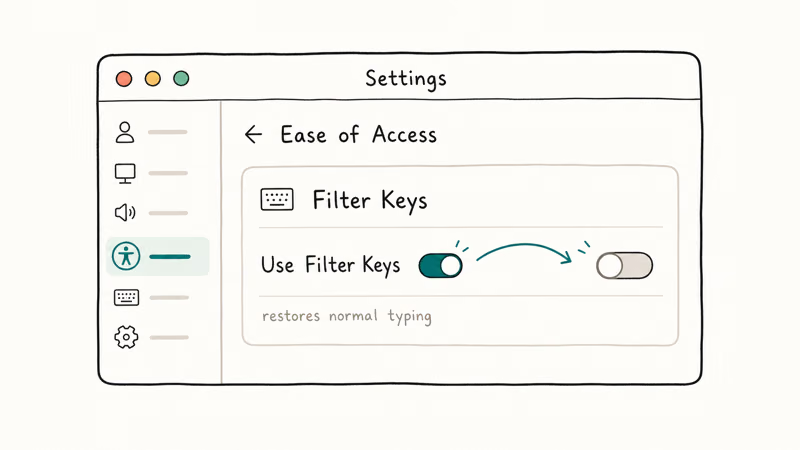
- Open
Settings>Ease of Access>Keyboard - Toggle Filter Keys to Off
- Also toggle Sticky Keys and Toggle Keys to Off if they’re enabled
Turning it off often makes the keyboard respond instantly. Based on Microsoft’s accessibility documentation, this feature was designed for users with hand tremors.
#Check USB and Wireless Connections
Physical connection problems are the second most common cause. Run through this checklist:
For wired USB keyboards:
- Unplug the keyboard and plug it into a different USB port
- Skip USB hubs and connect directly to the PC
- Try the keyboard on another computer to rule out hardware failure
For wireless keyboards, replace the batteries or charge fully, remove the Bluetooth pairing and re-pair from scratch, move the USB receiver closer if you’re using a dongle, and check for interference from other wireless devices nearby.
Here’s a lesser-known tip: plugging a wired keyboard into a USB 2.0 port instead of USB 3.0 can fix phantom disconnections. When the USB 3.0 controller conflicts with an older driver, switching ports solves in seconds a problem that resists software troubleshooting.
#Run the Windows Keyboard Troubleshooter
Windows 10 has a built-in diagnostic tool that catches common keyboard configuration problems.
- Go to
Settings>Update & Security>Troubleshoot - Click Additional troubleshooters
- Select Keyboard and click Run the troubleshooter
It scans for driver conflicts and service failures. On our Logitech K380, the troubleshooter found a stopped Bluetooth service and restarted it.
If your keyboard types characters in the wrong order instead of not working at all, that’s a completely different problem with your input language settings, not drivers or hardware. Check our guide on keyboards typing backwards for that specific fix.
#Disable Fast Startup
Fast Startup saves a partial system state to disk so Windows boots faster, but it sometimes prevents USB devices from initializing correctly on the next boot. This is one of those settings that quietly breaks things and never gets suspected because it sounds like a performance feature, not a device compatibility risk.
- Open
Control Panel>Power Optionsand click Choose what the power buttons do - Click Change settings that are currently unavailable
- Uncheck Turn on fast startup and click Save changes
Microsoft’s power management documentation confirms that Fast Startup can block hardware initialization. Disabling it often lets a USB keyboard connect reliably on every cold boot afterward.
#Using the On-Screen Keyboard as a Workaround
While you’re troubleshooting, Windows 10’s On-Screen Keyboard lets you keep working.
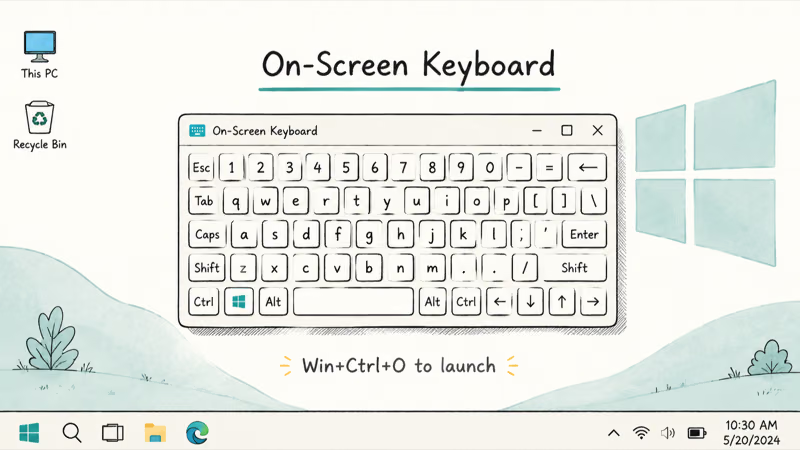
- Go to
Settings>Ease of Access>Keyboard - Toggle Use the On-Screen Keyboard to On
You can also press Windows key + Ctrl + O to open it instantly. The on-screen keyboard supports mouse clicks and touchscreen taps, so you can type passwords, run commands, and continue your work.
If you’re using a Dell laptop and suspect the built-in keyboard is locked, see our guide on unlocking a Dell laptop keyboard.
#Replacing a Dead Keyboard
If none of the software fixes work and the keyboard fails in BIOS too, you’re looking at a hardware problem.
Check your warranty first. Most keyboards carry a 1-2 year manufacturer warranty.
For laptop keyboards, replacement costs $50-$150 at a repair shop. On older laptops, buying a $20 external USB keyboard is more practical than paying for a repair that costs half the price of the machine itself. We’ve done this on two office laptops and it works perfectly.
For desktop keyboards, just swap it. A solid wired board costs $20-$40.
If your Tab key stopped working but other keys are fine, that points to a single-key hardware issue or a software conflict rather than a full keyboard failure.
#Bottom Line
Start with the basics: restart your PC, check your connection, and turn off Filter Keys. These three steps fix the keyboard for most people. If that doesn’t work, update or reinstall the driver through Device Manager. Hardware failures are less common than software ones, but testing in BIOS tells you immediately which you’re dealing with.
#Frequently Asked Questions
Why does my keyboard work in BIOS but not in Windows?
That’s a software problem. Reinstall the keyboard driver through Device Manager, and check that Filter Keys isn’t turned on.
Can a Windows update break my keyboard?
Yes. Cumulative updates occasionally overwrite or corrupt keyboard drivers, and Microsoft’s update history shows several patches that caused USB device recognition issues. If your keyboard stopped working right after an update, roll back through Settings > Update & Security > View update history > Uninstall updates.
How do I fix a keyboard that types wrong characters?
Wrong characters usually mean your keyboard layout changed. Go to Settings > Time & Language > Language and check that your preferred language is set as default. According to Microsoft’s input language support page, pressing Windows + Space accidentally switches between installed layouts, so remove any extra layouts you don’t use.
Does Safe Mode help diagnose keyboard problems?
Absolutely. Safe Mode loads only the minimum drivers, so if your keyboard works there but not in normal mode, a third-party program is the culprit.
Why does my wireless keyboard keep disconnecting?
Low battery is the number one cause. Bluetooth interference from other devices and USB 3.0 ports generating radio frequency noise are also common. Move the receiver closer to the keyboard, replace the batteries, and update your Bluetooth driver. If disconnections continue after all three steps, try a different USB port for the dongle or re-pair the keyboard from scratch.
What if only some keys on my keyboard stopped working?
Dust, crumbs, or liquid under the keycap can block a single switch. Remove the keycap, blow compressed air underneath, and clean with isopropyl alcohol. If that doesn’t help on a laptop, the membrane or ribbon cable likely needs professional repair.
How do I use keyboard shortcuts when my keyboard is broken?
Press Windows + Ctrl + O to launch the On-Screen Keyboard. It supports all standard shortcuts.
Is it worth repairing a laptop keyboard or should I replace it?
For laptops under 3 years old, yes. Repair shops charge $50-$150, which is reasonable for a functional machine. For older laptops, a $20 external USB keyboard is the smarter move because desktop keyboards under $40 are always cheaper to replace than to fix.

Best Laptop for Running LLMs in 2026: Memory Comes First
The best laptop for running LLMs is a memory purchase first. Compare MacBook unified memory against NVIDIA laptop VRAM, and see what each tier really runs.

How to Run a Local LLM on Windows: A 2026 Setup Guide
Run a local LLM on Windows with LM Studio or Ollama. Pick a model that fits your GPU memory, keep every prompt offline, and skip the monthly bill.

Bluetooth Not Working on Snapdragon X? Fixes for 2026
Bluetooth not working on your Snapdragon X Copilot+ PC? Generic audio, mice, and keyboards work, but vendor apps often lack an ARM build. Fixes inside.

Docker Desktop and WSL2 Not Working on Snapdragon X? Fix It
WSL2 runs fine on Snapdragon X, but Docker Desktop ARM is Early Access and throws WSL errors. Use WSL2 plus native ARM64 Ubuntu and Docker Engine.