How to Fix Please Wait for the GPSVC on Windows 10 and 11
Fix the Please Wait for the GPSVC stall with 6 official methods. Works on Windows 10 and 11. Covers SFC, DISM, gpupdate, registry, and Safe Mode steps.

Quick AnswerThe Please Wait for the GPSVC message means the Group Policy Client Service stalled during sign-in or shutdown. Force a restart with Ctrl+Alt+Delete, then run sfc /scannow and gpupdate /force in an elevated PowerShell window to repair the service.
The “Please Wait for the GPSVC” message freezes Windows during sign-in or shutdown because the Group Policy Client Service is stuck applying policies. This guide covers six official Microsoft methods for Windows 10 and 11, and for many users a forced restart plus sfc /scannow clears the stall in a few minutes.
This guide assumes you own the PC or have local administrator rights, since Group Policy and registry edits on a managed work device should be coordinated with your IT team to avoid breaking compliance settings.
- GPSVC is the Group Policy Client Service that applies machine and user policies at sign-in, shutdown, and every 90 minutes
- A stuck GPSVC almost always points at corrupted system files, a damaged user profile, or a bad recent Group Policy change
- Force-restart with Ctrl+Alt+Delete first; then run
sfc /scannowandDISM /Online /Cleanup-Image /RestoreHealthfrom an elevated PowerShell to repair core files - Run
gpupdate /forceafter sign-in succeeds to confirm the service can apply policy without hanging - Disabling GPSVC in services.msc is not supported by Microsoft and will block sign-in entirely
#What Does Please Wait for the GPSVC Mean?
GPSVC stands for Group Policy Client Service.
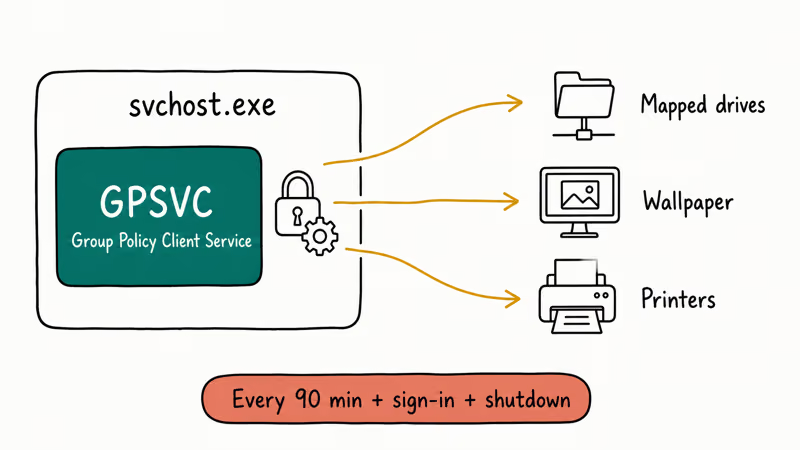
It runs as part of svchost.exe and applies the policies that decide which network drives mount, which printers appear, what the desktop wallpaper looks like, and dozens of other settings every time you sign in. The service starts at boot and re-runs every 90 minutes in the background, plus a fresh full pass at every interactive sign-in and shutdown event.
When you see the wait message, the service is stuck on a single step.
According to Microsoft Learn’s troubleshooting guide for slow sign-in, the most common causes are corrupted system files, a missing or wrong ServiceDll registry value for GPSVC, and a damaged user profile. Network problems can extend the wait, but they rarely cause the message on their own when the device is offline.
#Why Is GPSVC Hanging on Your PC?
The trigger is almost never one you can pin down from the lock screen alone. Here are the three patterns that cause it most often.
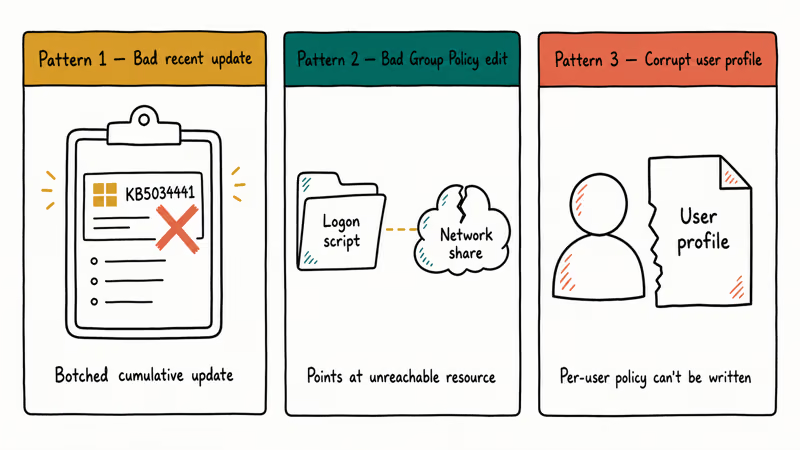
Pattern 1, bad recent update. A botched Windows update can break the service host configuration, as some users saw after KB5034441. Reverting the update through wusa /uninstall from Safe Mode typically brings sign-in back after a reboot. Microsoft’s release health dashboard lists every cumulative update, the affected build numbers, and any rollback guidance, so check there before you assume deeper corruption and start running scans that take 20 minutes each.
Pattern 2, bad Group Policy edit. If you or an admin enabled a policy that points at a missing logon script or unreachable network share, GPSVC waits for that resource. The wait message is the symptom; the policy is the cause. Microsoft’s gpresult command reveals which policies applied last.
Pattern 3, corrupt user profile. The profile loads, but the per-user policy bucket can’t be written. Creating a fresh local administrator account from the recovery environment confirms whether the problem follows the user or the machine.
#Fix 1: Force a Restart With Ctrl+Alt+Delete
Try this first. It costs nothing and fixes the soft-stall version of the issue immediately.
Press Ctrl + Alt + Delete on the stuck screen. The security menu appears in front of the wait message on most builds. Tap the power icon at the bottom right and pick Restart.
No menu within 30 seconds? Hold the power button until the PC turns off. Wait 10 seconds, then power on. Two failed attempts is the signal to stop repeating it and move to the WinRE route below, especially if the keyboard hotkey returns nothing on the third try.
A single forced restart often clears the message outright. Recurring stalls after restart point at one of the deeper fixes below.
#Fix 2: Run SFC and DISM From an Elevated PowerShell
System File Checker repairs the protected Windows files that GPSVC depends on. DISM rebuilds the underlying component store when SFC alone can’t finish.
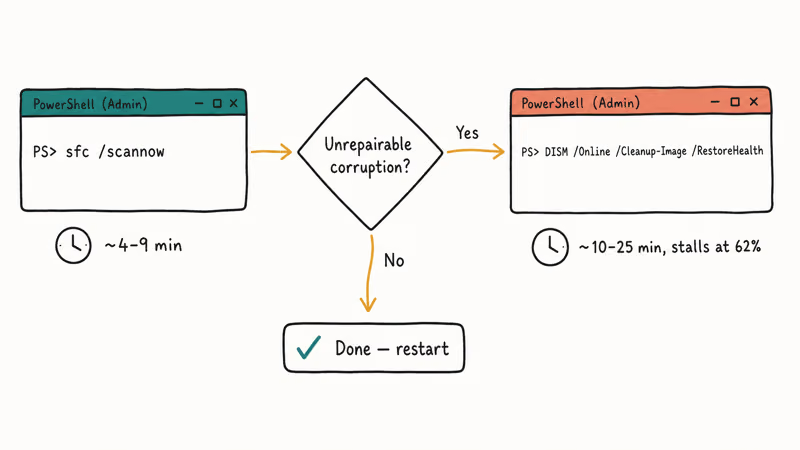
- Sign in (use Safe Mode if normal sign-in still hangs; see Fix 5).
- Right-click Start and pick Terminal (Admin) on Windows 11 or Windows PowerShell (Admin) on Windows 10.
- Run
sfc /scannowand wait for the verification to reach 100 percent. The scan usually takes a few minutes on an NVMe SSD and longer on an older SATA drive. - Run
DISM /Online /Cleanup-Image /RestoreHealth. Allow 10–25 minutes; the progress bar stalls around 62 percent for several minutes on most systems. - Restart and sign in again.
Microsoft’s SFC documentation states that /scannow verifies the integrity of 100 percent of protected system files and repairs corrupted versions. SFC logs results to CBS.log under %WinDir%\Logs\CBS\. Run SFC first; invoke DISM only if SFC reports unrepairable corruption.
Run the order in reverse only when an explicit support article tells you to.
#Fix 3: Verify the GPSVC Registry Entry
A wrong ServiceDll value is one of the named root causes in Microsoft’s slow sign-in article. The check takes about 2 minutes.
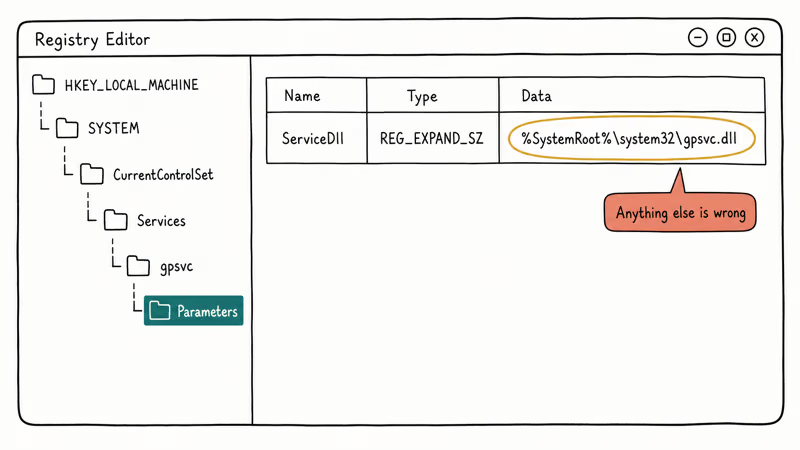
- Press Windows + R, type
regedit, and confirm the UAC prompt. - Go to
HKEY_LOCAL_MACHINE\SYSTEM\CurrentControlSet\Services\gpsvc\Parameters. - The
ServiceDllREG_EXPAND_SZ value should be%SystemRoot%\system32\gpsvc.dll. Anything else is wrong. - If the value or the entire
gpsvcsubkey is missing, don’t edit it from a non-Microsoft template found online. Restore from a known-good backup or run an in-place repair install (Fix 6) instead.
This key is rarely the culprit, but a quick check rules out the cause before you spend time on heavier fixes that take 30+ minutes each, like the in-place repair. Always back up the registry through File → Export → All before you change anything; the resulting .reg file lets you double-click to roll back in one step if a tweak breaks something else.
#Fix 4: Force Group Policy to Reapply With gpupdate
Once you can sign in again, force a clean policy refresh to confirm GPSVC works under load.
Open Terminal (Admin) and run gpupdate /force /boot. The /force flag reapplies every policy instead of just the changed ones, and /boot reboots if a policy needs it.
The command takes 30 to 90 seconds on a healthy domain machine.
If gpupdate returns errors mentioning “the processing of Group Policy failed” with event IDs 1129 or 1058, Microsoft’s event 1129 troubleshooting article walks through the network and DNS checks. On a non-domain home PC, those errors are unusual and point back to corrupted system files (Fix 2).
#Fix 5: Sign In Through Safe Mode
Safe Mode loads Windows with only the core drivers and skips most Group Policy processing, so it bypasses the GPSVC stall and lets you run the repair commands.
- From the lock screen, hold Shift and click Power → Restart.
- The Windows Recovery Environment loads. Pick Troubleshoot → Advanced options → Startup Settings → Restart.
- After the reboot, press 5 for Safe Mode with Networking.
- Sign in with your local administrator account.
- Run Fix 2 (SFC + DISM), then restart normally.
If Safe Mode also hangs at “Please Wait for the GPSVC”, the corruption reaches into core services and you should move to the in-place repair in Fix 6. Microsoft documents the full Recovery Environment menu in its advanced startup options article.
#Fix 6: Run an In-Place Repair Install
A repair install replaces every Windows system file while keeping your apps, settings, and personal files.
It’s Microsoft’s official answer when SFC and DISM can’t finish their work, and Microsoft recommends it as a last-resort recovery option before you reach for a full reset that wipes apps. Download the matching Windows 10 or Windows 11 ISO from Microsoft’s software download page, mount it by double-clicking, and run Setup.exe from inside Windows. Pick Keep personal files and apps when prompted.
The process takes 30 to 60 minutes.
It reboots two or three times. When Safe Mode itself hangs, the in-place repair usually restores normal sign-in on the first attempt without any apps needing to be reinstalled.
#Fixes That Don’t Work and Why
Stop wasting time on these:
- Disabling the GPSVC service in services.msc. The service is set to “Automatic (Trigger Start)” by Microsoft and can’t be safely disabled. The Stop and Startup Type controls are greyed out by design. Forcing the registry to disable it through
Start = 4blocks sign-in entirely. - Generic registry cleaners. Third-party cleaners don’t understand the GPSVC ServiceDll path or the Group Policy event log. They either do nothing or remove keys that were valid.
- System Restore from inside the wait screen. Restore needs you signed in. Use the Recovery Environment (Shift+Restart) to reach it instead.
- Reinstalling network drivers. Network problems extend the wait but don’t cause the offline version of the message. Save this for after you’ve ruled out the file and registry fixes.
#Bottom Line
Start with Fix 1 (forced restart) and Fix 2 (SFC + DISM). Together they resolve the stall for most home Windows 10 and 11 users in under 20 minutes of total wall time, and they don’t risk policy or registry changes. If the message comes back after that, work down the list to the registry check, gpupdate, and finally the in-place repair. Don’t disable GPSVC; it’s required for sign-in to complete on every modern Windows build.
Stuck on a work or school PC?
Contact your IT team before changing Group Policy or the registry, and capture an error report from Reliability Monitor so they can see the exact failure event.
For other Windows boot and login problems, see our related guides:
- Windows 10 automatic repair loop
- Bad pool caller BSOD
- DPC watchdog violation error
- Input not supported on monitor message
- Delete Windows update files walkthrough for a clean cache reset
#Frequently Asked Questions
What is the Group Policy Client Service used for?
It applies the Group Policy settings stored in your local PC and on any domain you sign into. That covers desktop wallpaper, mapped drives, browser homepages, security settings, software install rules, screen-lock timeouts, USB-port restrictions, password complexity rules, and the dozens of other items that an admin or your own Local Group Policy Editor configures across Computer Configuration and User Configuration. Without it, you can’t sign in to any account on the box, local or domain.
Can I disable GPSVC to skip the wait message?
No. Microsoft locks the controls in services.msc by design.
How long should I wait before forcing a restart?
Give it 5 minutes on a healthy machine. If the spinner is still going at 10 minutes, the service is hung and a forced restart is the right call.
Does the message mean my PC has a virus?
Almost never. The wait screen is a service-state issue, not a malware indicator. Run a Microsoft Defender offline scan only after the file and registry fixes if you’re still suspicious.
Will Fix 6 (in-place repair) wipe my files or apps?
Not when you pick “Keep personal files and apps” on the setup screen. Back up first as a precaution.
Why does the wait happen only at shutdown sometimes?
Group Policy also applies user-specific tasks at shutdown, including saving roaming profile changes, releasing mapped drives, and writing event logs. A bad logoff script or unreachable share can stall the same service in the same way at sign-out time.
Is the wait message different on Windows 10 versus Windows 11?
The message text and underlying service are identical on both versions. The recovery menus look slightly different (Windows 11 routes through Settings → System → Recovery), but every fix in this guide works on both.

Best Laptop for Running LLMs in 2026: Memory Comes First
The best laptop for running LLMs is a memory purchase first. Compare MacBook unified memory against NVIDIA laptop VRAM, and see what each tier really runs.

How to Run a Local LLM on Windows: A 2026 Setup Guide
Run a local LLM on Windows with LM Studio or Ollama. Pick a model that fits your GPU memory, keep every prompt offline, and skip the monthly bill.

Bluetooth Not Working on Snapdragon X? Fixes for 2026
Bluetooth not working on your Snapdragon X Copilot+ PC? Generic audio, mice, and keyboards work, but vendor apps often lack an ARM build. Fixes inside.

Docker Desktop and WSL2 Not Working on Snapdragon X? Fix It
WSL2 runs fine on Snapdragon X, but Docker Desktop ARM is Early Access and throws WSL errors. Use WSL2 plus native ARM64 Ubuntu and Docker Engine.