How to Fix the Windows 11 BSOD After KB5083769 (2026 Guide)
Windows 11 blue screens spiked after April 2026's KB5083769 update. Here is the working recovery sequence: System Restore, Startup Repair, uninstall.
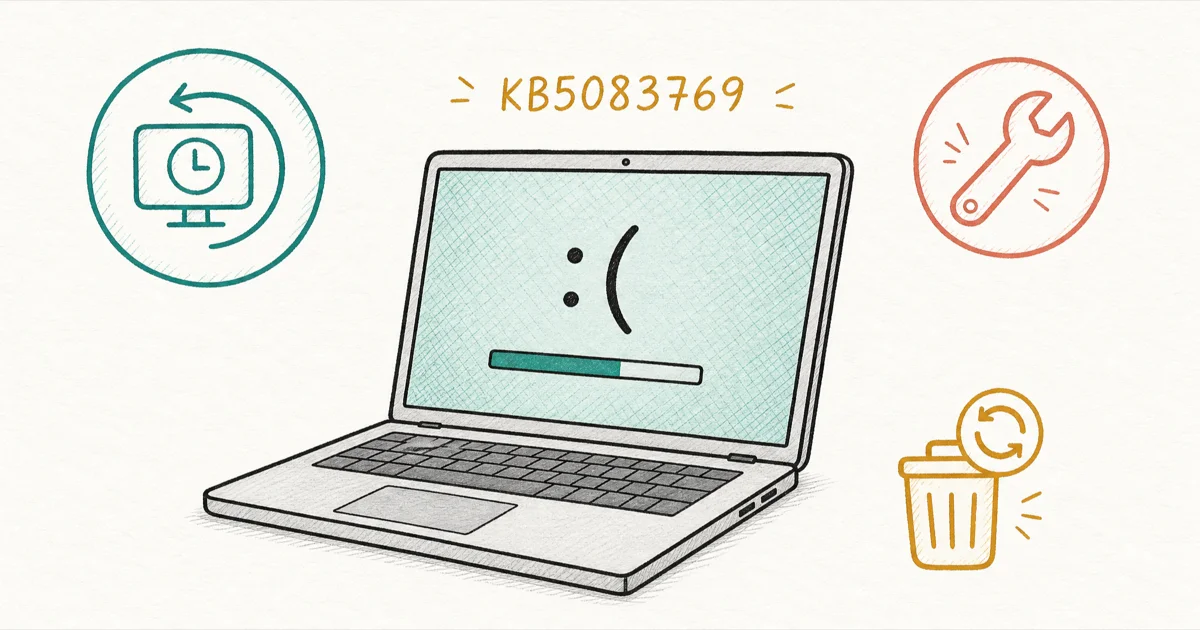
Quick AnswerWindows 11 BSODs in 2026 trace to KB5083769, the April update that hit HP and Dell PCs. Boot into Windows Recovery Environment and run System Restore to the pre-update point.
Your Windows 11 PC blue-screened, and the timing isn’t random. Three 2026 updates caused BSOD waves, with April’s KB5083769 hitting HP and Dell hardest. System Restore from the Windows Recovery Environment is usually the fastest fix, finishing in under twenty minutes.
- KB5083769, the April 2026 security update, is the named culprit behind most current Windows 11 BSODs and boot loops on HP and Dell hardware
- Three forced reboots in a row push Windows 11 into the Windows Recovery Environment automatically, so no installer USB is needed for that first attempt
- System Restore inside WinRE rolls the system to a pre-update point in roughly 15 to 20 minutes and keeps your personal files intact
- Uninstall the latest quality update from Advanced Options when System Restore has no usable restore point or the loop persists after rollback
- Random stop codes that span weeks without a fresh update point at hardware: run Windows Memory Diagnostic and your manufacturer’s hardware test before reinstalling Windows
#Which Windows 11 Updates Cause BSOD in 2026?
Three Windows 11 updates in 2026 have triggered widespread BSOD reports, and KB5083769 is the one currently making the most noise. According to PCWorld’s coverage of the April update, the rollout caused PC crashes and visual glitches on a meaningful slice of Windows 11 machines, with HP and Dell hardware overrepresented in the reports.
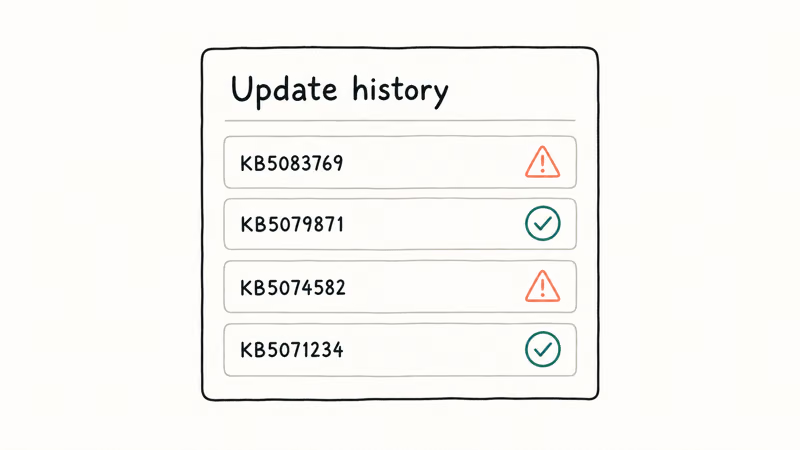
Here is the 2026 timeline so far:
- January 2026, KB5074109: Triggered UNMOUNTABLE_BOOT_VOLUME on certain Windows 11 configurations, mostly on systems that had pending pre-update file integrity issues.
- February 2026, dxgmms2.sys: A graphics driver subsystem bug caused KERNEL_SECURITY_CHECK_FAILURE crashes after wake-from-sleep and during full-screen gameplay.
- April 2026, KB5083769: The current high-profile issue. PC Gamer reports that HP and Dell systems are disproportionately affected, with users hitting boot loops and BSODs after the update installs.
The picture is not all panic. WindowsLatest pushed back on the framing and argues the problem is real but narrower than the louder headlines suggest. The pattern in user reports is uneven: some HP and Dell machines loop hard after the update installs, while plenty of other configurations take it without complaint.
If your PC blue-screened immediately after April’s update on HP or Dell hardware, treat KB5083769 as the suspect until proven otherwise. If your crashes started weeks ago with no recent update, skip ahead to the hardware section.
#The Recovery Sequence: WinRE to System Restore
The Windows Recovery Environment is your first stop. There are three ways in, ordered by how desperate the situation is.
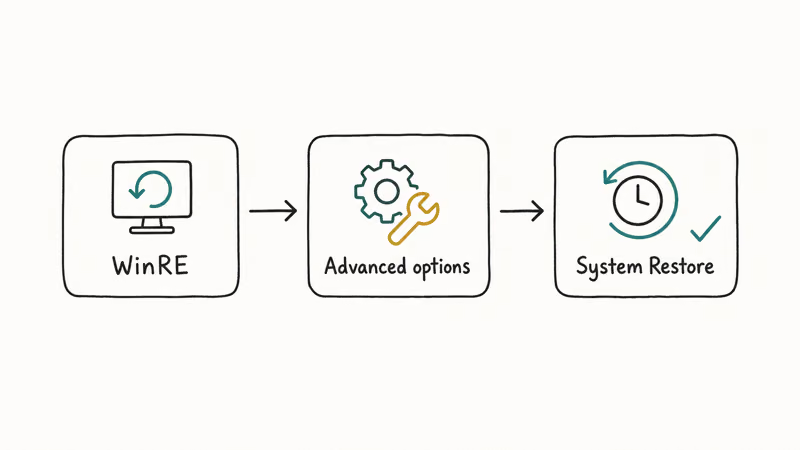
Path 1: Force three failed boots. Hold the power button to kill the PC mid-boot. Repeat three times. On the fourth attempt, Windows enters Automatic Repair and offers Advanced Options. This works even when the desktop is unreachable.
According to Microsoft’s Advanced Startup Options documentation for Windows 10 and 11, this is the Microsoft-supported recovery path when Windows can’t boot.
Three forced power-offs typically drop the PC into WinRE on the fourth boot attempt.
Path 2: Boot from a Windows 11 USB installer. Make one on a working PC using the Media Creation Tool, plug it in, boot from USB, and on the install screen pick Repair your computer in the lower left. That opens the same WinRE menu.
Path 3: From a working desktop. Go to Settings > System > Recovery > Advanced startup > Restart now if Windows still loads but is unstable.
Once inside WinRE, the priority is fixed. Microsoft’s Q&A thread on KB5083769 confirms the sequence engineers recommend: try System Restore first, then Startup Repair, then Uninstall Updates, with Reset This PC as the last resort.
#Step 1: Try System Restore First
From WinRE, pick Troubleshoot > Advanced options > System Restore. Choose a restore point dated before the bad update installed. The restore runs for 15 to 20 minutes and keeps your documents, photos, and downloads in place. Only programs and drivers installed after the restore point are removed.
System Restore has one prerequisite: a usable restore point. Windows 11 doesn’t always create them automatically before a quality update, so this path can be a dead end on a freshly built PC.
#Step 2: Startup Repair
If no restore point exists, run Troubleshoot > Advanced options > Startup Repair. This scans the boot sector, attempts to repair the BCD, and can resolve loops caused by a half-applied update. It’s faster than System Restore (usually under 10 minutes), but it won’t undo a bad driver or kernel-mode change introduced by KB5083769.
#Step 3: Uninstall the Latest Quality Update
If Startup Repair finishes and the loop returns, the surgical fix is to remove the update directly. Open Troubleshoot > Advanced options > Uninstall Updates > Uninstall latest quality update. This usually completes quickly and breaks the loop on the first reboot.
The Windows automatic repair loop guide covers the same flow for older builds if you’re on a hybrid 10-and-11 environment.
#How Do You Uninstall a Bad Windows Update Without Booting?
You can’t reach Settings if the PC won’t boot, but you don’t have to. The Uninstall Updates option inside WinRE does the exact same job as Settings, just from the recovery shell.
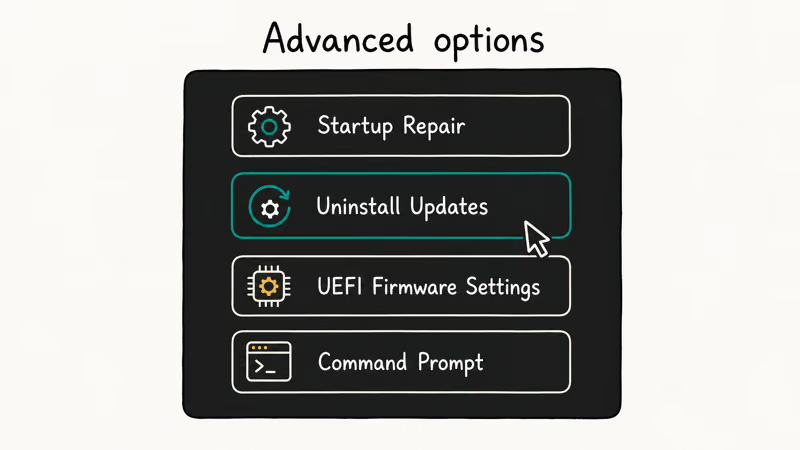
The path is Troubleshoot > Advanced options > Uninstall Updates, then pick Uninstall latest quality update (KB5083769 is a quality update, not a feature update). Confirm and wait. The PC reboots once, removes the update, and reboots a second time into a working desktop. No data is touched.
A few caveats worth setting straight:
- Feature updates need a different button. If your last install was a 24H2-to-25H2 feature update, pick Uninstall latest feature update instead. Quality updates are monthly cumulative patches; feature updates are the big half-yearly versions.
- The uninstall does not block future installs. Windows Update will try to install KB5083769 again on the next check. Pause updates for 7 days from
Settings>Windows Updateafter you boot back in. - Reset This PC is a different button. Pressing it wipes apps and settings. Don’t confuse Uninstall Updates with Reset This PC. The first removes one patch; the second rebuilds Windows.
If you’ve already tried Uninstall Updates and the BSOD returns within a few boots, the trigger isn’t KB5083769 alone. Move to the hardware section below.
#Stop Codes You Can Look Up Individually
The BSOD screen shows a stop code (the cryptic text near the sad face) and sometimes a hex code. KB5083769 doesn’t always produce the same one. UNMOUNTABLE_BOOT_VOLUME, KERNEL_SECURITY_CHECK_FAILURE, and PAGE_FAULT_IN_NONPAGED_AREA have all been attributed to it. Once you have the code, jump to the dedicated guide:
| Stop code | What it means | Dedicated guide |
|---|---|---|
| BAD_POOL_CALLER | Driver made an invalid memory pool request | BAD_POOL_CALLER stop code fix |
| NTFS.sys (NTFS_FILE_SYSTEM) | File system corruption | NTFS.sys BSOD fix |
| 0x0000003B SYSTEM_SERVICE_EXCEPTION | Kernel-mode driver hit a privilege check | 0x0000003B SYSTEM_SERVICE_EXCEPTION |
| 0x000000D1 DRIVER_IRQL_NOT_LESS_OR_EQUAL | Driver accessed memory at the wrong IRQL | 0x000000D1 DRIVER_IRQL_NOT_LESS_OR_EQUAL |
| 0x00000050 PAGE_FAULT_IN_NONPAGED_AREA | Memory access violation in non-paged pool | 0x00000050 PAGE_FAULT_IN_NONPAGED_AREA |
| KERNEL_MODE_HEAP_CORRUPTION | Kernel heap got corrupted by a driver | KERNEL_MODE_HEAP_CORRUPTION fix |
| VIDEO_SCHEDULER_INTERNAL_ERROR | GPU scheduler crash, often dxgmms2.sys | VIDEO_SCHEDULER_INTERNAL_ERROR |
For the stop codes tied to February 2026’s dxgmms2.sys regression, the GPU scheduler page is the one to read first. For KB5083769 boot loops without a clear code, the recovery sequence above does the job without needing the code at all.
#When the BSOD Is Hardware, Not the Update
Not every BSOD points at Microsoft. If your crashes started weeks ago with no clear update trigger, or if the stop code shifts between reboots, hardware is the more likely cause.
Start with Windows Memory Diagnostic. Press Windows + R, type mdsched.exe, hit Enter, and pick Restart now and check for problems. The test runs for about 15 minutes and flags failing RAM. A single bad stick can produce several different stop codes across a week, so don’t assume that variety means software.
#Manufacturer Hardware Diagnostics
Next, run your manufacturer’s hardware tool. On HP that’s HP PC Hardware Diagnostics, with the UEFI version being the thorough one. On Dell it’s SupportAssist with the full-system scan; on Lenovo it’s the Lenovo Diagnostics bootable.
These tools hit storage, CPU, memory, and motherboard sensors that Windows Memory Diagnostic doesn’t touch.
For driver-side BSODs that you suspect are graphics-related (especially February’s dxgmms2.sys situation), boot into Safe Mode by holding Shift while clicking Restart, then Troubleshoot > Advanced options > Startup Settings > Restart > 4. From Safe Mode, open Device Manager, expand Display adapters, right-click your GPU, and pick Properties > Driver > Roll Back Driver if the button is active.
If hardware diagnostics pass clean and Windows still crashes after a fresh install, you’ve narrowed it to something the recovery menu can’t fix. That’s the point to call the manufacturer’s warranty line. If you bought from a retailer with extended return windows, check those terms before you ship anything off for repair.
#Preventing the Next Bad-Update BSOD
Three habits cut your odds of replaying this week.
First, pause Windows Update for 7 days the moment Microsoft announces a major release. Open Settings > Windows Update, then click Pause for 1 week. That gives community reports time to surface regressions, and Microsoft often ships an interim patch within that pause window. The April KB5083769 case is the cautionary tale: HP and Dell users who paused before rollout saw none of the boot loops, while early adopters spent days in WinRE.
Second, turn on System Restore points before each Patch Tuesday. Type “Create a restore point” in Start, open System Properties, pick your system drive, click Configure, and set Turn on system protection if it’s off. Reserve roughly 5% of the drive. Then click Create the day before a known update to bank a known-good snapshot.
Third, keep a Windows 11 USB installer on hand. Make one with the Media Creation Tool, label the drive, and tuck it in a drawer.
#Bottom Line
Force three failed boots into WinRE, then run System Restore to the pre-update point first, Startup Repair second, and Uninstall the latest quality update third. KB5083769 is the named culprit for most of 2026’s current BSOD wave on HP and Dell hardware.
If WinRE refuses to load on its own, boot from a Windows 11 USB installer made on another PC and pick Repair your computer to get there. Skip Reset This PC unless those three paths all fail.
For random stop codes that aren’t tied to a recent update, hardware diagnostics come first. Run Windows Memory Diagnostic, then your manufacturer’s full hardware test. Both should pass clean before you blame Windows. A bad stick of RAM is the single most common silent culprit, and it produces wildly inconsistent stop codes that can spoof a software issue for weeks if you only chase the codes.
#Frequently Asked Questions
What is causing Windows 11 BSODs in 2026?
The bulk of the current wave traces back to KB5083769, the April 2026 security update for Windows 11 24H2 and 25H2. HP and Dell systems have been disproportionately affected, according to PC Gamer’s reporting. Two earlier updates also caused trouble in 2026: January’s KB5074109 hit UNMOUNTABLE_BOOT_VOLUME on certain disk configurations.
February brought a separate dxgmms2.sys graphics driver bug that triggered KERNEL_SECURITY_CHECK_FAILURE crashes during gameplay and after wake-from-sleep. Random BSODs that aren’t tied to any of these dates almost always point at hardware (failing RAM or storage), not Microsoft.
How do I uninstall KB5083769 if my PC won’t boot?
You don’t need to boot to remove it. Force three failed boots in a row by holding the power button mid-boot each time. On the fourth attempt Windows enters Automatic Repair, where you pick Advanced options > Troubleshoot > Advanced options > Uninstall Updates > Uninstall latest quality update. The whole process takes around 12 minutes and doesn’t touch your files.
Does Windows 11 enter recovery mode automatically after a BSOD?
Sometimes, not always. A single BSOD won’t always trigger it. If recovery doesn’t appear by the third or fourth crash, force it by interrupting boot three times manually.
Will System Restore lose my files?
No. System Restore only rolls back system files, drivers, and the registry to a previous restore point. Documents, photos, music, and downloads stay exactly where they were. Programs and drivers installed after the chosen restore point are uninstalled, so you may need to reinstall a recent app.
It’s the safest first move when you can find a usable restore point.
Is Local Reinstall safer than Reset This PC?
Local Reinstall is one of the Reset This PC paths, not a separate option. Reset This PC offers two routes: Keep my files (which uses Local Reinstall to keep documents) and Remove everything (which wipes the drive). Keep my files is safer for personal data but it still removes every installed program.
It’s also slow. Count on close to an hour even on an SSD, so reach for it only after System Restore and Uninstall Updates have failed.
How do I tell if a Windows 11 BSOD is hardware or software?
Timing is the strongest tell. A BSOD that hits within hours of installing a Windows update points at software (usually the update itself). Crashes that started weeks ago, shift stop codes between reboots, or happen during memory-heavy tasks like gaming and video editing point at hardware. Windows Memory Diagnostic catches faulty RAM in about 15 minutes, and the manufacturer’s full hardware test covers storage and motherboard issues.
Should I disable Windows Update to avoid future BSODs?
No, permanently disabling Windows Update is a bad trade. Security patches matter more than the occasional bad rollout. The better habit is pausing updates for 7 days when a major one is announced.
Open Settings > Windows Update and pick Pause for 1 week. By the time the pause lifts, community reports have surfaced any regressions and Microsoft has often shipped a fix.
When should I take a BSOD-ing PC to a repair shop?
Take it in when three recovery paths fail and the manufacturer’s hardware diagnostics flag a fault you can’t fix at home. If System Restore, Startup Repair, and Uninstall Updates all fail, then Windows Memory Diagnostic or the HP/Dell/Lenovo test reports a hardware failure, that combination is the repair-shop trigger. If the PC is under warranty, call the manufacturer first. Most will ship a return label before you pay a third party.

Best Laptop for Running LLMs in 2026: Memory Comes First
The best laptop for running LLMs is a memory purchase first. Compare MacBook unified memory against NVIDIA laptop VRAM, and see what each tier really runs.

How to Run a Local LLM on Windows: A 2026 Setup Guide
Run a local LLM on Windows with LM Studio or Ollama. Pick a model that fits your GPU memory, keep every prompt offline, and skip the monthly bill.

Bluetooth Not Working on Snapdragon X? Fixes for 2026
Bluetooth not working on your Snapdragon X Copilot+ PC? Generic audio, mice, and keyboards work, but vendor apps often lack an ARM build. Fixes inside.

Docker Desktop and WSL2 Not Working on Snapdragon X? Fix It
WSL2 runs fine on Snapdragon X, but Docker Desktop ARM is Early Access and throws WSL errors. Use WSL2 plus native ARM64 Ubuntu and Docker Engine.