How to Fix Bad Pool Caller Error in Windows 10 and 11
Fix the Bad Pool Caller BSOD (0x000000C2) on Windows 10 and 11. Covers driver updates, RAM checks, system file repair, and clean boot steps.
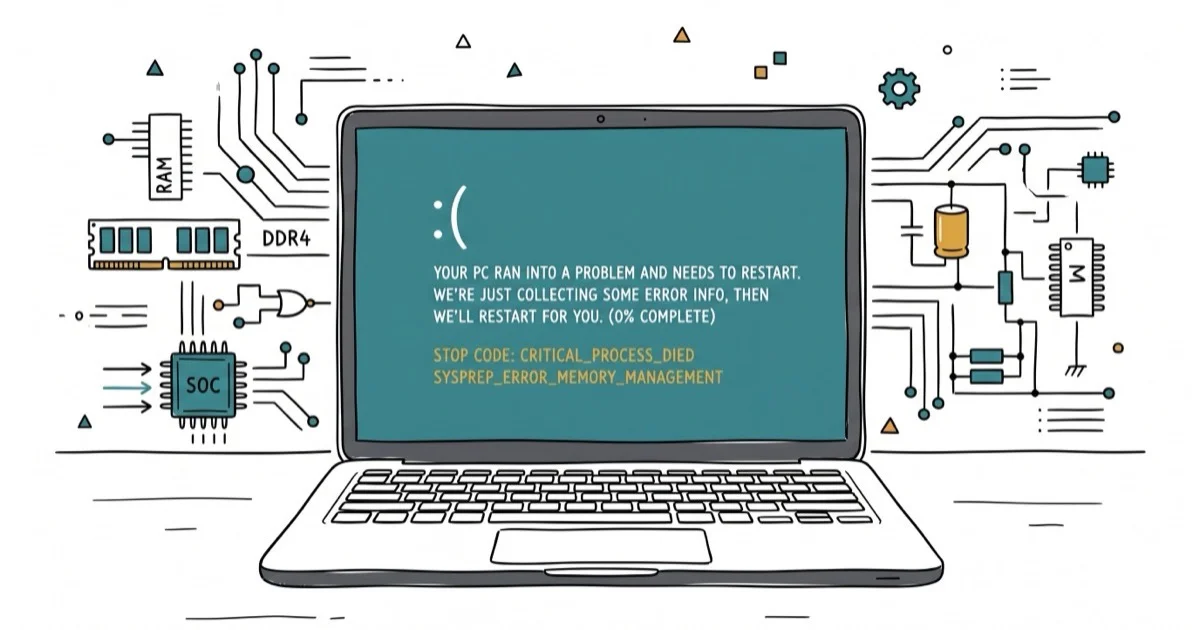
Quick AnswerThe Bad Pool Caller (0x000000C2) error is a Windows blue screen caused by faulty drivers, bad RAM, or corrupted system files. Update your drivers through Device Manager, run Windows Memory Diagnostic, and use SFC to scan for corrupted files.
The Bad Pool Caller error (stop code 0x000000C2) crashes your PC with a blue screen and forces a restart. The usual fixes are updating faulty drivers, checking RAM, repairing system files, and isolating software conflicts.
- Bad Pool Caller (0x000000C2) means a driver or process made an invalid memory request
- Updating your display adapter driver through Device Manager fixes this BSOD for most Windows 10 and 11 users
- Windows Memory Diagnostic (mdsched.exe) catches faulty RAM in about 15 minutes
- SFC and DISM scans repair corrupted system files that trigger this error after bad Windows updates
- A clean boot pinpoints the exact third-party service or startup program behind the conflict
#What Causes the Bad Pool Caller Error?
The stop code 0x000000C2 appears when a kernel-mode process or driver makes an invalid memory pool request. “Pool” is Windows terminology for memory allocated to drivers and system processes. When something tries to access memory that doesn’t exist, is already freed, or belongs to another process, Windows halts everything with this blue screen.
According to Microsoft’s BAD_POOL_CALLER reference, the 0x000000C2 stop code means the current thread made an invalid pool request, often because a driver operated at an incorrect IRQL level or double-freed the same memory allocation.
Here are the usual suspects:
- Outdated or corrupted drivers are the top cause, with display adapter and network drivers showing up most in crash dumps
- Faulty RAM corrupts memory pools at random
- Two antivirus programs running at once creates pool conflicts
- Corrupted system files from a bad Windows update
- Overclocking that pushes RAM past stable frequencies
If your PC shows a blue screen saying “Your PC ran into a problem”, this stop code is one of several possible causes.
#Update or Roll Back Your Drivers
Faulty drivers cause this error more than anything else. Display adapter, network, and storage drivers are common places to start because they interact heavily with Windows memory pools.
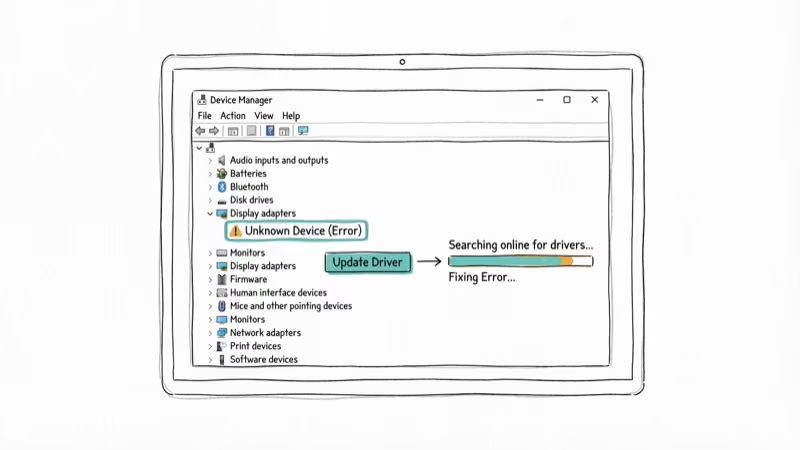
#Step 1: Open Device Manager
Press Windows + X and pick Device Manager.
#Step 2: Update the Display Adapter
Expand Display adapters, right-click your graphics card, and select Update driver. Choose Search automatically for drivers. Windows will download and install the latest version if one is available.
#Step 3: Check Other Problem Devices
Scroll through Device Manager and look for any device with a yellow exclamation mark. That icon means Windows detected a problem. Right-click the flagged device and select Update driver. Network adapters and storage controllers deserve extra attention because they interact heavily with memory pools and frequently appear in Bad Pool Caller crash dumps.
#Step 4: Roll Back if the Error Started After an Update
If this BSOD appeared right after a driver update, right-click the device in Device Manager, select Properties > Driver > Roll Back Driver. This reverts to the previous working version.
Restart your PC after making changes. If the driver was the cause, the crashes should stop after Windows loads the corrected driver.
#Check for RAM Problems With Memory Diagnostic
Bad RAM causes pool corruption that no driver update can fix. Windows has a built-in tool for this.
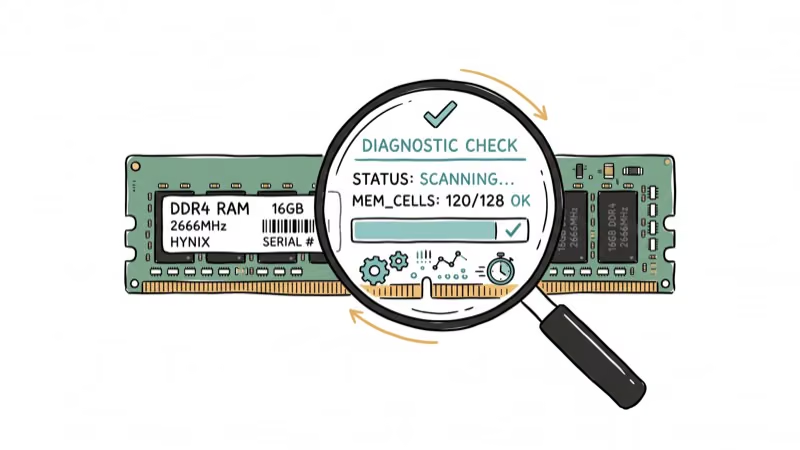
-
Press Windows + R, type
mdsched.exe, and press Enter. -
Select Restart now and check for problems.
-
Your PC reboots into the memory test. It takes 10-20 minutes.
-
After the test, Windows restarts on its own. Open
Event Viewer>Windows Logs>Systemand search for MemoryDiagnostics-Results.
According to Microsoft’s support page for Bad Pool Caller, Windows Memory Diagnostic is a first step when driver updates don’t help. If the tool finds errors, you’ll need to replace the faulty RAM stick. Try removing one stick at a time and running your PC to isolate which one is defective.
#Run SFC and DISM to Repair System Files
Corrupted system files trigger this error after failed updates or sudden power loss.
Open Command Prompt as administrator (search for “cmd”, right-click, select Run as administrator).
Run DISM first:
DISM /Online /Cleanup-Image /RestoreHealthWait for DISM to finish before running SFC:
sfc /scannowThis takes 5-15 minutes. Restart afterward if SFC finds anything.
These same DISM and SFC commands work for any system file corruption, not just Bad Pool Caller. If you’re dealing with other Windows file issues like corrupted files or DLL errors, the repair process is the same. Run DISM first, then SFC, then restart.
#Perform a Clean Boot to Find Software Conflicts
A clean boot starts Windows with only Microsoft services running. Everything else gets disabled. This isolates whether a third-party program is corrupting the memory pool.
-
Press Windows + R, type
msconfig, press Enter. -
Go to Services, check Hide all Microsoft services, click Disable all.
-
Switch to the Startup tab and click Open Task Manager.
-
Disable every startup item you see, then restart.
If the Bad Pool Caller error stops appearing, one of those disabled services or startup programs was the cause. Re-enable them in small groups and restart each time until the error returns. That group contains the culprit.
According to a Tom’s Hardware community thread, antivirus conflicts are a common software cause. Running two security programs simultaneously (like Windows Defender plus a third-party antivirus) can trigger this specific BSOD.
#Use System Restore or Reset Windows
If none of the methods above worked, restoring your system to a previous state can undo whatever change triggered the error. According to Microsoft’s blue screen troubleshooting guide, using a system restore point is the recommended step when removing new hardware, Safe Mode, and driver updates have not cleared the stop code.
#System Restore
-
Search for Create a restore point in the Start menu.
-
Click System Restore and select a restore point from before the error started.
-
Follow the wizard to complete the restoration.
Your personal files stay safe. Only programs and drivers installed after the restore point get removed.
#Reset Windows
Resetting is the nuclear option, but sometimes nothing else works. Go to Settings > System > Recovery > Reset this PC and choose Keep my files so Windows reinstalls itself without wiping your documents, photos, and downloads.
Check for other issues like Windows 10 running slow before resetting.
If you’re stuck in a Windows automatic repair loop and can’t reach the desktop, use a Windows installation USB to access the Advanced Startup Options and run System Restore from there.
#What About Other Blue Screen Errors?
Bad Pool Caller is one of many BSOD stop codes. The troubleshooting steps overlap with related errors, but each has specific causes worth knowing about.
The NTFS.sys error points to file system corruption, while stop code 0x0000003B usually involves a system service exception. The PAGE_FAULT_IN_NONPAGED_AREA (0x00000050) error shares the same memory pool territory as Bad Pool Caller but targets a different type of memory access violation.
If you’re seeing multiple different blue screen errors, that pattern typically points to failing RAM or a dying storage drive rather than a single bad driver.
#Bottom Line
Start with a driver update since that’s the fix for most Bad Pool Caller cases. Open Device Manager, update your display adapter and any devices with warning icons, then restart. If the BSOD returns, run Windows Memory Diagnostic to check your RAM. For persistent cases, the SFC scan and clean boot combination catches corrupted files and software conflicts that driver updates miss.
#Frequently Asked Questions
Can overclocking cause the Bad Pool Caller error?
Yes. Pushing your CPU or RAM beyond stable limits can cause invalid memory operations. Reset clock speeds and voltages to default in BIOS, then watch whether the crashes return.
How do I find which driver is causing the crash?
Open Event Viewer and check Windows Logs > System for critical errors around the time of the crash. The minidump files in C:\Windows\Minidump contain the exact faulting driver name. You can open these with the free BlueScreenView utility from NirSoft, which displays the problem driver in a single readable line.
Does this error mean my RAM is failing?
Not always. Driver bugs and software conflicts cause this error far more often than bad RAM. Run Windows Memory Diagnostic to rule it out.
Can antivirus software trigger this BSOD?
Antivirus programs run at the kernel level with direct memory pool access. Two security programs scanning at the same time will fight over the same pool allocations. If you have Windows Defender plus a third-party antivirus, disable one and watch for crashes over the next 48 hours.
Is this error specific to Windows 10 or does it happen on Windows 11 too?
Bad Pool Caller affects every Windows version from 7 through 11. The stop code 0x000000C2 is identical across all of them. Every fix in this guide works on both Windows 10 and Windows 11. The only differences are minor menu path changes, like Windows 11 moving Recovery settings from Update & Security to System > Recovery.
Should I reinstall Windows to fix this error?
Only as a last resort after trying every other fix. Driver updates, memory diagnostics, and SFC scans resolve nearly all cases without data loss.
How do I boot into Safe Mode if my PC keeps crashing?
Hold Shift while clicking Restart from the lock screen, then go to Troubleshoot > Advanced options > Startup Settings > Restart and press 4 for Safe Mode. If you can’t reach the lock screen, force-shutdown three times by holding the power button and Windows enters recovery mode on the fourth boot.
What do the four parameters after 0x000000C2 mean?
The four hex values after the stop code identify what type of pool violation occurred. The first parameter matters most: 0x07 means memory was freed twice, and 0x48 means unallocated memory was freed. Copy the full parameter string and search it on Microsoft Learn for a detailed breakdown of your specific crash.

Best Laptop for Running LLMs in 2026: Memory Comes First
The best laptop for running LLMs is a memory purchase first. Compare MacBook unified memory against NVIDIA laptop VRAM, and see what each tier really runs.

How to Run a Local LLM on Windows: A 2026 Setup Guide
Run a local LLM on Windows with LM Studio or Ollama. Pick a model that fits your GPU memory, keep every prompt offline, and skip the monthly bill.

Bluetooth Not Working on Snapdragon X? Fixes for 2026
Bluetooth not working on your Snapdragon X Copilot+ PC? Generic audio, mice, and keyboards work, but vendor apps often lack an ARM build. Fixes inside.

Docker Desktop and WSL2 Not Working on Snapdragon X? Fix It
WSL2 runs fine on Snapdragon X, but Docker Desktop ARM is Early Access and throws WSL errors. Use WSL2 plus native ARM64 Ubuntu and Docker Engine.