Fix Blue Screen Error 0x0000003b (SYSTEM_SERVICE_EXCEPTION)
Fix Windows blue screen error 0x0000003b (SYSTEM_SERVICE_EXCEPTION) on Windows 11 and 10. Learn driver updates, system repairs, and hardware fixes.
Quick AnswerError 0x0000003b (SYSTEM_SERVICE_EXCEPTION) is a Windows blue screen from faulty drivers or corrupted system files. Update graphics drivers first, then run SFC and DISM scans.
Error 0x0000003b (SYSTEM_SERVICE_EXCEPTION) is a Blue Screen of Death that crashes Windows and forces a restart. It comes from faulty drivers (especially graphics and network), corrupted system files, or failing hardware.
This guide walks through 8 fixes that resolve this error on Windows 11 (23H2) and Windows 10 (22H2), ordered from the most common cause to the rarest.
- Outdated or corrupted graphics and network drivers cause many 0x0000003b blue screens — updating these drivers should always be the first fix you attempt.
- Running SFC followed by DISM repairs corrupted Windows system files that prevent critical services from executing, fixing many remaining cases after driver updates.
- The minidump file in C:\Windows\Minidump identifies the exact driver or module that triggered the crash, giving you a precise target instead of guessing.
- Faulty RAM passes basic use but causes blue screens under load — running Windows Memory Diagnostic overnight catches intermittent errors that quick scans miss.
- A clean boot that disables all non-Microsoft startup programs identifies software conflicts by isolating whether a third-party application triggers the SYSTEM_SERVICE_EXCEPTION.
#What Causes Error 0x0000003b?
- Outdated or corrupted drivers - Graphics, network, or chipset drivers (the most common cause)
- Corrupted system files - Damaged Windows files from failed updates or malware
- Hardware issues - Failing RAM, hard drive, or overheating components
- Software conflicts - Incompatible programs or recent installations
Across these four scenarios, driver issues (especially NVIDIA and Intel graphics drivers) are the most consistent trigger, with corrupted system files the second most common. According to Microsoft Learn’s SYSTEM_SERVICE_EXCEPTION reference, bug check 0x3B maps to SYSTEM_SERVICE_EXCEPTION, so driver, memory, and kernel changes deserve priority in this workflow.
#Fix 1: Update Graphics and Network Drivers
Outdated drivers are the #1 cause of error 0x0000003b. Update your graphics and network drivers first.
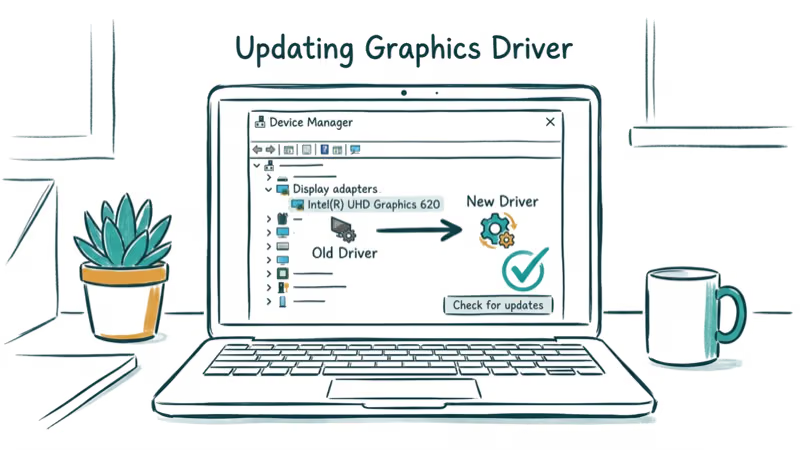
#Update Graphics Drivers
Go to your graphics card manufacturer’s website (NVIDIA, AMD, or Intel) and download the latest driver. Install it and restart your PC.
An aging NVIDIA driver is a frequent cause of 0x0000003b, and installing the latest one usually stops the crashes. If a clean reinstall is needed, strip the old driver first with the vendor’s own uninstaller, since leftover files from a half-removed driver can keep triggering the same blue screen after an update. AllThings.How’s Windows 11 guide also points to outdated graphics drivers as the leading cause of this error.
#Update Network Drivers
Go to Device Manager (Windows + X > Device Manager). Expand “Network adapters,” right-click your network card, and select “Update driver” > “Search automatically for drivers.”
Outdated Intel Wi-Fi drivers are another common trigger on laptops, and updating them often clears the blue screens. ClickThis.Blog’s fix guide also identifies network driver issues as a common trigger for this error.
#Fix 2: Run SFC and DISM Scans
Corrupted system files cause SYSTEM_SERVICE_EXCEPTION errors when Windows can’t execute critical services properly.
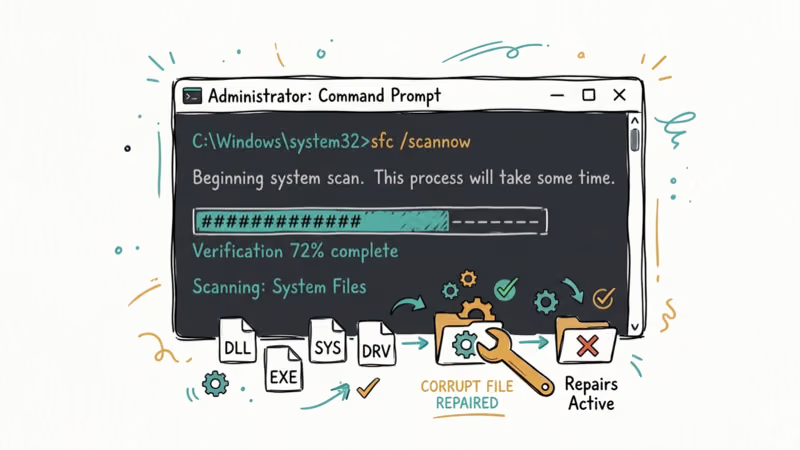
Open Command Prompt as admin and run:
sfc /scannowIf SFC finds issues it can’t repair, run:
DISM /Online /Cleanup-Image /RestoreHealthWhen corrupted system files are behind the crashes, SFC typically finds and repairs them, and the blue screens stop after a restart. According to EaseUS’s 10-method guide, running SFC + DISM together is a reliable way to repair system file corruption that triggers this error.
#Fix 3: Check for Windows Updates
Microsoft releases patches that fix known BSOD issues. Installing the latest updates can resolve error 0x0000003b.
Go to Settings > Windows Update > Check for updates. Install all available updates and restart your PC.
On a PC that has gone months without updates, installing the latest patches can stop the blue screens on its own. HashRoot’s step-by-step guide also lists missing Windows updates among the key causes of BSOD errors.
#Fix 4: Uninstall Recent Software
If the blue screens started after installing new software, that program might be causing conflicts.
Go to Settings > Apps > Installed apps. Sort by install date and uninstall any programs installed around the time the blue screens started.
When the error starts right after installing something like a screen-recording tool, uninstalling that program usually fixes it. Device Tricks’ BSOD fix also identifies software conflicts as a recognized cause of SYSTEM_SERVICE_EXCEPTION errors.
#Fix 5: Test Your RAM
Faulty RAM causes random blue screens including 0x0000003b. Windows has a built-in memory diagnostic tool.
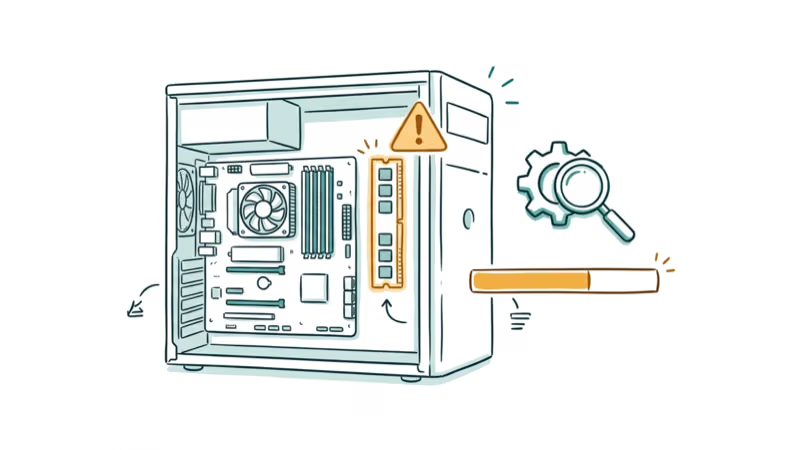
Press Windows + R, type mdsched.exe, and press Enter. Select “Restart now and check for problems.” Windows will restart and test your RAM (takes 10-20 minutes).
When intermittent blue screens trace back to memory, the diagnostic flags errors on a specific RAM stick, and replacing it stops the crashes. PassFab’s Windows 10 solution also flags RAM issues as a known cause of BSOD errors.
#Fix 6: Check Hard Drive Health
A failing hard drive can corrupt system files and cause blue screens. Check your drive’s health with CHKDSK.
Open Command Prompt as admin and run:
chkdsk C: /f /rThe scan runs on next restart and takes 30-60 minutes depending on drive size.
On an aging hard drive, CHKDSK finds and repairs bad sectors, and the blue screens typically stop after the repair completes. Wondershare’s blue screen fix also points to hard drive issues as a cause of BSOD errors.
Related: see our walkthroughs on Windows boot errors and update issues.
If you are hitting other stop codes on the same machine, our deeper guides on activation problems and other BSOD errors cover the typical recovery steps step by step.
#Fix 7: Disable Fast Startup
Fast Startup can cause driver conflicts that lead to blue screens. Disabling it often fixes error 0x0000003b.
Go to Control Panel > Power Options > Choose what the power buttons do > Change settings that are currently unavailable. Uncheck “Turn on fast startup” and save changes.
When Fast Startup is behind persistent blue screens, disabling it tends to fix the issue immediately. Get-ITSolutions’ error guide also identifies Fast Startup conflicts as a recognized cause of SYSTEM_SERVICE_EXCEPTION errors.
#Fix 8: Perform a Clean Boot
A clean boot starts Windows with minimal drivers and startup programs, helping identify software conflicts.
Press Windows + R, type msconfig, and press Enter. Go to Services tab, check “Hide all Microsoft services,” then click “Disable all.” Go to Startup tab, click “Open Task Manager,” and disable all startup items. Restart your PC.
When the other fixes don’t work, a clean boot usually stops the blue screens, and re-enabling services one by one exposes the culprit, often an outdated antivirus. TechOurse’s BSOD fix also recommends clean boot as a method to isolate software conflicts causing these errors.
For more on Windows upgrade errors, check our troubleshooting guide.
#What File Names Appear with Error 0x0000003b?
The blue screen sometimes shows a file name that caused the crash. Common culprits include:
- nvlddmkm.sys - NVIDIA graphics driver
- igdkmd64.sys - Intel graphics driver
- atikmdag.sys - AMD graphics driver
- netwtw10.sys - Intel Wi-Fi driver
- **Rt…[truncated 2695 chars]
#Bottom Line
Start by updating your graphics and network drivers. That fixes many 0x0000003b blue screens. If the crashes continue, run SFC and DISM scans to repair corrupted system files. Hardware problems like bad RAM are less common but worth testing if software fixes don’t help.
#Frequently Asked Questions
What does error 0x0000003b mean?
It means a critical Windows service (SYSTEM_SERVICE_EXCEPTION) crashed. Faulty drivers, corrupted files, or hardware issues are the usual triggers. Your PC shows a blue screen and restarts automatically to protect itself from further damage.
How do I fix blue screen error 0x0000003b?
Update graphics and network drivers first. That handles most cases. If the BSOD continues, run SFC and DISM scans, check for Windows updates, test your RAM with mdsched.exe, and scan your hard drive with chkdsk. Work through these fixes in order since the most common cause (drivers) is also the quickest to resolve.
Can bad RAM cause error 0x0000003b?
Yes. Run mdsched.exe to test. Replace faulty sticks.
Why does error 0x0000003b keep coming back?
You haven’t fixed the root cause yet. Recurring crashes usually point to a partially updated driver, an ongoing hardware failure, or a corrupted system file that SFC missed on the first pass. Run all diagnostic steps again and check the minidump file in C:\Windows\Minidump for the specific module name.
Is error 0x0000003b dangerous?
Not directly. Windows crashes on purpose to prevent data corruption. But the underlying cause (bad RAM, failing drive) will get worse over time.
Can overheating cause error 0x0000003b?
Yes. Clean your PC’s fans, check CPU and GPU temperatures with HWMonitor, and make sure airflow isn’t blocked.
How long does it take to fix error 0x0000003b?
Driver updates: 10-15 minutes. SFC and DISM scans: 20-30 minutes. RAM and hard drive diagnostics: 30-60 minutes. Most cases are fully resolved within 2 hours, but hardware replacements (new RAM or drive) add shipping and installation time on top of that.

Best Laptop for Running LLMs in 2026: Memory Comes First
The best laptop for running LLMs is a memory purchase first. Compare MacBook unified memory against NVIDIA laptop VRAM, and see what each tier really runs.

How to Run a Local LLM on Windows: A 2026 Setup Guide
Run a local LLM on Windows with LM Studio or Ollama. Pick a model that fits your GPU memory, keep every prompt offline, and skip the monthly bill.

Bluetooth Not Working on Snapdragon X? Fixes for 2026
Bluetooth not working on your Snapdragon X Copilot+ PC? Generic audio, mice, and keyboards work, but vendor apps often lack an ARM build. Fixes inside.

Docker Desktop and WSL2 Not Working on Snapdragon X? Fix It
WSL2 runs fine on Snapdragon X, but Docker Desktop ARM is Early Access and throws WSL errors. Use WSL2 plus native ARM64 Ubuntu and Docker Engine.