How to Fix 100% Disk Usage in Windows 11 and 10 PCs
Disk pinned at 100% in Task Manager? Work through SysMain, Windows Search, pagefile, and driver fixes in order, and learn when to replace a dying drive.
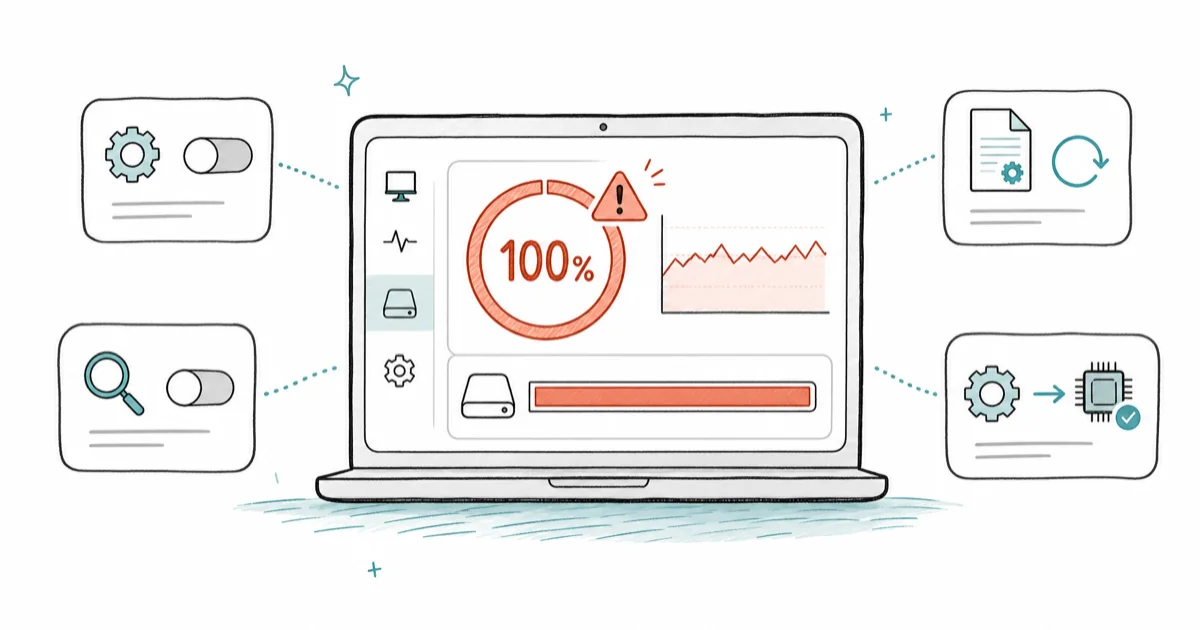
Quick AnswerDisable the SysMain and Windows Search services, then reset your pagefile to system-managed. On older laptops, switch the StorAHCI driver out of MSI mode to clear 100% disk usage.
You open Task Manager because the PC won’t stop stuttering, and the Disk column is glowing red at 100%, even though you’re not doing anything heavy. This is one of the most common Windows 11 and Windows 10 complaints, and the good news is that it’s almost always a background service or a driver quirk you can fix in a few minutes. The trick is working through the causes in order instead of randomly toggling settings.
The same short list of culprits comes up again and again, so work through this triage in order.
- The Disk column in Task Manager shows how often the disk is busy (active time), not how fast it’s reading, so a slow hard drive hits 100% on tiny workloads.
- Disabling SysMain (SuperFetch) is a low-risk first software fix, especially on hard drives.
- Resetting the pagefile to system-managed fixes cases where a corrupted virtual memory setting keeps the disk thrashing.
- The StorAHCI MSI-mode registry edit applies to older SATA systems using the affected controller driver.
- If the disk pegs 100% while idle and SMART reports a warning, stop tweaking software and replace the drive.
#Why Is My Disk at 100% in Task Manager?
The number that scares people is misleading. The Disk column reports the percentage of time your drive spent busy, not how much data moved. So a slow 5400 RPM hard drive can hit 100% active time while reading a few megabytes, because it physically can’t keep up with even modest requests. On an SSD the same workload would barely register.
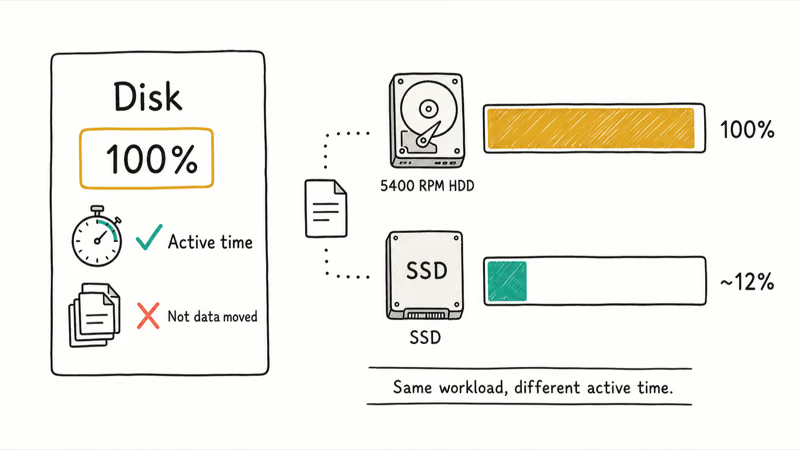
So 100% usually means something keeps the drive constantly busy: a background service, a broken virtual memory setting, a misbehaving storage driver, or an aging disk out of headroom.
That’s why this looks so much like general sluggishness. If your machine drags across the board and the disk isn’t the only thing pinned, our guide on a Windows 10 running slow covers the wider picture. This article stays narrowly focused on the specific Disk-100% reading and the handful of fixes that actually move it, so you’re not wading through generic “clean your registry” advice that does nothing for an active-time problem.
#Quick Triage: Where to Start
Before changing anything, restart the PC once. A surprising number of 100% disk spikes are one-time post-update indexing or a stuck process that a clean reboot clears. Give it ten minutes after login, since Windows runs maintenance right after startup.
Still pinned? Open Task Manager (Ctrl + Shift + Esc), click the Disk column to sort, and read the top process. The name tells you which step below to jump to:
- System / SysMain / Service Host: SysMain → go to the SysMain step.
- Microsoft Windows Search Indexer / SearchIndexer.exe → the Windows Search step.
- System (and disk is full) → free space first; our guide on how to delete Windows Update files reclaims several gigabytes.
- Service Host: Local System → see Service Host high disk for that specific process.
If the busy process is just “System” with no clear owner, work the steps in order anyway. The MSI-mode driver bug shows up exactly like this.
#Disable SysMain and Windows Search
SysMain, the service formerly called SuperFetch, preloads apps you use often into memory. On an SSD that’s harmless. On a hard drive it can keep the disk reading constantly, so disabling the service is the single most effective fix here.
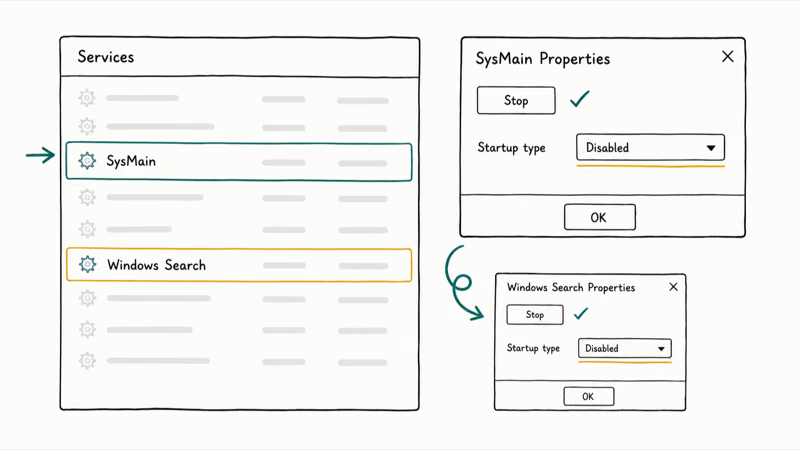
Press Win + R, type services.msc, and press Enter. Scroll to SysMain, right-click it, choose Properties, click Stop, then set Startup type to Disabled and click OK. On hard-drive systems, SysMain can keep idle disk active time high after restart, so this is a common early fix.
Windows Search is the runner-up. Its indexer crawls your files so results appear instantly, but on a slow drive that crawl can peg the disk for long stretches. In the same services.msc window, find Windows Search, stop it, and set it to Disabled. The honest trade-off: Explorer searches get slower because Windows scans in real time, so do this only if you rarely search files.
Reboot and recheck Task Manager. For a lot of people, the disk now sits under 20% at idle and you can stop here.
#Reset Virtual Memory and the Pagefile
The pagefile is the chunk of disk Windows uses as overflow when RAM fills up. If its size was set manually and got corrupted, or if a low-RAM machine leans on it hard, the disk thrashes. Resetting it to automatic clears that.
Go to Settings > System > About > Advanced system settings, or just search “performance” and open Adjust the appearance and performance of Windows. Under the Advanced tab, click Change beside Virtual memory, tick Automatically manage paging file size for all drives, and reboot. According to Microsoft’s page file documentation, Windows manages this overflow file dynamically based on system commit usage, so letting it self-manage is the safe default.
Want a manual size instead? Microsoft states that a system-managed file grows up to 3 times your RAM or 4 GB, whichever is larger, when commit pressure climbs, as its page file sizing guide explains. The guide stresses that ideal sizing depends on your crash-dump setting, so for most people automatic is the right call.
#Fix the StorAHCI Driver MSI-Mode Bug
This is the fix that finally works when nothing above did, and it’s the one most generic articles skip. Some SATA storage controllers running Windows’ built-in StorAHCI driver don’t handle MSI (Message Signaled Interrupt) mode correctly. The disk gets stuck reporting 100% because input/output operations never properly complete.
First confirm you’re on the StorAHCI driver. Open Device Manager, expand IDE ATA/ATAPI controllers, right-click Standard SATA AHCI Controller, choose Properties > Driver > Driver Details. If you see storahci.sys, this fix applies.
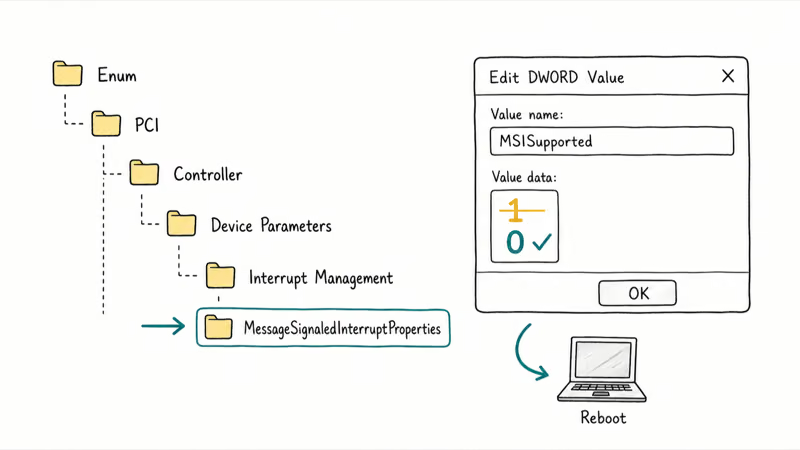
Now grab the controller’s device path: in the same Properties window, on the Details tab, pick Device instance path from the dropdown and note the value. According to Dell’s support document, you then open regedit, browse to that controller under Enum\PCI\[your-controller]\Device Parameters\Interrupt Management\MessageSignaledInterruptProperties, and change the MSISupported value from 1 to 0. Reboot afterward.
If the Dell-documented MSI-mode issue applies to your controller, changing MSISupported from 1 to 0 can stop the stuck 100% active-time symptom after reboot. If you have more than one AHCI controller listed and aren’t sure which holds your boot drive, apply the edit to each one. Two related Intel storage culprits, IAStorDataSvc high CPU and the Intel Delayed Launcher, can pile onto the same controller, so check those if Intel RST is installed.
#Telemetry, Browsers, and Cloud Sync
Once the big three are handled, smaller drains remain. Microsoft’s DiagTrack telemetry writes usage data in the background, and the related Compatibility Telemetry high disk process is a known offender on older machines.
Browsers are quieter culprits. Chrome and Edge prefetch pages and write cache constantly, and a runaway tab can spike the disk on a slow drive. Close unused tabs and disable “Preload pages” in browser settings if the disk climbs whenever the browser is open. Cloud sync is the other one: OneDrive, Dropbox, and Google Drive all churn the disk while reconciling files right after login, so pause sync for a few minutes and watch whether the number drops.
There’s a broader reason Windows feels heavier than it used to. Windows Latest reports that Microsoft restarted an effort in 2026 to cut Windows’ idle memory footprint and fresh-install size both by 20 percent.
#Is Your Drive Actually Failing?
Here’s the step people skip and regret. If you’ve disabled SysMain and Search, reset the pagefile, fixed the driver, and the disk still pegs 100% while the machine sits idle, the problem may be the drive itself. A hard drive near the end of its life slows to a crawl as it retries failing sectors, and Task Manager reads that as constant activity.
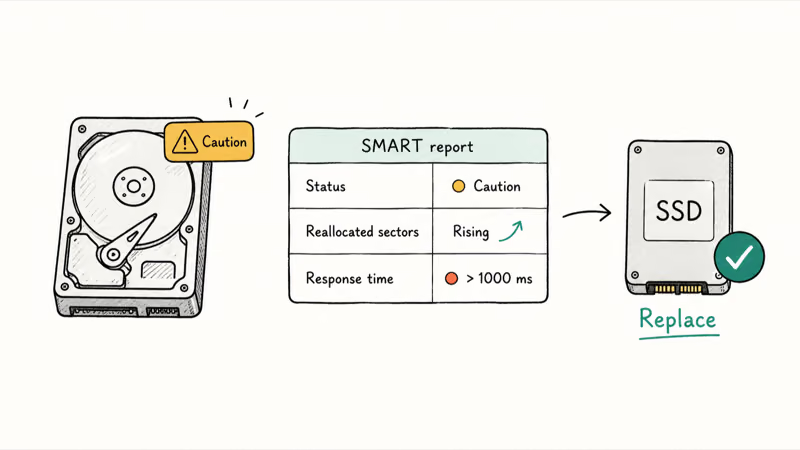
Check the drive’s health. Open Command Prompt and run wmic diskdrive get status for a quick read, or install CrystalDiskInfo for a detailed SMART report including reallocated sector counts and read error rates. A “Caution” status, climbing reallocated sectors, or response times stuck above 1000 ms in Task Manager all point to dying hardware.
At that point, stop tweaking software. Back up your files now, then clone the drive to an SSD or replace it. No service toggle fixes worn-out hardware.
#Bottom Line
Work the list top to bottom and stop at the first fix that drops the disk under about 20% at idle. Disable SysMain first, then Windows Search, then reset the pagefile to system-managed. On an older SATA laptop, the StorAHCI MSISupported 1-to-0 registry edit is the one that finally sticks. If the disk still pegs 100% while idle and SMART reports a warning, stop chasing services and replace the drive.
#Frequently Asked Questions
Does disabling SysMain hurt SSD performance?
No. SysMain was built to speed up slow hard drives by preloading data into memory, and modern SSDs are already fast enough that the prefetching gives almost no measurable benefit. On an SSD you can leave the service on or off with no real difference in everyday use. Disabling it to clear a disk spike is completely safe, and you can re-enable it later from the same Services window.
Is 100% disk usage bad for my hard drive?
Brief spikes during updates or indexing are normal and harmless. Constant 100% usage won’t physically damage the drive, but it makes the PC nearly unusable and usually signals a fixable cause underneath, so chase that instead of the number.
Why does my disk hit 100% right after I start the PC?
Windows runs maintenance, indexing, and update checks in the first few minutes after login, and SysMain prefetches your common apps at the same time. A short post-startup spike that clears within ten minutes is expected behavior. If it never clears, work through the steps above.
Should I disable Windows Search permanently?
Only if you rarely search for files. Turning it off stops the indexer from crawling your drive, which helps a slow hard drive a lot, but Explorer searches then run in real time and feel noticeably slower because there’s no prebuilt index to read from. If you search files all day, leave Search enabled and lean on the SysMain and pagefile fixes instead. For most people on an old laptop, the speed boost is worth the slower search.
Can a Windows update cause 100% disk usage?
Yes, but only temporarily. A large update downloads, installs, and reindexes in the background, which pins the disk for a while. Let it finish, then restart and recheck.
How do I check if my drive is failing?
Run wmic diskdrive get status in Command Prompt for a quick read, or install CrystalDiskInfo for a full SMART report with reallocated sector counts and read error rates. Watch for a “Caution” status, rising bad-sector numbers, or response times stuck above 1000 ms in Task Manager. Any of those means it’s time to back up your files and plan a replacement, because a drive reporting failing sectors won’t recover on its own.
Will adding more RAM fix 100% disk usage?
Sometimes. A low-RAM PC leans hard on the pagefile, which thrashes the disk, so more RAM eases that pressure and can cut disk activity. It won’t help if the cause is SysMain, the StorAHCI driver, or a dying drive, so confirm the culprit first.

Bluetooth Not Working on Snapdragon X? Fixes for 2026
Bluetooth not working on your Snapdragon X Copilot+ PC? Generic audio, mice, and keyboards work, but vendor apps often lack an ARM build. Fixes inside.

Docker Desktop and WSL2 Not Working on Snapdragon X? Fix It
WSL2 runs fine on Snapdragon X, but Docker Desktop ARM is Early Access and throws WSL errors. Use WSL2 plus native ARM64 Ubuntu and Docker Engine.
Does iTunes Work on Snapdragon X? ARM Windows 11 Guide
Yes, iTunes runs on Snapdragon X laptops through Prism emulation, but the Apple Devices app is the smoother route. Here is what to install on ARM.

Does OBS Studio Work on Snapdragon X? ARM64 Build Guide
Yes, OBS Studio has an experimental ARM64 build since version 31.1, but x64 plugins won't load and hardware encoding is missing. Here is what works.