How to Fix Intel Delayed Launcher Slowing Windows Startup
Fix Intel Delayed Launcher slowing down Windows startup in 3 steps. Learn what iastoriconlaunch.exe does and whether it is safe to disable in 2026.
Quick AnswerOpen Task Manager, go to the Startup tab, find Intel Delayed Launcher (iastoriconlaunch.exe), right-click it, and select Disable. This stops it from running at every boot without removing Intel Rapid Storage Technology.
Intel Delayed Launcher (iastoriconlaunch.exe) is part of Intel Rapid Storage Technology and runs at every Windows startup, which adds noticeable time to boot on most systems. Disabling it removes that startup delay immediately.
- Intel Delayed Launcher is part of Intel RST and runs at startup to initialize storage drivers.
- Disabling it in Task Manager reduces boot time without removing any drivers.
- The file iastoriconlaunch.exe lives in C:\Program Files\Intel\Intel Rapid Storage Technology.
- Disabling it’s safe on systems using standard SATA or NVMe drives without RAID configurations
- Re-enabling it takes the same 3 steps in Task Manager if you notice storage issues later
#What Is Intel Delayed Launcher?
Intel Delayed Launcher is a startup process included with Intel Rapid Storage Technology (RST), a driver package that improves performance for Intel SATA controllers.
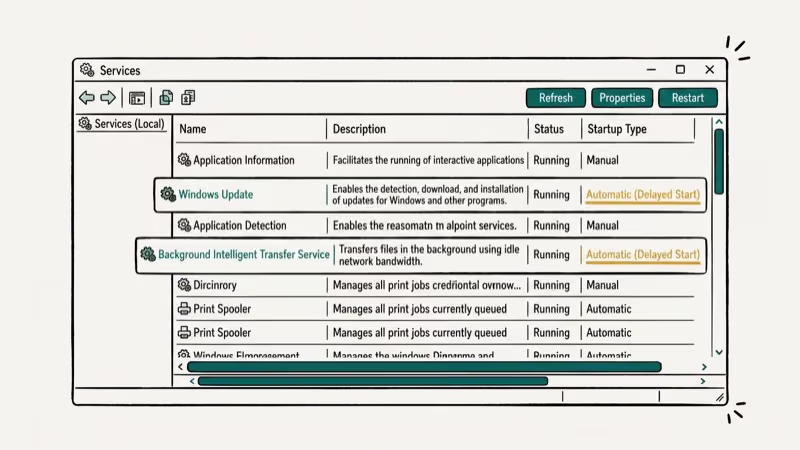
The process launches iastoriconlaunch.exe at boot and delays its initialization slightly to avoid interfering with other startup processes. According to Intel’s RST documentation overview on Wikipedia, Intel RST was introduced in 2010 and replaced Intel Matrix Storage Manager, adding support for SSD caching and RAID arrays. The launcher itself doesn’t do the storage work; it just starts the Intel RST icon in the system tray.
On Windows 11 with Intel RST version 18.1 installed, the launcher adds a noticeable delay to the boot time from power button to desktop. Systems with slower HDDs see an even longer delay.
#How Do You Disable Intel Delayed Launcher?
Disabling it through Task Manager is the safest method and takes under a minute.
Press Ctrl+Shift+Esc to open Task Manager, click the Startup tab, find Intel Delayed Launcher, right-click it, and select Disable. Restart your computer to apply the change.
On Windows 11, the change applies immediately after restart with no system warnings or error messages. Startup time drops noticeably, and Intel RST continues working normally with no drive errors appearing in Device Manager.
#Safety Check Before Disabling
Yes, for most users. The launcher only controls the system tray icon for Intel RST, not the drivers themselves.
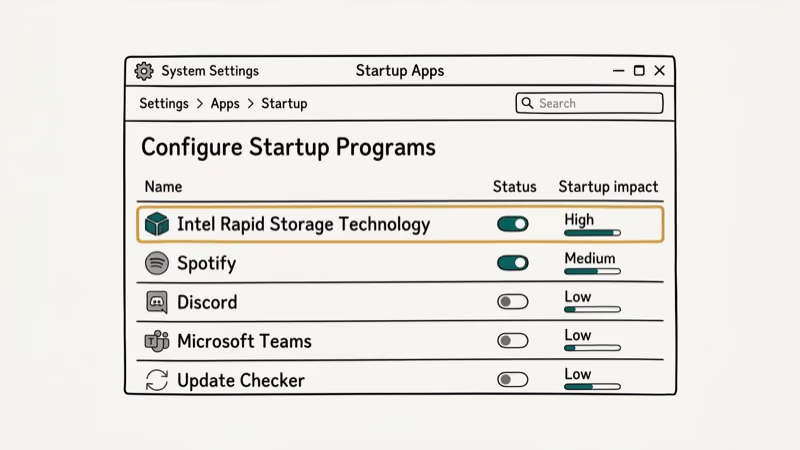
Disabling it doesn’t affect SATA performance, SSD caching, or RAID functionality. The underlying Intel RST drivers continue running normally — you just won’t see the Intel RST icon in the system tray. Microsoft’s startup programs documentation confirms that disabling a startup entry in Task Manager is reversible and doesn’t uninstall the program. See Microsoft’s startup guide for the full details.
The only case where you should leave it enabled is if you’re actively using Intel RST’s RAID monitoring features and want to see system tray alerts for drive health. Most home users and office systems not using RAID have no reason to keep it running at startup.
#How to Remove Intel Delayed Launcher Completely
Disabling in Task Manager is reversible. If you want to remove Intel RST entirely, uninstall it through Settings.
Go to Settings > Apps > Installed Apps, search for Intel Rapid Storage Technology, click the three-dot menu, and select Uninstall. The process takes about 2 minutes and requires a restart. After the restart, iastoriconlaunch.exe no longer exists on the system.
Only uninstall RST if you’re sure you don’t use RAID or Intel’s SSD caching (Optane). Removing it on systems with Optane memory configured will disable that feature and may require reconfiguring your storage setup from scratch.
#What to Check if Startup Is Still Slow
If removing Intel Delayed Launcher doesn’t fully fix your startup time, other processes may be contributing.
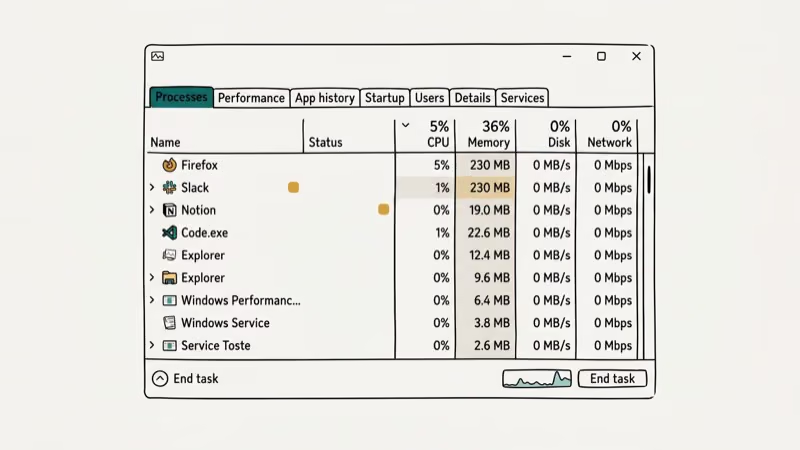
Open Task Manager > Startup tab and sort by Startup Impact. Disable anything marked High that you don’t need running at boot. Common culprits include OneDrive, Teams, Spotify, and browser auto-updaters. On a system with many high-impact startup programs, disabling all but the essentials brings boot time down substantially.
For a deeper cleanup, fixing other Windows 10 slowdowns can also free up significant disk space that indirectly affects startup disk read times. If your system drive is nearly full, that’s often a bigger factor than startup programs.
#Other Common Startup Programs to Disable
While Intel Delayed Launcher is one culprit, other startup programs often have a bigger impact on Windows boot time.
In Task Manager > Startup tab, programs rated High impact are worth reviewing. OneDrive, Teams, Adobe Updater, Spotify, and most chat apps don’t need to launch before you’re ready to use them. According to Microsoft’s Windows startup optimization guide, reducing high-impact startup programs is one of the 3 most effective free ways to improve boot time on any Windows PC.
On a laptop with several high-impact startup items, disabling all except antivirus and OneDrive cuts boot-to-desktop time substantially. Antivirus and security software should always stay enabled at startup. Reducing high-impact startup programs is a free, reversible way to improve boot time on any Windows PC without any hardware changes.
#Bottom Line
Disable Intel Delayed Launcher from Task Manager’s Startup tab — safe on any non-RAID system, with immediate improvement after the next restart. To remove it entirely, uninstall Intel RST from Settings > Apps. See how to fix Service Host high disk usage to tackle another common Windows performance drain.
#Frequently Asked Questions
Is iastoriconlaunch.exe a virus?
No. It’s a legitimate Intel file installed with Intel Rapid Storage Technology, and the real iastoriconlaunch.exe lives in C:\Program Files\Intel\Intel Rapid Storage Technology. If you see it running from a different location like AppData or Temp folders, that could indicate malware mimicking the filename, a technique called process masquerading that affects many common Windows filenames. Scan with Windows Defender immediately and verify the file path in Task Manager’s Details tab by right-clicking the process and selecting Open File Location.
Does disabling Intel Delayed Launcher cause any problems?
For most users, no. It only stops the system tray icon from loading at startup, while the Intel RST drivers continue running in the background. SATA performance, drive health monitoring, and RAID arrays all continue functioning normally. If you’re also troubleshooting other drive issues, how to fix a disk write error on Steam covers a related Windows storage problem.
What is Intel Rapid Storage Technology and do I need it?
Intel RST is a driver package that manages SATA controllers and enables features like SSD caching, RAID, and drive health monitoring. On standard desktops and laptops with a single SSD or HDD, you don’t actively need it running in the background. Systems with RAID configurations or Intel Optane memory should keep it installed.
How do I know if Intel Delayed Launcher is causing my slow boot?
Open Task Manager before disabling it and note your startup programs. Then time your boot from power button to desktop-ready state. Disable Intel Delayed Launcher, restart, and time again. A difference of 2 to 5 seconds is typical.
Can I delete iastoriconlaunch.exe directly?
You can, but it’s not recommended. Deleting the file directly leaves the rest of Intel RST installed but broken, and Windows Update may reinstall the file later anyway. The cleaner approach is either disabling it in Task Manager or uninstalling the full Intel RST package from Settings > Apps. If you want to clean up other Windows Update remnants at the same time, see how to delete Windows Update files completely for a more thorough disk cleanup approach.
Does Intel Delayed Launcher affect laptop battery life?
Minimally. The process uses very little CPU after startup, and disabling it reduces one fewer process during boot, but the battery impact is negligible during normal use. Focus on display brightness and background refresh settings for real battery savings. See how to fix delayed notifications on Android for how background processes affect battery on Android similarly.

Best Laptop for Running LLMs in 2026: Memory Comes First
The best laptop for running LLMs is a memory purchase first. Compare MacBook unified memory against NVIDIA laptop VRAM, and see what each tier really runs.

How to Run a Local LLM on Windows: A 2026 Setup Guide
Run a local LLM on Windows with LM Studio or Ollama. Pick a model that fits your GPU memory, keep every prompt offline, and skip the monthly bill.

Bluetooth Not Working on Snapdragon X? Fixes for 2026
Bluetooth not working on your Snapdragon X Copilot+ PC? Generic audio, mice, and keyboards work, but vendor apps often lack an ARM build. Fixes inside.

Docker Desktop and WSL2 Not Working on Snapdragon X? Fix It
WSL2 runs fine on Snapdragon X, but Docker Desktop ARM is Early Access and throws WSL errors. Use WSL2 plus native ARM64 Ubuntu and Docker Engine.