What Is a WIA Driver? A Guide to Windows Image Acquisition
WIA driver explained: what Windows Image Acquisition does, how to fix the you need a WIA driver error, and how it differs from TWAIN on Windows.
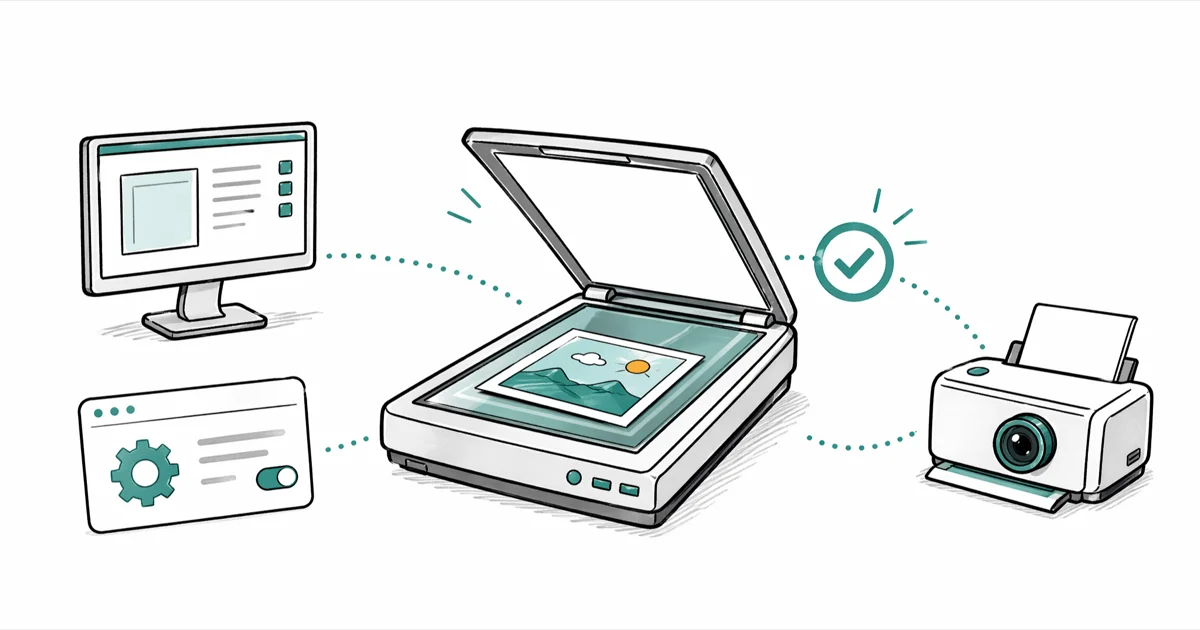
Quick AnswerA WIA (Windows Image Acquisition) driver is the Microsoft interface that lets Windows apps such as Paint, Photoshop, and the built-in Scan app talk to scanners, webcams, and digital cameras. When you see the "You need a WIA driver to use this device" error, the driver is missing, outdated, or its background service has stopped.
If your scanner suddenly refuses to talk to Windows and the error says you need a WIA driver, the problem is usually one of three things: the Windows Image Acquisition service is stopped, the imaging driver got broken by a recent update, or the device installed itself under the wrong driver category. A WIA driver is the small piece of Microsoft software that sits between your scanner or webcam and apps like Paint, the built-in Scan utility, and Adobe Photoshop.
When it’s working, you barely notice it. When it’s not, scanning silently fails. This guide walks through what WIA actually does, why you see the error, and three fixes that resolve it without paid utilities.
- WIA is a Microsoft driver model built into Windows since Me; it covers scanners, webcams, and many digital cameras through one shared API.
- The most common cause of the “you need a WIA driver” error is the Windows Image Acquisition service being set to Manual or Disabled, not a missing driver file.
- Restarting the WIA service from services.msc resolves the error in most cases without any download or reinstall.
- TWAIN and WIA can both run on the same scanner; TWAIN works across Windows, macOS, and Linux, while WIA is Windows-only.
- If a Windows Update breaks scanning, rolling back the imaging device driver in Device Manager is faster than reinstalling the manufacturer driver from scratch.
#What Is a WIA Driver in Plain English?
WIA stands for Windows Image Acquisition. It’s a Microsoft driver model that gives Windows apps a single, standard way to pull images out of scanners, webcams, and still cameras. Without it, every scanning app would need its own driver code for every device on the market.
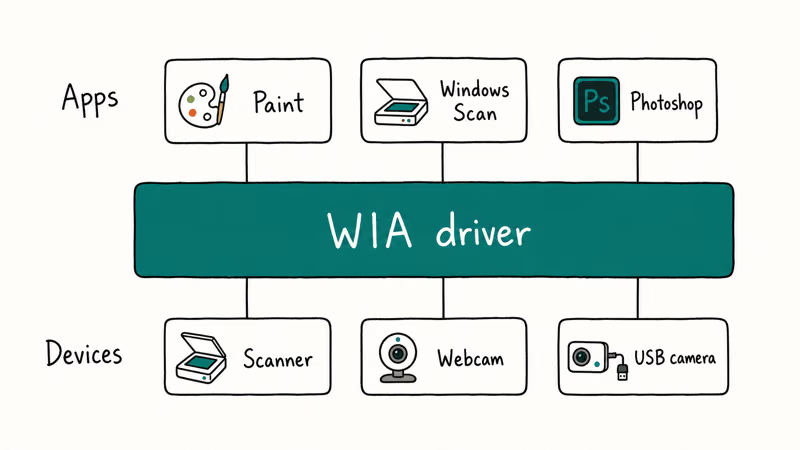
According to Microsoft’s Windows Image Acquisition documentation, a WIA driver is split into 2 cooperating pieces: a core driver that loads inside the WIA service and handles the raw conversation with the device, and a user-interface component that loads inside the calling application and exposes scan settings, previews, and progress bars. That split is why a scanner can show its own branded dialog inside Paint or Photoshop without the application knowing anything about the hardware.
When you click “From a scanner or camera” in Windows Fax and Scan, the request goes through WIA. The same path is used by Adobe Photoshop’s File > Import > WIA Support menu and the Windows Scan app.
The framework is broader than most people realize. The generic audio driver on the audio side is the closest parallel: one Microsoft-supplied shim that handles the boring parts so device-makers can focus on the device itself.
#Which Devices Use WIA?
WIA covers more than just flatbed scanners. The Microsoft driver model is used by:
- Flatbed and sheet-fed scanners from HP, Canon, Epson, Brother, and Fujitsu
- Most USB and built-in webcams (older models, before UVC took over)
- Digital still cameras connected over USB in PTP mode
- All-in-one printers when you use the scan side of the device
If your scanner is multifunction, the print side uses a separate print driver and the scan side uses WIA. That’s why printing can keep working while scanning silently breaks. A dedicated business card scanner almost always exposes itself through WIA on Windows, even when the bundled app looks like a fully self-contained tool.
#Why Do You See “You Need a WIA Driver to Use This Device”?
The error usually has three real causes:
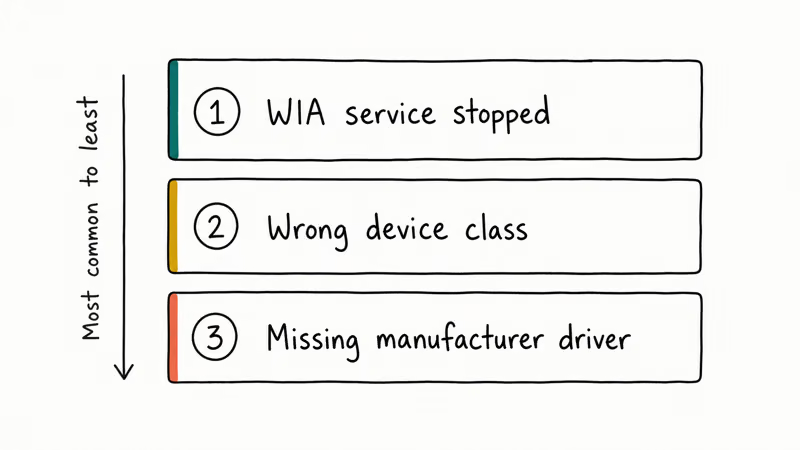
- The WIA service is not running. Windows ships with the Windows Image Acquisition service set to Manual. If a third-party cleaner, an old “tune-up” utility, or a group-policy template has switched it to Disabled, every scanning app fails with the WIA error even though the driver itself is fine.
- The driver is registered under the wrong device class. After a Windows Update or a USB port change, the scanner sometimes reappears under Universal Serial Bus controllers instead of Imaging devices. WIA only enumerates devices in the Imaging devices class.
- The manufacturer driver is missing or out of date. This is more common with scanners older than five years, where the original driver was Windows 7 or 8 only and Windows 11 has fallen back to a generic class driver that doesn’t expose the full API.
A stopped WIA service can make Paint, Windows Scan, and similar apps fail even when the scanner driver itself is present. Restarting the service is the first fix to try before reinstalling drivers.
#A Quick Way to Confirm It’s a Service Problem
Open Device Manager (press Windows + X, choose Device Manager) and expand Imaging devices. If your scanner shows up there with no yellow warning triangle, the driver is fine and you’re almost certainly looking at a stopped service. If the device is missing or has a triangle, you need a driver fix instead.
#Three Ways to Fix the WIA Driver Error
Work through these three methods in order. Most readers stop after Method 1.
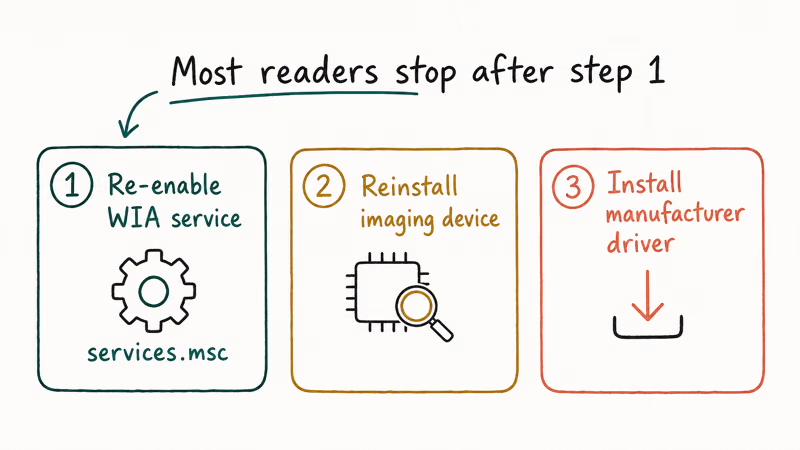
#Method 1: Re-enable the Windows Image Acquisition Service
This is the fix that resolves the error for the majority of users:
- Press Windows + R to open the Run box.
- Type
services.mscand press Enter. - Scroll to Windows Image Acquisition (WIA) in the alphabetical list.
- Right-click it and choose Properties.
- Set Startup type to Automatic.
- Click Start if the service status is Stopped, then Apply and OK.
While you’re in services.msc, also check that the Shell Hardware Detection service and the Remote Procedure Call (RPC) service are both running. WIA depends on RPC and won’t start without it.
Microsoft’s services management reference confirms that setting a Windows service to Automatic causes it to start at the next boot, while Manual requires another service or an application to trigger it. Set WIA to Automatic and the error stops reappearing on every restart.
#Method 2: Reinstall the Imaging Device in Device Manager
If the service is running and the error still appears, force Windows to re-detect the scanner:
- Disconnect the scanner’s USB cable.
- Open Device Manager.
- Expand Imaging devices (or Cameras on some Windows 11 builds).
- Right-click your scanner and choose Uninstall device. Check Attempt to remove the driver software for this device if the box is offered, then confirm.
- Reboot the PC.
- Reconnect the scanner. Windows should redetect it and reinstall the driver from its local store.
If your scanner reappears under Universal Serial Bus controllers instead of Imaging devices, the manufacturer driver hasn’t loaded. Move on to Method 3.
#Method 3: Install the Manufacturer Driver Directly
Generic Windows class drivers can scan, but they often don’t expose the full feature set (auto document feeder, duplex, OCR pass-through). Pull the WIA driver straight from the manufacturer:
- HP: visit hp.com/support, type your printer or scanner model, and download the “Full Feature Software” package, which includes both the print and WIA scan components.
- Canon: canon.com/support, search for your model, then download the “MP Drivers” or “ScanGear” package. ScanGear is Canon’s WIA and TWAIN combo driver.
- Epson: epson.com/support, find your model, and grab the “Scanner Driver and EPSON Scan 2 Utility” download.
- Brother: support.brother.com, choose your model, download the “Full Driver & Software Package.”
Run the installer as Administrator and let it complete before reconnecting the device. Windows 11 users stuck on a driver that says “Windows 10 only” should try right-clicking the installer, choosing Properties > Compatibility, and setting compatibility mode to Windows 10. Compatibility mode can sometimes help older scanner installers run long enough to restore basic scan access.
If you’re stuck in a driver reinstall loop and Windows keeps crashing, our guide on the thread stuck in device driver error covers the related blue-screen flavor of driver corruption. Third-party driver utilities such as the one in our Driver Talent review can also help, but for WIA specifically the built-in tooling is enough.
#When the Touch Layer Also Breaks
Imaging drivers sometimes break alongside HID class issues after a feature update. If touch input also went silent, the HID-compliant touch screen missing walkthrough is next.
#The Difference Between TWAIN and WIA
Most scanners ship with both interfaces, and the choice between them matters more than people think.
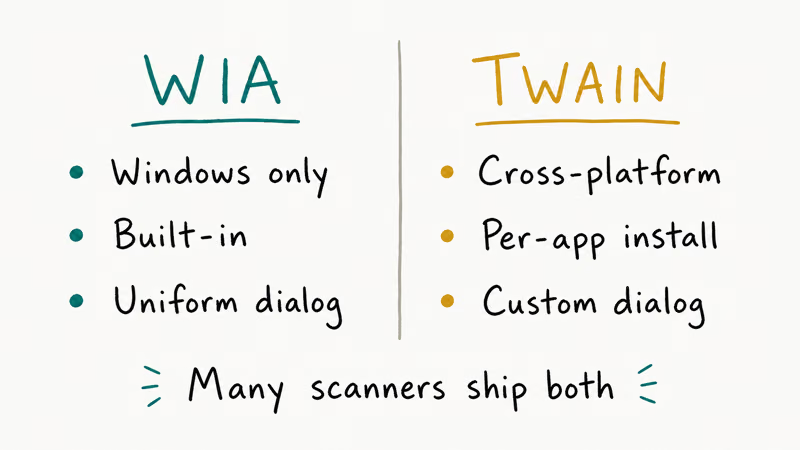
WIA is Microsoft’s driver model and only runs on Windows. TWAIN, maintained by the TWAIN Working Group, is cross-platform and runs on Windows, macOS, and Linux. The TWAIN Working Group states that TWAIN has been an open industry standard since 1992, predating WIA by nearly a decade. That 30-plus year head start explains why TWAIN still dominates professional document software while WIA is the default for everyday Windows scanning.
| Feature | WIA | TWAIN |
|---|---|---|
| Operating systems | Windows only | Windows, macOS, Linux |
| Maintained by | Microsoft | TWAIN Working Group |
| Built into Windows | Yes, since Windows Me | No, requires per-app or per-device install |
| Standard scan dialog | One uniform Windows dialog | Per-manufacturer custom dialog |
| Programmatic image fetch | Strong (used by .NET, COM apps) | Strong (used by professional document apps) |
| Duplex, ADF advanced controls | Often limited | Usually full |
| Best for | Quick scans into Paint, Photoshop, Fax and Scan | Document management apps (PaperPort, ScanSnap) |
Table: Where WIA and TWAIN differ in practical use for common scanner workflows.
In short: WIA is the easier path for casual scans, TWAIN is what professional document software prefers. Many scanners install both, and you pick the one your scanning app requests.
#Can You Use Both at Once?
Yes. Only one app at a time can grab the scanner, though. If a Photoshop TWAIN session is open and you launch Windows Scan (which uses WIA), the second app will report the device as busy. Closing the first session frees the device.
#Windows Update and WIA Drivers
Sometimes Windows Update gives you the WIA driver you need. Sometimes it gives you a stripped-down one. That’s part of the problem.
Microsoft’s Windows Update documentation confirms that driver updates are delivered through the same channel as feature and quality updates, with the manufacturer publishing certified driver packages to the Windows Update catalog. For mainstream scanners released in the last five years, that pipeline is usually fine. For older scanners, Windows Update either has nothing or pushes a generic class driver that loses features compared with the manufacturer package.
A safer pattern: let Windows Update install whatever it has first. Then, only if features are missing, go to the manufacturer site and install the full package on top.
If a recent Windows Update made things worse, open Device Manager, right-click the imaging device, choose Properties > Driver > Roll Back Driver, and confirm.
You don’t need a third-party driver utility to manage WIA. The “driver updater” tools sometimes recommended for this error can install correct drivers, but they also flag perfectly good drivers as outdated so they have something to “fix.” Stick with Windows Update plus the manufacturer site.
#When the Scanner Still Refuses to Scan
If the WIA service is running, Device Manager is clean, and the manufacturer driver is installed but the scanner still refuses, three less-obvious causes are worth checking:
- USB power. Sheet-fed and older flatbed scanners can pull more current than a hub provides. Plug directly into a powered USB-A port on the PC.
- USB 3.0 vs USB 2.0. Some older scanners (Canon LiDE 60, HP Scanjet 4500c-era) misbehave on USB 3.0 controllers. Try a USB 2.0 port if one is still on the machine.
- Group policy lockout. On work machines, IT can block the WIA service entirely via Group Policy or Intune. Check with your admin before reinstalling drivers.
If only the scan side is broken on your multifunction printer, the Epson printers troubleshooting guide covers Epson’s recovery dance. The same logic applies to other brands. If your scans work but you need to merge them, the how to scan multiple pages into one PDF guide picks up where this one stops, with manufacturer steps for HP, Canon, and Brother all-in-ones plus a desktop merge fallback when none of them work.
#Bottom Line
The WIA error is almost never a driver problem. It’s the Windows Image Acquisition service sitting at Disabled or Manual. Set it to Automatic, hit Start, done.
If that doesn’t do it, reinstall the imaging device entry in Device Manager next. Only go to a full manufacturer driver download as the third step. For WIA, skip the third-party driver-updater utilities; they usually don’t see anything the built-in tooling doesn’t. The combination of services.msc, Device Manager, and the manufacturer’s own support site covers the normal WIA recovery path.
#Frequently Asked Questions
What does WIA stand for?
WIA stands for Windows Image Acquisition. It’s the Microsoft driver model and API that Windows applications use to pull images from scanners, webcams, and still cameras.
Is the WIA driver built into Windows?
Yes, the framework is. WIA has shipped with every version of Windows since Windows Me, including Windows 10 and Windows 11. What’s not built in is the device-specific driver code for your particular scanner. The framework is universal; the per-device piece comes from the hardware maker, sometimes via Windows Update and sometimes only from the manufacturer site.
Can I update WIA drivers through Windows Update?
You can. Microsoft’s update documentation states that hardware vendors publish certified driver packages through the Windows Update catalog, and that pipeline is reliable for recent mainstream scanners. For older or niche models, Windows Update may only carry a generic class driver, and the manufacturer’s site will give you the full-featured package with auto document feeder support, duplex scanning, and OCR pass-through.
Are WIA drivers compatible with macOS?
No. WIA is Microsoft-only and does not run on macOS, which uses its own Image Capture framework plus TWAIN drivers when the manufacturer supplies one.
Why does my scanner work in Paint but not in Photoshop?
Photoshop’s import path usually prefers TWAIN unless you explicitly choose WIA Support from the File > Import menu. If TWAIN isn’t installed and only WIA is, Photoshop may report the device as missing even though Paint can see it just fine. Install the manufacturer’s full driver package, which typically includes both interfaces in one installer.
Do I need to keep the WIA service running all the time?
Yes, leave it on Automatic. The service uses a trivial amount of memory while idle, and disabling it saves nothing meaningful while breaking every scanning app on the system.
Can I use multiple imaging devices with WIA at the same time?
Yes and no. WIA supports enumerating and operating multiple devices, but only one application can hold an exclusive scan session on a given device at a time. You can have a webcam in use by Teams and a scanner in use by Windows Scan in parallel, since those are two different devices. Two apps can’t both grab the same scanner at once.

Best Laptop for Running LLMs in 2026: Memory Comes First
The best laptop for running LLMs is a memory purchase first. Compare MacBook unified memory against NVIDIA laptop VRAM, and see what each tier really runs.

How to Run a Local LLM on Windows: A 2026 Setup Guide
Run a local LLM on Windows with LM Studio or Ollama. Pick a model that fits your GPU memory, keep every prompt offline, and skip the monthly bill.

Bluetooth Not Working on Snapdragon X? Fixes for 2026
Bluetooth not working on your Snapdragon X Copilot+ PC? Generic audio, mice, and keyboards work, but vendor apps often lack an ARM build. Fixes inside.

Docker Desktop and WSL2 Not Working on Snapdragon X? Fix It
WSL2 runs fine on Snapdragon X, but Docker Desktop ARM is Early Access and throws WSL errors. Use WSL2 plus native ARM64 Ubuntu and Docker Engine.