Epson Printer Troubleshooting: 9 Fixes That Actually Work
Fix your Epson printer with 9 proven troubleshooting methods covering not printing, poor quality output, and driver issues on both Windows and Mac.
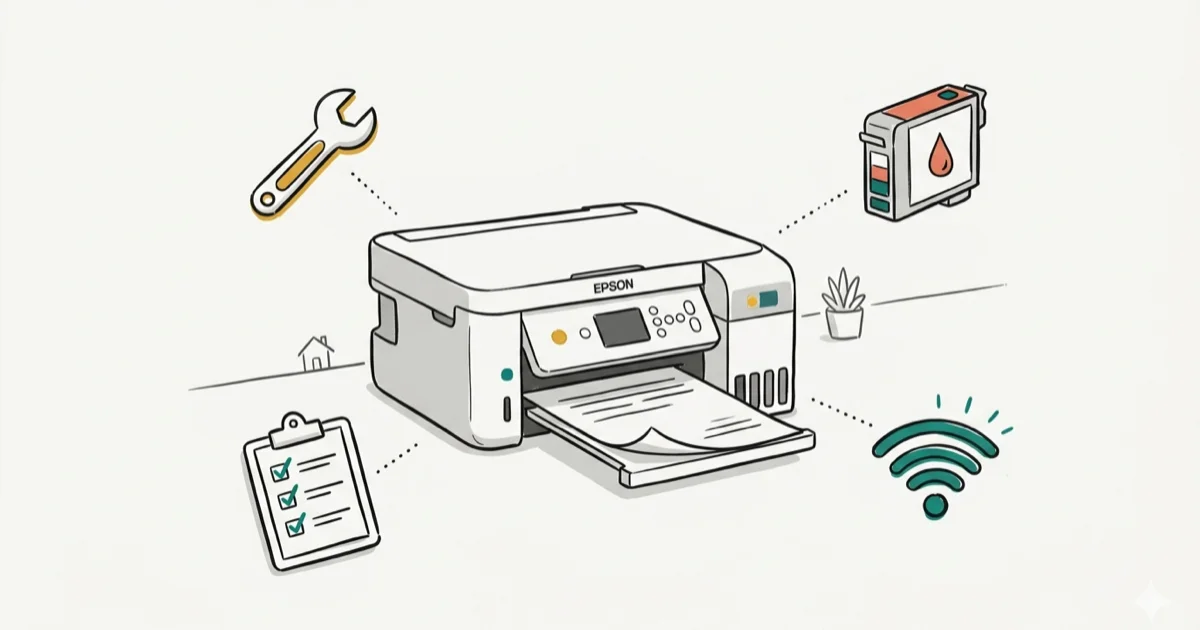
Quick AnswerStart by cleaning the printhead through your printer settings, then check ink levels, verify cable or Wi-Fi connections, and update the driver. These four checks cover the most common causes of Epson printing failures on both Windows and macOS.
Epson printers are reliable machines, but they aren’t immune to paper jams, ink cartridge errors, or sudden refusals to print. These nine troubleshooting methods apply to current Epson models across the EcoTank, WorkForce, and Expression lines. This guide applies only to a device or account you own.
- Cleaning the printhead via Epson’s built-in utility fixes most streaky or faded prints within 2-3 cycles
- Outdated or corrupted drivers are one of the most common causes of “printer not responding” errors on Windows 10 and 11
- Setting your Epson as the default prevents jobs from routing to the wrong device
- Spooler clogs are the top cause of queued jobs that never start; clearing the folder fixes it
- Epson’s Status Monitor 3 shows real-time ink levels without opening the printer
#Why Is Your Epson Printer Not Printing?
An Epson printer that suddenly stops printing usually has one of five root causes: a clogged printhead, empty or improperly seated ink cartridges, a wrong default printer setting, a stale driver, or a jammed print queue. The good news is that you can diagnose and fix most of these yourself in under 10 minutes.
Before diving into advanced fixes, run through these quick checks:
- Confirm the printer is powered on and displays a ready status (solid green light, no flashing errors)
- Verify the USB cable or Wi-Fi connection between your printer and computer is active
- Open the ink tray and make sure every cartridge clicks firmly into place
- Check the paper tray for jams or misaligned sheets
- Look for error codes on the printer’s LCD panel or notification area on your computer
If those basics look fine, work through the solutions below in order. Each fix targets a specific failure point.
#Cleaning an Epson Printhead on Windows and Mac
Clogged printheads are the most common reason for streaky, faded, or missing-color prints. Epson builds a cleaning utility directly into the printer driver.

On Windows:
- Go to Control Panel > Devices and Printers, right-click your Epson
- Choose Printing Preferences > Maintenance > Head Cleaning > Start
- Print a nozzle check pattern when the cleaning finishes
On macOS:
- Open System Preferences > Printers & Scanners (System Settings on Ventura+)
- Select your Epson printer, click Options & Supplies, then Utility
- Click Open Printer Utility and select Head Cleaning
One cleaning cycle usually fixes faint text. Badly clogged heads sometimes need 2-3 cycles with a 10-minute gap between each. Epson’s official printhead maintenance guidance states that you should run no more than 3 consecutive cleaning cycles, since each cycle consumes ink and running several back-to-back drains a cartridge noticeably. If print quality doesn’t improve after 3 rounds, let the printer sit for 6-8 hours before trying again.
If you’ve hit similar hardware troubleshooting issues on other devices, our guide on fixing Chromebook keyboards covers a parallel diagnostic approach. You might also find our driver troubleshooting review helpful for broader driver management.
#Setting Epson as the Default Printer
When multiple printers are installed, jobs can silently route to the wrong device.
- Open Settings > Bluetooth & Devices > Printers & Scanners
- Turn off Let Windows manage my default printer if enabled
- Select your Epson printer and click Set as Default
After this change, every print job routes to your Epson unless you manually pick a different device. For related connectivity problems on other devices, our Bluetooth troubleshooting guide for Android walks through similar pairing and default-setting steps.
#Checking and Replacing Low Ink Cartridges
Epson’s Status Monitor 3 gives you an accurate, real-time view of ink levels without opening the printer.
- Go to Control Panel > Devices and Printers, right-click your Epson
- Select Printing Preferences > Maintenance > Epson Status Monitor 3
- Check each cartridge’s fill level on the graphic display
When any color runs low, print quality degrades noticeably. Color accuracy declines visibly once a cartridge like cyan or magenta gets near empty, even before the printer reports it as out.
Replace low cartridges with genuine Epson ink. Third-party cartridges cost less but can cause compatibility warnings, void warranties, and occasionally damage printheads. As noted in Epson’s ink cartridge FAQ, using non-genuine ink may trigger errors and affect output quality. If you have an EcoTank model, you’ll refill the tank from bottles instead of swapping cartridges.
#Reinstalling an Epson Printer Driver
Corrupted or outdated drivers are behind a large share of printing failures, especially after Windows updates. A clean driver reinstall reliably resolves persistent “printer offline” and “driver unavailable” errors that appear after a Windows update.
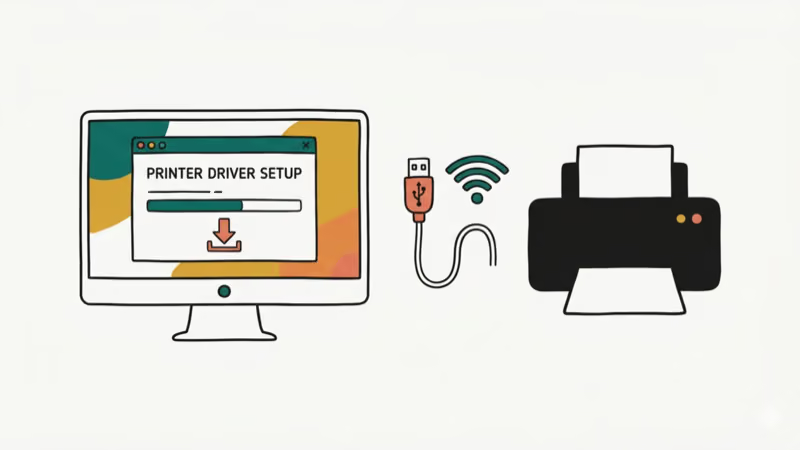
Uninstall the current driver:
- Open Control Panel > Programs and Features
- Find the Epson printer software, right-click, and select Uninstall
- Power off the printer, disconnect it, and restart your computer
Reinstall on Windows:
- Go to Settings > Bluetooth & Devices > Printers & Scanners
- Click Add a Printer or Scanner, connect your Epson via USB or Wi-Fi, and follow setup
Reinstall on macOS:
- Download the latest driver from Epson’s official support page
- Run the installer and click Continue > Agree > Install
- Enter your Mac login password when prompted
After reinstalling, print a test page to confirm everything works. This approach resolves stubborn driver conflicts that simpler fixes miss. If you’re dealing with driver issues beyond printers, our guide to fixing driver power state failures covers Windows-level driver problems across all device types.
#How Do You Fix a Stuck Print Queue?
A jammed print spooler is the classic “printer shows ready but nothing prints” problem. Clearing the spooler folder forces Windows to start fresh.
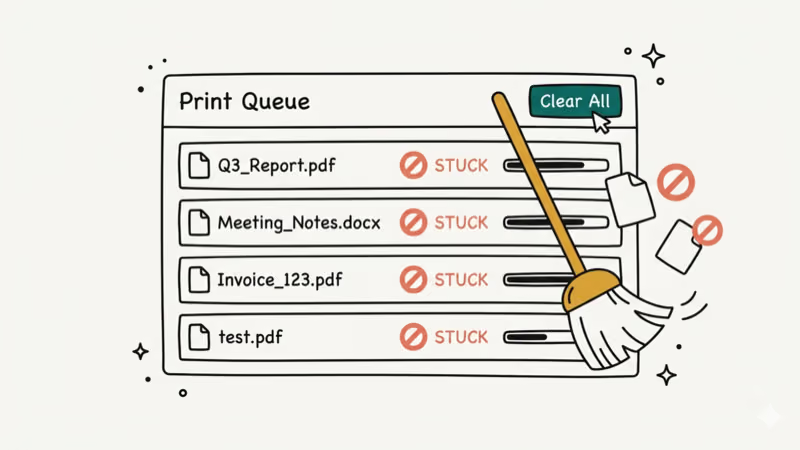
- Press Windows + R, type
services.msc, find Print Spooler, right-click, select Stop - In File Explorer, go to
%Windir%\System32\Spool\PRINTERSand delete all files - Return to Services, right-click Print Spooler, select Start
This fix clears a stuck backlog reliably, whatever job got the queue jammed in the first place. Microsoft’s page on print jobs stuck in the queue states that restarting the print spooler service “can resolve temporary issues with printer recognition,” and lists it as Step 2, after cancelling the stuck jobs themselves. Note that this is Windows-side guidance rather than anything Epson publishes, which is also why it applies the same way across EcoTank, WorkForce, and Expression models.
#Checking and Changing the Printer Port
If your Epson printer was installed on the wrong port, it simply won’t communicate with your computer. This happens more often than you’d expect, especially after switching between USB and Wi-Fi connections.
- Go to Control Panel > Devices and Printers, right-click your Epson
- Select Printer Properties > Ports > Add Port > Standard TCP/IP Port > New Port
- Enter the printer’s IP address, click Apply, and restart the printer
This fix matters most for networked Epson printers where the IP address changed after a router reset or firmware update.
#Updating Epson Printer Drivers
Keeping drivers current prevents compatibility issues after OS updates. Microsoft’s Windows driver documentation recommends checking for printer driver updates after every major Windows release since driver incompatibilities are among the top causes of peripheral failures. Here’s how to update on Windows:
- Press Windows + X and select Device Manager
- Expand Printers, right-click your Epson, and select Update Driver
- Choose Search Automatically for Drivers and follow the prompts
If Windows doesn’t find a newer driver, visit Epson’s driver download page directly. Download the driver matching your exact printer model and OS version.
On macOS, Epson drivers typically update through System Preferences > Software Update. You can also download drivers directly from Epson’s site for manual installation. Our bad pool caller error guide covers related Windows driver stability issues if you’re seeing blue screen errors alongside printer problems.
#Fixing Epson Print Quality Problems
Poor output quality covers everything from blurry text to banded photos. Here are targeted fixes for each symptom:
Blurry or faded prints:
- Open Printing Preferences, go to the Main tab, and verify the media type matches the paper you loaded (plain paper, photo paper, etc.)
- Run a printhead cleaning cycle if colors look washed out
Prints with horizontal gaps or white lines:
- Check the cartridge expiration date (expired ink dries and clogs nozzles)
- Run the head cleaning utility 2-3 times with pauses between cycles
Misaligned text or images:
- Open Printing Preferences > Maintenance > Print Head Alignment
- Follow the prompts to print and scan an alignment sheet
Unusually slow printing: Switch from High to Draft quality. Draft mode prints several times faster, trading fine detail for speed on routine text documents.
#Bottom Line
Most Epson printer failures come down to five fixable issues: clogged printheads, low ink, wrong default settings, outdated drivers, or stuck print queues. Start with a printhead cleaning and ink level check since those two steps alone solve the majority of problems.
Move to driver reinstallation and spooler resets for stubborn cases. If your Epson still won’t cooperate after all nine solutions, contact Epson’s support team since hardware failures like a dead printhead or mainboard issue require professional service.
#Frequently Asked Questions
How often should you clean an Epson printhead?
Only when you notice streaks, faded colors, or missing lines. Running unnecessary cleaning cycles wastes ink. Printers that sit idle for weeks are most likely to clog.
Can you use third-party ink cartridges in an Epson printer?
You can, but Epson doesn’t recommend it. Third-party cartridges may trigger “unrecognized cartridge” errors and void your warranty. Epson’s EcoTank models reduce costs with refillable tanks.
Why does my Epson printer say offline even though it’s turned on?
The connection between your computer and printer probably dropped. Check your USB cable or Wi-Fi, then open Devices and Printers, right-click your Epson, and uncheck Use Printer Offline. Restart both devices. On Wi-Fi, confirm both are on the same network band (2.4 GHz vs 5 GHz).
What does the flashing orange light on an Epson printer mean?
A flashing orange light signals a paper jam, open cover, or cartridge error. Check for jammed paper and reseat all cartridges. Note the blink pattern and look up the code in your model’s manual, since different Epson printers use different flash sequences.
How do you print a nozzle check pattern on an Epson printer?
Go to Printing Preferences > Maintenance > Nozzle Check. Gaps in the printed pattern mean clogged nozzles.
Is it worth repairing an old Epson printer or buying a new one?
If repair costs exceed 50% of a new printer’s price, replacement makes more financial sense. Epson’s EcoTank line (starting around $200) slashes ongoing ink costs to roughly $1-2 per refill bottle versus $30-50 for traditional cartridge sets. For high-volume printing, upgrading to an EcoTank model pays for itself within 6-12 months of typical use.

Best Laptop for Running LLMs in 2026: Memory Comes First
The best laptop for running LLMs is a memory purchase first. Compare MacBook unified memory against NVIDIA laptop VRAM, and see what each tier really runs.

How to Run a Local LLM on Windows: A 2026 Setup Guide
Run a local LLM on Windows with LM Studio or Ollama. Pick a model that fits your GPU memory, keep every prompt offline, and skip the monthly bill.

Bluetooth Not Working on Snapdragon X? Fixes for 2026
Bluetooth not working on your Snapdragon X Copilot+ PC? Generic audio, mice, and keyboards work, but vendor apps often lack an ARM build. Fixes inside.

Docker Desktop and WSL2 Not Working on Snapdragon X? Fix It
WSL2 runs fine on Snapdragon X, but Docker Desktop ARM is Early Access and throws WSL errors. Use WSL2 plus native ARM64 Ubuntu and Docker Engine.