Generic Audio Driver: Understanding and Fixing Common Issues
Learn what a generic audio driver is and how to fix common Windows audio issues. Step-by-step solutions for driver updates and troubleshooting.
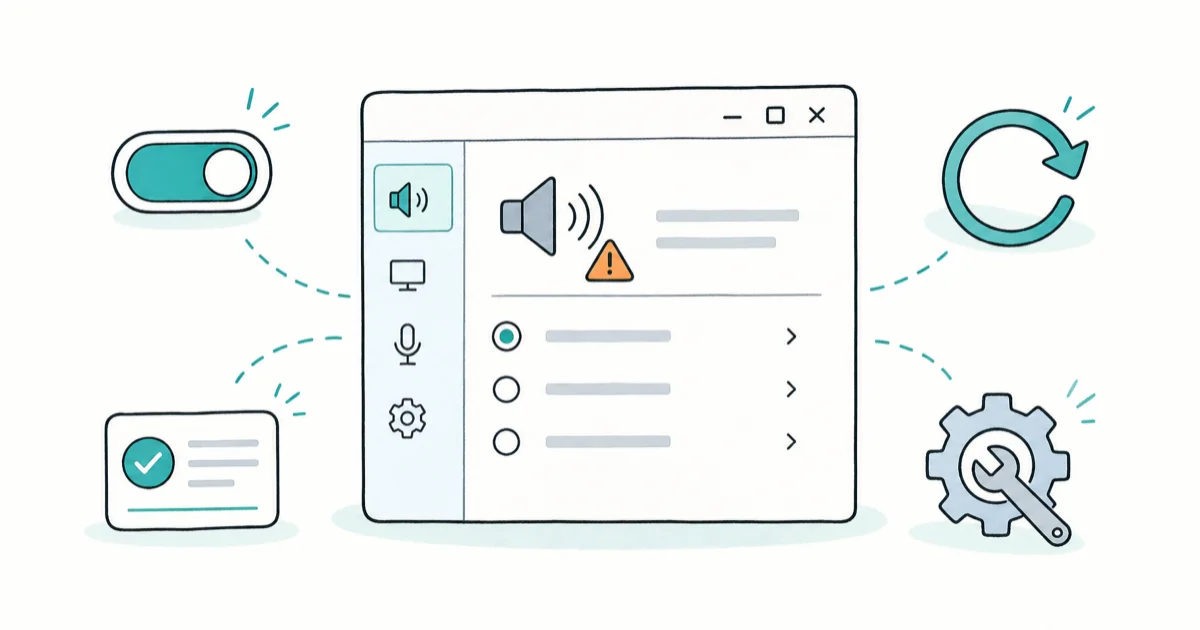
Quick AnswerRunning the Windows audio troubleshooter and updating your audio driver through Device Manager are the quickest fixes for generic audio driver issues.
If you’ve seen the term Generic Audio Driver on Windows, it’s Microsoft’s fallback audio driver. Start with the audio services, then Device Manager, then the hardware maker’s driver package.
- A generic audio driver is Microsoft’s built-in fallback that provides basic sound functionality when no manufacturer-specific driver is installed or detected.
- The “Generic Audio Driver Detected” error appears in Device Manager with a yellow exclamation mark and usually means Windows could not load the hardware-specific driver.
- Updating the audio driver through Device Manager or downloading it directly from your motherboard or PC manufacturer’s website resolves the issue in most cases.
- Disabling audio enhancements in Sound Settings can fix distortion and quality issues caused by Windows processing features conflicting with the generic driver.
- Checking that both “Windows Audio” and “Windows Audio Endpoint Builder” services are set to Automatic and running is a required step before attempting driver reinstallation.
#What is a Generic Audio Driver?
A generic audio driver is a basic, universal driver provided by Microsoft Windows to ensure basic audio functionality on a wide range of hardware. Unlike manufacturer-specific drivers, generic drivers are designed to work with multiple audio devices, offering a one-size-fits-all solution.
#Pros of Generic Audio Drivers:
- Immediate functionality without needing to install specific drivers
- Compatibility with a wide range of audio hardware
- Automatic installation during Windows setup
#Cons of Generic Audio Drivers:
- Limited access to advanced audio features
- Potential for lower audio quality compared to manufacturer-specific drivers
- May not support all hardware-specific functions
#What Are the Most Common Generic Audio Driver Issues?
Users often encounter several issues related to generic audio drivers. Microsoft’s Windows audio driver documentation confirms that the generic HDAudio class driver supports a defined subset of audio capabilities, which is why advanced features such as Dolby Atmos, custom equalizers, and surround sound are often missing once Windows falls back to the generic driver.
- “Generic Audio Driver Detected” Error: This error message appears when Windows can’t find or use the manufacturer-specific driver for your audio device.
- No Sound Output: Despite the driver being installed, you may experience a complete lack of audio output.
- Distorted or Low-Quality Audio: The sound may be present but of poor quality or distorted.
- Device Not Recognized: Windows may fail to recognize the audio device altogether.
- Audio Codec Not Supported: Sometimes, you might encounter issues where certain audio codecs are not supported, leading to playback problems.
#Causes of Generic Audio Driver Problems
Understanding the root causes can help in troubleshooting and preventing future issues:
- Outdated or Corrupt Drivers: Over time, drivers can become outdated or corrupted, leading to functionality issues.
- Windows Update Conflicts: Sometimes, Windows updates can cause incompatibilities with existing drivers.
- Hardware Issues: Physical damage or connection problems with audio hardware can manifest as driver issues.
- Software Conflicts: Other audio-related software or security programs may interfere with driver functionality.
#How to Diagnose Generic Audio Driver Issues
Before attempting fixes, it’s crucial to diagnose the problem accurately. Device Manager is the primary diagnostic surface, and the Windows audio troubleshooter is the second. Microsoft’s guidance states that 2 system services — Windows Audio and Windows Audio Endpoint Builder — must remain in Automatic start mode for any audio device to function, and a yellow exclamation mark under “Sound, video and game controllers” indicates that Windows loaded the fallback driver rather than the hardware-specific one.
- Using Device Manager:
- Press Windows Key + X and select “Device Manager”
- Expand the “Sound, video and game controllers” section
- Look for any yellow exclamation marks indicating driver issues
- Running Windows Audio Troubleshooter:
- Go to
Settings>System>Sound - Scroll down and click on “Troubleshoot” under “Output”
- Follow the on-screen instructions
- Go to
- Checking Audio Services Status:
- Press Windows Key + R, type “services.msc” and press Enter
- Locate “Windows Audio” and “Windows Audio Endpoint Builder”
- Ensure both are set to “Automatic” and are running
#Step-by-Step Solutions to Fix Generic Audio Driver Problems
#1. Update Audio Drivers
Updating your audio drivers is often the most effective solution. Manufacturer-provided drivers usually restore advanced features such as equalizers, microphone enhancements, and surround profiles that the generic Microsoft fallback does not expose. Microsoft recommends sourcing the audio driver directly from the PC or motherboard maker rather than from third-party driver-update utilities.
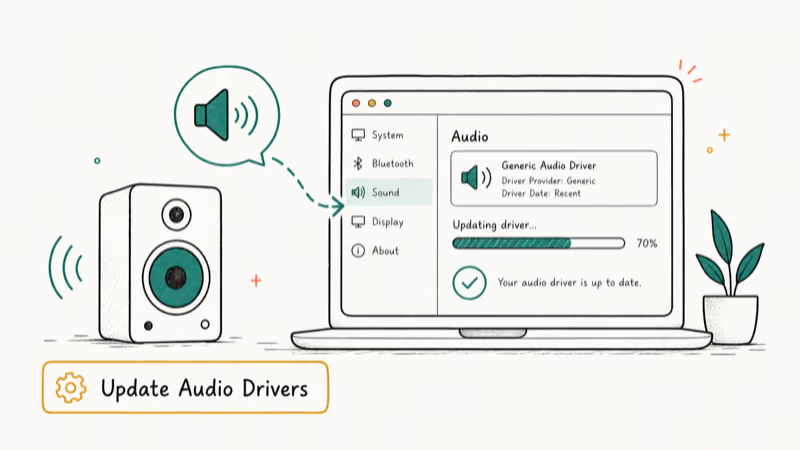
- a. Open Device Manager
- b. Expand “Sound, video and game controllers”
- c. Right-click on your audio device and select “Update driver”
- d. Choose “Search automatically for updated driver software”
If Windows doesn’t find a new driver, visit your computer or motherboard manufacturer’s website to download the latest audio drivers. For example, if you have a Beats Audio driver, you might need to visit the manufacturer’s website for specific updates.
#2. Reinstall Audio Drivers
If updating doesn’t work, try a clean reinstallation:
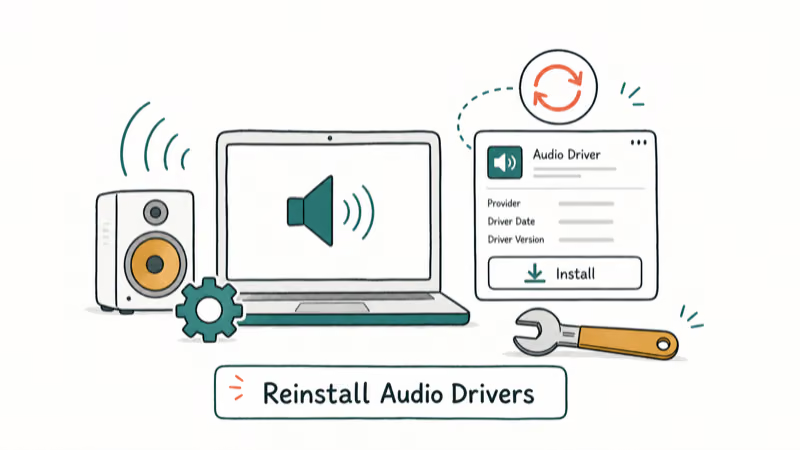
- a. In Device Manager, right-click on your audio device
- b. Select “Uninstall device”
- c. Restart your computer
- d. Windows will attempt to reinstall the driver automatically
If automatic reinstallation fails, manually install the driver downloaded from the manufacturer’s website.
#3. Enable and Configure Audio Services
Ensure essential audio services are running:
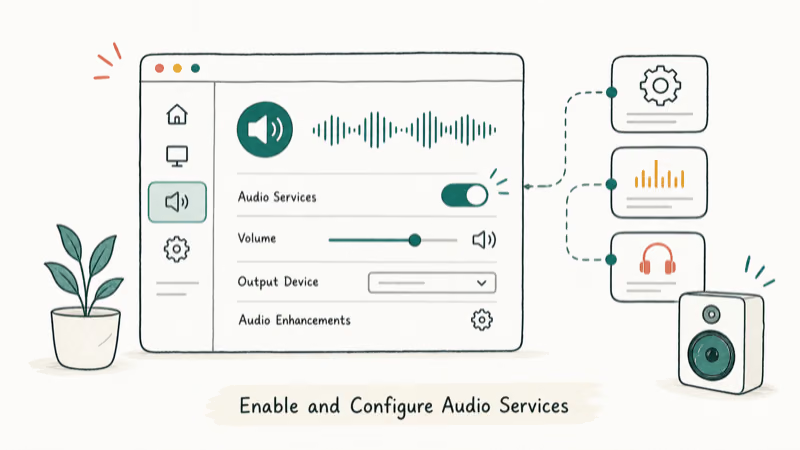
- a. Open Services (type “services.msc” in the Run dialog)
- b. Locate “Windows Audio” and “Windows Audio Endpoint Builder”
- c. Double-click each service and set “Startup type” to “Automatic”
- d. Click “Start” if the service isn’t running
- e. Click “Apply” and “OK”
#4. Disable Audio Enhancements
Sometimes, audio enhancements can cause conflicts:
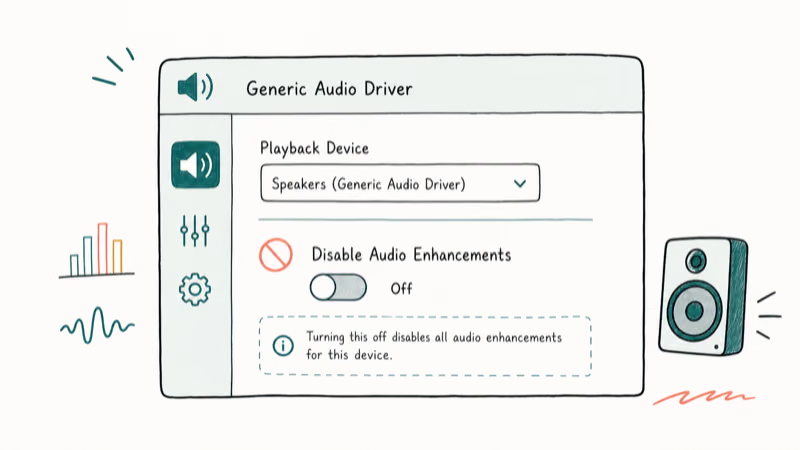
- a. Right-click the speaker icon in the taskbar and select “Open Sound settings”
- b. Click “Device properties” under “Output”
- c. In the new window, go to the “Enhancements” tab
- d. Check the box for “Disable all enhancements”
- e. Click “Apply” and “OK”
#5. Run Windows Audio Troubleshooter
Windows has a built-in troubleshooter that can automatically fix common audio issues:
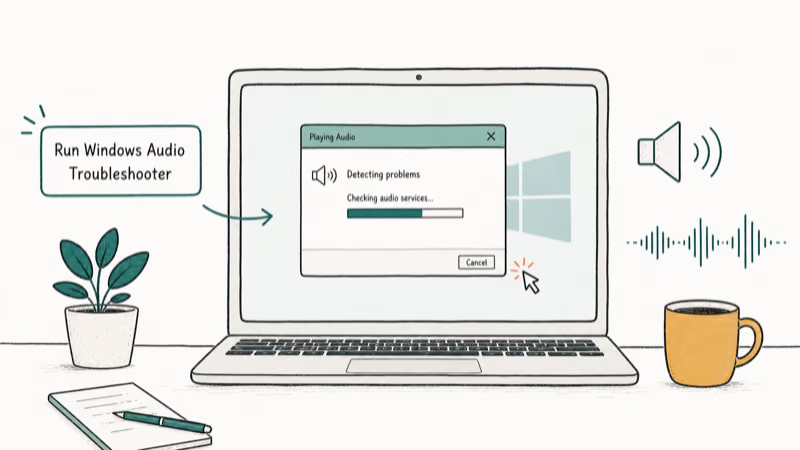
- a. Go to
Settings>System>Sound - b. Scroll down and click “Troubleshoot” under “Output”
- c. Follow the on-screen instructions to complete the troubleshooting process
#Preventing Future Generic Audio Driver Issues
To minimize future audio driver problems:
- Keep Your System Updated: Regularly check for and install Windows updates.
- Update Drivers Proactively: Periodically check for driver updates from your device manufacturer.
- Create System Restore Points: Before making significant changes, create a restore point to rollback if issues occur.
- Avoid Driver Update Software: Stick to official sources for driver updates to prevent incompatibility issues.
If Windows Update and the hardware maker’s driver both fail to identify the audio device, Driver Booster can scan the hardware ID as a fallback; verify the proposed driver before installing it.
Some links on this page are affiliate links, which means fone.tips may earn a commission at no extra cost to you.
#Additional Tips for Audio Improvement
- Reduce Background Noise: If you’re experiencing microphone issues, learn how to reduce background noise on mic in Windows 10 for clearer audio input.
- Fix Screen Tearing: While not directly related to audio, fixing screen tearing can improve your overall multimedia experience.
- Check Network Interfaces: Sometimes, network-related issues like problems with the Teredo Tunneling Pseudo-Interface can affect online audio streaming quality.
- Codec Support: If you’re having trouble playing certain audio formats, check if your system supports codecs like EAC3. Installing the necessary codecs can resolve playback issues.
#When to Seek Professional Help
If you’ve tried all the above solutions and still experience issues, it may be time to seek professional assistance. Consider contacting:
- Your computer manufacturer’s support team
- A local computer repair service
- Microsoft support for Windows-specific issues
#Bottom Line
Generic audio drivers provide a working baseline so that no Windows PC ships totally mute, but they trade away the advanced features and tuning that come with the hardware vendor’s own driver.
The fastest path back to full audio is a three-step sequence: confirm Windows Audio and Windows Audio Endpoint Builder are running, update the driver from the OEM website (Dell, HP, Lenovo, ASUS) rather than from Windows Update, then disable audio enhancements only if distortion remains. If two of those steps fail, the underlying problem is almost always a corrupted driver package or a recent Windows update conflict, both of which are solvable in software without replacing hardware.
#Frequently Asked Questions
What’s the difference between generic and manufacturer-specific audio drivers?
Generic drivers ship with Windows and cover basic playback and recording. Manufacturer drivers add tuned features such as Dolby Atmos, microphone noise suppression, and surround sound profiles built for the specific codec on your board.
Can I use my computer without audio drivers?
Yes, but there will be no sound output or microphone input. Windows still boots and runs every other peripheral, and the Windows Audio and Windows Audio Endpoint Builder services keep starting in the background.
Without a driver bound to the codec, the speaker icon shows a red x until you reinstall the OEM package.
How often should I update my audio drivers?
Most manufacturers ship 2 to 4 audio driver revisions a year for active platforms, so a check every 3 to 6 months is reasonable. Update sooner if you see distortion, sudden volume drops, or new audio errors after a major Windows feature update lands on your machine, since those updates are the most common trigger for the generic fallback in the first place.
Will updating my audio driver improve sound quality?
Often yes. Updated drivers fix latency bugs and restore the equalizer that the generic fallback hides.
Can antivirus software cause audio driver issues?
Yes. Some third-party security suites quarantine audio service helpers or DLLs that they treat as suspicious. If you suspect this is the cause, temporarily disable your antivirus, restart the two audio services, then test playback. Re-enable the antivirus once you confirm whether it was the culprit, and add an exclusion if the same files keep getting flagged on every reboot.
What does “Generic Audio Driver Detected” mean in Windows troubleshooter results?
It means the active driver is the Microsoft fallback rather than the hardware-specific one. Common causes are a missing audio codec installation, a Windows update that replaced the OEM driver, or a corrupted INF package, and reinstalling the manufacturer driver almost always clears the flag.
Should I use Windows Update or the manufacturer’s website for audio drivers?
Use the manufacturer’s website for best results.

Bluetooth Not Working on Snapdragon X? Fixes for 2026
Bluetooth not working on your Snapdragon X Copilot+ PC? Generic audio, mice, and keyboards work, but vendor apps often lack an ARM build. Fixes inside.

Docker Desktop and WSL2 Not Working on Snapdragon X? Fix It
WSL2 runs fine on Snapdragon X, but Docker Desktop ARM is Early Access and throws WSL errors. Use WSL2 plus native ARM64 Ubuntu and Docker Engine.
Does iTunes Work on Snapdragon X? ARM Windows 11 Guide
Yes, iTunes runs on Snapdragon X laptops through Prism emulation, but the Apple Devices app is the smoother route. Here is what to install on ARM.

Does OBS Studio Work on Snapdragon X? ARM64 Build Guide
Yes, OBS Studio has an experimental ARM64 build since version 31.1, but x64 plugins won't load and hardware encoding is missing. Here is what works.