How to Fix HID-Compliant Touch Screen Missing on Windows
Fix the HID-compliant touch screen missing error on Windows 10 with 6 proven methods. Most cases resolve in under 10 minutes, no reinstall needed.
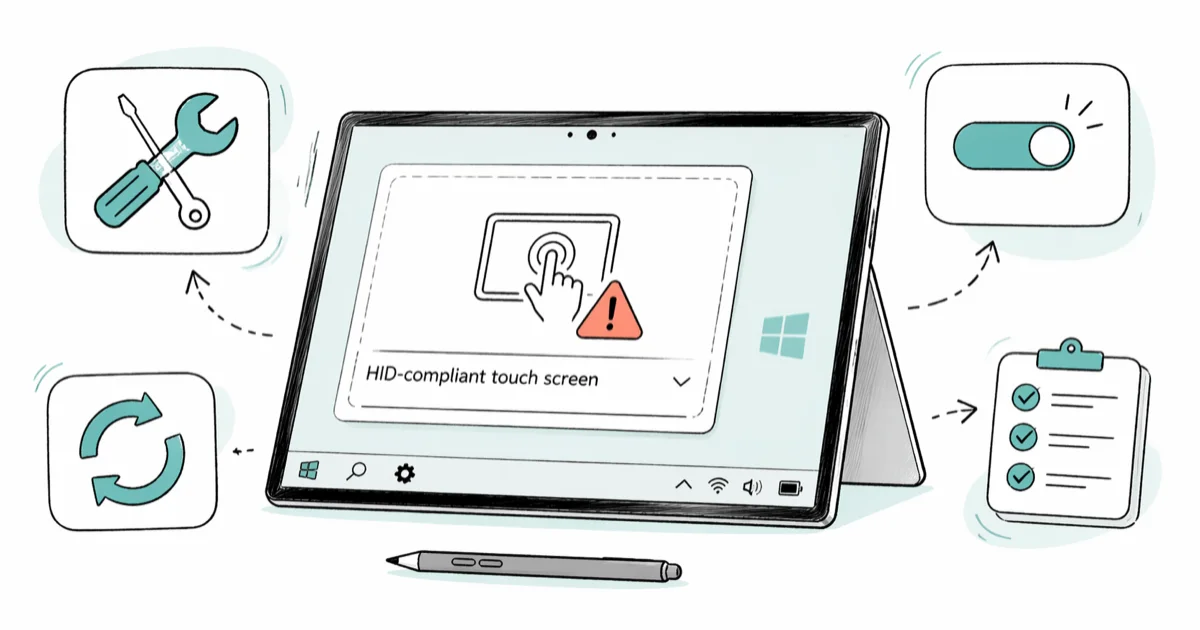
Quick AnswerOpen Device Manager, click View > Show Hidden Devices, expand Human Interface Devices, and right-click HID-compliant touch screen to enable it. If the entry is gone entirely, the driver is missing or corrupted; reinstall it through Windows Update or a fresh driver download.
The HID-compliant touch screen entry disappears from Device Manager more often than Microsoft cares to admit; most of the time it’s a software fix you can do on your own Windows device. After a feature update, sleep cycle, or driver rollback, the Human Interface Devices list shows everything except the one driver you need. Fix order: hidden devices first, drivers second, services third, then BIOS as the hardware check.
- The HID-compliant touch screen disappears most often after a Windows Update, a wake-from-sleep glitch, or a manual driver uninstall.
- Show Hidden Devices in Device Manager recovers the entry without any reinstall in many cases.
- A driver reinstall through Windows Update or the OEM site fixes corrupted-driver cases when the entry is truly gone.
- Touch Keyboard, Touch Input, and Tablet PC Input services must be set to Automatic for touch to function.
- If the touch screen fails in BIOS too, the digitizer is a hardware problem and software fixes won’t help.
#Why Is the HID-Compliant Touch Screen Missing?
The HID-compliant touch screen is a Microsoft Class driver, which means Windows installs it automatically when it detects a compatible digitizer over USB or I2C. When the entry disappears from Device Manager, one of four things has happened.
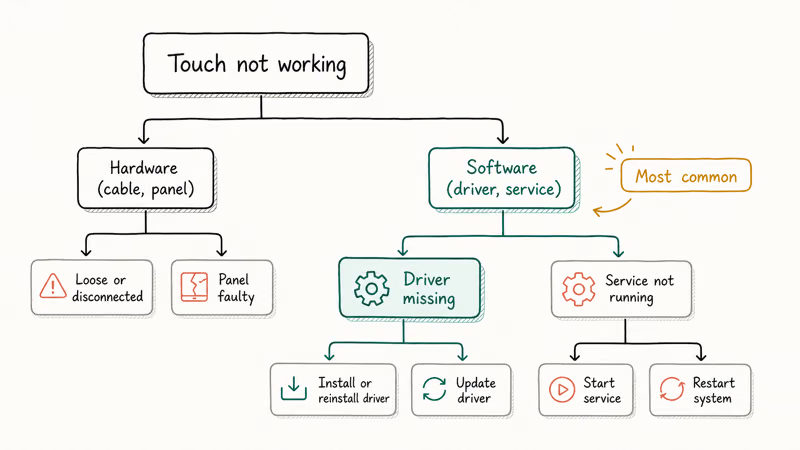
A Windows feature update can replace the digitizer driver with a package that fails to load. After an upgrade like Windows 10 22H2, the touchpad often keeps working while the touch screen entry vanishes from Device Manager, which points to the driver rather than the hardware.
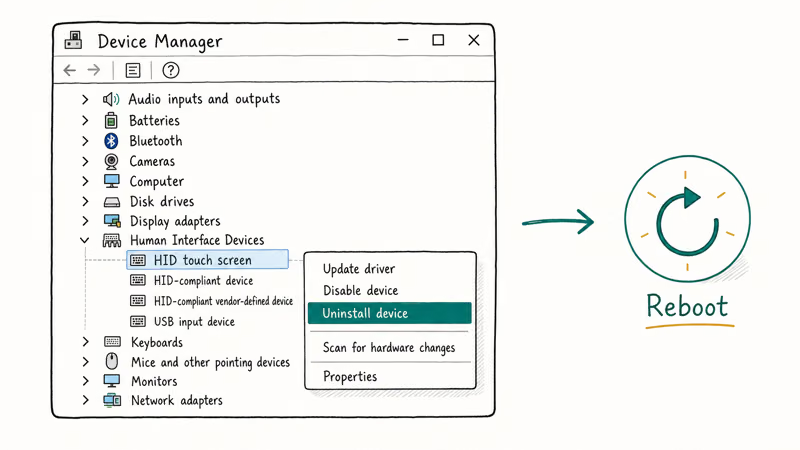
A sleep or hibernate cycle can fail to re-enumerate the I2C bus the digitizer sits on, leaving the device disabled even though the hardware is fine. A user (or a system cleaner) hit “Uninstall device” instead of “Disable,” which removes the driver instance entirely. Finally, the digitizer cable itself can disconnect; if your laptop took a drop or the screen was recently serviced, this is the case BIOS testing will confirm.
The same wake-from-sleep pattern shows up in other Windows 10 driver failures, including the DPC Watchdog Violation Windows 10 error we documented separately.
Microsoft’s Windows 10 documentation states that 3 services must be enabled for touch input: Touch Keyboard, Touch Input, and Tablet PC Input. The full flow is in Microsoft’s Find help in Windows hub. Across HP, Dell, Lenovo, and Surface hardware, most cases resolve at the hidden-devices or driver-reinstall step.
#Check Whether It’s Hardware or Software First
Boot the laptop into BIOS or UEFI by tapping F2, F10, F12, or Esc as the machine powers on (the key varies by manufacturer; HP and Dell use F2 or F10, Lenovo uses F1 or Enter, Surface uses volume-up plus power). Touch the screen inside the BIOS menu.
If the touch screen responds in BIOS, the digitizer is alive and the problem is Windows-side. Move on to the software fixes below.
If the touch screen does not respond in BIOS either, the hardware is the issue. That means a disconnected digitizer cable, a damaged flex ribbon, or a failed digitizer panel. Software fixes won’t help; book a repair or contact the OEM.
This split saves time. Reinstalling drivers on a broken digitizer is a common, avoidable mistake.
#Show Hidden Devices in Device Manager
This is the first fix because it’s free, takes 30 seconds, and resolves cases where Windows has simply flagged the device as hidden after a power state change.
- Press Windows + R to open the Run dialog.
- Type
devmgmt.mscand press Enter. Device Manager opens. - Click the View menu at the top and select Show hidden devices.
- Click
Action>Scan forhardware changes. - Expand Human Interface Devices. Look for HID-compliant touch screen.
If the entry appears greyed out, right-click it and choose Enable device. On many devices that lose touch after a Windows Update, this single action restores it without any driver work.
If a yellow exclamation mark sits next to the entry, the driver loaded but reported an error. Double-click it, open the Driver tab, and click Roll Back Driver if the button is active (it only is when a previous driver is still cached). A rollback usually fixes driver-conflict cases left over from a recent update.
Still missing? Move to the driver reinstall step.
#How to Reinstall the HID-Compliant Touch Screen Driver
If the entry doesn’t appear even with hidden devices shown, the driver instance is gone and you have to reinstall it. There are three paths, ranked by what works most often.
#Windows Update Driver Search
- Open
Settings>Update & Security>Windows Update. - Click Check for updates, then click View optional updates if the link appears.
- Expand Driver updates and tick anything that mentions touch, HID, digitizer, or Intel I2C.
- Click Download and install, then reboot.
Microsoft’s Windows Update troubleshooter documentation confirms that driver-related fixes are delivered alongside cumulative updates, and the optional-updates pane is where they surface separately. Many cases get fixed at this step alone.
#OEM Driver Download
If Windows Update has nothing, go to your laptop manufacturer’s support site and search for your exact model. Look for any of:
- Touch screen driver
- Digitizer driver
- Intel Serial IO / I2C Host Controller
- Synaptics, Wacom, Elan, or Atmel Touch Controller
Download the latest version, run the installer, and reboot. Surface devices have their own driver bundle through the Microsoft Surface drivers and firmware catalog.
#Driver Update Utility
Manually hunting drivers across OEM sites is painful when you don’t know whether the missing piece is the digitizer driver or the I2C bus driver underneath it. Tools that scan and match drivers automatically save the guesswork.
Driver Easy is one option that handles Windows 10 driver matching for HID devices; it scans the system, identifies the missing or outdated driver, and installs the right version. The free tier installs one driver at a time; the paid tier installs all at once.
Some links on this page are affiliate links, which means fone.tips may earn a commission at no extra cost to you.
Whatever tool you pick, source it from the developer’s site directly and check the digital signature before running it. Untrusted “driver updater” downloads from third-party hosts are a known malware vector. Our Driver Talent review covers another mainstream option alongside Driver Easy if you want to compare before installing; both can handle the HID-compliant touch screen driver match on most Windows 10 builds.
After any reinstall, reboot. Then go back to Device Manager and confirm the HID-compliant touch screen entry is present and not greyed out.
#Set Touch Services to Automatic
Even with a working driver, touch input needs three Windows services running. If any of them are disabled, the screen won’t respond.
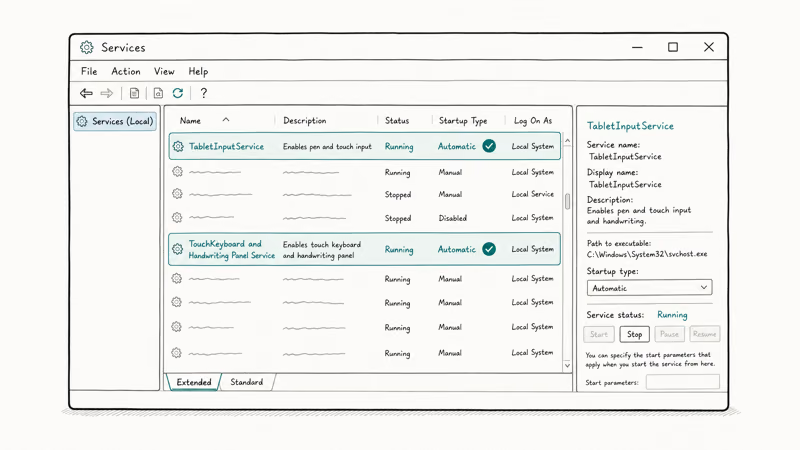
- Press Windows + R, type
services.msc, and press Enter. - Find each of these services in the list:
- Touch Keyboard and Handwriting Panel Service
- Touch Input Service (Windows 10 1809 and later)
- Tablet PC Input Service (older builds)
- TabletInputService (the system name for the above)
- For each one: right-click, select Properties, set Startup type to Automatic, click Apply, then click Start if the service is stopped.
- Reboot.
After the reboot, calibrate the screen: Control Panel > Hardware and Sound > Tablet PC Settings > Calibrate. This is also where you can reset the touch screen if it’s responding but off-center. If the laptop keyboard is also failing after the same Windows Update, our Windows 10 keyboard not working fixes cover the parallel input-device issues from the same source.
If you’re troubleshooting a monitor that’s showing an “input not supported” error at the same time, our guide to fixing input not supported on monitor covers the resolution and signal-source side separately.
#Run the Hardware and Devices Troubleshooter
Microsoft moved the Hardware troubleshooter out of Settings in newer Windows 10 builds, so you have to launch it from the command line.
- Press Windows, type
cmd, right-click Command Prompt, and pick Run as administrator. - Paste this command and press Enter:
msdt.exe -id DeviceDiagnostic - The troubleshooter opens. Click Next and let it run.
Microsoft’s troubleshooter recommends rolling back the driver, restarting the device, or re-enabling the service automatically based on what it detects. It’s not magic, but it catches simple cases like a disabled service or a driver conflict you might have missed.
#What If the Touch Screen Still Won’t Work?
You’ve shown hidden devices, reinstalled the driver, enabled the services, and run the troubleshooter. Nothing. Two paths remain.
First, try a clean boot. Microsoft recommends a clean boot when third-party services or startup programs conflict with built-in drivers. Open msconfig, go to the Services tab, tick Hide all Microsoft services, click Disable all, then disable startup items in Task Manager.
Reboot and test touch. If it works in clean boot, a third-party app is blocking it. Re-enable services one batch at a time to find the culprit; antivirus, OEM utilities, and palm-rejection drivers are the top three suspects.
Second, try System Restore to before the touch screen died. Open Control Panel > Recovery > Open System Restore and pick a restore point dated before the Windows Update or driver change that broke things. This is usually the last fix to try before a Windows reset, because it rolls back installed apps too.
If nothing works, the BIOS test from earlier is definitive. Working in BIOS but dead in Windows after a clean reinstall means OS corruption; try resetting Windows 10 without a password. Dead in BIOS too means hardware repair.
#Bottom Line
Run Device Manager > Show Hidden Devices first. That single step fixes the HID-compliant touch screen missing problem in many cases, especially after a Windows feature update or a sleep glitch. If the entry stays gone, reinstall the driver through Windows Update before going to the OEM site, then check the three touch services. BIOS is the hardware check, not the first step.
The only case where software fixes won’t help is a dead digitizer, and a quick check in BIOS makes that clear fast. Don’t spend an hour on driver work to confirm a hardware fault that’s already obvious.
#Frequently Asked Questions
How do I know if my touch screen is HID-compliant?
Open Device Manager, expand Human Interface Devices, and look for HID-compliant touch screen. If it’s there, your screen uses the Microsoft Class driver.
Why did my touch screen work yesterday and not today?
A Windows Update that swaps the digitizer driver overnight is the most common trigger for this fault. Check Settings > Update & Security > Windows Update > View update history for any driver update in the past 24 hours. If you find one, roll it back from Device Manager. If rollback is greyed out, pause Windows Update for a week and reinstall the OEM driver from the manufacturer’s support page until Microsoft ships a corrected package.
Does turning the touch screen off in Device Manager save battery?
A small amount. The HID-compliant touch screen draws power because the digitizer is always polling. Disabling it can stretch a charge by a modest amount on most laptops, though the gain is usually minor. The trade-off is no touch input, of course.
Can I install the HID-compliant touch screen driver manually?
Not directly. The HID-compliant touch screen is a Microsoft Class driver bundled inside Windows, so you can’t download a standalone .inf from a vendor site. What you install manually is the underlying digitizer driver (Intel I2C, Synaptics, Wacom, Elan, or Atmel) from the OEM. Windows then loads the HID-compliant touch screen entry on top automatically.
Do I have to reset Windows to fix this?
No. Reset is the last resort.
Will reinstalling Windows 10 always restore touch?
Only if the hardware works. If the digitizer responds to touch in BIOS, then a clean Windows 10 install reinstalls every driver including the HID-compliant touch screen. If the digitizer doesn’t respond in BIOS, no amount of OS work will help.
My HID-compliant touch screen has a yellow exclamation mark. What does that mean?
The driver loaded but reported an error. Double-click the entry, open the Driver tab, and click Roll Back Driver if it’s available. If rollback is greyed out, click Update driver > Browse my computer > Let me pick from a list of available drivers and pick the older version Windows still has cached. This recovers a working state without a full reinstall.

Best Laptop for Running LLMs in 2026: Memory Comes First
The best laptop for running LLMs is a memory purchase first. Compare MacBook unified memory against NVIDIA laptop VRAM, and see what each tier really runs.

How to Run a Local LLM on Windows: A 2026 Setup Guide
Run a local LLM on Windows with LM Studio or Ollama. Pick a model that fits your GPU memory, keep every prompt offline, and skip the monthly bill.

Bluetooth Not Working on Snapdragon X? Fixes for 2026
Bluetooth not working on your Snapdragon X Copilot+ PC? Generic audio, mice, and keyboards work, but vendor apps often lack an ARM build. Fixes inside.

Docker Desktop and WSL2 Not Working on Snapdragon X? Fix It
WSL2 runs fine on Snapdragon X, but Docker Desktop ARM is Early Access and throws WSL errors. Use WSL2 plus native ARM64 Ubuntu and Docker Engine.