Best Voice Changers for Discord: Setup Guide (2026)
Transform your Discord voice with Voicemod, Clownfish, and MorphVOX Pro. Complete setup guides for Windows and Mac with privacy considerations.
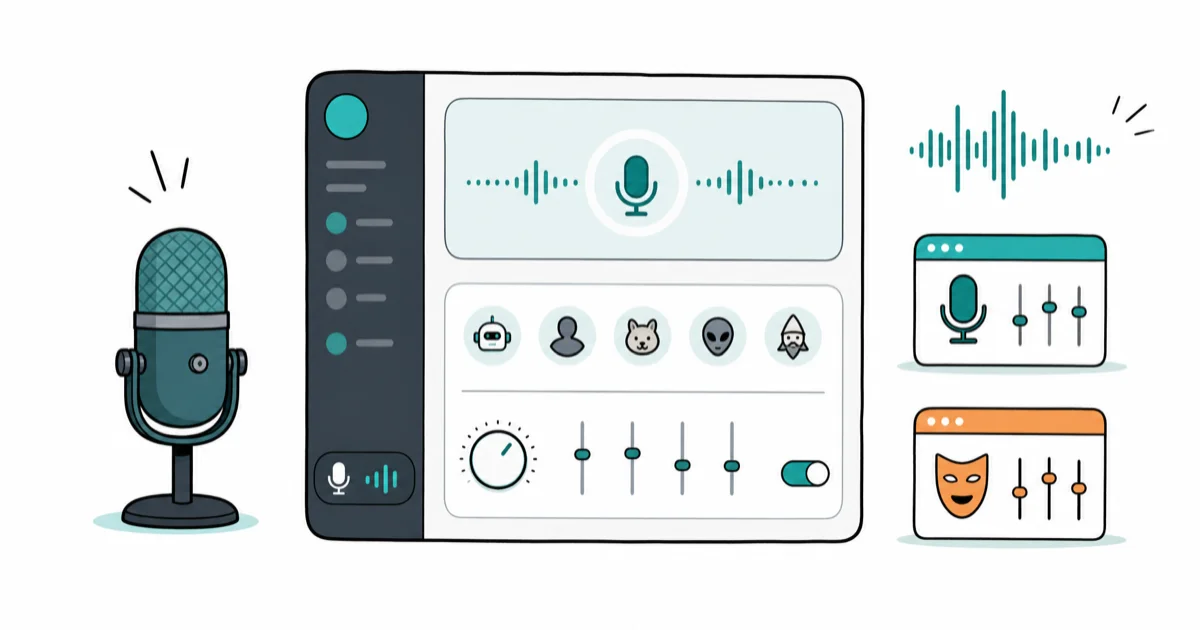
Quick AnswerVoicemod and Clownfish are the best voice changers for Discord. Install your chosen software, then go to Discord User Settings > Voice & Video and select the voice changer as your Input Device for real-time voice effects.
Voice changers transform your voice in real-time during Discord calls and gaming sessions. This guide covers six popular voice changer apps on Windows and macOS and the most reliable options for different use cases. Similar to text-to-speech features on Discord, voice modification adds creative communication options to your server interactions.
- Voicemod offers 80+ voice filters with a free tier and works on Windows 11 and macOS 14+
- Set any voice changer as your Discord input device under
User Settings>Voice & Video forinstant effects - Clownfish Voice Changer provides system-wide voice modification for free on Windows machines
- Push-to-talk mode prevents accidental voice effects during conversation gaps and background noise
- Voice changing on Discord mobile requires external recording apps since real-time modification isn’t supported
#What Are Voice Changers and Why Use Them?
Voice changers modify your voice in real-time by altering pitch, tone, or timbre through your microphone input. They work by processing audio signals and applying digital effects before sending the modified sound to your Discord channel. According to Discord’s voice-input troubleshooting guide, the first check is whether the correct microphone is selected under Voice & Video, so test the virtual input before blaming the voice changer.
Important privacy note: Only use voice changers on your own Discord account or with explicit permission from other participants. Some servers prohibit voice modification, and using these tools to deceive others about your identity may violate Discord’s Terms of Service. If you’re concerned about inappropriate voice usage, our guide on how to report someone on Discord explains the reporting process.
Common legitimate uses for voice changers include gaming roleplay and character voices, content creation for streams and podcasts, privacy protection in public servers when needed, and entertainment with friends who know you’re using effects.
Discord natively supports voice modification through its official audio input system, making it the preferred communication platform for users wanting to experiment with creative voice effects compared to the limited audio processing capabilities found in TeamSpeak and other alternatives covered in our comprehensive TeamSpeak vs Discord comparison guide.
#Official Discord Voice Features
Discord offers built-in voice features that modify audio without requiring third-party software. The platform’s official noise suppression, echo cancellation, and automatic gain control features help improve voice quality during conversations.
Discord’s Krisp-powered noise suppression technology, described on Discord’s official blog, uses AI processing to strip out background noise like keyboard clatter and fans during voice chats. While these features don’t change your voice character like third-party voice changers, they provide officially supported audio enhancement.
For basic voice modification needs, consider Discord’s built-in audio processing before installing additional software. These features maintain better compatibility and stability compared to external voice modification tools.
#How Do Voice Changers Work With Discord?
Voice changers create a virtual microphone that Discord recognizes as an audio input device. On Windows, this setup works smoothly with most applications, including Discord, Zoom, and OBS Studio.
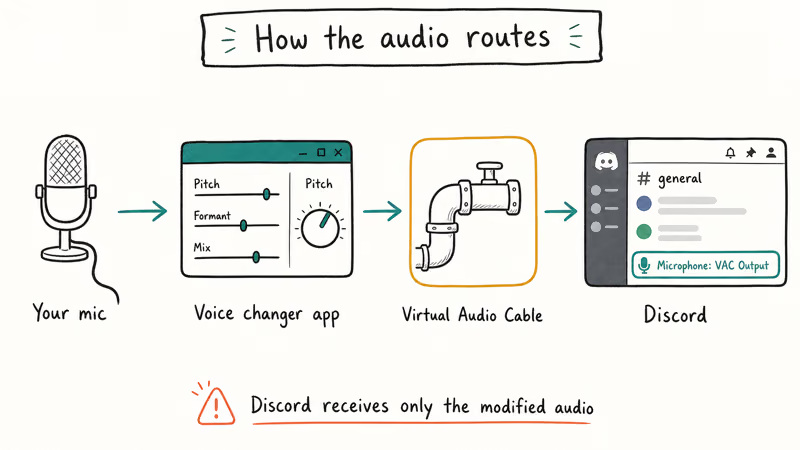
The signal flow is straightforward:
- Your microphone captures your natural voice
- Voice changer software applies real-time effects
- Modified audio gets sent through virtual audio driver
- Other users hear your transformed voice
According to Discord’s official audio device settings guide, the platform supports any Windows or Mac audio device, including virtual ones created by voice changing software. This compatibility extends to professional audio interfaces and streaming equipment as well.
#Best Free Voice Changers for Discord
#Voicemod
Voicemod is the most popular free voice changer for Discord users. On Windows, it transforms voices with 80+ different filters and holds stable audio quality across long gaming sessions.
Key Features:
- 80+ voice filters including robot, alien, and celebrity impressions
- Real-time voice changing with minimal latency
- Voicelab feature for creating custom voice effects
- Windows and macOS compatibility
Pros:
- Setup takes under 5 minutes through an intuitive interface
- High audio quality with no noticeable distortion, even during long gaming sessions
- Monthly updates add new voice packs
Cons:
- Premium voices cost $45 annually through Voicemod PRO subscription
- Free tier limits you to weekly rotating voice selections
#Clownfish Voice Changer
Clownfish provides system-wide voice modification for free. Once installed on a Windows machine, it automatically works with Discord, Skype, and Steam voice chat without additional configuration.
Key Features:
- 12 built-in voice effects (robot, alien, radio, echo)
- Background music integration
- Text-to-speech functionality with multiple voices
Pros:
- Zero cost
- Automatic compatibility with all Windows applications including Discord, Skype, Steam voice chat, and streaming software
- Tiny footprint at under 10 MB installation size
Cons:
- Just 12 voice effects compared to premium competitors offering 80+ options
- No Mac support
#MorphVOX Junior
MorphVOX Junior offers professional-quality voice changing for free. Paired with a quality microphone like a Blue Yeti, it delivers strong background noise filtering that competing free apps lack.
Key Features:
- 6 high-quality voice transformations
- Advanced background noise suppression
- Voice learning technology for better accuracy
Pros:
- Best-in-class audio processing among free alternatives
- Strong background noise filtering that removes keyboard clicks and fan noise
- Minimal system impact, typically only a few percent of CPU on a modern machine
Cons:
- Only 6 voice options unless you purchase the Pro version
- Outdated interface design compared to modern alternatives like Voicemod
#Best Paid Voice Changers for Discord
#MorphVOX Pro
MorphVOX Pro delivers professional-grade voice transformation with advanced features. According to Screaming Bee’s official specifications, it processes audio at 44.1 kHz sample rate with less than 40ms latency on systems running Windows 10 or newer.
Key Features:
- 35+ premium voice options with expansion packs
- Advanced background noise suppression
- Voice learning technology that adapts to your speaking patterns
Pros:
- Professional streaming quality that rivals studio equipment
- Deep customization options including pitch, timbre, and formant adjustments for precise voice sculpting
- Smooth integration with Discord, OBS, Streamlabs, and major streaming platforms
Cons:
- Premium pricing at $39.99
- Steep learning curve requiring several hours to master advanced features
#AV Voice Changer Software
AV Voice Changer provides comprehensive real-time voice modification tools. It delivers professional-quality output, though the learning curve is steeper than simpler alternatives.
Key Features:
- Real-time voice morphing with pitch and timbre adjustment
- Built-in voice equalizer for fine-tuning
- Supports multiple audio formats and streaming protocols
Pros:
- Studio-grade voice transformation rivaling professional audio production tools
- Comprehensive audio processing including real-time EQ, pitch correction, and formant shifting
- Massive preset collection featuring celebrity voice impressions and character templates
Cons:
- Overwhelming interface that intimidates casual users seeking simple voice effects
- Expensive at $99.95 for complete feature access
#Setting Up Voice Changers on Discord
Setting up voice changers on Discord takes about 5 minutes. The same process works on both Windows and Mac systems with only minor menu differences.
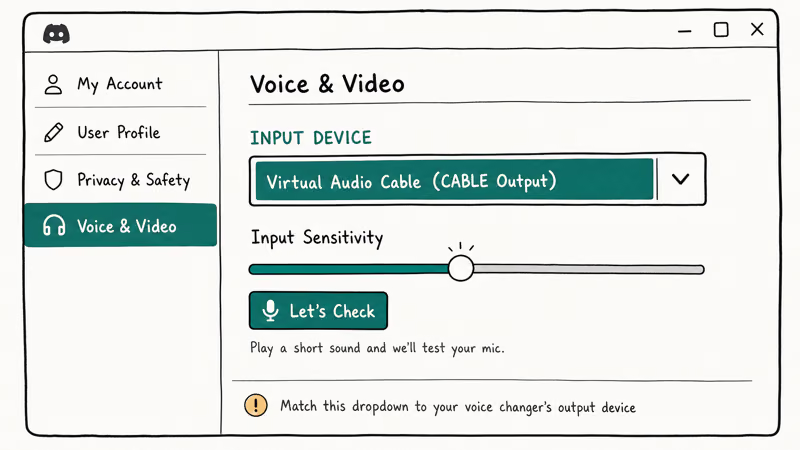
Step-by-step setup:
- Download and install your chosen voice changer software
- Open Discord and click the gear icon (User Settings) next to your username
- Go to Voice & Video in the left sidebar
- Under Input Device, select your voice changer’s virtual microphone (e.g., “Microphone (Voicemod Virtual Audio Device)”)
- Adjust the Input Volume slider until the green bar reaches about 75% when you speak
- Test your setup by joining a voice channel or using Discord’s microphone test
Configuration tips for best performance:
- Enable push-to-talk mode to prevent background noise activation
- Set up hotkeys in your voice changer for quick effect switching during conversations
- Keep Discord’s noise suppression enabled for cleaner audio output
#Voice Changers on Discord Mobile
Discord mobile doesn’t support real-time voice changing due to iOS and Android audio processing limitations. However, you can work around this with pre-recorded modified audio.
Mobile workarounds:
For Android devices, apps like Voice Changer with Effects let you record short audio clips with effects applied. For iOS, Voice Changer Plus provides similar functionality with Apple’s audio framework.
Mobile workaround process:
Record your message using a mobile voice changer app like Voice Changer with Effects or Voice Changer Plus, save the processed audio file to your device storage, then upload the modified audio clip directly into your Discord conversation as an attachment for others to hear your voice effects.
While this method works for casual fun, it’s not practical for real-time conversations or gaming sessions. For smooth Discord communication, consider our screen sharing guide when combining voice effects with visual content.
#Using Discord Voice Changers on a Chromebook
Chromebooks can’t run the Windows tools above. ChromeOS only supports Chrome web apps, Android apps from the Play Store, and Linux apps inside the Crostini container, so Windows-only installers like Clownfish and MorphVOX won’t launch even with Linux enabled. That misconception costs people an hour of setup before the installer simply fails.
Two routes work on a stock Chromebook. The Voicemod web app runs inside Chrome and applies effects to any tab with microphone access, though in-browser pitch shifting adds noticeable lag compared to a native client. The Voice Changer with Effects Android app covers prerecorded clips you upload into a channel as attachments.
Skip Crostini for this. Google’s Linux on Chromebook help page lists a 2019-or-newer Chromebook and 7.5 GB of free disk space as requirements, and the container only runs Linux builds, never Windows binaries.
The most stable Chromebook path is hardware. A USB voice changer plugs into the USB-C port and ChromeOS treats it as a regular default microphone, so Discord captures it with no software install at all.
Whichever route you pick, launch the voice changer before Discord. The client reads the system default mic at the start of each session.
#Voice Changers for Fortnite and In-Game Chat
The same virtual microphone that feeds Discord also covers in-game voice chat. Set the virtual mic as the input device in both apps, with Fortnite Settings > Audio handling the game side. One catch: Discord’s Krisp noise suppression filters out the very effects a voice changer adds, so disable Krisp under Voice Settings when running both at once.
Bans aren’t a real risk here. According to Epic Games’ Fortnite Community Rules, the rules target harassment, hate speech, and cheating rather than voice-modification tools. A well-configured voice changer adds little enough latency to stay under Fortnite’s proximity-chat threshold, and effects carry through the proximity radius in Battle Royale, Zero Build, and Reload modes.
Console players need hardware instead. Voicemod and Clownfish are PC-only, so they won’t help on PlayStation, Xbox, or Switch.
If your in-game audio breaks, our Fortnite voice chat not working guide covers the usual settings, and the best free voice changer roundup compares these tools beyond Discord.
#Voice Changer Privacy and Legal Considerations
Using voice changers responsibly protects both you and others in Discord communities. Most voice modification falls under fair use for personal entertainment, but certain applications raise legal and ethical concerns.
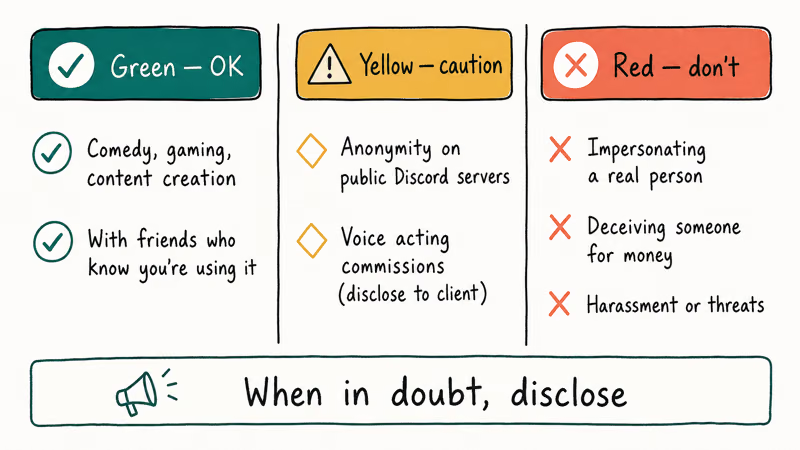
Acceptable uses:
- Gaming roleplay with friends who know you’re using effects
- Content creation where voice modification is part of the entertainment
- Privacy protection in public servers when disclosed appropriately
Prohibited voice modification practices:
Impersonating specific individuals to deceive others about your identity, attempting to bypass server bans by disguising your voice to avoid detection by moderators, or harassing other users through disturbing or threatening voice modifications that create hostile environments are all violations of Discord’s Terms of Service and community guidelines.
According to Discord’s Community Guidelines, users must not “impersonate others in a misleading or deceptive manner.” The guidelines specifically state that users can’t “falsify your identity or your affiliation.” Most Discord ToS issues related to voice changers come down to identity impersonation rather than the voice effects themselves. Always inform other participants when using voice effects that significantly alter your voice identity.
If you’re managing a Discord community, understanding how to add roles in Discord helps establish clear server rules about voice modification policies.
#Troubleshooting Common Voice Changer Issues
Problem: Discord doesn’t recognize the voice changer
- Solution: Restart Discord after installing voice changer software. The virtual audio driver needs to register with the system before Discord can detect it.
Problem: Voice sounds robotic or distorted
- Solution: Lower the input volume in Discord to 50-60% and increase your microphone gain in the voice changer settings instead.
Problem: Other users can’t hear voice effects
- Solution: Check that you’ve selected the voice changer’s virtual microphone, not your physical microphone, as Discord’s input device.
Problem: Voice changer causes audio lag
- Solution: Close unnecessary programs to free up CPU resources. Voice processing requires about 10-15% CPU on modern systems.
For Discord-specific troubleshooting, our guide on Discord stream audio problems covers additional solutions when voice or audio isn’t working properly.
#Bottom Line
Start with Voicemod’s free tier if you want immediate voice changing on Discord. It works reliably on both Windows and Mac, offers enough voice effects for most users, and takes under 5 minutes to set up. For Windows users wanting a completely free solution, Clownfish Voice Changer works system-wide with all applications. If you need professional-quality voice modification for streaming or content creation, upgrade to MorphVOX Pro for its superior audio processing and customization options.
#Frequently Asked Questions
Is Voicemod completely free?
Voicemod offers a free tier with rotating voice effects that change weekly. The premium version costs $45 annually and unlocks all 80+ voices plus exclusive seasonal effects.
Are voice changers safe for Discord?
Yes, reputable voice changers like Voicemod and Clownfish are safe for Discord use. They don’t modify Discord’s files or access your account information. However, download voice changers only from official websites to avoid malware risks.
What’s the best free voice changer for Discord gaming?
Voicemod provides the best balance of voice quality and ease of use for gaming. It holds stable performance through long gaming sessions without audio dropouts or CPU spikes.
Can voice changers get you banned from Discord?
Voice changers themselves won’t get you banned, but using them to impersonate others, bypass server bans, or harass users violates Discord’s Terms of Service. Use voice effects responsibly and inform others when appropriate.
Why isn’t my voice changer working on Discord mobile?
Discord mobile doesn’t support real-time voice modification due to mobile operating system limitations. You’ll need to use desktop Discord for live voice effects during calls.
How do I switch between voice effects quickly during Discord calls?
Set up hotkeys in your voice changer software for instant effect switching. Voicemod allows custom keybinds for each voice, while MorphVOX Pro supports function key shortcuts for rapid changes during gameplay.
Do voice changers work with Discord video calls?
Yes, voice changers modify your audio input regardless of whether you’re in voice-only or video calls. The voice effects apply to any Discord communication that uses your microphone.
Which voice changer has the most realistic effects?
MorphVOX Pro produces the most realistic voice transformations due to its advanced voice learning technology and professional-grade audio processing. However, “realistic” depends on the specific effect you’re trying to achieve.

Google Messages Error 3100: Why RCS Is Broken on Galaxy
Google Messages RCS error 3100 hits Galaxy owners after phone or carrier switches. Google told 9to5Google a fix is coming. Here's what actually helps.

Is This Bank App Real? Spot a Fake App on Your Home Screen
A bank app can land on your home screen from a web page with no install warning. Learn the checks that tell a real banking app from a phishing web app.

Apps Crashing After iOS 27 Update? Fix Order (2026)
Apps crashing after the iOS 27 update? Update the app in the App Store first, then offload and reinstall to clear stale cache, then restart. The fix order.

Do AI Translation Earbuds Work Offline? What to Know
Do AI translation earbuds work offline? A few do with downloaded language packs, but most need the cloud. Here's what works offline and what you give up.