Text-to-Speech on Discord: How to Use TTS in 2026 Guide
Learn how to use text-to-speech on Discord in 2026. Full guide to /tts commands, notification settings, and disabling TTS on desktop and mobile.
Quick AnswerType /tts before any message in a Discord channel where you have permission, and Discord reads your message aloud using your operating system voice. Toggle it under User Settings, Notifications, then Text-to-Speech Notifications.
Text-to-speech on Discord turns any message you type into an audible voice for everyone listening in a channel. The feature sits behind the /tts slash command and a pair of permission toggles, which trips up most people the first time they try it. The checks below cover the command, user notification settings, and server permissions on desktop and mobile.
- Type
/tts your messagein any text channel where Send TTS Messages is allowed, and Discord reads it aloud - TTS uses your operating system’s default voice, so the same message sounds different on macOS, Windows, and mobile
- Server admins control who can trigger TTS through the Send TTS Messages permission in role settings
- Three notification modes exist: For All Channels, For Current Selected Channel, and Never
- Disabling Allow playback and usage of /tts command silences TTS for your account without affecting the server
#How Does Text-to-Speech Work on Discord?
Discord’s text-to-speech feature converts any message prefixed with /tts into spoken audio that plays through every listener’s speakers in the same channel. The voice itself comes from your operating system, not Discord’s servers.
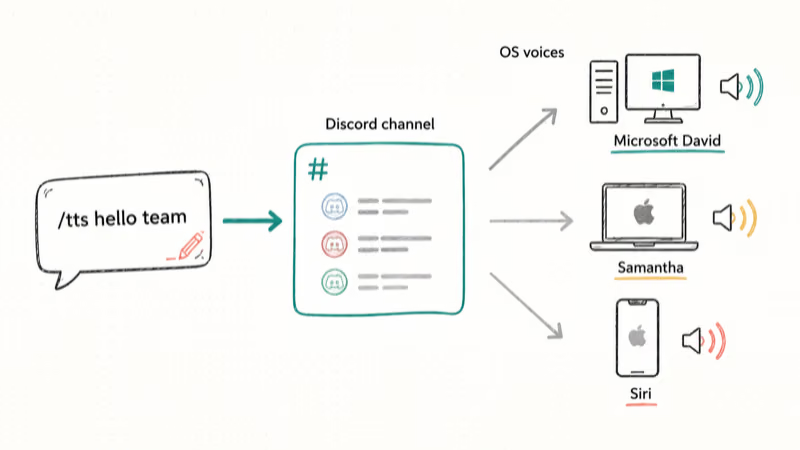
According to Discord’s official help center, the platform passes the text payload to your local TTS engine. A message sent from a Windows PC plays through Microsoft’s David voice, while the same message on macOS plays through Samantha or whatever you set under System Settings. That platform-specific behavior matters because a server full of Windows users hears something different from a server full of Mac users.
A /tts hello team message uses the operating system’s selected voice: Microsoft’s David on Windows, Samantha or the configured voice on macOS, and the selected Siri voice on iOS. That routing is OS-driven, not account-driven.
The feature was originally built with accessibility in mind. Discord recommends using TTS notifications for users who can’t easily watch chat scroll, and the company’s broader accessibility commitments fall in line with W3C’s Web Content Accessibility Guidelines on auditory alternatives.
#How to Enable Text-to-Speech on Discord
You don’t need to enable anything to use the /tts slash command itself. What you do need to enable is the toggle that lets your account hear inbound TTS messages and the toggle that lets you broadcast them.
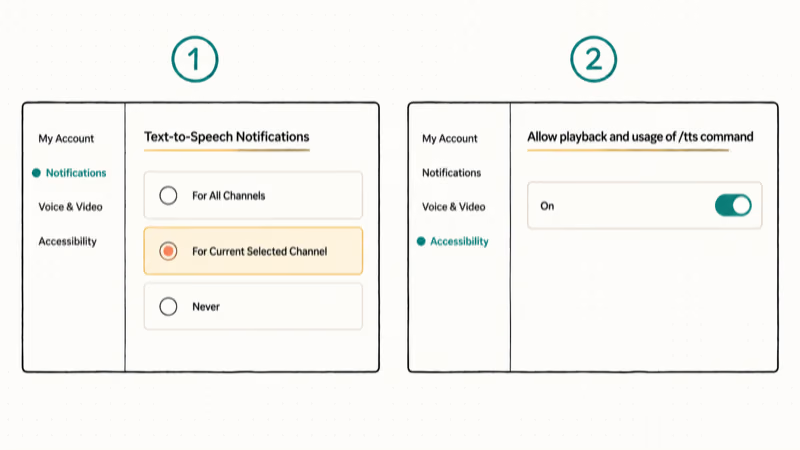
Here’s the path on Discord desktop:
- Click the gear icon next to your username in the bottom-left to open User Settings
- In the left sidebar, scroll to App Settings and click Notifications
- Find the Text-to-Speech Notifications section
- Pick one of three modes (covered below)
- Go back to the left sidebar and click Accessibility
- Scroll to Allow playback and usage of /tts command and turn it on
The Accessibility tab is where Discord moved the playback toggle in late 2023. Older guides still point to the deprecated Text & Images tab, so if you can’t find the toggle there, you’re reading an outdated walkthrough.
For mobile, the path is shorter. Open Discord, tap your avatar in the bottom-right, scroll to App Settings, tap Accessibility, and toggle Allow Playback and Usage of /tts Command. Notification preferences sit under Notifications in the same menu.
#What Each TTS Notification Mode Does
| Mode | What It Does | Best For |
|---|---|---|
| For All Channels | Reads every message aloud in every server | Visually impaired users |
| For Current Selected Channel | Reads only messages in whatever channel is open | Multitaskers |
| Never | Silences all TTS, including /tts commands | Most users by default |
For All Channels can make a busy server read messages aloud back to back. Most people pick Never or Current Selected Channel for this reason. If you also use Discord text formatting heavily, our Discord text formatting guide covers how bold, italics, and code blocks behave when read by TTS.
#How to Use the /tts Command on Desktop and Mobile
The /tts slash command runs the same way on every platform. Type /tts followed by a space, then your message, then Enter. Discord broadcasts the audio to anyone in the channel who has TTS playback enabled.
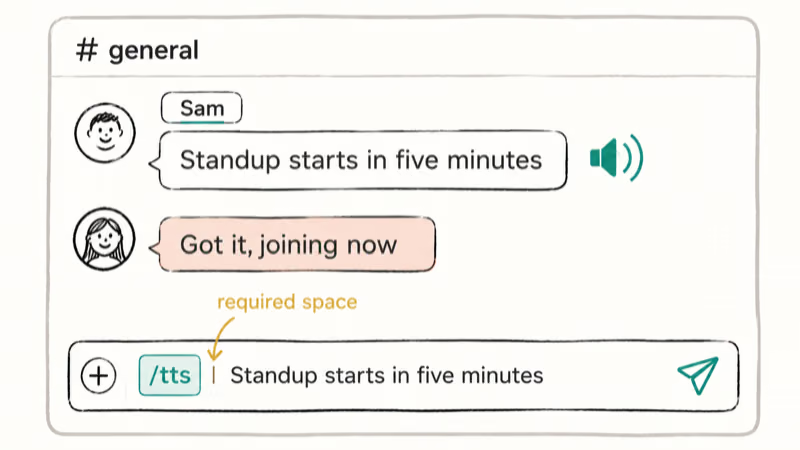
A working example looks like this:
/tts Standup starts in five minutesA few rules that catch people:
- Quotation marks aren’t needed and will be read aloud literally
- The first space after
/ttsis required, otherwise Discord treats the input as plain text starting with a slash - Server admins can revoke the Send TTS Messages permission for your role, in which case the message posts as normal text without audio
- Bots can’t send TTS messages on most servers because Discord disabled that capability after raid abuse in 2017-2018
Direct messages support TTS the same way as text channels. On mobile, TTS may only render when the conversation is in focus, so a DM can stay silent until the recipient opens it.
If you also use Discord for game audio, our Discord overlay not working guide covers a related issue where TTS plays but no overlay appears in-game.
#Why Isn’t /tts Working on Your Discord Server?
Six things commonly block TTS on Discord, and the fix depends on which one is hitting you.
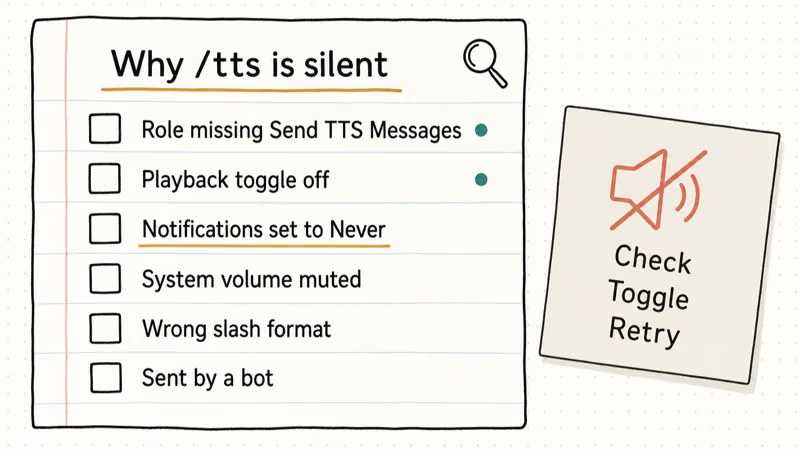
- Server-level permission denied. The role assigned to your account doesn’t have Send TTS Messages enabled. Ask the server admin to check
Server Settings>Roles> [your role] > Text Channel Permissions. - Account playback disabled. The recipient has Allow playback and usage of /tts command turned off under their Accessibility tab.
- Notification mode set to Never. The recipient picked Never under Text-to-Speech Notifications, so even valid
/ttsmessages stay silent. - System volume muted. Discord routes TTS audio through the operating system mixer, so a muted system silences TTS even when Discord’s own slider is up.
- Wrong slash format. Typing
ttswithout the leading slash, or putting a space before/tts, both fail. - Bot-sent message. Most servers block bots from issuing TTS commands, which is why your custom welcome bot’s TTS-formatted messages stay silent.
Many servers block TTS for @everyone by default. Re-enabling Send TTS Messages on the affected role fixes it without restarting Discord. If TTS works for some channels but not others, check that channel’s permission overwrite. A muted text channel never plays TTS even if the parent server allows it.
For a deeper troubleshooting playbook on the Discord client itself, our Discord not opening guide walks through cache, voice region, and reinstall steps.
#How to Disable Text-to-Speech on Discord
Three layers of disable exist. Pick the one that matches how aggressive you want to be.
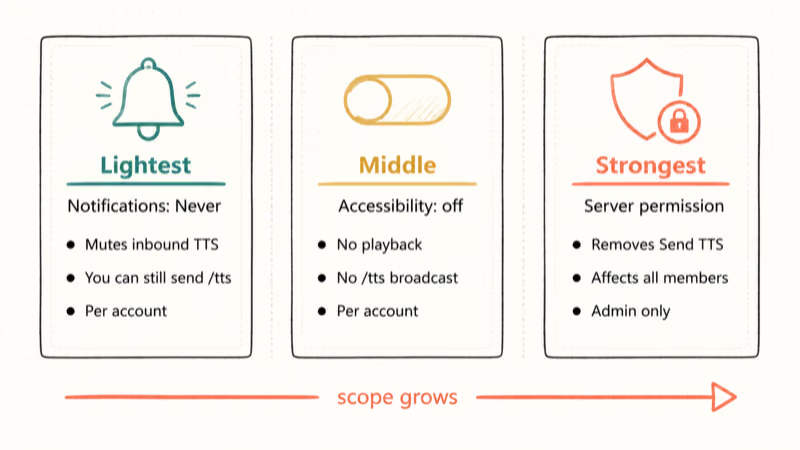
Lightest option: set Text-to-Speech Notifications to Never under User Settings > Notifications. This silences TTS playback for your account but doesn’t stop other people from sending /tts messages around you. The /tts slash command itself still works, so you can still broadcast TTS even though you can’t hear inbound TTS yourself, which is useful for moderators who want to message visually impaired members without keeping their own playback on all day.
Middle option: turn off Allow playback and usage of /tts command under Accessibility. Your account won’t play TTS audio and can’t broadcast /tts either.
Strongest option is server-side. Admins can open Server Settings > Roles > @everyone > Text Channel Permissions and disable Send TTS Messages. That removes TTS from the entire server for everyone in that role.
According to Microsoft’s Windows accessibility documentation, the system narrator and TTS engine settings sit under Accessibility in Windows Settings, separate from any per-app override. Discord inherits whatever voice you’ve selected at the OS level, which is why two Windows machines on the same Discord call can sound completely different. If you want consistency across a moderation team, agree on one voice and have everyone match their Windows speech settings before recording session announcements.
To clean up old TTS spam, see our how to clear Discord chat guide.
#Discord TTS vs Other Voice Features
Discord’s TTS is one of three voice-related features the platform offers, and people often confuse them.
- Text-to-speech (TTS): Reads typed messages aloud. Local OS voice. Triggered by
/tts. - Voice channels: Real-time microphone audio. Different system entirely.
- Stage channels: One-to-many voice broadcasts for events. Built on the voice channel infrastructure.
If you want to change how your microphone sounds in voice channels, that’s a separate workflow covered in our voice changer for Discord guide. TTS doesn’t interact with voice channels at all. A /tts message posted in a text channel won’t play through a voice channel even if both are open.
For users comparing Discord against other voice-first platforms, our TeamSpeak vs Discord breakdown covers the trade-offs in detail.
#Bottom Line
Use /tts your message in any allowed channel, set notifications to Never if you find playback annoying, and turn off Allow playback and usage of /tts command under Accessibility for the cleanest opt-out. If TTS goes silent after a Discord update, check the playback toggle first. It’s the single most common reason people think the feature broke.
For server admins, revoking Send TTS Messages from @everyone is the fastest way to disable TTS for an entire community without forcing every member to change their personal settings.
#Frequently Asked Questions
Can you use text-to-speech on the Discord mobile app?
Yes. Both iOS and Android apps support /tts and the playback toggle under your avatar > App Settings > Accessibility.
Why does my friend hear a different voice than me on /tts?
Discord uses your operating system’s default voice, not a Discord-hosted one. A Windows user hears Microsoft David or Zira by default, while a macOS user hears Samantha and an iPhone user hears the selected Siri voice. Even two MacBooks side by side can read the same /tts differently if their owners picked different defaults under Spoken Content. Change your system TTS voice in OS settings, not Discord.
Can bots send /tts messages on Discord?
Most servers block this entirely.
Does Discord TTS work in DMs and group chats?
Yes for both, with the same /tts syntax. Group DMs respect each recipient’s playback toggle, so if any participant has TTS disabled they’ll see the message as plain text. There’s no per-conversation TTS toggle, only the global account-level one.
Can I change the TTS voice within Discord itself?
No. Discord has no built-in voice picker. The voice is whatever your operating system uses for system TTS, so you change it in your OS settings (Windows: Settings > Time & Language > Speech; macOS or iOS: Accessibility > Spoken Content).
Why does /tts read special characters and emoji literally?
Discord forwards the raw text to your OS TTS engine, which has its own rules for special characters. On Windows the engine often reads :smile: as “colon smile colon”, while macOS Samantha tends to skip emoji shortcodes entirely. Server custom emoji are stored as long ID strings, so /tts <:partyparrot:123456> will read those numbers aloud.
Is there a length limit on /tts messages?
The general Discord message limit of 2,000 characters applies. Realistically, anything over 200 characters annoys everyone in the channel.
How do I report someone abusing /tts spam?
Use Discord’s Trust & Safety reporting flow built into the app. Right-click the offending message, select Report, and pick the harassment or spam category. A server admin can also revoke the Send TTS Messages permission for that user’s role as an immediate stopgap.

Google Messages Error 3100: Why RCS Is Broken on Galaxy
Google Messages RCS error 3100 hits Galaxy owners after phone or carrier switches. Google told 9to5Google a fix is coming. Here's what actually helps.

Is This Bank App Real? Spot a Fake App on Your Home Screen
A bank app can land on your home screen from a web page with no install warning. Learn the checks that tell a real banking app from a phishing web app.

Apps Crashing After iOS 27 Update? Fix Order (2026)
Apps crashing after the iOS 27 update? Update the app in the App Store first, then offload and reinstall to clear stale cache, then restart. The fix order.

Do AI Translation Earbuds Work Offline? What to Know
Do AI translation earbuds work offline? A few do with downloaded language packs, but most need the cloud. Here's what works offline and what you give up.