Csrss.exe Trojan: Identification, Removal, and Prevention
Learn how to identify a fake csrss.exe Trojan, remove it with Malwarebytes and Rkill, and prevent reinfection. Includes step-by-step removal instructions.
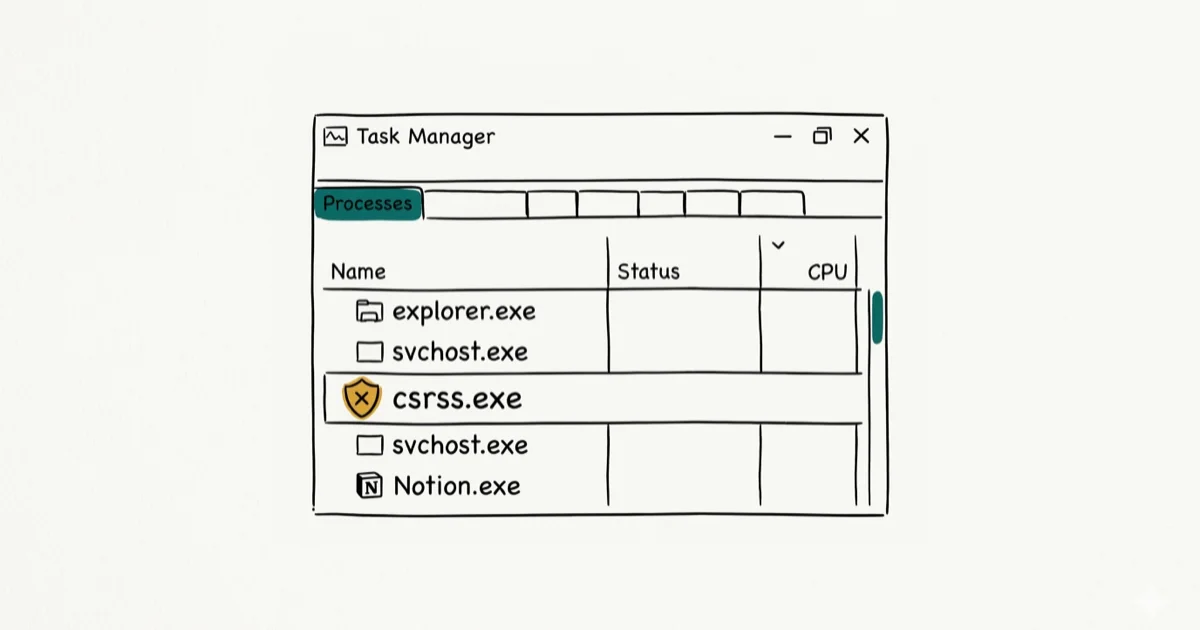
Quick AnswerThe real csrss.exe is a legitimate Windows system process located in C:\Windows\System32. If it's running from any other folder, that's malware. Run Rkill to stop the fake process, then scan with Malwarebytes to remove it completely.
The csrss.exe file on your Windows PC is almost certainly legitimate. But malware authors know users rarely check where system files live, so a fake csrss.exe Trojan placed outside of System32 can hide on your computer. The quickest first check is the file location in Task Manager. Using these methods on devices or accounts you don’t own may violate applicable laws and platform terms.
- The real csrss.exe always lives in C:\Windows\System32 and is digitally signed by Microsoft Corporation.
- A fake csrss.exe running from any other folder is malware and should be treated as an active infection immediately.
- Running Rkill terminates malicious processes so your antivirus can actually reach and remove the threat.
- Malwarebytes detects csrss.exe Trojans that Windows Defender sometimes misses because it specializes in behavioral detection.
- Trojan programs that mimic legitimate system processes are among the most common threat categories tracked by Microsoft’s security intelligence.
#What Is Csrss.exe and Is It Safe?
Csrss.exe stands for Client Server Runtime Subsystem. It’s a core Windows process that manages graphical instructions and handles the creation and deletion of threads. Windows needs it running at all times.
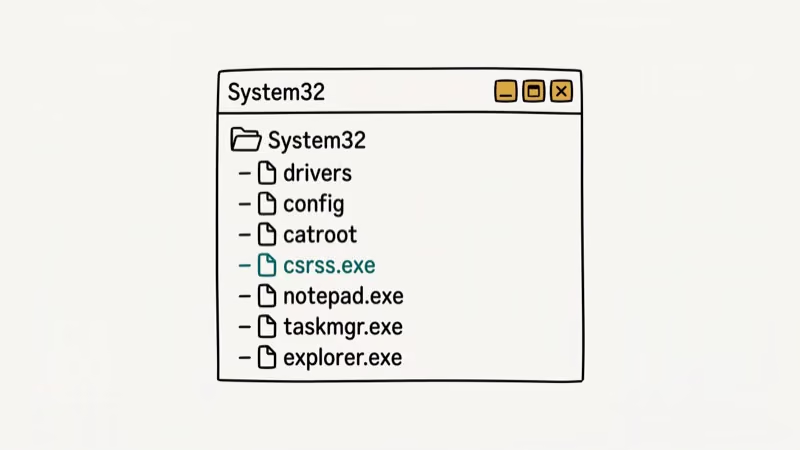
The genuine file lives in one of these two locations:
C:\Windows\System32\(for 64-bit systems)C:\Windows\SysWOW64\(for 32-bit processes on 64-bit systems)
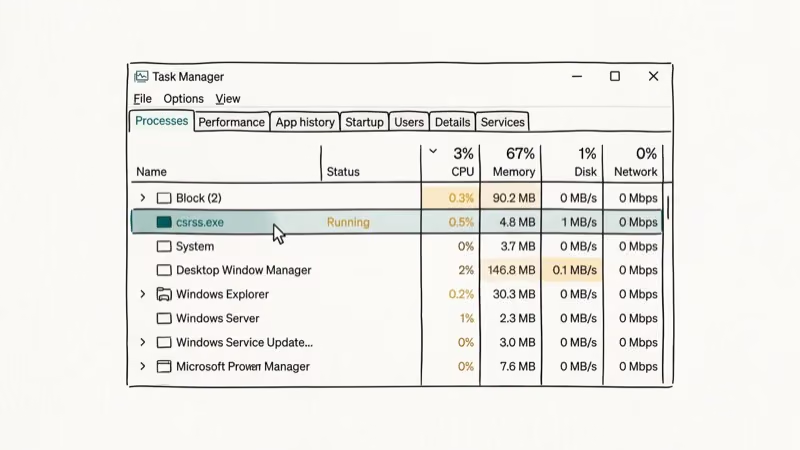
Multiple instances of csrss.exe running simultaneously in Task Manager is normal. Each instance represents a different user session or system function. Seeing two or three of them is expected behavior.
#How Do You Tell If Csrss.exe Is a Virus?
The location check is the fastest and most reliable method.
Open Task Manager with Ctrl + Shift + Esc, locate csrss.exe in the Processes tab, right-click it, and select Open file location. If the folder is C:\Windows\System32, you’re looking at the real file. Any other path means suspicious activity; scan immediately.
For a second confirmation, right-click csrss.exe in System32, choose Properties, and go to the Digital Signatures tab. The signer should read Microsoft Windows. According to Microsoft’s security guidance on process verification, legitimate system processes are always digitally signed by Microsoft Corporation.
If the location or signature is suspicious, don’t delete it manually. Use the removal steps below.
Related: CTF Loader covers file-location checks.
Related: Our guide on Conhost.exe walks through the same verify-then-scan workflow for another commonly mimicked Windows host process.
#Warning Signs of Csrss.exe Trojan Infection
Check file location before scanning.
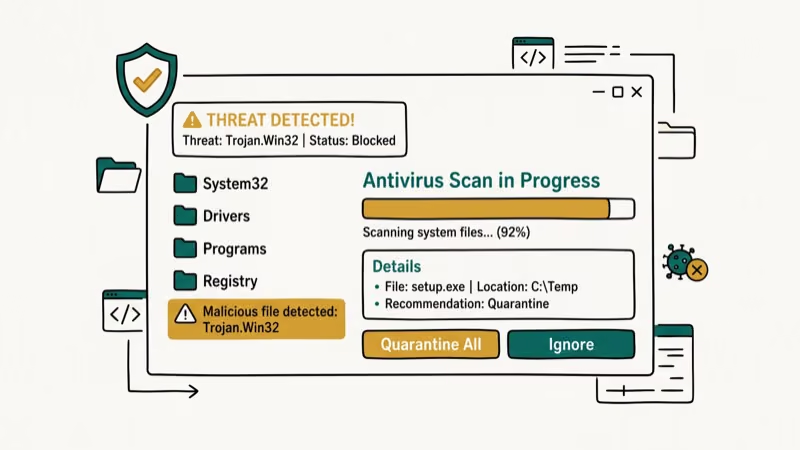
System slowdowns and frequent crashes. The fake process consumes CPU or memory in ways the real csrss.exe never does. Unusual network activity shows up as unexpected outbound connections since Trojans phone home to command servers. Disabled security settings are another red flag; some Trojans block Windows Defender updates as part of their persistence mechanism.
You might also notice unknown programs appearing (Trojans frequently drop secondary payloads like keyloggers) or redirected web searches caused by browser hijacking components bundled with the Trojan.
According to Wikipedia’s entry on Trojan malware, these infections typically arrive through phishing emails, fake software downloads, or bundled installers from unofficial sources.
#How to Remove the Csrss.exe Trojan
Run Rkill first so malware can’t interrupt the scanner.
#Step 1: Download and Run Rkill
Rkill from BleepingComputer terminates known malicious processes without deleting anything. This leaves the Trojan’s files on disk but stops it from interfering with your scanner. Double-click the downloaded file and wait for it to complete. A log file confirms which processes it stopped.
#Step 2: Uninstall Suspicious Programs
Before scanning, remove any recently installed or unfamiliar applications via Settings > Apps. Sort by install date and look for anything added around the time symptoms started. Trojans sometimes arrive bundled with cracked software or fake browser updates.
#Step 3: Run Malwarebytes
Malwarebytes detects Trojans and unwanted programs. Run a full scan and quarantine findings.
#Step 4: Run HitmanPro
HitmanPro catches rootkits and advanced threats through cloud scanning. Use the trial for one-time cleanup.
#Step 5: Run System File Checker
After removing the malware, some system files may be damaged. Open Command Prompt as administrator and run sfc /scannow. This repairs any files the Trojan corrupted, including the real csrss.exe if it was tampered with.
#Step 6: Verify Csrss.exe Is Clean
After completing all scans, open Task Manager again and check the file location for every csrss.exe process. Every instance should trace back to C:\Windows\System32. If you still find one outside that folder, run a final scan with ESET Online Scanner.
#Common Scams Involving Csrss.exe
Scammers also use csrss.exe as a fear tactic in tech-support scams. They pose as Microsoft representatives and claim the csrss.exe on your computer is infected, trying to convince you to grant them remote access or buy fake antivirus software. Legitimate tech companies never make unsolicited calls about specific processes on your computer.
If you get a call like this, hang up. Run your own scan to confirm your system is clean.
#Preventing Future Infections
Keeping a fake csrss.exe off your system comes down to a few consistent habits.
Keep Windows and software updated. Most Trojans exploit known vulnerabilities that patches already fix. According to PCMag’s security guide, running outdated software is the single biggest factor in successful malware infections, and security researchers consistently found that patching known vulnerabilities is the most effective preventive step.
Use reputable antivirus software with real-time protection. Windows Defender is adequate for most users, but pairing it with a dedicated anti-malware tool adds a second layer.
Practice safe browsing. Avoid clicking links in unexpected emails and don’t download software from sites you haven’t used before.
Regular backups. Backups let you restore damaged system files.
For additional system maintenance, check our guides on atibtmon.exe runtime error and how to safely manage Google Drive Sync.
If post-removal stability problems persist, our walk-through of the Critical_Process_Died BSOD covers recovery steps for the boot-time crashes that malware-corrupted system processes can trigger.
#Bottom Line
The fastest csrss.exe Trojan check is a right-click location test in Task Manager because the malware hides behind a legitimate Windows process name. If the path is anything other than C:\Windows\System32, treat it as an infection. Use Rkill to stop the process, Malwarebytes for removal, and run SFC afterward to repair any damaged system files. Prevention is straightforward: keep software updated and download only from trusted sources.
#Frequently Asked Questions
Can I delete csrss.exe to remove the Trojan?
Never delete csrss.exe manually. If you delete the real file by mistake, Windows won’t boot. Use an antivirus scanner that can target only the malicious copy based on its file path and digital signature.
Is it normal to have multiple csrss.exe processes?
Yes. Windows typically runs 2 to 3 csrss.exe processes simultaneously. Each represents a separate session (system session and user session). This is completely normal behavior.
Will Malwarebytes find csrss.exe Trojans for free?
The free version of Malwarebytes scans and removes threats but doesn’t include real-time protection. For a one-time cleanup, the free tier is sufficient. For ongoing protection, consider the premium version.
Can the csrss.exe Trojan steal passwords?
Some variants do. Trojans disguised as system processes often include keylogger components that record keystrokes and send them to remote servers. Run a full scan immediately if you suspect infection and change important passwords afterward from a different device.
How did the Trojan get on my computer?
Most commonly through phishing email attachments, fake software downloads, or bundled installers from unofficial sources. Torrented software and cracked applications are especially high-risk delivery methods.
What should I do after removing the Trojan?
Run Windows File Checker (sfc /scannow) to repair any damaged system files, change important account passwords, and check your bank accounts for unusual activity if the infection was on a computer used for financial transactions.

Best Laptop for Running LLMs in 2026: Memory Comes First
The best laptop for running LLMs is a memory purchase first. Compare MacBook unified memory against NVIDIA laptop VRAM, and see what each tier really runs.

How to Run a Local LLM on Windows: A 2026 Setup Guide
Run a local LLM on Windows with LM Studio or Ollama. Pick a model that fits your GPU memory, keep every prompt offline, and skip the monthly bill.

Bluetooth Not Working on Snapdragon X? Fixes for 2026
Bluetooth not working on your Snapdragon X Copilot+ PC? Generic audio, mice, and keyboards work, but vendor apps often lack an ARM build. Fixes inside.

Docker Desktop and WSL2 Not Working on Snapdragon X? Fix It
WSL2 runs fine on Snapdragon X, but Docker Desktop ARM is Early Access and throws WSL errors. Use WSL2 plus native ARM64 Ubuntu and Docker Engine.