Conhost.exe: What It Is and How to Tell If It Is a Virus
Conhost.exe is a legitimate Windows system process, but malware impersonates it. Learn how to check if yours is safe and remove it if it isn't.
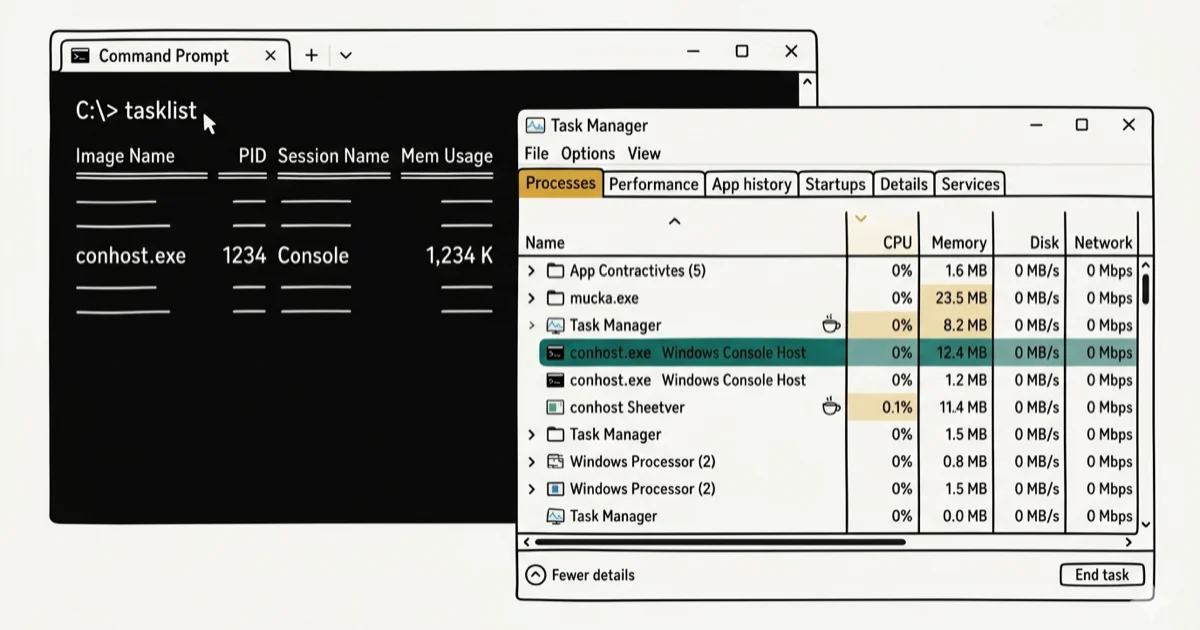
Quick AnswerConhost.exe (Console Window Host) is a legitimate Windows system file located in C:\Windows\System32. It's safe unless it runs from a different folder, uses excessive RAM (over 10 MB at idle), or has a misspelled name like c0nhost.exe. If any of those are true, run a full antivirus scan immediately.
Conhost.exe appears in Task Manager on nearly every Windows computer, and most people have no idea what it does. It’s safe in most cases, but malware frequently disguises itself using this exact filename. Here’s how to tell which one you have.
- Conhost.exe stands for Console Window Host and is a legitimate Microsoft system process that bridges command-line apps with Windows’ graphical interface.
- The genuine conhost.exe always runs from C:\Windows\System32, and any other location is a red flag for malware.
- Normal CPU and RAM usage for conhost.exe is under 1% CPU and under 10 MB RAM; consistently higher usage warrants investigation.
- Malware often disguises itself as conhost.exe using misspellings like c0nhost.exe, conhot.exe, or by running from temp folders.
- Running a full scan with Windows Defender or Malwarebytes resolves most malicious conhost.exe cases without needing manual file deletion.
#What Is Conhost.exe?
Conhost.exe (short for Console Window Host) is a core Windows process introduced in Windows 7. It replaced the older csrss.exe approach and acts as a bridge between command-line applications like CMD or PowerShell and Windows’ graphical shell. Microsoft’s Windows documentation states that conhost.exe runs as a child process of any console application and handles all visual output for that window. The Wikipedia article on Windows Console confirms that the host was redesigned in Windows 7 to fix security vulnerabilities present in the earlier csrss.exe model, with the new architecture preventing the privilege-escalation attacks that affected the earlier design.
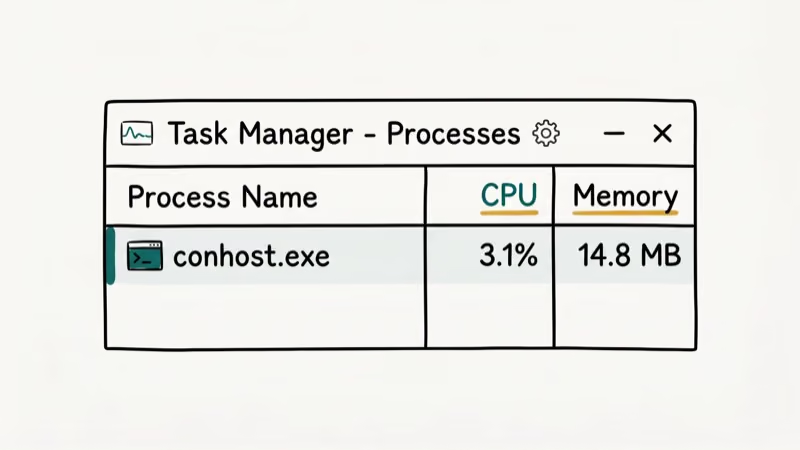
Conhost.exe starts automatically when Command Prompt, PowerShell, or another console application opens. Its resource use should stay low during ordinary command-line work and return to idle after the connected task finishes.
Without conhost.exe, command-line applications would lose features like text selection, copy-paste, window resizing, and drag-and-drop from File Explorer into CMD. Third-party tools that use command-line interfaces, including Dell diagnostics, NVIDIA drivers, and Plex, also rely on it.
Multiple conhost.exe instances in Task Manager are normal. Each open Command Prompt, PowerShell window, or background command-line process gets its own instance.
For comparison, the com-surrogate process works similarly: a legitimate host process that other components use, but also frequently impersonated by malware using the same technique.
#Is Conhost.exe a Virus?
No. The real conhost.exe is not a virus. However, malware frequently impersonates it. Fake system process names are a common malware disguise, and conhost.exe is among the most commonly impersonated filenames. According to PCMag’s guide to keeping Windows clean, unwanted software can arrive through bundled installers, browser add-ons, and suspicious downloads.
The key distinction is location. The genuine file is always at C:\Windows\System32\conhost.exe. If Task Manager shows it running from C:\Users\, C:\Temp\, C:\AppData\, or any other path, that process is almost certainly malicious.
Three warning signs that conhost.exe may be malware:
- Wrong location: running from anywhere other than System32
- Misspelled name: c0nhost.exe (zero instead of letter O), conhot.exe, conbost.exe
- Excessive resource use: over 10 MB RAM or sustained high CPU at idle
The filerepmalware detection is a related category where antivirus tools flag programs that impersonate system files. Conhost.exe impersonators frequently trigger this warning.
#How to Verify a Conhost.exe Process in Task Manager
Use Task Manager to check the file path and description:
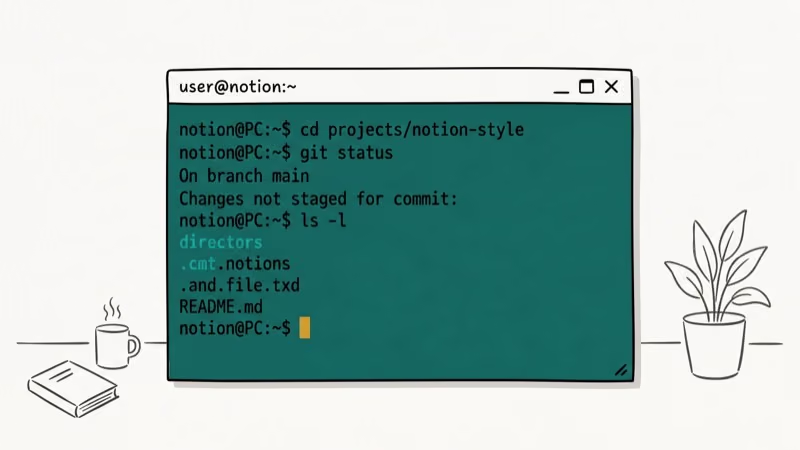
- Press Ctrl + Shift + Esc to open Task Manager.
- Click the Details tab (Windows 10/11) or the Processes tab (Windows 7).
- Click the Name column header to sort alphabetically and find all conhost.exe entries.
- Right-click any conhost.exe entry and select Open file location.
- The folder that opens must be
C:\Windows\System32. Any other location confirms the file is suspicious. - Back in the Details tab, check the Description column. It should read Console Windows Host exactly.
A non-System32 location is the important warning sign. If the folder opens under C:\Users\, AppData, Roaming, Temp, or another user-writable location, treat the file as suspicious. A blank or mismatched description adds another warning flag.
If the location is correct but you still suspect a problem, right-click the process in Details and choose Properties. Verify the digital signature on the Digital Signatures tab. Legitimate system files are signed by Microsoft Corporation.
For similar system processes that require the same legitimacy check, the wmiprvse.exe high CPU guide walks through an identical verification process.
#Conhost.exe High CPU and Memory Usage
Normal conhost.exe resource use is minimal. The process handles only text rendering and window management, so CPU and memory use stay negligible under normal conditions.
If you’re seeing high usage, three causes account for the majority of cases:
A legitimate process generates heavy command-line output. Scripts that write thousands of lines to the console drive conhost.exe CPU up temporarily. This is normal behavior, and usage drops when the script finishes.
The file is malicious. Cryptomining malware frequently hides behind the conhost.exe name to blend into process lists. Sustained high CPU usage when no command-line tasks are running is the clearest indicator.
A background software component is looping. Dell, NVIDIA, and Adobe products all launch conhost.exe for background tasks. If one of those components enters a loop, conhost.exe stays elevated. Restarting the associated service usually fixes it.
The desktop window manager high CPU guide covers a closely related pattern where legitimate Windows processes get stuck in resource loops. The diagnostic approach is the same.
#Steps to Remove a Malicious Conhost.exe
Don’t manually delete conhost.exe from System32 since that will break Windows. Only remove a conhost.exe that’s confirmed to be running from a non-System32 location.
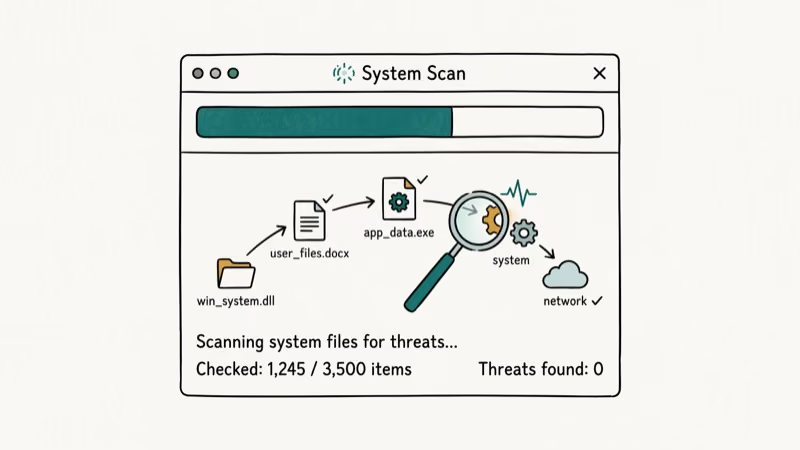
Step 1: Scan with Windows Defender
Open Windows Security, go to Virus & Threat Protection, click Scan Options, and choose Full Scan. Windows Defender is the built-in first scan to run before trying manual removal.
Step 2: Scan with Malwarebytes
Download Malwarebytes Free from the official site. Run a full scan alongside Windows Defender since the two tools complement each other and may flag different unwanted files.
Step 3: Check startup entries
Press Win + R, type msconfig, and click the Startup tab (or open Task Manager’s Startup tab in Windows 10/11). Look for any unfamiliar entries that launch from AppData, Temp, or Roaming folders. Disable them and restart.
Step 4: If infection persists
Boot into Safe Mode by holding Shift while clicking Restart, then run the scans again. Safe Mode prevents the malware from loading, which makes removal more effective.
For persistent infections that survive standard scans, the windows-10-automatic-repair-loop guide covers recovery options including Startup Repair, which can remove deeply embedded system-level malware.
#Disabling or Deleting Conhost.exe
No, and you shouldn’t try. Conhost.exe is a protected Windows system file. Removing the legitimate version from System32 will break Command Prompt, PowerShell, and any application that uses command-line interfaces. Windows won’t run properly without it.
The windows-10-slow guide covers scenarios where background system processes appear to cause slowdowns. In most cases, the fix involves updating drivers or cleaning startup entries rather than removing system files.
If conhost.exe is appearing on Windows XP or Vista, that’s suspicious. Those versions use csrss.exe for the same function. Conhost.exe didn’t exist until Windows 7.
#Bottom Line
The genuine conhost.exe is safe, necessary, and always lives in C:\Windows\System32. Verify the file location in Task Manager’s Details tab. If the location is wrong, run Windows Defender and Malwarebytes back-to-back before attempting any manual removal. Don’t delete conhost.exe from System32 under any circumstances.
#Frequently Asked Questions
What does conhost.exe actually do?
Conhost.exe bridges command-line applications like CMD and PowerShell with Windows’ graphical interface. It handles text input, window resizing, copy-paste, and the visual rendering of console windows. Without it, command-line tools would lose their graphical integration with the desktop.
Is it normal to see multiple conhost.exe processes in Task Manager?
Yes. Each open Command Prompt, PowerShell session, or background application that uses a command-line interface generates its own conhost.exe instance. Having 5-10 instances is normal on a typical Windows machine with software running background tasks.
Can conhost.exe cause high CPU usage?
The legitimate conhost.exe rarely causes high CPU usage except when processing heavy command-line output. Sustained high CPU at idle usually means the file is malicious or a background application is looping. Check the file path in Task Manager to distinguish the two.
What happens if I end the conhost.exe process in Task Manager?
Ending a conhost.exe process closes the associated command-line window or terminates the background process that launched it. The system process itself is not harmed. However, ending a conhost.exe tied to an active CMD session will close that session and lose any unsaved work.
How do I know if conhost.exe is a virus without antivirus software?
Right-click conhost.exe in Task Manager’s Details tab and choose Open File Location. The folder must be C:\Windows\System32. If it opens to any other folder (AppData, Temp, or a user profile directory), treat the process as malicious and run a scan immediately.
Should I delete conhost.exe if it uses too much memory?
No. High memory usage by a legitimate conhost.exe typically means a connected process is outputting large amounts of data. Identifying and addressing the parent process is the right fix. Only take action if the file is confirmed to be running from outside System32.
Does conhost.exe exist on all Windows versions?
Conhost.exe was introduced in Windows 7. It runs on Windows 7, 8, 10, and 11. Windows XP and Vista used csrss.exe instead. If you see conhost.exe on those older systems, it’s not a legitimate system file.

Best Laptop for Running LLMs in 2026: Memory Comes First
The best laptop for running LLMs is a memory purchase first. Compare MacBook unified memory against NVIDIA laptop VRAM, and see what each tier really runs.

How to Run a Local LLM on Windows: A 2026 Setup Guide
Run a local LLM on Windows with LM Studio or Ollama. Pick a model that fits your GPU memory, keep every prompt offline, and skip the monthly bill.

Bluetooth Not Working on Snapdragon X? Fixes for 2026
Bluetooth not working on your Snapdragon X Copilot+ PC? Generic audio, mice, and keyboards work, but vendor apps often lack an ARM build. Fixes inside.

Docker Desktop and WSL2 Not Working on Snapdragon X? Fix It
WSL2 runs fine on Snapdragon X, but Docker Desktop ARM is Early Access and throws WSL errors. Use WSL2 plus native ARM64 Ubuntu and Docker Engine.