How to Fix Javaw.exe Missing Error in Windows (2026)
Fix the javaw.exe missing error by reinstalling Java or adding the JRE bin folder to your system Path. Step-by-step guide for Windows 10 and 11.
Quick AnswerReinstall the Java Runtime Environment from java.com, or add the Java bin folder path to your system Path environment variable to fix this error.
The javaw.exe missing error shows up when Windows can’t locate the Java executable needed to run Java-based applications. You’ll see a message saying “Windows can’t find javaw.exe” right when you try to launch a JAR file or Java program. The fix takes under 5 minutes, and this guide covers all three methods for Windows 10 and 11.
- Javaw.exe is the windowless Java launcher that runs Java GUI applications and JAR files on Windows
- The most common cause is a missing or outdated Java Runtime Environment (JRE) installation
- Reinstalling JRE from the official java.com site fixes the error for most Windows 10 and 11 PCs
- Manually adding the Java bin folder to your system Path variable works when the JRE is installed but Windows still can’t find it
- Malware can delete or corrupt javaw.exe, so run a full system scan if the error returns after reinstalling
#What Javaw.exe Is
Javaw.exe is a Windows executable that launches Java applications without opening a console window. It ships with every Java Runtime Environment (JRE) installation and sits in the bin folder inside your Java directory.
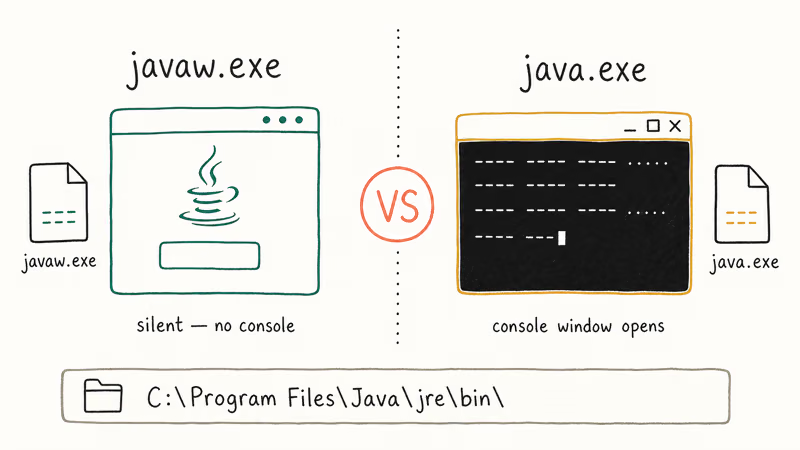
When you double-click a JAR file or launch a Java-based program, Windows calls javaw.exe behind the scenes. Unlike java.exe (which opens a command-line console), javaw.exe runs silently and is the default handler for GUI-based Java apps.
#Common Causes of the Missing Javaw.exe Error
The “Windows can’t find javaw.exe” error appears for three reasons:
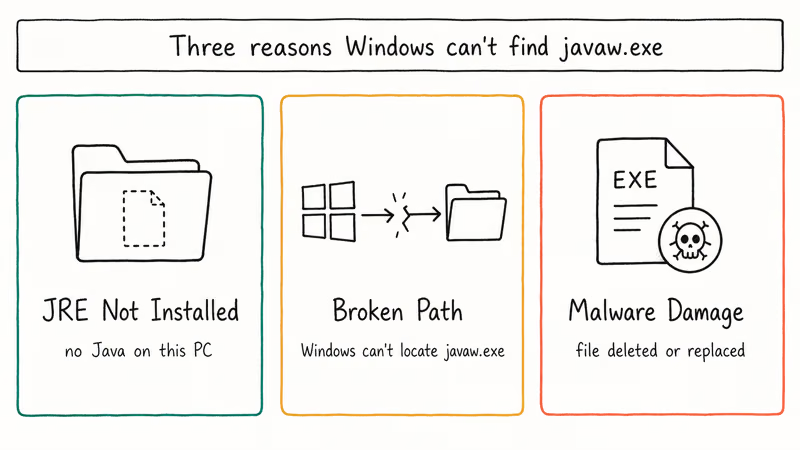
- Java isn’t installed. Your PC never had JRE, or a Windows update removed it.
- The system Path doesn’t point to Java. JRE is installed, but Windows doesn’t know where to find the executable.
- Malware corrupted or deleted the file. Some trojans specifically target executable files in the Program Files directory.
A missing JRE installation is the most common cause, while a broken Path variable is the next place to check, especially after Java upgrades.
According to Oracle’s JRE installation guide, the Windows installer registers javaw.exe in the system Path during setup. When that registration breaks or gets overwritten by another program, the error appears.
#How Do You Fix the Javaw.exe Missing Error?
Three fixes cover this error. Start with Fix 1, since a clean JRE reinstall resolves it for most people.
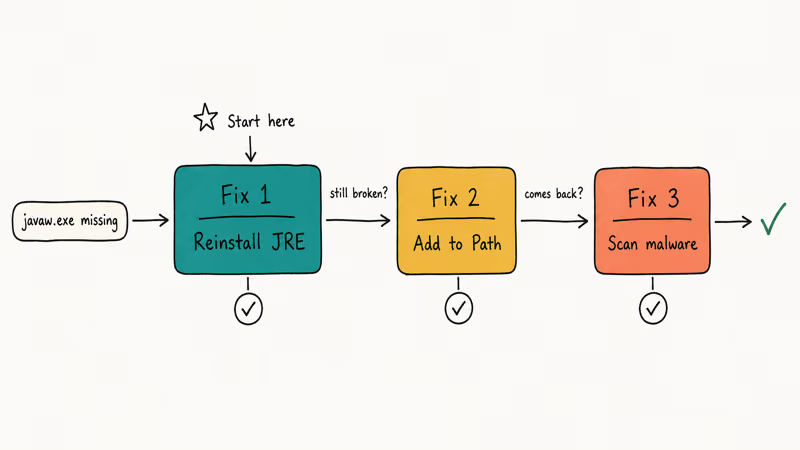
#Fix 1: Reinstall the Java Runtime Environment
Uninstall whatever Java version you have, then grab a fresh copy.
- Press Windows + R, type
appwiz.cpl, and press Enter. - Find Java (or any entry starting with “Java”) in the list.
- Right-click it and select Uninstall. Follow the prompts.
- Restart your PC.
- Go to java.com/en/download and download the latest JRE.
- Run the installer and follow the on-screen steps.
- Restart your PC again.
After the reinstall, launch the Java application that triggered the error. A clean reinstall of the current JRE usually resolves the “can’t find javaw.exe” error within a couple of minutes.
Oracle recommends removing all older Java versions before installing a new one. Leftover registry entries from outdated versions can cause conflicts with the new installation’s Path registration.
#Fix 2: Add the Java Bin Folder to Your System Path
If Java is already installed but Windows still can’t find javaw.exe, the system Path variable needs updating.
- Open File Explorer and go to
C:\Program Files\Java\. Look for a folder likejre1.8.0_391orjdk-21. Open thebinsubfolder inside it. - Confirm you see
javaw.exein that folder. Copy the full path (for example,C:\Program Files\Java\jre1.8.0_391\bin). - Press Windows + R, type
sysdm.cpl, and press Enter. - Click the Advanced tab, then click Environment Variables.
- Under System Variables, find the variable named Path and double-click it.
- Click New, paste the Java bin folder path you copied in step 2, and click OK.
- Click OK on all remaining windows to save.
- Open a new Command Prompt and type
javaw -version. If it returns a version number, the fix worked.
If you’re on a 64-bit system and installed the 32-bit JRE, the path will be C:\Program Files (x86)\Java\... instead. Check both locations.
This environment variable approach also helps if you’ve hit an invalid value for registry error on Windows, since both issues involve Windows failing to locate a system resource through its expected path.
#Fix 3: Run a Full Malware Scan
Malware sometimes deletes or replaces javaw.exe with an infected copy. If the error appeared suddenly without you changing anything, scan your system.
- Open Windows Security (search for it in the Start menu).
- Go to Virus & threat protection > Scan options.
- Select Full scan and click Scan now.
- Wait for the scan to finish (30 to 60 minutes depending on drive size).
If Windows Defender finds threats, let it quarantine or remove them, then reinstall Java using Fix 1.
Microsoft’s Malicious Software Removal Tool states that it targets widely distributed malware families on Windows PCs. Running it alongside Defender gives you a second layer of coverage. For context on how Windows security tools flag certain executables, check the guide on IDP.Generic detections.
#Verifying That Javaw.exe Works After the Fix
Once you’ve applied a fix, confirm the error is gone before moving on.
Open Command Prompt and run where javaw. This shows the full path to javaw.exe if Windows can find it. You should see something like C:\Program Files\Java\jre1.8.0_391\bin\javaw.exe.
Next, try javaw -version in the same Command Prompt window. A working installation prints the Java version number. If you get “not recognized” or “can’t find,” the Path variable still isn’t set correctly.
Finally, launch the Java application that originally triggered the error. If it opens without the “Windows can’t find javaw.exe” message, you’re done.
#What If the Error Keeps Coming Back?
A few edge cases cause this error to reappear after you’ve already fixed it.
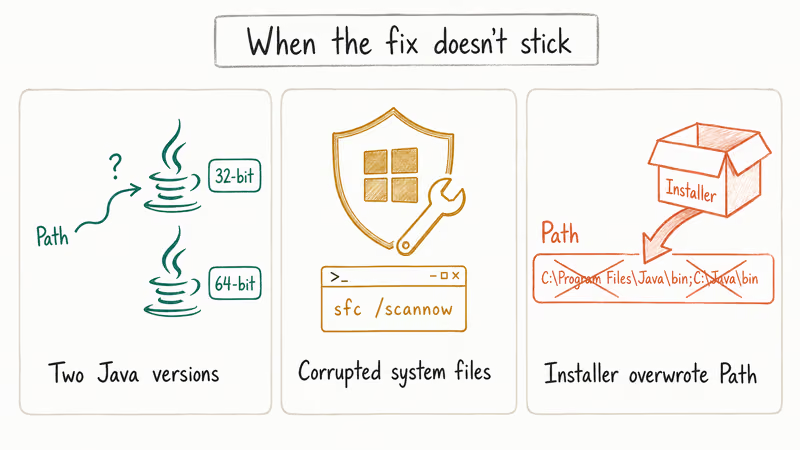
Multiple Java installations. If you have both JDK and JRE installed, or 32-bit and 64-bit versions side by side, the Path variable can point to the wrong one. Uninstall all Java versions through Control Panel, restart, and install only the version you need.
Corrupted Windows system files. Running sfc /scannow in an elevated Command Prompt checks for damaged files. When the Path keeps reverting after a reboot, the System File Checker can find and repair corrupted DLLs that interfere with environment variable persistence.
Third-party software overwriting the Path. Some installers replace the entire Path variable. Check it after installing new programs.
If you deal with application blocked by Java security errors after getting javaw.exe working again, that’s a separate Java security settings issue.
#Preventing Javaw.exe Problems Long-Term
A few habits keep the javaw.exe error from returning.
Pin your Java version. Don’t install multiple JRE versions unless a specific application requires it. One JRE installation means one clean Path entry. If you’ve dealt with similar process issues like the atibtmon.exe runtime error or a conhost.exe issue, you know that keeping system executables organized prevents recurring problems.
Check your Path after major Windows updates. Feature updates occasionally reset environment variables. A 30-second check in System Properties prevents a repeat.
Keep your antivirus active. Real-time protection catches malware before it can delete or replace javaw.exe. For more on how antivirus programs interact with Windows executables, see the guides on csrss.exe trojan removal and fixing JavaScript errors in browsers.
#Bottom Line
Reinstall Java from java.com. Fix the Path if needed, scan for malware if it persists.
#Frequently Asked Questions
What is javaw.exe used for?
Javaw.exe launches Java applications that use a graphical interface. Unlike java.exe, it doesn’t open a separate console window when running a program. You’ll find it in the bin folder inside your Java Runtime Environment installation directory.
Can I download javaw.exe as a standalone file?
No. It ships with the Java Runtime Environment. Install the full JRE from java.com to get it.
How do I check if Java is installed on my PC?
Type java -version in Command Prompt. A version number confirms Java is installed and the Path is working.
Does the javaw.exe error affect all Windows versions?
The error occurs on Windows 7, 8, 10, and 11. The cause and fix steps are identical across all of them. Newer JRE releases (Java 17+) require Windows 10 or later, while JRE 8 still supports Windows 7.
Is javaw.exe a virus?
The real javaw.exe in your Java installation folder is a legitimate file signed by Oracle Corporation. Some malware disguises itself as javaw.exe by placing an infected copy in unexpected directories like System32, the Windows temp folder, or your user profile’s AppData directory. If you find javaw.exe anywhere outside C:\Program Files\Java\ or C:\Program Files (x86)\Java\, scan it with your antivirus immediately. Right-click the file, select Properties, and check the Digital Signatures tab to verify the publisher is Oracle.
Why does the error appear after a Windows update?
Windows updates occasionally reset environment variables or remove third-party components during the upgrade. Re-adding the Java path (Fix 2 above) or reinstalling Java from scratch (Fix 1) resolves it every time.
Do I need both JRE and JDK installed?
JRE is enough for running Java apps. JDK adds developer tools most people don’t need, and installing both can cause Path conflicts.
What is the correct path for javaw.exe on a 64-bit system?
On 64-bit Windows with 64-bit Java, the default path is C:\Program Files\Java\jre1.8.0_XXX\bin\javaw.exe (replace XXX with your update number). If you installed 32-bit Java on a 64-bit system, look under C:\Program Files (x86)\Java\ instead. Run where javaw in Command Prompt to find the exact location.

Best Laptop for Running LLMs in 2026: Memory Comes First
The best laptop for running LLMs is a memory purchase first. Compare MacBook unified memory against NVIDIA laptop VRAM, and see what each tier really runs.

How to Run a Local LLM on Windows: A 2026 Setup Guide
Run a local LLM on Windows with LM Studio or Ollama. Pick a model that fits your GPU memory, keep every prompt offline, and skip the monthly bill.

Bluetooth Not Working on Snapdragon X? Fixes for 2026
Bluetooth not working on your Snapdragon X Copilot+ PC? Generic audio, mice, and keyboards work, but vendor apps often lack an ARM build. Fixes inside.

Docker Desktop and WSL2 Not Working on Snapdragon X? Fix It
WSL2 runs fine on Snapdragon X, but Docker Desktop ARM is Early Access and throws WSL errors. Use WSL2 plus native ARM64 Ubuntu and Docker Engine.