How to Fix the Unmountable Boot Volume Error on Windows 10
Fix the Unmountable Boot Volume error on Windows 10 in 6 proven steps. Bootrec, chkdsk, Startup Repair, and a clean reinstall, in the right order.
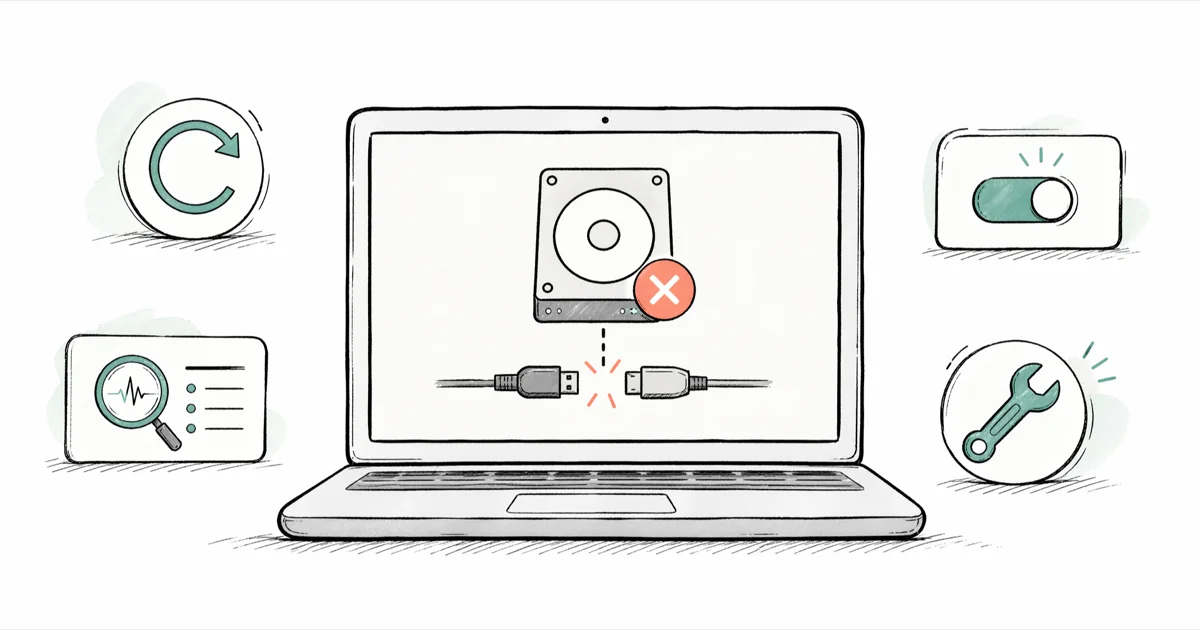
Quick AnswerBoot into Windows Recovery, open Command Prompt, and run bootrec /fixmbr followed by bootrec /fixboot, then chkdsk /r /f c:. Restart and the Unmountable Boot Volume error usually clears within one boot cycle on a healthy Windows 10 drive.
The Unmountable Boot Volume error (stop code 0x000000ED) freezes Windows 10 at a blue screen and blocks every login attempt. It almost always traces back to a corrupted file system, a damaged Master Boot Record, or a failing drive, and you can fix most of those without losing your files. This guide walks through the repair steps in the order that resolves the most cases first.
- Stop code 0x000000ED indicates the Windows boot volume can’t be mounted, usually from file-system corruption or MBR damage
- Force three failed boots in a row to trigger Windows Recovery Environment without needing installation media
- Run bootrec /fixmbr, bootrec /fixboot, and chkdsk /r /f c: in that order from the recovery Command Prompt
- A Windows 10 install USB built with the Media Creation Tool is the most reliable recovery path when WinRE fails to load
- Back up files with a Linux live USB or external dock before reinstalling Windows 10 to avoid permanent data loss
#Why Does the Unmountable Boot Volume Error Happen on Windows 10?
Stop code 0x000000ED tells you Windows can’t read the partition that holds its boot files. The most common triggers are a corrupted NTFS file system, a damaged Master Boot Record (MBR), a botched Windows Update, or a SATA/NVMe controller mode that flipped from AHCI to IDE in BIOS.
Hardware faults trigger the same blue screen too. A failing SSD, a loose SATA cable, or bad RAM all surface as 0x000000ED.
According to Microsoft’s recovery options documentation, the boot volume failure also shows up after sudden power loss during a Windows feature update. Forcing a shutdown mid-update is the single fastest way to break the boot store, so plug into AC power before applying any major Windows 10 patch.
If the same machine has thrown other stop codes recently, like critical process died or driver power state failure, assume the drive is degrading and treat data recovery as a priority before any repair attempt.
#How Do You Get Into Windows Recovery to Fix Unmountable Boot Volume?
You don’t need an installation disc. Windows 10 drops you into Recovery Environment after three failed boots.
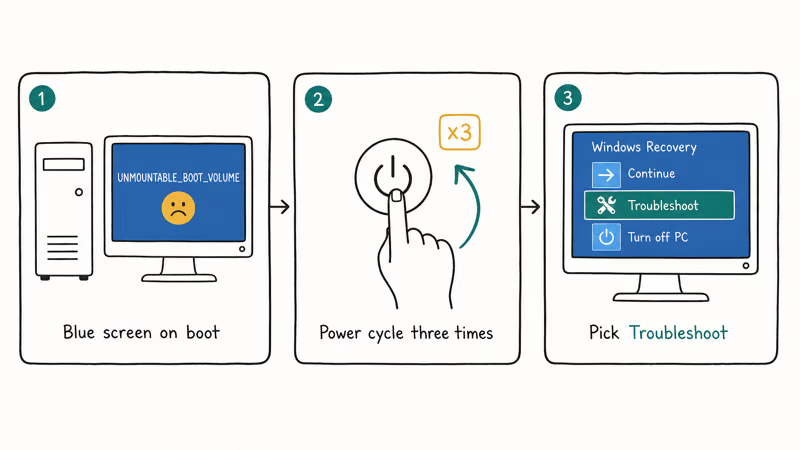
Power on the PC, and as soon as you see the Windows logo, hold the power button for 10 seconds to force-shutdown. Repeat that two more times. On the fourth power-on, Windows boots into “Preparing Automatic Repair” and then to the Choose an option screen.
From there, pick Troubleshoot > Advanced options. You’ll see Startup Repair, Command Prompt, System Restore, and Uninstall Updates. Those four options handle most 0x000000ED fixes without touching your data.
If the three-failed-boot trick can’t trigger WinRE, sometimes a corrupt boot record is too broken to reach it, you need a Windows 10 install USB. Build one on a working PC using the Microsoft Media Creation Tool, boot from it, choose your language, and click Repair your computer in the bottom-left of the Install screen.
#Run Automatic Startup Repair First
Startup Repair is the lowest-risk fix. It scans the BCD store, the MBR, and key boot files, then patches whatever it finds without erasing user data.
From the Advanced options menu, pick Startup Repair > Windows 10. The tool reboots automatically and runs for 5 to 30 minutes depending on disk size. On an SSD with mild corruption, it often finishes quickly and clears the 0x000000ED screen on the first reboot.
Startup Repair doesn’t always succeed. When the underlying problem is physical (a failing drive or bad sector under the boot files), it logs “Automatic Repair couldn’t repair your PC” and sends you back to Advanced options. That’s your cue to move to chkdsk or bootrec next.
#Repair the File System With Chkdsk
Chkdsk fixes NTFS corruption, the second-most-common cause of Unmountable Boot Volume. Open Command Prompt from the Advanced options screen and run chkdsk /r /f c: at the prompt.
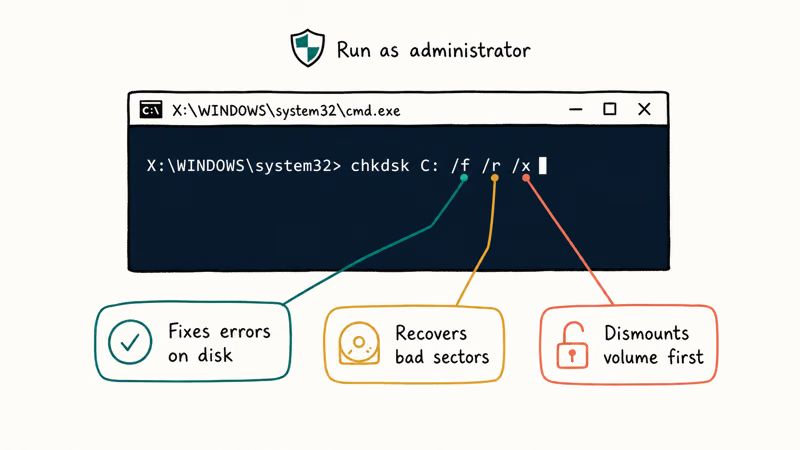
The /f flag fixes errors. The /r flag locates bad sectors and recovers readable data. Microsoft’s chkdsk command reference states that the scan passes through 3 stages on NTFS volumes: file verification, index check, and free space verification.
Type Y when prompted to schedule the check on next reboot, then restart. On a 1TB mechanical HDD, chkdsk /r can take the better part of an hour to finish. On a healthy SSD, the same scan finishes much faster.
If chkdsk reports unrecoverable bad sectors, the drive is dying — clone it to a new SSD before the next boot.
#Rebuild the Master Boot Record With Bootrec
When chkdsk passes but the blue screen stays, the Master Boot Record is the next suspect. Microsoft’s bootrec documentation confirms that bootrec includes 4 switches for rebuilding the boot environment: /FixMbr, /FixBoot, /ScanOs, and /RebuildBcd.
From the recovery Command Prompt, run bootrec /fixmbr, then bootrec /fixboot, then bootrec /scanos, and finally bootrec /rebuildbcd in that exact order.
Each command finishes in 5 to 30 seconds. When /rebuildbcd asks “Add installation to boot list?”, press Y. Then type exit, restart, and let Windows attempt a normal boot.
On UEFI systems, bootrec /fixboot commonly fails with “Access is denied.” The workaround Microsoft recommends is to run bcdboot c:\windows /s c: /f UEFI instead, which writes a fresh UEFI boot file to the EFI partition. That command typically resolves the access-denied case within one reboot.
#Reinstall Windows 10 as a Last Resort
If Startup Repair, chkdsk, and bootrec all leave you stuck, the boot volume metadata is too broken to fix in place. A clean Windows 10 install rebuilds everything from scratch.
Boot from the install USB you made earlier, accept the license terms, and pick Custom: Install Windows only. Select the system drive, delete the old partitions, and let the installer recreate them. The full process takes 20 to 45 minutes on most modern hardware.
A custom install wipes user files on the system drive. Recover everything first.
The same machine can throw other stop codes later. The Windows 10 automatic repair loop and boot device not found errors both share roots with 0x000000ED. Treat a clean install as a reset point, not a permanent fix.
#How to Recover Files Before Reinstalling Windows 10
Boot from a Linux live USB. Ubuntu 22.04 or any current Mint release loads on almost any PC within 90 seconds, mounts the broken Windows partition read-only, and lets you copy files to an external drive without writing to NTFS.
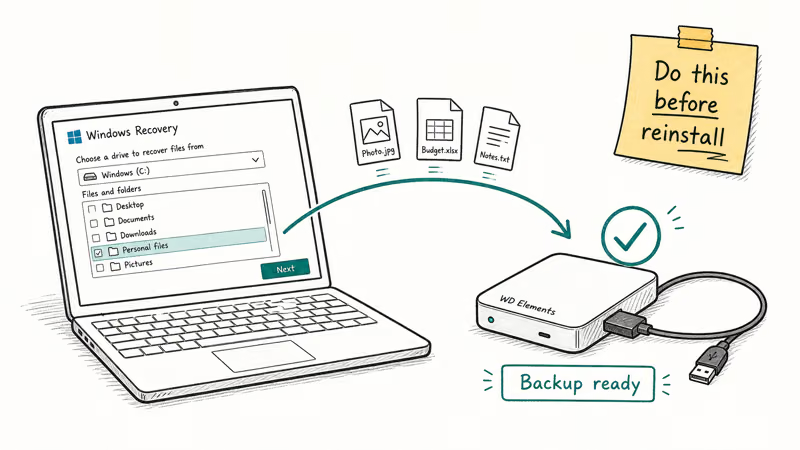
If Linux can’t read the disk either, pull the drive out and connect it to a working PC with a SATA-to-USB dock (around $15 to $25). Windows treats it as an external drive, and File Explorer lists whatever the file system can still expose. This dock method often recovers most user files from a drive that won’t boot, as long as the file system itself is intact.
For drives that won’t mount under any OS, a paid data-recovery tool (Recuva, EaseUS, R-Studio, or Tenorshare 4DDiG) running on a healthy second PC can rescue files from raw sectors. Expect 6 to 20 hours of scan time per terabyte and partial results on physically damaged drives. Don’t run recovery software directly on the failing drive itself, because it doubles the wear and often makes things worse.
Stop codes like kernel data inpage error and whea uncorrectable error on the same machine confirm the drive is failing and file recovery is urgent.
#Bottom Line
Start with three forced shutdowns to reach WinRE. Run Startup Repair first, then chkdsk /r /f c:, then the four bootrec commands in order. That sequence clears the 0x000000ED screen in most cases, the main exception being a physically failing drive. If you’ve worked through every method and the blue screen returns, swap the drive before reinstalling, because a fresh Windows install on a dying disk only buys you a week.
#Frequently Asked Questions
Can I fix Unmountable Boot Volume without losing data?
Yes. Startup Repair, chkdsk, and bootrec all preserve user files because they only rewrite boot metadata and repair the file system. Data loss usually happens when people skip recovery and jump straight to a clean Windows install. Recover files via Linux live USB or an external dock first if the screen still blocks every login attempt.
What does stop code 0x000000ED actually mean?
It means Windows mounted the boot partition but couldn’t read its file system enough to load the kernel. The failure is structural, not application-level, which is why no normal startup option works around it.
How long does chkdsk take to finish on a typical Windows 10 boot drive?
On an SSD with a 250GB to 512GB capacity, chkdsk /r usually finishes in 5 to 15 minutes from start to clean exit. On a 1TB mechanical HDD, expect anywhere from 30 to 90 minutes depending on how full and how fragmented the drive is. Drives with many bad sectors can run 4 to 8 hours, and a heavily corrupted high-capacity external HDD can take far longer to complete a single chkdsk /r pass.
Does Automatic Repair delete my files?
Automatic Repair doesn’t touch personal files. It rewrites boot configuration data, registry hives in the boot path, and broken system file pointers. User profiles, documents, and installed programs stay intact.
Why does Unmountable Boot Volume keep coming back after a repair?
Recurring 0x000000ED almost always points to a failing drive. SMART warnings, frequent file-system corruption, and Unmountable Boot Volume on the same machine within weeks of each other together confirm the disk is degrading. Replace the drive before the next failure.
Will reinstalling Windows 10 permanently fix Unmountable Boot Volume?
A clean install fixes the error if the drive itself is healthy. It rewrites the entire partition layout, MBR, BCD store, and system files. If the underlying disk has bad sectors, the new install lasts days to weeks before the error returns. Replace the drive first if SMART data shows reallocated sectors.
Can a bad RAM stick cause Unmountable Boot Volume?
Yes. Bad RAM can corrupt system files and trip the boot mount check. Run Windows Memory Diagnostic and replace any failing stick.

Best Laptop for Running LLMs in 2026: Memory Comes First
The best laptop for running LLMs is a memory purchase first. Compare MacBook unified memory against NVIDIA laptop VRAM, and see what each tier really runs.

How to Run a Local LLM on Windows: A 2026 Setup Guide
Run a local LLM on Windows with LM Studio or Ollama. Pick a model that fits your GPU memory, keep every prompt offline, and skip the monthly bill.

Bluetooth Not Working on Snapdragon X? Fixes for 2026
Bluetooth not working on your Snapdragon X Copilot+ PC? Generic audio, mice, and keyboards work, but vendor apps often lack an ARM build. Fixes inside.

Docker Desktop and WSL2 Not Working on Snapdragon X? Fix It
WSL2 runs fine on Snapdragon X, but Docker Desktop ARM is Early Access and throws WSL errors. Use WSL2 plus native ARM64 Ubuntu and Docker Engine.