Twdsuilaunch.exe in Windows: What It Is and How to Fix
Twdsuilaunch.exe is part of Brother Industries M17A printing utility. Learn whether it is safe, when it signals malware, and how to remove or repair it.
Quick AnswerTwdsuilaunch.exe is a legitimate Windows process installed by Brother Industries M17A printing utility, stored at C:\Windows\twain_32\Brimm15a\Common. If it consumes high CPU or you do not own a Brother device, end the task in Task Manager and run an SFC scan to verify the file integrity.
Twdsuilaunch.exe is a Brother printer launcher most Windows users never need to touch until a damaged copy or malware imposter spikes CPU usage.
- Twdsuilaunch.exe lives at C:\Windows\twain_32\Brimm15a\Common and ships with Brother MFC and DCP series installers, not Windows itself.
- The legitimate file is digitally signed by “Windows Hardware Compatibility Publisher”; verify via right-click >
Properties>Digital Signatures. - The genuine process should use only a small amount of CPU while idle, so sustained heavy load almost always signals corruption or impersonation.
- SFC and DISM scans repair the file in place when Brother installer drops a damaged copy, avoiding a full driver reinstall.
- Removing Twdsuilaunch.exe disables Brother scanner and printer dialogs until you reinstall the M17A driver package from Brother official support site.
#What Twdsuilaunch.exe Does on Brother Printers
Twdsuilaunch.exe is the launcher for the Brother Industries M17A scanner and printer utility. The “TWDS” prefix refers to TWAIN Driver Scanner, and “UI launch” reflects the job of the file: opening the Brother scanning interface when you press Scan on a multifunction device.
You’ll only find this executable on PCs where someone installed the Brother M17A driver package, typically for an MFC-J or DCP series printer. The Brimm15a folder name identifies a specific firmware revision of the launcher. Different printers can install Brimm14a, Brimm15a, or later variants alongside the shared launcher.
The launcher runs on demand from Brother Status Monitor or Scanner Driver, not as a Windows service.
According to Microsoft’s TWAIN compatibility documentation, Windows no longer ships TWAIN data sources and accepts only WIA drivers in-box for native scanner support. The twain_32 folder hosting those legacy 32-bit scanner drivers predates Windows 10 by more than a decade, which is why Brother continues to drop its launcher there for compatibility.
PCs sold with Brother-branded driver bundles ship Twdsuilaunch.exe pre-installed. OEMs preload TWAIN drivers for popular peripherals.
#Is Twdsuilaunch.exe Safe or a Sign of Malware?
The signed version of Twdsuilaunch.exe is safe and necessary if you own a Brother scanner. Trouble appears when a process with the same filename runs from a non-standard location, such as an unsigned copy in your Downloads folder or a randomly named subdirectory. That pattern is a textbook impersonation attack.
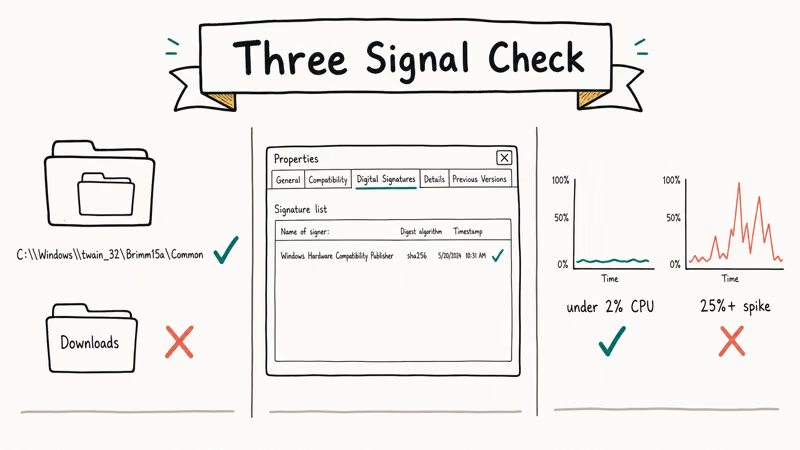
Three signals separate genuine from fake.
Path check. The legitimate executable resides only at C:\Windows\twain_32\Brimm15a\Common. Anything outside that path is suspect.
Digital signature. Right-click the file, choose Properties, and open the Digital Signatures tab. The signer should read “Windows Hardware Compatibility Publisher” with a valid certificate chain.
CPU footprint. Idle Twdsuilaunch.exe usage should stay low between scan jobs. A process pinned above 25 percent during regular use is a red flag, especially if Resource Monitor also shows the executable reading from a folder outside the standard twain_32 path or making outbound network calls.
If any of those checks fail, treat the file as a potential threat. Our csrss.exe trojan warning signs cover the broader pattern, since attackers love copying real Windows process names. While you’re auditing background services, the Killer Network Service explainer walks through another commonly impersonated component.
If anything looks off, run Microsoft Defender plus Malwarebytes. Microsoft recommends keeping real-time protection on.
#How to Stop the Process Safely in Task Manager
Ending the legitimate process is harmless. The Brother launcher simply restarts the next time you initiate a scan. To stop it cleanly:
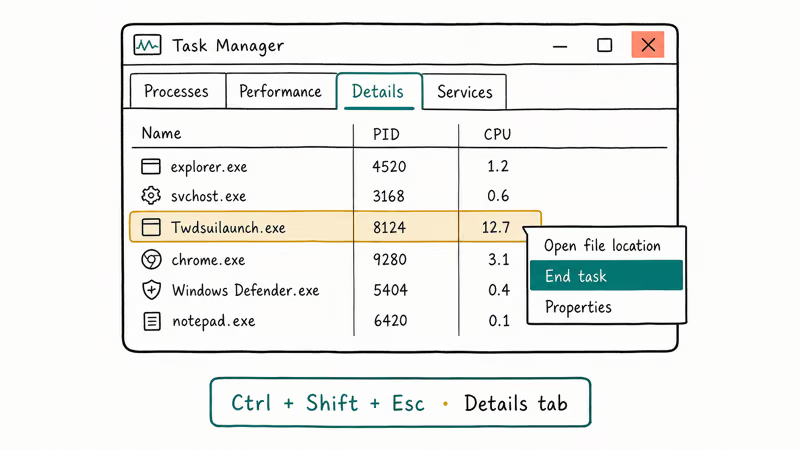
- Press Ctrl + Shift + Esc to open Task Manager.
- Click the Details tab to see real file paths.
- Locate Twdsuilaunch.exe in the list, right-click, and choose End task.
- Confirm the prompt that warns about ending a background process.
Ending the legitimate process only stops the current launcher instance. The Brother control panel should open again when a new scan request arrives, with no system restart required.
If you suspect the file is malicious, don’t just End task. Right-click the entry and select Open file location, copy the parent folder path, end the process, then delete the folder after rebooting into Safe Mode. Deleting from a normal session usually fails because the file is locked.
Prefer to disable the Brother Status Monitor service entirely if you no longer use the printer. Open services.msc, find “Brother Status Monitor” or a printer-model-specific entry, set Startup type to Disabled, and stop the service. This change prevents the launcher from firing automatically while keeping the rest of the driver bundle in place. If you also struggle with another stuck Windows component, the GPSVC startup hang fix walks through a similar service-disable workflow.
#Repairing the Process With SFC and DISM Scans
When the file is genuine but throws errors, repairing the system image usually fixes it. The System File Checker tool and the Deployment Image Servicing and Management tool work hand in hand. Microsoft SFC documentation states that the tool scans all protected system files and replaces incorrect versions with cached copies stored at %WinDir%\System32\dllcache.
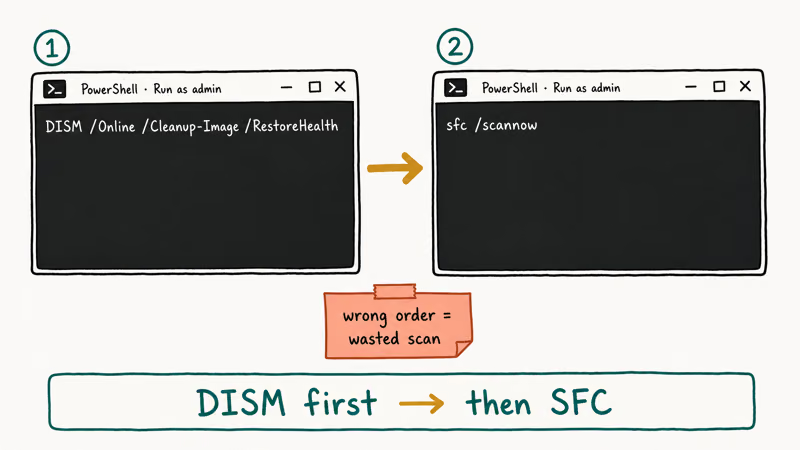
Use 2 separate commands, DISM RestoreHealth and SFC scannow, to repair this kind of damage in the correct order. Skip either one and the cycle can leave broken files behind.
Run them in this order:
- Press Windows + S and search for PowerShell. Right-click “Windows PowerShell” and choose Run as administrator.
- Type
DISM /Online /Cleanup-Image /RestoreHealthand press Enter. Wait until the operation reaches 100 percent. This can take 10 to 30 minutes depending on disk speed. - Once DISM completes, type
sfc /scannowand press Enter. SFC reads from the repaired component store DISM just refreshed. - Restart your PC when both commands report success.
Why DISM first? The Microsoft image repair guide recommends servicing the component store before running SFC, because SFC pulls replacement files from that same store. Running SFC against a corrupted store wastes time.
If SFC still reports unfixable corruption, the genuine Twdsuilaunch.exe likely isn’t in the cache at all. That’s expected, because Brother installer ships the file, not Windows. Reinstall the M17A driver package from the Brother support portal in that case. For another deep-dive on a stuck Windows update process, see the tiworker.exe high CPU tips.
#When Should You Worry About Background Windows Processes?
Most default Windows processes never demand attention. Worry only when one of these patterns appears.
Sustained high resource use. A background process running at 40 percent CPU for more than five minutes without a clear trigger usually signals a stuck thread, a runaway memory leak, or malware piggybacking on the name. Open Resource Monitor for a more granular view than Task Manager provides.
Behaviour that doesn’t match the documented role. Twdsuilaunch.exe should fire only during scan workflows. If it spawns at every boot and stays active for hours, you likely have either a misconfigured Brother Status Monitor or an impersonator. Our YourPhone.exe explained walks through a similar diagnosis flow for a different bundled launcher.
Outbound network traffic. Most Windows utilities only talk to localhost or Microsoft Update servers. Use the Network tab in Resource Monitor to spot any process making unexpected calls to unfamiliar IP addresses.
Frequent crashes. Look at Event Viewer (eventvwr.msc) under Windows Logs > Application for entries citing the executable. Repeated faults pointing to ntdll.dll or a Brother DLL are clues that the install is broken; faults pointing to a random user folder hint at malware.
For executable-style errors that block applications outright, the winword.exe error guide collects fixes that overlap with the Twdsuilaunch troubleshooting path.
#Reinstalling the Brother M17A Driver Package
When repairs fail or you want a fresh start, a clean reinstall of the M17A driver from Brother official support portal restores everything Twdsuilaunch.exe touches. Use Programs and Features (appwiz.cpl) to remove the existing “Brother MFC-L2710DW” or “Brother iPrint&Scan” entries first, then reboot before installing the new package.
Download the Full Driver and Software Package directly from the Brother model page. Skip third-party hosts that bundle unwanted toolbars or stale revisions.
After install, plug the printer in over USB rather than Wi-Fi for the first test. USB attachment lets Windows confirm the digital signature on Twdsuilaunch.exe before network drivers add another variable. Once the Brother Control Center opens correctly, switch the printer to Wi-Fi or Ethernet if that is your normal connection.
#Bottom Line
Leave Twdsuilaunch.exe alone when you own a Brother MFC or DCP printer and it idles near zero CPU. The M17A driver needs it to launch scanner dialogs.
If you don’t own a Brother device, or the file sits outside C:\Windows\twain_32\Brimm15a\Common, run a Microsoft Defender Offline scan and delete the parent folder from Safe Mode. Reinstall the genuine driver only if you actively use the hardware.
#Frequently Asked Questions
Is Twdsuilaunch.exe a Windows system process?
No. Brother Industries installs it as part of the M17A driver package, and it lives in the twain_32 folder Windows reserves for legacy scanner drivers.
What happens if I delete Twdsuilaunch.exe?
Deleting the legitimate file disables the Brother scanner dialog and the Status Monitor that triggers it. The printer will still print over the network, but pressing Scan on the device or in Brother iPrint&Scan will fail with a missing-component error. Reinstalling the Brother M17A driver from the official support portal restores everything. The reinstall keeps saved scan profiles intact, since Brother stores those under your user account folder rather than inside the driver bundle.
Why does Twdsuilaunch.exe show high CPU usage?
The genuine file rarely consumes meaningful CPU. Sustained high usage usually means a stuck scan job, a corrupted driver, or a malware imposter. Restart the Brother Status Monitor service first, then run DISM and SFC.
How do I tell if Twdsuilaunch.exe is a virus?
Check three things: the file path, the digital signature, and the CPU usage pattern. The real version lives only at C:\Windows\twain_32\Brimm15a\Common, carries a “Windows Hardware Compatibility Publisher” signature, and idles near zero CPU. A copy outside that folder, an unsigned binary, or a process drifting above 25 percent during normal use should be treated as suspicious until proven otherwise.
Can I disable Twdsuilaunch.exe at startup?
Disable the related Brother Status Monitor service in services.msc. That prevents the launcher from firing automatically while keeping the driver files installed.
Will reinstalling Windows remove Twdsuilaunch.exe?
A clean install of Windows wipes the twain_32 folder along with every other third-party driver, so yes, Twdsuilaunch.exe disappears. An in-place upgrade or repair install preserves user files and most installed apps, which usually leaves the Brother driver bundle and the launcher intact. Reinstall the M17A package from the Brother support site after any major Windows upgrade to refresh the driver and pick up any patched files that newer Brother revisions ship.
Does Twdsuilaunch.exe slow down older PCs?
Not in any meaningful way. The launcher is dormant unless a scan is in progress, and even during active scans its CPU footprint is small.

Best Laptop for Running LLMs in 2026: Memory Comes First
The best laptop for running LLMs is a memory purchase first. Compare MacBook unified memory against NVIDIA laptop VRAM, and see what each tier really runs.

How to Run a Local LLM on Windows: A 2026 Setup Guide
Run a local LLM on Windows with LM Studio or Ollama. Pick a model that fits your GPU memory, keep every prompt offline, and skip the monthly bill.

Bluetooth Not Working on Snapdragon X? Fixes for 2026
Bluetooth not working on your Snapdragon X Copilot+ PC? Generic audio, mice, and keyboards work, but vendor apps often lack an ARM build. Fixes inside.

Docker Desktop and WSL2 Not Working on Snapdragon X? Fix It
WSL2 runs fine on Snapdragon X, but Docker Desktop ARM is Early Access and throws WSL errors. Use WSL2 plus native ARM64 Ubuntu and Docker Engine.