Winword.exe Error: 8 Fixes to Get Word Running Again
The winword.exe error stops Microsoft Word from launching. This guide covers eight fixes on Windows 10 and 11, from Quick Repair to SFC and reinstall.
Quick AnswerThe winword.exe error usually signals a corrupted Office install, a broken DLL, or a third-party add-in interfering with Word. Run an Office Quick Repair first, then SFC, then a clean reinstall if the repair does not clear the error.
A winword.exe error tells you that the executable behind Microsoft Word can’t start, and that single failure blocks every document workflow until you fix it. The message usually appears with a secondary code like 0xc0000142 or “Word has stopped working.” The fixes below move from malware and Office repair to add-ins, system files, and reinstall, so you can stop as soon as Word launches cleanly.
- Eight ordered fixes cover the most common winword.exe error causes, from malware to a corrupted Office install
- Office Quick Repair handles many install-related winword.exe errors without touching documents
- The SFC /scannow command checks protected Windows system files that Word may load at startup
- Launching Word in Safe Mode with the /safe switch is the fastest way to spot a third-party add-in conflict
- A clean Office reinstall is the last resort and requires either your product key or the Microsoft account tied to the license
Word freezing without the executable error? The guide on Microsoft Word not responding covers the freeze pattern separately, and Microsoft Word keeps crashing on Mac handles macOS symptoms.
#Why Does the Winword.exe Error Appear?
The winword.exe error is a generic process-level failure, which is why one message maps to a long list of causes. Common triggers include:
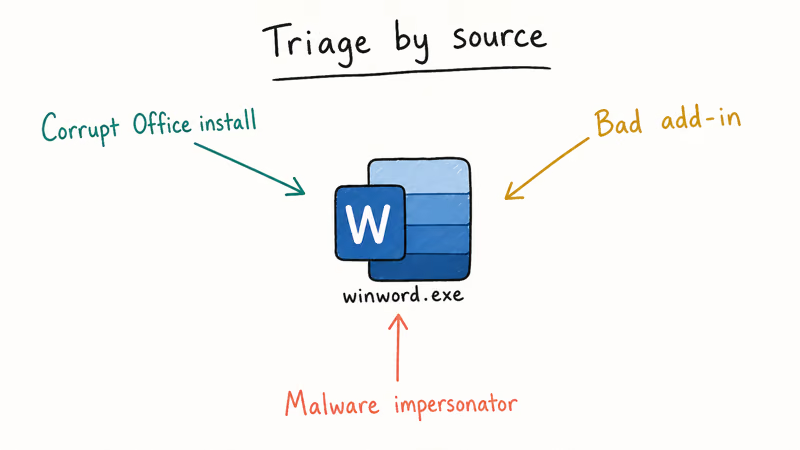
- Corrupted Office installation files, often after an interrupted update or a Windows feature update that left Office in an inconsistent state
- Damaged Windows system files such as VCRUNTIME140.dll, MSVCP140.dll, or other shared libraries that Word loads at startup
- Misbehaving add-ins from Adobe Acrobat, Mendeley, Zotero, or older Visual Basic for Applications templates
- Antivirus quarantine actions that mistakenly flag winword.exe or its supporting DLLs as suspicious
- Profile or registry corruption, especially in the HKEY_CURRENT_USER\Software\Microsoft\Office key tree
- Malware impersonating winword.exe, where a hostile process hides under the same name and triggers the real process to crash
Knowing the cause shapes the fix. According to Microsoft’s Office repair documentation, Quick Repair handles install corruption locally in under 10 minutes, while Online Repair reinstalls all 8 Office apps while preserving documents. The order below tracks both severity and time investment: the cheapest fix first, the most disruptive last. Each one is independent, so stop as soon as Word launches cleanly and skip the remainder.
#Fix 1: Run a Full Malware Scan
Malware drives a surprising share of winword.exe error reports. Hostile processes either impersonate winword.exe under a similar name like winword32.exe or wlnword.exe, or they hook into the real Word process and force it to crash on launch. Scan first, because a malware-driven failure returns after every other fix you try, and you’ll burn hours diagnosing Office while the real culprit lives somewhere else on disk entirely. Treat this scan as table stakes before changing Office.
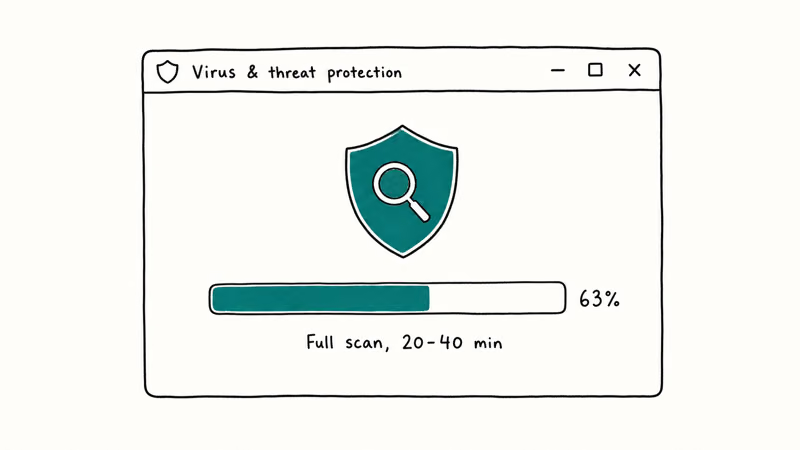
- Press Windows + I to open Settings
- Go to Privacy & security, then Windows Security, then Virus & threat protection
- Click Scan options, select Full scan, and click Scan now
The full scan typically runs 30 to 90 minutes depending on disk size. If you also run a third-party antivirus like Malwarebytes or Bitdefender, run that scan in parallel rather than back-to-back. Confirm a clean result before moving on.
#Fix 2: Repair the Office Installation
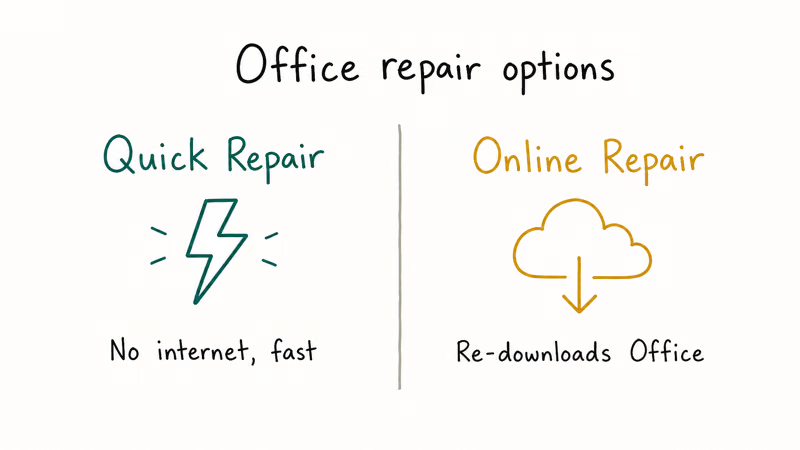
If the scan comes back clean, Quick Repair is the highest-yield single fix. It checks every Office file against a local cache and replaces anything missing or damaged, and it runs entirely offline so it works without internet.
- Open Settings, then Apps, then Installed apps
- Find your Office entry (Microsoft 365, Office 2021, or Office 2019)
- Click the three-dot menu and choose Modify
- Pick Quick Repair, then click Repair
Quick Repair checks Office files against a local repair source, which is why it can run offline. If Quick Repair doesn’t solve the error, repeat the steps and pick Online Repair instead.
#Fix 3: Launch Word in Safe Mode and Disable Add-ins
Word’s Safe Mode loads the editor with all add-ins, customizations, and template overrides disabled. If Word starts cleanly in Safe Mode, you’ve isolated the cause to an add-in. Microsoft confirms that the /safe switch suppresses every COM and VBA add-in at launch, which is exactly the isolation step you want here.
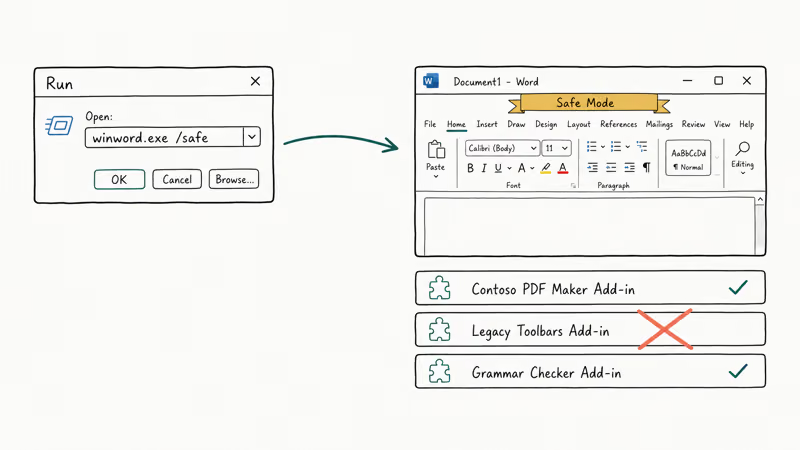
- Press Windows + R to open Run
- Type
winword /safeand press Enter - If Word opens, go to File, then Options, then Add-Ins
- At the bottom, set Manage to COM Add-ins and click Go
- Uncheck every entry and click OK
- Close Word and launch it normally
Now re-enable the add-ins one at a time, restarting Word after each, until the error reappears. The last one you enabled is the culprit, so walk the list slowly. Two interacting add-ins can mask each other if you enable them together. Removing the problematic add-in should clear launch errors caused by that add-in.
#Fix 4: Run SFC and DISM Scans
When the cause sits in Windows itself rather than in Office, the System File Checker and Deployment Image Servicing and Management tools are the right pair. SFC compares your system files against a baseline and replaces damaged copies. DISM repairs the underlying component store that SFC depends on.
- Right-click the Start menu and choose Terminal (Admin) or Command Prompt (Admin)
- Run
sfc /scannowand wait for completion - If SFC reports unrepairable files, run
DISM /Online /Cleanup-Image /RestoreHealth - After DISM finishes, run
sfc /scannowone more time
Microsoft’s SFC reference confirms that the tool scans all protected system files in under 15 minutes and replaces incorrect versions with the correct Microsoft copy. If DISM hits an error code you have not seen before, the DISM error 87 guide walks through the most common syntax problem first-time users hit.
#Fix 5: Update Windows and Office
Microsoft has shipped hotfixes for several winword.exe regressions over the past three years, so an out-of-date system is a real risk. Update Windows and Office together rather than separately, because some Office hotfixes assume specific Windows servicing levels.
- Open Settings, then Windows Update, then Check for updates
- Install every available update, including optional driver updates
- Restart, then open any Office app
- Go to File, then Account, then Update Options, then Update Now
After both updates finish, reboot once more and test Word. A cumulative Windows update can clear winword.exe errors when the underlying problem is a Visual C++ runtime mismatch.
#Fix 6: Remove Conflicting Applications
A handful of third-party apps interact with Word in ways that can break it. PDF tools, citation managers, and writing assistants are common places to check. If you installed something recently and the error started after that install, the timing alone is a strong signal.
Open Settings, then Apps, then Installed apps. Sort by Install date to surface recent installs, uninstall any app you don’t actively need, then reboot and test Word.
If Word now opens, you can selectively reinstall the apps you need one by one, testing Word after each install. The same Adobe PDFMaker add-in from Fix 3 also installs an Office plugin during Acrobat setup, which is why removing just the add-in often fails when removing Acrobat entirely succeeds.
#Fix 7: Reinstall Microsoft Office
A full reinstall is slower than Online Repair, but it also clears residual registry entries that repair leaves behind. Reach for this fix when Online Repair, SFC, and DISM have all failed.
- Open Settings, then Apps, then Installed apps
- Select your Office product and click Uninstall
- Reboot
- Download a fresh installer from your Microsoft account at account.microsoft.com/services
- Run the installer and sign in with the same account
Your documents are safe. Uninstalling Office does not touch files on disk or in OneDrive. If you used a perpetual Office 2013 or earlier license, the Microsoft Office 2013 product key guide explains how to find the key before you uninstall. For users who hit the error while trying to recover unsaved work, how to recover an unsaved Word document covers AutoRecover paths that survive a reinstall.
#Fix 8: Roll Back With System Restore
If the error started after a specific change like a Windows Update, a driver install, or a new application, a System Restore that targets a date before the change is the most surgical fix available.
- Press Windows + S and search for Create a restore point
- Click System Restore, then Next
- Pick a restore point dated before the error started
- Click Scan for affected programs to see what will roll back
- Click Finish and let the system reboot
Microsoft’s recovery options page confirms that System Restore reverts Windows system files, registry settings, and installed programs in roughly 20 to 45 minutes while leaving personal files alone. If you want a sense of timing before you start, how long does system restore take maps wait times against drive types and restore-point size.
#Which Fix Should You Try First?
Match your entry point to the most recent change on the machine.
- Office stopped working out of nowhere with no recent installs: start with Fix 1 (malware scan), then Fix 2 (Quick Repair)
- Error started after installing a third-party app: jump to Fix 6 (remove conflicting apps) or Fix 3 (Safe Mode add-ins)
- Error started after a Windows Update: go straight to Fix 8 (System Restore) and roll back the update
- Error appears with other strange Windows behavior: run Fix 4 (SFC and DISM) first to repair Windows itself
- None of the above match: work the list top to bottom
Run Fix 1 first. Cleaning Office on top of an active infection wastes time, and the scan rules out malware before Office repair. If the error pairs with broader Office freezes, the coverage of Excel not responding shows the same diagnostic pattern applied to Excel.
#Bottom Line
Quick Repair from the Apps panel resolves many winword.exe errors with a small time investment. Try it before the full reinstall, which belongs after Online Repair, SFC, and DISM have all failed. Reach for System Restore only when you can pinpoint the change that triggered the error. If the error returns quickly after a fix, suspect an add-in (Fix 3) or a recent third-party install (Fix 6) before reinstalling.
#Frequently Asked Questions
What is winword.exe and is it safe?
Winword.exe is the legitimate executable for Microsoft Word, signed by Microsoft and installed under Program Files. It’s safe as long as it lives in the standard Office install folder. If you find a winword.exe in an unusual location like the Temp directory or a user profile root, that copy is suspicious and a full antivirus scan is the right next step.
Can a winword.exe error damage my documents?
No, the error blocks Word from launching but leaves files on disk untouched.
Why does winword.exe show up multiple times in Task Manager?
Each open Word window or background process spawns its own winword.exe entry, and Office keeps a hidden winword.exe running for a few minutes after you close a document so the next launch is faster. Multiple entries are normal. The exception is when one entry holds onto over 30% CPU sustained or over 1.5 GB of RAM with no open Word window, which usually signals a stuck add-in.
Will reinstalling Office delete my Word documents?
Reinstalling Office removes the application files only. Your documents in Documents, OneDrive, SharePoint, and the AutoRecover folder are untouched. Microsoft confirms that uninstall and reinstall preserve user data on the Office repair page linked in Fix 7 above.
Why does Office Safe Mode work when normal mode does not?
Safe Mode loads Word with add-ins, custom templates, and customizations disabled. If Word runs cleanly in Safe Mode, the failure sits in one of those layers, almost always a COM or VBA add-in. Disabling add-ins one at a time, as covered in Fix 3, isolates the problem cleanly.
Do I need my product key to reinstall Office?
If you bought Office through a Microsoft account on Microsoft 365 or Office 2021, you don’t need a product key. Signing into the same account during reinstall reactivates the license automatically. Older retail copies of Office 2019 and earlier do require a 25-character product key, which is stored in your Microsoft account purchase history if you bought online.
Can third-party Office repair tools fix winword.exe errors?
Stick with Microsoft’s built-in Quick Repair and Online Repair tools first. Third-party Office repair utilities often write to the same registry keys that Microsoft’s tools manage, and a botched repair can leave Office in a state that needs a full reinstall to recover from. The Microsoft tools are free, supported, and reversible.

Best Laptop for Running LLMs in 2026: Memory Comes First
The best laptop for running LLMs is a memory purchase first. Compare MacBook unified memory against NVIDIA laptop VRAM, and see what each tier really runs.

How to Run a Local LLM on Windows: A 2026 Setup Guide
Run a local LLM on Windows with LM Studio or Ollama. Pick a model that fits your GPU memory, keep every prompt offline, and skip the monthly bill.

Bluetooth Not Working on Snapdragon X? Fixes for 2026
Bluetooth not working on your Snapdragon X Copilot+ PC? Generic audio, mice, and keyboards work, but vendor apps often lack an ARM build. Fixes inside.

Docker Desktop and WSL2 Not Working on Snapdragon X? Fix It
WSL2 runs fine on Snapdragon X, but Docker Desktop ARM is Early Access and throws WSL errors. Use WSL2 plus native ARM64 Ubuntu and Docker Engine.