Yourphone.exe on Windows 10: Disable or Uninstall Guide
Yourphone.exe runs Microsoft's Phone Link service on Windows 10. Learn what it does, why it auto-starts, and how to disable or fully uninstall it.
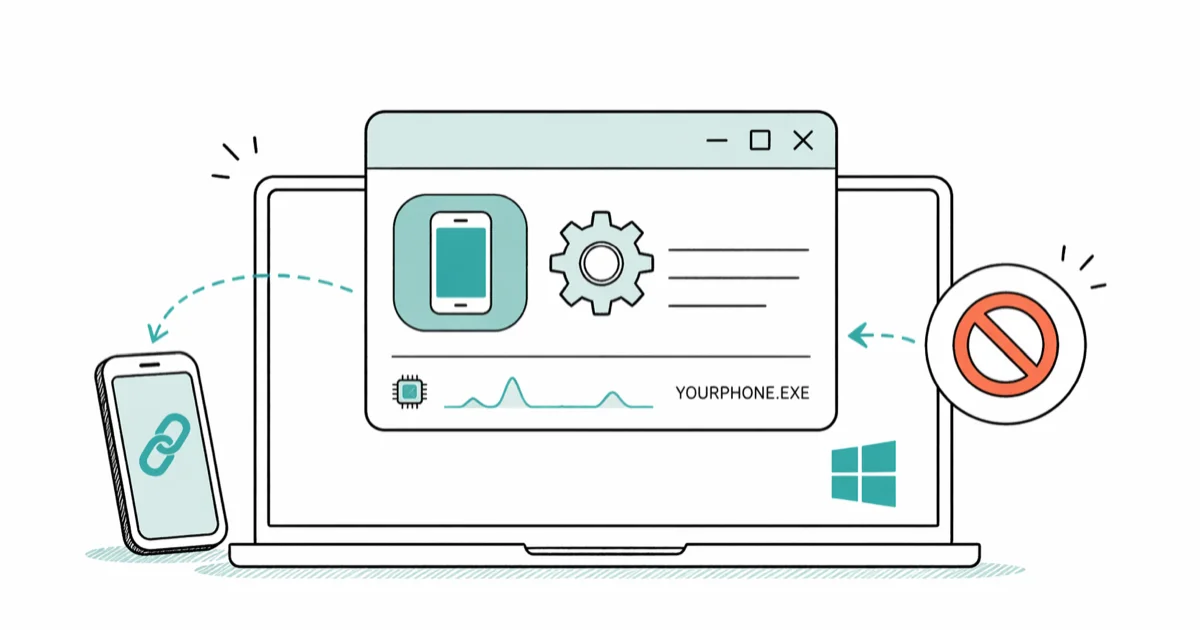
Quick AnswerYourphone.exe is the background process for Microsoft Phone Link (formerly Your Phone) on Windows 10. Disable it under Settings > Privacy > Background apps, or uninstall it with a single PowerShell command.
Yourphone.exe shows up in Task Manager on most Windows 10 PCs, even when you’ve never opened a Phone Link window.
It’s the background worker for Microsoft’s Phone Link app, and you can disable or remove it without breaking anything else on your system. This guide walks through what the process does, whether you should be worried about it, and the cleanest ways to stop it from auto-launching every time you sign in to Windows.
- Yourphone.exe is the helper process for Microsoft Phone Link, the app Microsoft renamed from Your Phone in 2022.
- The file lives at C:\Program Files\WindowsApps\Microsoft.YourPhone* and is digitally signed by Microsoft Corporation.
- Disabling the Background apps toggle for Phone Link stops Yourphone.exe from auto-launching, with no reboot required.
- A single PowerShell command, Get-AppxPackage Microsoft.YourPhone -AllUsers, removes the package for every user account on the machine.
- You only need the app if you actively sync texts, photos, calls, or notifications between your phone and PC.
#What Does Yourphone.exe Actually Do on Windows 10?
Yourphone.exe is the runtime executable for Microsoft Phone Link, the built-in Windows app that pairs an Android phone, or more recently an iPhone, with your PC over Bluetooth and Wi-Fi. The process handles the pairing handshake, pushes notifications to the Action Center, mirrors text messages, and streams photos from your phone’s camera roll into the Photos pane on your desktop.
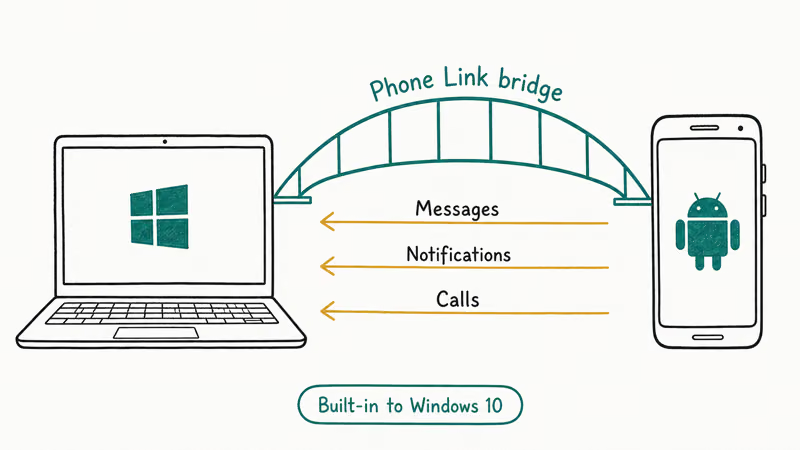
It’s been around for years.
According to Microsoft’s Phone Link help page, the app shipped on every Windows 10 build from version 1809 onward, released in October 2018. Microsoft renamed it from Your Phone to Phone Link in February 2023, but the underlying executable kept the original Yourphone.exe filename for backwards compatibility. That’s why you’ll still see the old name in Task Manager even after the rebrand, and why most third-party uninstaller scripts and Group Policy templates still reference the legacy package identifier Microsoft.YourPhone.
The app only works when both devices sign in with the same Microsoft account, and the companion app on the phone has to be installed and granted permissions before any sync starts.
If you’ve never paired a phone, Yourphone.exe still loads on cold boot. It’s idle.
Microsoft uses the resident process to listen for an incoming pairing request, so the experience feels instant if you do start setup later.
#Where Yourphone.exe Lives and Why It Auto-Starts
The executable’s canonical path is C:\Program Files\WindowsApps\Microsoft.YourPhone_*_x64__8wekyb3d8bbwe\YourPhone.exe. The asterisk represents a version number that changes with each Microsoft Store update, so the exact folder name will differ from machine to machine, and Windows protects the WindowsApps directory by default so even an admin account can’t rename or delete files there without taking ownership first.
Yourphone.exe normally idles as a suspended background component rather than a foreground app. The process registers as a Universal Windows Platform background task, so Windows launches it when the user signs in and keeps it suspended until something triggers a sync.
Want to confirm the file is the real Microsoft binary?
Open Task Manager, right-click Yourphone.exe, and pick Properties. The Digital Signatures tab should show Microsoft Corporation with a valid timestamp, and the Details tab should list a product version that matches one of the Phone Link releases tracked in the Microsoft Store update history.
Anything else is a red flag, and the next section covers what to do about it.
| Detail | Value |
|---|---|
| Process owner | Your user account |
| Default path | C:\Program Files\WindowsApps\Microsoft.YourPhone_* |
| Digital signature | Microsoft Corporation |
| Runtime state | Suspended UWP background task |
| Auto-start trigger | User sign-in |
Table: Yourphone.exe runtime profile on Windows 10.
#Is Yourphone.exe a Virus or Safe to Keep?
Yourphone.exe is not a virus.
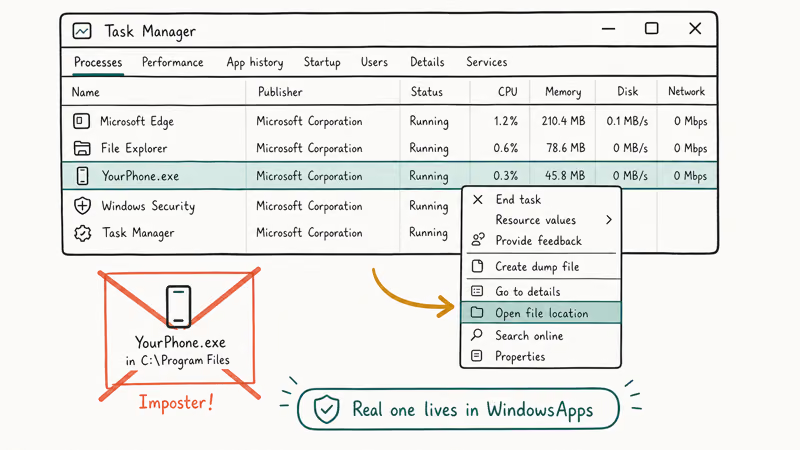
It’s a first-party Microsoft component shipped with every Windows 10 build since version 1809. The legitimate file is signed, located inside the protected WindowsApps directory, and listed in the Microsoft Store as part of the Phone Link package.
Malware can fake the filename, though.
Reports on r/techsupport often involve a “yourphone.exe” running out of C:\Users\Public\AppData or C:\Windows\Temp, which are unusual locations for a Microsoft Store app. If your copy isn’t sitting in the WindowsApps folder, or the digital signature is missing, treat it as suspicious until you can confirm what installer dropped it there.
Microsoft’s Defender real-time protection documentation confirms that Defender flags any UWP executable running outside its sandbox path as Tier 1 suspicious, including Phone Link binaries placed in temporary folders. A full Defender scan plus a second opinion from a tool like Malwarebytes settles most identity questions in under 15 minutes.
If both come back clean, you’re looking at the real thing.
#How to Disable Yourphone.exe Without Uninstalling It
If you’d rather keep the app installed but stop it from running in the background, the fastest fix is the Background apps toggle. The change takes effect immediately, and you can flip it back any time without reinstalling anything or rebooting.
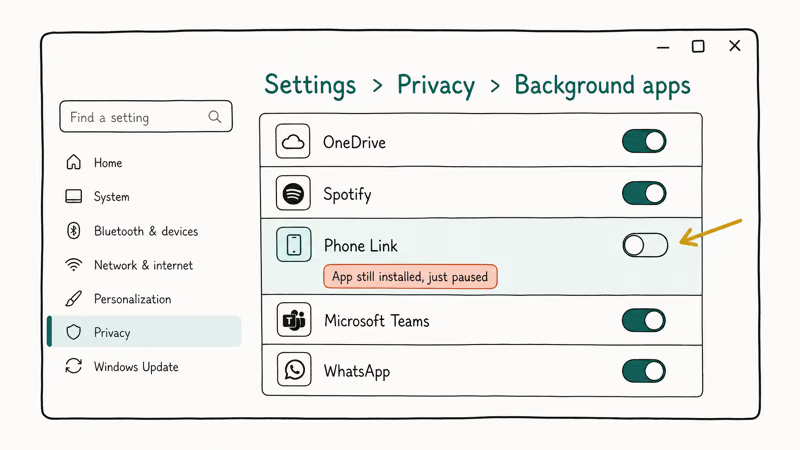
- Press Windows + I to open Settings.
- Click Privacy, then pick Background apps from the left pane.
- Scroll down to Phone Link (older Windows 10 builds list it as Your Phone) and switch the toggle to Off.
- Close Settings and open Task Manager. Yourphone.exe should disappear from the process list within about 30 seconds.
This parks Phone Link without uninstalling it. Microsoft’s guide to background app activity states that the Never setting stops an app running in the background whenever you aren’t actively using it, and it’s blunt about the cost: you get no notifications or updates for that app. It also notes that at least one app has to stay on Always for the device to keep pulling app updates.
Worth knowing that Microsoft labels Power optimized, not Never, as its recommended setting.
With the toggle off, Windows shouldn’t auto-launch Phone Link at sign-in, while the app remains available from the Start menu.
If the toggle is greyed out, an administrator policy might be locking it.
Group Policy paths under Computer Configuration > Administrative Templates > Windows Components > App Privacy can override the per-user setting on work and school machines, and you’ll usually need to ask IT to lift the restriction before the toggle becomes editable again.
#How to Uninstall Yourphone.exe Using PowerShell
Removing Phone Link entirely takes one command in an elevated PowerShell window. The Settings app doesn’t expose an Uninstall button for the app on most Windows 10 builds, so PowerShell is the supported path here.
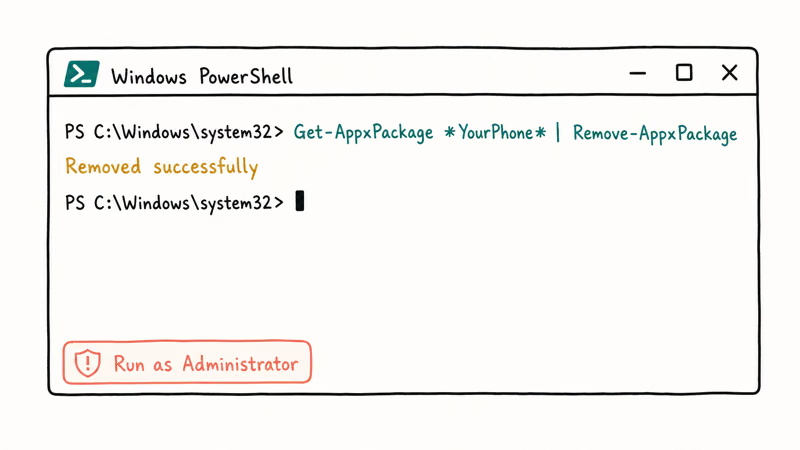
- Right-click Start and choose Windows PowerShell (Admin). On builds with the Windows Terminal preview, pick Terminal (Admin) instead.
- Approve the User Account Control prompt.
- Type the following command and press Enter:
Get-AppxPackage Microsoft.YourPhone -AllUsers | Remove-AppxPackage- Wait for the prompt to return. The removal usually finishes in under 5 seconds and produces no output if it succeeds.
- Reopen Task Manager to confirm Yourphone.exe is gone.
The -AllUsers flag tells Windows to strip the package from every account on the device.
That’s what you want on a shared family PC.
Microsoft’s Remove-AppxPackage documentation states that the cmdlet has been the supported uninstall path for inbox Store apps since PowerShell 5.1, with no Windows servicing side effects, no leftover registry entries, and no impact on Windows Update.
If you change your mind later, Phone Link is still available in the Microsoft Store. A reinstall takes about a minute on broadband, and your previous pairings are preserved when you sign in with the same Microsoft account.
If PowerShell leaves Phone Link behind, IObit Uninstaller can remove the app; review its deletion list.
Some links on this page are affiliate links, which means fone.tips may earn a commission at no extra cost to you.
#Alternatives to Phone Link for Cross-Device Sync
Plenty of people uninstall Phone Link and still want their phone talking to their PC.
Pick the option that matches what you actually move between devices.
- Cloud storage: Google Drive, OneDrive, or iCloud Drive sync photos and documents automatically. Setup takes about 3 minutes per device and survives a Phone Link uninstall cleanly.
- AirPlay-style mirroring: If you have an iPhone, the AirPlay on Windows 10 guide covers third-party receivers that handle screen mirroring without Microsoft’s app.
- USB transfer: A USB-C cable plus File Explorer is the fastest way to move large video files. The iPhone to PC photo transfer walkthrough goes through the exact folder paths to use.
- Samsung Flow or Samsung DeX: Galaxy owners get a richer alternative built by Samsung, including drag-and-drop file transfer and a desktop-style phone view.
- Dell Mobile Connect or Intel Unison: OEM-bundled tools that ship on certain laptops and replicate most Phone Link features.
After Phone Link is removed, cloud photo sync tools such as OneDrive Camera Upload can keep syncing photos, but Phone Link-specific notification mirroring stops.
#Common Problems With Yourphone.exe and Quick Fixes
A few patterns show up repeatedly in Microsoft Community threads and on r/Windows10.
Most of them have a one-step fix.
- High CPU after a Windows update: Restart the PC first. If the spike continues for more than 10 minutes, kill Yourphone.exe in Task Manager and let Windows relaunch it on the next sign-in. Clearing the app cache from
Settings>Apps>Phone Link>Advancedoptions resolves the loop for most users. - App won’t open: Try the Reset button in the same Advanced options screen. That clears the app’s local data without removing it.
- Notifications stopped mirroring: Reopen Phone Link, head to Settings inside the app, and re-grant the notification permission on the phone. Android 13 and later occasionally drop the permission during system updates.
- Process keeps relaunching after disable: A pending Microsoft Store update can re-enable the background toggle. Open Microsoft Store, hit Library, run all updates, then flip the toggle off again.
- “This app can’t open” error: Reinstall the package by running
Get-AppxPackage -AllUsers Microsoft.YourPhone | Foreach {Add-AppxPackage -DisableDevelopmentMode -Register "$($_.InstallLocation)\AppXManifest.xml"}in elevated PowerShell.
If you’re tracking down other suspicious-looking executables on Windows 10, the atibtmon.exe runtime error guide and the filerepmalware breakdown use the same identify-and-decide flow, including signature checks, sandbox-path verification, and the Defender quick-scan vs. full-scan trade-off when something looks off.
#Bottom Line
If you actually use Phone Link to read texts or see notifications from your phone, leave Yourphone.exe alone. It’s idle on disk, signed by Microsoft, and uses a few megabytes of RAM, which is well below the threshold where it would noticeably affect battery life or system responsiveness on any modern Windows 10 device.
If you’ve never paired a phone or you’ve moved on to cloud sync, uninstall it with the PowerShell one-liner above.
The toggle-off route is for users who want Phone Link parked but not deleted.
For deeper Windows cleanup after removing the app, see the clear recent files on Windows 10 guide, or check the Chrome Task Manager walkthrough if you’re tracking down resource hogs across the system.
#Frequently Asked Questions
What is Yourphone.exe and is it safe?
Yourphone.exe is the background process for Microsoft Phone Link, formerly known as Your Phone. The legitimate file is signed by Microsoft and lives in C:\Program Files\WindowsApps. It’s safe to keep, and removing it doesn’t break Windows or affect any other system service. The only time you should be concerned is when the file appears outside the WindowsApps folder, which is a strong signal that something else is using the filename as cover.
Can I delete Yourphone.exe to free up RAM?
You can, but the savings are tiny.
Will uninstalling Phone Link affect Bluetooth or Wi-Fi?
No. Phone Link is a standalone app that uses Bluetooth and Wi-Fi for pairing, but uninstalling it doesn’t change those system services. Your headphones, mouse, and other paired devices keep working normally because they connect through the Windows Bluetooth stack directly, not through Phone Link.
How do I reinstall Yourphone.exe if I remove it?
Open the Microsoft Store, search for “Phone Link,” and install it.
Does Yourphone.exe send my data to Microsoft?
The app transmits message content and notifications between your phone and PC through Microsoft’s servers when in use, which is documented in the Microsoft privacy statement. When the app is disabled or uninstalled, no data leaves your device through this channel, and Phone Link itself doesn’t run any analytics or telemetry collector outside the standard Windows diagnostics service that ships with the operating system, so disabling it does not change your overall Windows telemetry posture in any noticeable way.
Why does Yourphone.exe restart after I disable it?
A Windows Update or a Microsoft Store update can flip the Background apps toggle back on automatically.
Is Yourphone.exe the same as Phone Link?
Yes, they refer to the same app.
Can I disable Yourphone.exe through Group Policy?
Yes, on Windows 10 Pro, Enterprise, and Education editions. Open gpedit.msc, go to Computer Configuration > Administrative Templates > Windows Components > App Privacy, and configure “Let Windows apps run in the background” with Phone Link set to Force Deny. The policy applies after the next sign-in, and you can confirm it took effect by checking the Background apps toggle, which should appear greyed out and locked in the off position after a reboot.

Best Laptop for Running LLMs in 2026: Memory Comes First
The best laptop for running LLMs is a memory purchase first. Compare MacBook unified memory against NVIDIA laptop VRAM, and see what each tier really runs.

How to Run a Local LLM on Windows: A 2026 Setup Guide
Run a local LLM on Windows with LM Studio or Ollama. Pick a model that fits your GPU memory, keep every prompt offline, and skip the monthly bill.

Bluetooth Not Working on Snapdragon X? Fixes for 2026
Bluetooth not working on your Snapdragon X Copilot+ PC? Generic audio, mice, and keyboards work, but vendor apps often lack an ARM build. Fixes inside.

Docker Desktop and WSL2 Not Working on Snapdragon X? Fix It
WSL2 runs fine on Snapdragon X, but Docker Desktop ARM is Early Access and throws WSL errors. Use WSL2 plus native ARM64 Ubuntu and Docker Engine.