How to Fix VIDEO_DXGKRNL_FATAL_ERROR in Windows 10 and 11
VIDEO_DXGKRNL_FATAL_ERROR is a DirectX-kernel BSOD on Windows 10 and 11. Here is the fix order to follow step by step, plus when to stop trying.

Quick AnswerVIDEO_DXGKRNL_FATAL_ERROR is a DirectX graphics kernel bug check. Roll back or reinstall the GPU driver in Safe Mode, run sfc /scannow and DISM /RestoreHealth, then update the BIOS only if the crash points to your motherboard.
VIDEO_DXGKRNL_FATAL_ERROR is a Windows stop code raised when the DirectX graphics kernel (dxgkrnl.sys) hits a fault it can’t recover from. The trigger is almost always a broken display driver, a corrupted system file, or a dying GPU.
The blue screen shows bug check value 0x00000113, and it’ll keep returning until the underlying driver state, system file issue, or hardware fault is addressed.
- The crash maps to Microsoft bug check 0x113, raised by the DirectX graphics kernel when a GPU command or scheduler state is invalid.
- A rollback or clean reinstall of the GPU driver in Safe Mode is the first fix to try when the display driver is the trigger.
- Run sfc /scannow followed by DISM /RestoreHealth before touching the BIOS; corrupted system files can surface as the same stop code.
- A BIOS update is a real option, but it’s the highest-risk fix in this list and should be last, not first.
- If the crash returns after a clean install, the GPU itself is the likely cause and needs warranty diagnosis, not more driver tweaks.
#What Causes VIDEO_DXGKRNL_FATAL_ERROR?
The error is raised inside dxgkrnl.sys, the kernel-mode component that schedules GPU work and talks to your display driver. According to Microsoft’s Bug Check 0x113 reference, the stop code means “the DirectX graphics kernel subsystem has detected a violation.” So the message is almost always pointing at the driver layer, not the app on screen.
Four common causes cover most VIDEO_DXGKRNL_FATAL_ERROR cases:
- Display driver mismatch after a Windows Update. A cumulative update installs a newer dxgkrnl while leaving an older NVIDIA or AMD driver in place. The mismatched ABI is what trips the bug check.
- A corrupted user-mode driver file. Usually nvlddmkm.sys, atikmdag.sys, or igdkmd64.sys. System File Checker catches these.
- An overclock that is no longer stable after a thermal-paste-degradation, a fan failure, or a memory-clock bump.
- Failing VRAM or a GPU on its way out. Less common, but the one cause that no software fix will repair.
Other bug checks share these root causes, which is why the same fix order resolves several BSODs at once. If you have also seen DPC_WATCHDOG_VIOLATION or PAGE_FAULT_IN_NONPAGED_AREA on the same machine, treat them as one problem, not three.
#Confirm the Display Driver Is the Cause Before You Start
Before any uninstall, open Event Viewer and pull the BugCheck entry that matches the crash time. The parameter list after “VIDEO_DXGKRNL_FATAL_ERROR” usually names the offending module. A reference to nvlddmkm.sys points toward the NVIDIA driver. A reference to dxgmms2.sys points at a kernel component that is often reset by the same driver reinstall, so the action is similar.
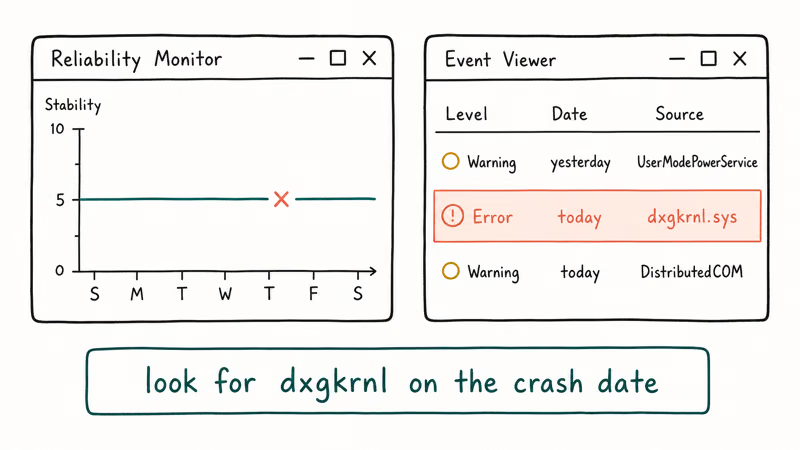
If Event Viewer lists a non-graphics module (storport.sys, ntfs.sys, or an audio driver), this guide is not the right one. Bug checks like DRIVER_POWER_STATE_FAILURE and THREAD_STUCK_IN_DEVICE_DRIVER share some root causes with VIDEO_DXGKRNL_FATAL_ERROR but they have their own fix orders, so applying the steps below blind will waste hours. Start with the dedicated guide for DRIVER_POWER_STATE_FAILURE or THREAD_STUCK_IN_DEVICE_DRIVER first, then come back here only if the crash actually trips the DirectX kernel.
#How Do You Roll Back a Broken GPU Driver?
The strongest first software fix is a clean reinstall of the GPU driver from inside Safe Mode using Display Driver Uninstaller (DDU). This is more complete than a vanilla Device Manager uninstall because it removes leftover driver state.
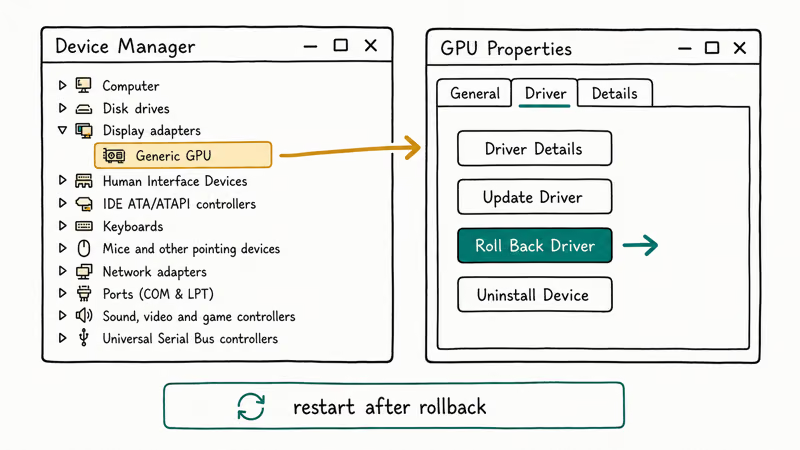
- Download the driver before you reboot. Pick the latest stable release from NVIDIA’s driver downloads or AMD’s driver page. Save it to a folder you can reach from Safe Mode.
- Boot into Safe Mode. Hold Shift while clicking Restart, then choose Troubleshoot → Advanced options → Startup Settings → Restart → press 4 for Safe Mode.
- Run DDU from a non-admin folder. Tell it to remove the GPU driver and reboot to normal Windows.
- Install the fresh driver you downloaded in step 1. Pick the “clean install” or “custom” option if the installer offers it.
The reason DDU matters is that Device Manager leaves orphan registry entries from the broken driver. Microsoft confirms that residual driver state can keep a bug check returning even after a reinstall, which is why every NVIDIA support thread eventually lands on this same DDU procedure.
#Run SFC and DISM Before You Touch the BIOS
Corrupted system files raise the same bug check, and they’re fixed in five minutes with built-in tools. Open an elevated Command Prompt, then run these two commands in order:
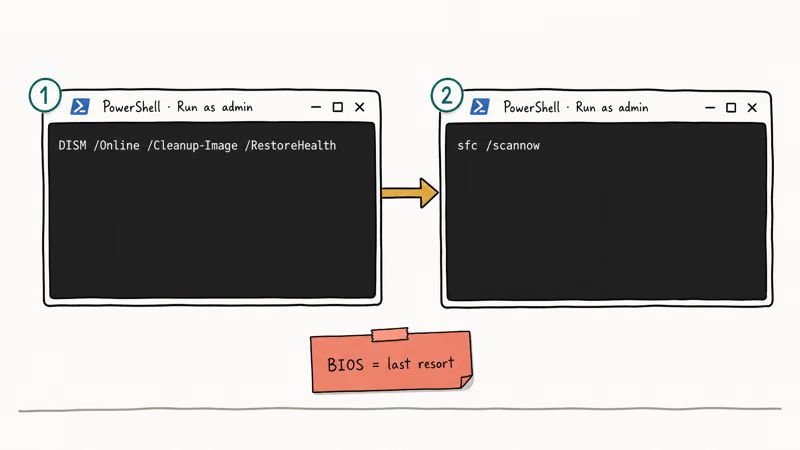
sfc /scannow
DISM /Online /Cleanup-Image /RestoreHealth
SFC scans protected system files; DISM repairs the underlying component store that SFC pulls from. Run SFC first, because if the component store is already damaged, SFC may fail and DISM can repair it for the next pass.
If both tools complete cleanly but the BSOD comes back, the driver is still the cause, not the OS. Go back to the DDU step above. If the bug check switches to CRITICAL_PROCESS_DIED or WHEA_UNCORRECTABLE_ERROR, you have a separate hardware fault and you should stop the software approach now.
#Update the BIOS Only as a Last Resort
A BIOS update can fix VIDEO_DXGKRNL_FATAL_ERROR, but only when the cause is a PCIe link or power-rail bug at the motherboard level. That’s rare.
Most BIOS-update advice you’ll see online is generic and unhelpful, and a failed BIOS flash will brick the board, which is a real cost. Treat this fix as a last resort, behind everything in the next table.
| Fix | Time | Risk | When to use it |
|---|---|---|---|
| GPU driver rollback or DDU reinstall | 15 min | Low | First. Resolves the majority of cases. |
| sfc /scannow + DISM /RestoreHealth | 10 min | None | Second. Fixes corrupted dxgkrnl files. |
| Disable overclock or XMP profile | 5 min | None | Third, if you overclocked. |
| Clean boot (msconfig) | 20 min | Low | Fourth, if a third-party app is suspected. |
| BIOS update | 30 min | High | Last, and only if the vendor release notes name the bug. |
| GPU replacement | hours | High | If every software fix returns the same bug check. |
Table 1. Recommended fix order for VIDEO_DXGKRNL_FATAL_ERROR, ranked by time and risk.
Before flashing, check the BIOS changelog on your motherboard vendor’s page. Dell, ASUS, and MSI all publish release notes per version; if no recent BIOS lists a graphics or PCIe fix, updating is unlikely to help. The Dell BIOS Update guide covers the safety checks step by step.
#Clean Boot to Find a Background-App Conflict
A clean boot disables every non-Microsoft service and startup item, which is how you tell whether a background app is poking the GPU driver. According to Microsoft’s clean-boot procedure, the steps are short:
- Press Win + R, type
msconfig, and press Enter. - On the Services tab, tick Hide all Microsoft services, then click Disable all.
- On the Startup tab, click Open Task Manager and disable everything listed.
- Restart.
If the crash stops in this minimal state, re-enable services in batches of five until it returns. That last batch holds the offender.
Common culprits include old NVIDIA monitor-overlay utilities, third-party RGB software, and outdated cleaner apps. Old security suites are a real cause too; Microsoft recommends running only one real-time scanner at a time, and Windows Defender is enough for nearly every home setup.
#Bottom Line
Roll the GPU driver back with DDU first, run sfc /scannow and DISM second, and only touch the BIOS if your motherboard vendor has actually shipped a fix in their release notes.
If you make it past step four and the screen still goes blue, the GPU itself is the prime suspect. Pull it, test in another machine if you can, and start a warranty claim rather than reinstalling Windows again.
#Frequently Asked Questions
What is bug check 0x113 in Windows?
Bug check 0x113 is the numeric code behind VIDEO_DXGKRNL_FATAL_ERROR. Microsoft documents it as a violation inside the DirectX graphics kernel, raised by dxgkrnl.sys when GPU command scheduling fails.
Will reinstalling Windows fix VIDEO_DXGKRNL_FATAL_ERROR?
Sometimes, but usually overkill. Try DDU and DISM first.
Is it safe to ignore the blue screen if my PC reboots normally?
No. The bug check writes a memory dump and resets the GPU scheduler, but the underlying driver fault stays in place, so the same crash returns within hours or days. It usually fires during gaming, video editing, or 3D playback, which means lost work each time. Fix it once, not twenty times.
How do I tell whether my GPU is the actual problem?
Two signals together point at the card. The crash still fires on the generic Microsoft Basic Display Adapter with no vendor driver loaded, and it returns within minutes of a fully clean DDU reinstall on the latest stable release. Swap the GPU into another PC for an hour of sustained 3D load; if it crashes there too, the card is bad and replacement is the only real fix.
Can a Windows Update cause VIDEO_DXGKRNL_FATAL_ERROR?
Yes.
The trigger is the same each time: a cumulative update ships a newer dxgkrnl that is incompatible with an older NVIDIA Studio driver still installed on the machine. The fix is a fresh DDU reinstall of the GPU driver, not a rollback of the Windows update, because the kernel-side change is permanent and supported by the rest of the patch payload.
Do I need to disable my antivirus?
Only if you’re running a legacy third-party suite that hooks the graphics stack with a kernel filter driver. Windows Defender is the default baseline, so leave it on unless a dump file or vendor advisory points at it.
What if the bug check changes after I install a new driver?
A different stop code points at a different cause. Treat each one with its own guide.

Best Laptop for Running LLMs in 2026: Memory Comes First
The best laptop for running LLMs is a memory purchase first. Compare MacBook unified memory against NVIDIA laptop VRAM, and see what each tier really runs.

How to Run a Local LLM on Windows: A 2026 Setup Guide
Run a local LLM on Windows with LM Studio or Ollama. Pick a model that fits your GPU memory, keep every prompt offline, and skip the monthly bill.

Bluetooth Not Working on Snapdragon X? Fixes for 2026
Bluetooth not working on your Snapdragon X Copilot+ PC? Generic audio, mice, and keyboards work, but vendor apps often lack an ARM build. Fixes inside.

Docker Desktop and WSL2 Not Working on Snapdragon X? Fix It
WSL2 runs fine on Snapdragon X, but Docker Desktop ARM is Early Access and throws WSL errors. Use WSL2 plus native ARM64 Ubuntu and Docker Engine.