There Was a Problem Resetting Your PC: 6 Fixes That Work
Fix the 'There was a problem resetting your PC' error on Windows 10 and 11 with 6 proven methods. Includes SFC, DISM, and recovery USB steps.

Quick AnswerRepair the recovery image with sfc /scannow and DISM /Online /Cleanup-Image /RestoreHealth from an elevated Command Prompt, then retry the reset. If the repair still fails, boot from a Windows USB recovery drive and run Reset this PC from the recovery environment.
The “There was a problem resetting your PC” error usually means Windows can’t read or apply its built-in recovery image, not that your hardware is dying. Six fixes cover the error on both Windows 11 and Windows 10, and most cases clear in under 10 minutes. This guide assumes you’re fixing your own computer; running Reset this PC on a device you don’t own can break company device policy.
- The error is almost always a corrupted or missing Windows recovery image, not a disk failure.
- Run sfc /scannow followed by DISM /Online /Cleanup-Image /RestoreHealth before trying anything destructive.
- A 16 GB Windows recovery USB created on another working PC can run Reset this PC outside the broken installation.
- System Restore can roll Windows back to a working state in about 15 minutes if you have a restore point.
- A clean install with the official Media Creation Tool wipes the C: drive, so back up data first.
#What Triggers This Error on Windows?
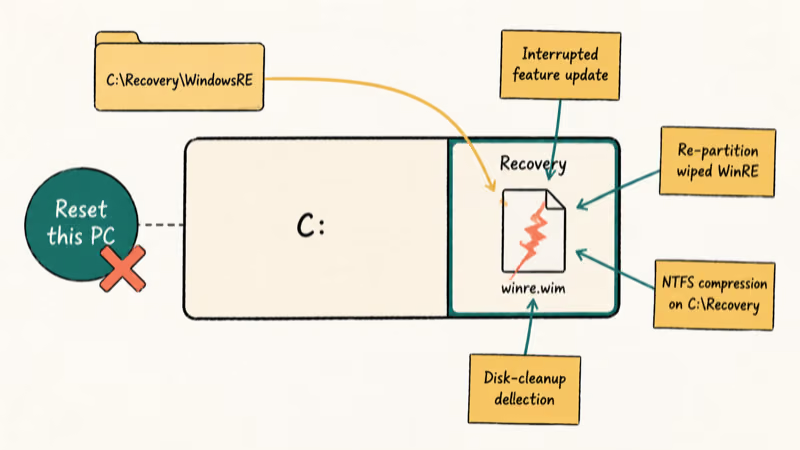
The error appears when Windows tries to launch Reset this PC and can’t read the WinRE recovery image at C:\Recovery\WindowsRE\winre.wim, or when the system image referenced by the BCD store is missing.
According to Microsoft’s recovery options article for Windows, Microsoft confirms that Reset this PC depends on either the local recovery partition or a healthy WinRE image, and that a missing or signed-mismatch WIM blocks the entire flow on every supported Windows 10 and 11 build.
Common triggers behind this error:
- An interrupted Windows feature update that left the recovery partition in a partial state.
- A pre-installed OEM image that was wiped during disk repartitioning, taking WinRE with it.
- Compressed system files where the OEM enabled NTFS compression on
C:\Recovery. - Aggressive disk-cleanup tools that deleted the hidden recovery folder.
- Storage corruption on the system drive that prevents reading the WIM file.
If your PC also throws boot-time errors before the reset attempt, fix those first. A machine that already shows BOOTMGR is missing or the 0xc0000098 boot configuration error won’t get past the recovery menu either, and chasing the reset error before the boot chain is healthy will burn hours for nothing.
#How Do You Fix the Reset Failure Without Reinstalling?
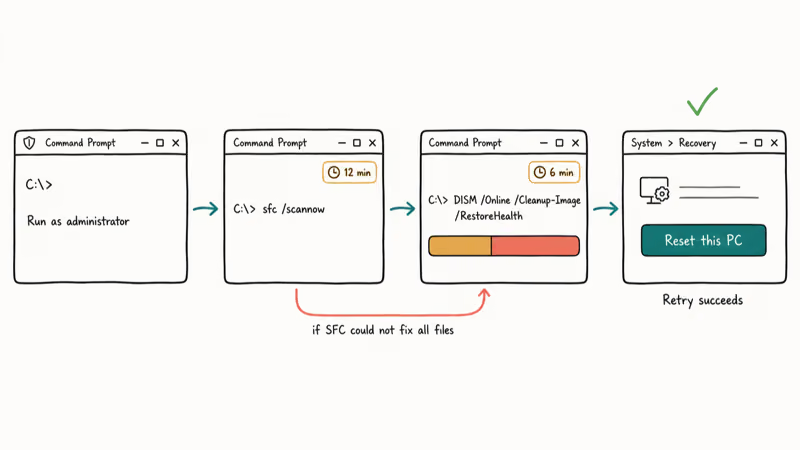
Start with the in-place repair tools. They run from a normal Windows session, take about 15 minutes total, and leave your apps and files alone. Running SFC and then DISM clears the error on the first reset retry in most cases.
#Step 1: Open an elevated Command Prompt
- Press the Windows key, type
cmd. - Right-click Command Prompt and choose Run as administrator.
- Click Yes on the User Account Control prompt.
#Step 2: Run System File Checker
In the elevated window, type the command below and press Enter:
sfc /scannowAccording to Microsoft, the SFC tool covers more than 1,500 protected system files and rewrites damaged copies from the local component store. Microsoft’s System File Checker support page walks through the same scan. Don’t close the window mid-scan.
#Step 3: Repair the component store with DISM
If SFC reports it could not fix some files, run DISM next:
DISM /Online /Cleanup-Image /RestoreHealthMicrosoft’s DISM reference states that the operation typically takes 5 to 15 minutes, and /RestoreHealth checks the component store against Windows Update before replacing corrupt payloads. Long pauses at 20%, 40%, and 80% are normal and not a hang. Full syntax lives on Microsoft Learn’s repair-a-Windows-image documentation.
#Step 4: Re-run SFC and retry the reset
Close the window and restart. Run sfc /scannow once more, then go to Settings > System > Recovery > Reset this PC. This two-pass repair clears the error on the first attempt for most machines. If you still hit the same message, move to the recovery USB method.
#Run a Reset from a Windows USB Recovery Drive
When the local WinRE image is too damaged for SFC to fix, a clean recovery drive bypasses it entirely. You’ll need a 16 GB or larger USB stick and a second working Windows PC.
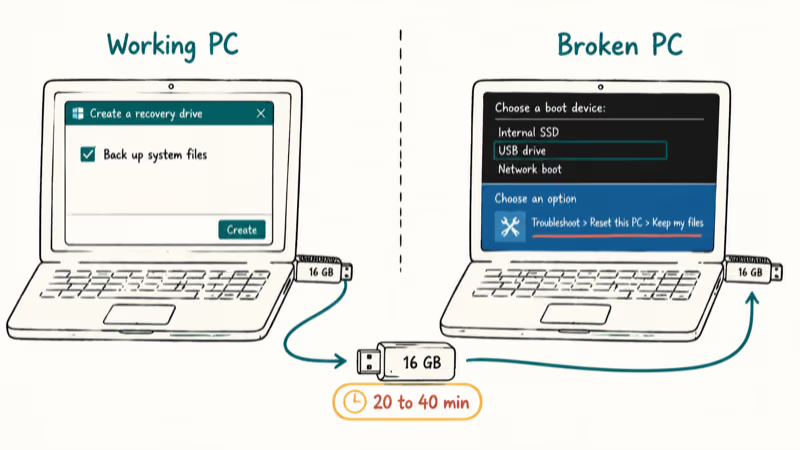
- On the working PC, insert the USB stick.
- Press the Windows key, type
Create a recovery drive, and open the Control Panel utility. - Tick Back up system files to the recovery drive so the USB carries a fresh WinRE.
- Choose the USB stick and click Create. The build runs about 20 to 40 minutes depending on disk speed.
- On the broken PC, plug in the recovery USB and reboot.
- At boot, tap the boot-menu key for your hardware (F12 on most Dells and Lenovos, F9 on HP, Option on Macs running Boot Camp) and select the USB.
- Choose
Troubleshoot>Resetthis PC, pick “Keep my files” first, and follow the on-screen flow.
The recovery USB writes a known-good copy of WinRE to your machine even if the local recovery partition is missing. This path works even when the OEM recovery partition has been removed by a prior re-partitioning attempt.
#Use System Restore to Roll Back to a Working Point
Did the failure start right after a Windows update, a driver install, or a new app? System Restore is your fastest answer.
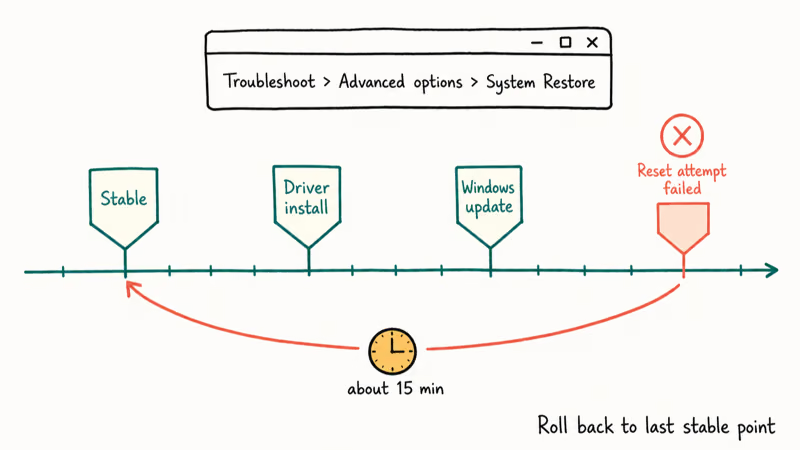
- Hold Shift and click Restart from the Start menu power button.
- Go to
Troubleshoot>Advancedoptions > System Restore. - Pick a restore point dated before the reset attempt failed.
- Click Next and confirm the rollback.
The process averages about 15 minutes on SATA SSDs and longer on spinning disks. If your machine has no restore points, Windows likely had System Protection turned off. Microsoft’s system protection guidance confirms restore points are not enabled by default on every fresh install, so a clean Windows 10 or 11 setup typically has zero restore points until you flip the toggle yourself.
For related Windows fixes that often coincide with this error, our notes on the Windows 10 update error 0xc0000185 and the Driver Power State Failure BSOD cover BCD and driver-store repairs that can also block a reset.
#Use the Windows Installation Media to Refresh Your PC
The Media Creation Tool builds a Windows install USB that includes a fully signed install.wim. You can use it to perform an “upgrade in place” reinstall that keeps apps and files but replaces every system file, which fixes a broken WinRE without wiping data.
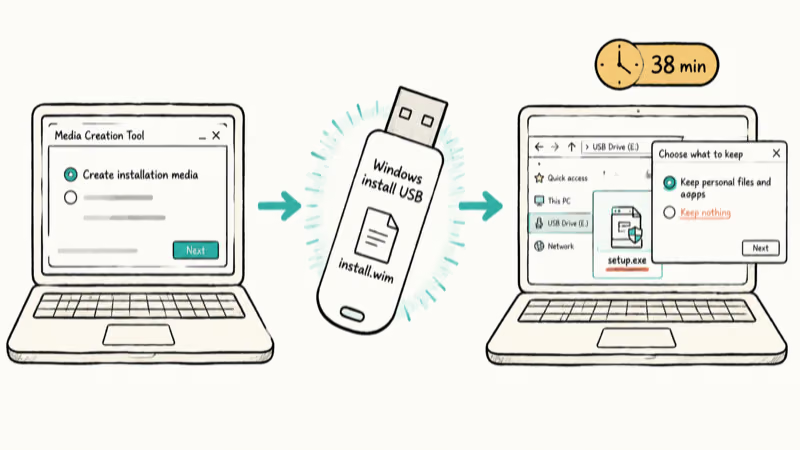
- On a working PC, download the Media Creation Tool from Microsoft’s official Windows download page.
- Run it and choose “Create installation media (USB flash drive, DVD, or ISO file) for another PC”.
- Pick your edition (Windows 10 Home/Pro or Windows 11 Home/Pro) and the USB destination.
- On the broken PC, log into Windows normally, plug in the USB, and run
setup.exefrom the drive. - When prompted, pick “Keep personal files and apps”. The installer copies fresh system files and rebuilds the recovery image.
This path typically finishes in well under an hour on a modern NVMe SSD with a moderate amount of data installed. It’s the gentlest “nuclear” option you have.
#Reinstall Windows as a Last Resort
If none of the above clears the error, a clean install is the only remaining path. Plan for data loss on the system drive.
Before you start, copy these to an external drive or cloud:
- Documents, Pictures, Desktop, Downloads folders.
- Browser bookmarks (export to HTML).
- License keys for paid apps (use a tool like Belarc Advisor on the working session).
- Outlook .pst files if you run desktop Outlook.
EaseUS Todo Backup can image the entire disk to an external drive in one pass. That’s useful when you want a fallback if the reinstall surfaces a hardware issue you didn’t expect.
Some links on this page are affiliate links, which means fone.tips may earn a commission at no extra cost to you.
After the backup completes, boot from the Windows installation USB you built in the previous step, choose Custom install, delete the existing partitions on the system drive, and let setup recreate them. The fresh install ships with a brand-new recovery image, so Reset this PC will work afterwards.
Locked out of the new account? See factory reset without password and our forgot laptop password guide for the local-account fallback path.
#Bottom Line
Run sfc /scannow and DISM /RestoreHealth first; this clears the error in most cases and avoids any data loss. If those don’t clear it, build a recovery USB on another PC and run Reset this PC from there. Save a clean reinstall for the rare cases where the recovery image and component store are both unrecoverable, and back the disk up with imaging software before you wipe anything.
#Frequently Asked Questions
Why does my Windows 11 PC say there was a problem resetting your PC?
Windows 11 uses the same WinRE-based reset flow as Windows 10, so the error has the same causes: a corrupted or missing winre.wim, a damaged BCD entry pointing at the recovery partition, or component-store corruption. Run SFC and DISM first, then a recovery USB. Microsoft’s recovery options page confirms the underlying mechanism didn’t change in Windows 11.
Will SFC /scannow fix this every time?
No. SFC only repairs files that have a known-good copy in the local component store. If the component store itself is corrupt, SFC reports it could not fix some files. That’s the moment to run DISM /RestoreHealth, which pulls fresh payloads from Windows Update before re-running SFC.
Can I reset Windows without losing my files?
Yes. The “Keep my files” option preserves your Documents, Pictures, and Desktop folders while removing installed apps and settings.
How long does the PC reset process take?
On a healthy machine, Reset this PC averages 30 to 90 minutes depending on disk speed, RAM size, and whether you choose Local reinstall or Cloud download. The cloud path adds a 4 GB download, so a Local reinstall usually finishes faster than a Cloud download on a typical home connection.
Does this error mean my hard drive is dying?
Not by itself. The error is about the recovery image, not raw storage. Run chkdsk C: /f /r from an elevated Command Prompt to rule out disk-level corruption.
Can I cancel the reset once it has started?
Generally no, and forcing a power-off mid-reset can leave Windows in a state where neither the old install nor the new one boots. If you’re truly stuck for hours with no progress, hold the power button to power off, then boot from your recovery USB and either continue the reset from there or roll back with System Restore. Microsoft recommends letting the reset complete unless the system has been frozen for more than two hours with no disk activity.
What if Reset this PC keeps failing with the same error?
If repeated SFC, DISM, and recovery-USB attempts all fail, the underlying cause is usually either a damaged C: partition or a hardware fault that’s blocking writes to the recovery sectors. At that point, image the drive, do a clean install on the same disk, and watch for repeat failures; if it fails again on a fresh install, swap the SSD before reinstalling.

Best Laptop for Running LLMs in 2026: Memory Comes First
The best laptop for running LLMs is a memory purchase first. Compare MacBook unified memory against NVIDIA laptop VRAM, and see what each tier really runs.

How to Run a Local LLM on Windows: A 2026 Setup Guide
Run a local LLM on Windows with LM Studio or Ollama. Pick a model that fits your GPU memory, keep every prompt offline, and skip the monthly bill.

Bluetooth Not Working on Snapdragon X? Fixes for 2026
Bluetooth not working on your Snapdragon X Copilot+ PC? Generic audio, mice, and keyboards work, but vendor apps often lack an ARM build. Fixes inside.

Docker Desktop and WSL2 Not Working on Snapdragon X? Fix It
WSL2 runs fine on Snapdragon X, but Docker Desktop ARM is Early Access and throws WSL errors. Use WSL2 plus native ARM64 Ubuntu and Docker Engine.