Fix Windows Boot Error 0xc0000185 (9 Working Solutions)
Fix Windows boot error 0xc0000185 on Windows 11 and 10 with 9 proven methods. Covers BCD repair, Startup Repair, disk error fixes, and recovery solutions.
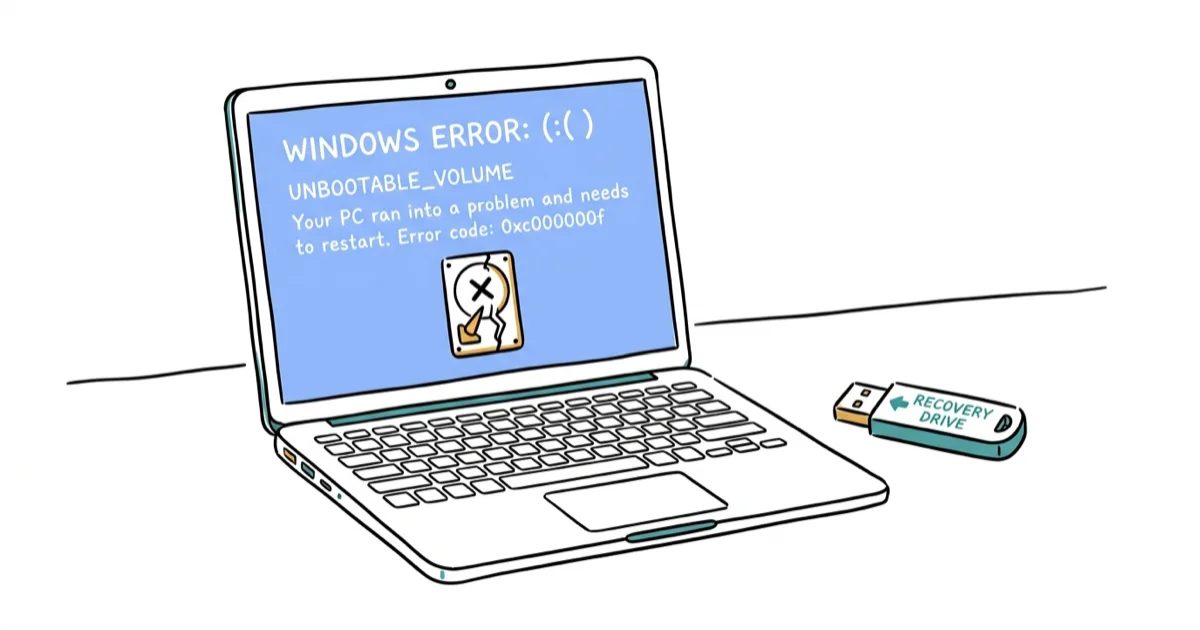
Quick AnswerError 0xc0000185 is a boot failure caused by corrupted Boot Configuration Data (BCD). Fix it by rebuilding BCD using bootrec commands, running Startup Repair, or checking disk errors with chkdsk. You need a Windows installation USB to access recovery tools.
Error 0xc0000185 is a Blue Screen of Death (BSOD) that appears during boot with the message “Your PC needs to be repaired” and “The Boot Configuration Data for your PC is missing or contains errors.” Windows can’t start because it can’t read the Boot Configuration Data (BCD) file.
This guide walks through 9 fixes for Windows 11 and Windows 10, ordered from the quickest BCD rebuild to deeper disk and system-file repairs, most of which need a bootable USB drive.
- Error 0xc0000185 means Windows can’t read the Boot Configuration Data (BCD) file and can’t start the operating system.
- Rebuilding BCD using four bootrec commands in Command Prompt resolves the majority of 0xc0000185 cases.
- Running Startup Repair from a Windows installation USB fixes many cases where bootrec commands fail to clear the error.
- Running CHKDSK with the /f /r flags repairs bad sectors on the hard drive that corrupted the BCD file in the first place.
- A Windows installation USB is required for most fixes since PCs with this error typically can’t boot far enough to reach recovery options.
#What Causes Error 0xc0000185?
According to TechYorker’s Windows 11 guide, the most common causes are:
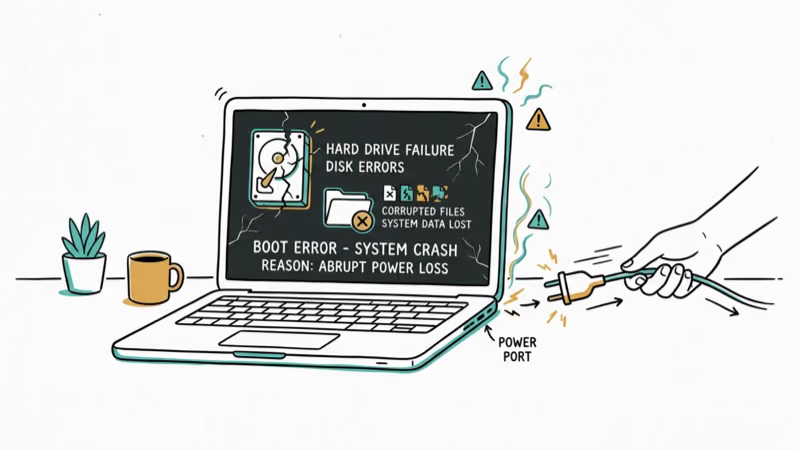
- Corrupted Boot Configuration Data (BCD) from improper shutdowns or failed updates
- Damaged system files from malware or disk errors
- Failing hard drive or SSD with bad sectors
- Incorrect BIOS boot order pointing to the wrong drive
Of these, corrupted BCD is by far the most common trigger. Failing drives are the next most common cause, especially on older PCs with mechanical HDDs.
#Fix 1: Rebuild Boot Configuration Data
Rebuilding BCD recreates the boot files Windows needs to start. You need a Windows installation USB for this.
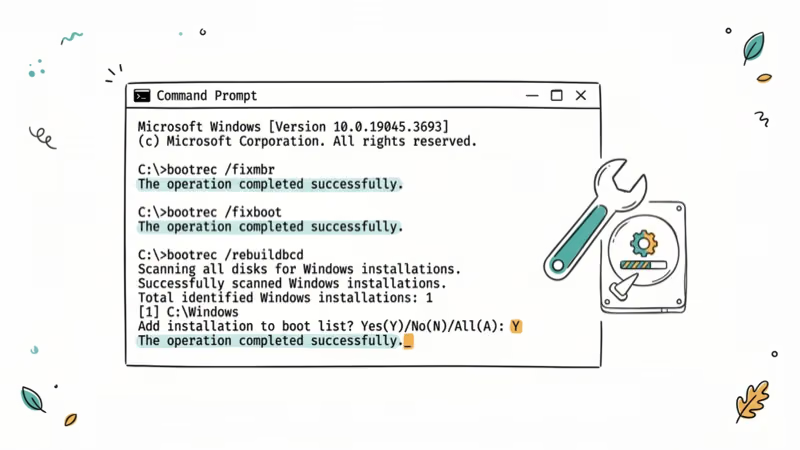
Boot from the USB, select “Repair your computer” > Troubleshoot > Command Prompt. Run these commands in order:
bootrec /fixmbr
bootrec /fixboot
bootrec /scanos
bootrec /rebuildbcd
For most BCD corruption, rebuilding the Boot Configuration Data is the fix that gets Windows booting again. According to Microsoft’s Bootrec.exe troubleshooting guide, the bootrec /rebuildbcd command scans the disk for Windows installations and rebuilds the Boot Configuration Data store. Partition Wizard’s 9 fixes also recommends rebuilding BCD as the most effective method for resolving BCD corruption.
#Fix 2: Run Startup Repair
Startup Repair automatically detects and fixes boot issues, including BCD corruption.
Boot from the Windows USB, select “Repair your computer” > Troubleshoot > Startup Repair. Wait for the scan to complete (5-15 minutes). Restart your PC after the repair finishes.
When bootrec commands fail, Startup Repair is the logical next step, since it can detect a “Boot configuration data file is missing required information” condition and fix it automatically. According to Microsoft’s Windows recovery options guide, Startup Repair is the recommended recovery option when Windows doesn’t start or keeps loading. Ofzen and Computing’s 2026 guide also recommends Startup Repair when manual BCD rebuild doesn’t resolve the error.
#Fix 3: Run CHKDSK to Fix Disk Errors
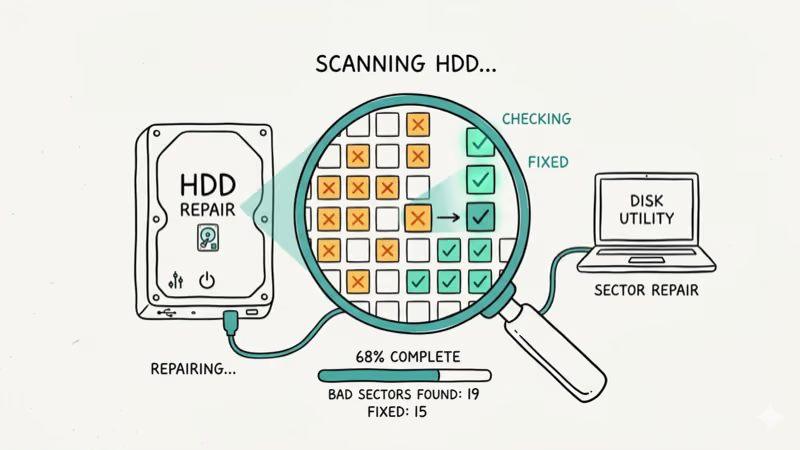
Bad sectors on your hard drive can corrupt BCD files. CHKDSK scans and repairs disk errors.
Boot from the Windows USB, open Command Prompt, and run:
chkdsk C: /f /rReplace C: with your Windows drive letter if different. The scan takes 30-60 minutes depending on drive size.
On a drive with bad sectors, CHKDSK can find and repair the damaged areas that corrupted the BCD, often clearing the error after a restart. Outbyte’s error guide also identifies disk errors as a cause of 0xc0000185 errors.
#Fix 4: Disconnect External Drives
External USB drives can interfere with the boot process if Windows tries to boot from them instead of your internal drive.
Unplug all external USB drives, SD cards, and external hard drives. Restart your PC and see if it boots normally.
If a PC has a USB drive or SD card plugged in at boot, unplugging it can be enough to let Windows boot from the correct internal drive again. Stellar’s troubleshooting guide also notes that external drive conflicts can cause boot errors. Similar USB conflicts can also trigger a USB device not recognized error during normal Windows use.
#Fix 5: Check BIOS Boot Order
If your BIOS is set to boot from the wrong drive, Windows can’t find the BCD file.
Restart your PC and press F2, F10, Del, or Esc (depends on your motherboard) to enter BIOS. Go to the Boot tab and make sure your Windows drive is first in the boot order. Save and exit.
On a desktop with more than one drive, the BIOS can end up trying to boot from an empty or non-Windows drive. Setting the correct Windows drive first in the boot order resolves this.
#Can You Fix 0xc0000185 Without a USB Drive?
If you can access Advanced Startup Options, you can try Startup Repair without a USB. Restart your PC and press F11 repeatedly during boot (or Shift + Restart from the login screen if you can reach it).
If a PC can still reach the recovery screen, Startup Repair can run without a USB drive at all. However, most PCs with 0xc0000185 can’t boot far enough to access recovery options, so a USB drive is usually necessary.
For related fixes, see our guide on update issues and activation problems.
#Fix 6: Run SFC and DISM in Recovery
Corrupted system files can cause BCD errors. SFC and DISM repair these files from the recovery environment.
Boot from the Windows USB, open Command Prompt, and run:
sfc /scannow /offbootdir=C:\ /offwindir=C:\Windows
DISM /Image:C:\ /Cleanup-Image /RestoreHealth
When corrupted system files are behind the error, SFC and DISM can find and repair them from the recovery environment, often clearing the boot failure after a restart. For more on Windows 10 errors and system repairs, check our troubleshooting guides.
#Fix 7: Perform System Restore
If you have a restore point from before the error appeared, System Restore can roll back Windows to that state.
Boot from the Windows USB, select Troubleshoot > Advanced options > System Restore. Select a restore point and follow the prompts.
When the error first appears right after a Windows update, System Restore can roll Windows back to a point before the update and often fixes it immediately. According to Microsoft’s recovery options documentation, System Restore is the recommended choice when your PC stops working well shortly after you install an app or update.
#Bottom Line
Start by rebuilding BCD using bootrec commands. If that doesn’t work, run Startup Repair and CHKDSK. Together these three methods clear the large majority of 0xc0000185 errors. You’ll need a Windows installation USB for most fixes.
#Frequently Asked Questions
What is error code 0xc0000185?
It’s a boot failure caused by corrupted or missing Boot Configuration Data (BCD). Windows can’t read the files it needs to start.
Can I fix 0xc0000185 without losing data?
Yes. Every fix in this guide preserves your files. Rebuilding BCD, running Startup Repair, and CHKDSK don’t delete personal data. Only a clean Windows installation (not covered here) would erase files, and that’s a last resort you’d choose deliberately.
Do I need a Windows USB to fix this error?
Usually yes. Most PCs with 0xc0000185 can’t boot far enough to access recovery options. Create a bootable USB on another PC using Microsoft’s free Media Creation Tool.
How long does it take to fix error 0xc0000185?
Rebuilding BCD takes 5-10 minutes. Startup Repair takes 10-20 minutes. CHKDSK takes 30-60 minutes. Budget about an hour to work through all methods if the first one doesn’t resolve your specific case.
Will rebuilding BCD delete my files?
No. It only recreates boot configuration files.
What if none of these fixes work?
Your hard drive may be failing. Back up your data if possible and consider replacing the drive. Run manufacturer diagnostics (Dell SupportAssist, HP PC Hardware Diagnostics, or Lenovo Vantage) to confirm whether the drive is the problem before buying a replacement.
Can malware cause error 0xc0000185?
Yes. Malware can corrupt BCD files and boot sectors. If you suspect malware, boot from a Kaspersky or Bitdefender rescue USB and run a full scan before attempting boot repairs. Repairing the BCD without removing the malware first means the corruption will likely return.

Best Laptop for Running LLMs in 2026: Memory Comes First
The best laptop for running LLMs is a memory purchase first. Compare MacBook unified memory against NVIDIA laptop VRAM, and see what each tier really runs.

How to Run a Local LLM on Windows: A 2026 Setup Guide
Run a local LLM on Windows with LM Studio or Ollama. Pick a model that fits your GPU memory, keep every prompt offline, and skip the monthly bill.

Bluetooth Not Working on Snapdragon X? Fixes for 2026
Bluetooth not working on your Snapdragon X Copilot+ PC? Generic audio, mice, and keyboards work, but vendor apps often lack an ARM build. Fixes inside.

Docker Desktop and WSL2 Not Working on Snapdragon X? Fix It
WSL2 runs fine on Snapdragon X, but Docker Desktop ARM is Early Access and throws WSL errors. Use WSL2 plus native ARM64 Ubuntu and Docker Engine.