Pokemon GO Not Loading? Fix the Loading Screen 2026
Pokemon GO not loading or stuck on the Pokeball? Check server status, fix automatic date and time, grant location permission, clear the cache, and update.
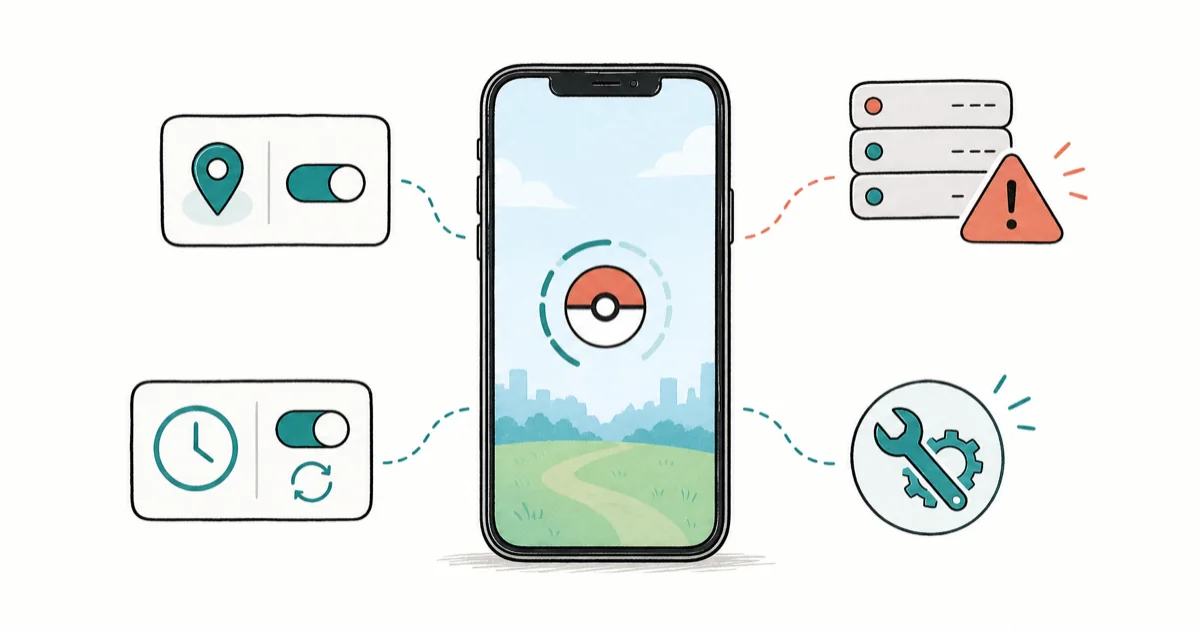
Quick AnswerPokemon GO usually wont load because of a server outage, a wrong device clock, or missing location permission. Check server status, set date and time to automatic, and allow precise location.
Pokemon GO not loading almost always traces to one of three things: a Niantic server problem, a phone clock that’s out of sync, or a missing location permission. The spinning Pokeball that never opens the map looks like a crash, but the fix is usually a basic server, clock, permission, or network check.
Using these methods on devices or accounts you don’t own may violate applicable laws and platform terms.
- Check the Niantic server status first, since an outage means no fix on your phone will help
- A wrong device clock breaks the login handshake, so set date and time to automatic before anything else
- Pokemon GO needs precise location permission, not approximate, to load the map
- Clearing the app cache fixes a stuck spinner without deleting your account or progress
- Reinstall only as the last step, after server, clock, location, and cache checks all fail
#Why Is Pokemon GO Not Loading?
The loading screen hangs when the app can’t complete its startup sequence: reach Niantic’s servers, verify your login, and confirm your location. Any broken link in that chain leaves you staring at the spinning Pokeball.
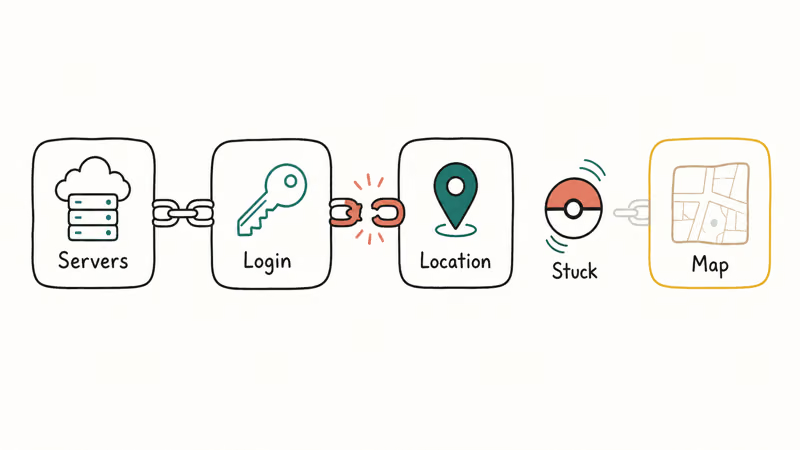
The three most common breaks are a server outage on Niantic’s side, a device clock that’s drifted off the correct time, and a location permission set to approximate or denied. Each has a distinct fix, so the trick is checking them in the right order instead of jumping straight to a reinstall.
#Are the Servers Down or Is It Your Phone?
Always rule out a server outage first, because no setting on your phone fixes a problem on Niantic’s end.
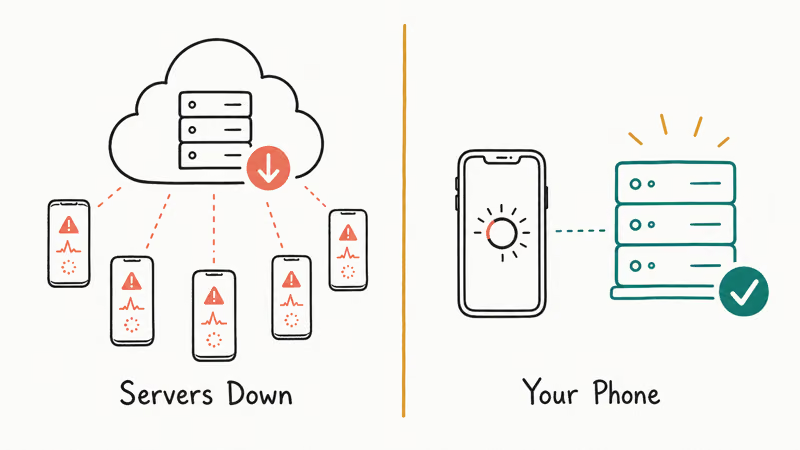
Check a live outage tracker like Downdetector and Niantic’s official channels. A spike in reports across many players means the servers are down, and the only move is to wait. According to Niantic’s Pokemon GO support, known service issues are posted to its help and status resources during outages.
If reports are quiet, the problem is usually on your device. That’s why this guide starts with device settings instead of reinstalling the app. Try a clean restart of the app first: swipe it fully closed and reopen it. A relaunch clears a one-off hang surprisingly often.
#Restart and Check Your Connection
Before changing settings, give the app a clean slate. Swipe Pokemon GO fully closed, then toggle airplane mode on and off to reset the radios, and reopen the game.
A weak or captive Wi-Fi network is a quiet culprit. The game may connect to Wi-Fi that has no real internet, so the login stalls. Switch to mobile data for a test load. If the game loads on cellular but hangs on Wi-Fi, the fault is the network, not the app.
#Fix Date, Time, and Location Settings
This is the single most overlooked fix, and it solves the majority of stuck loading screens.
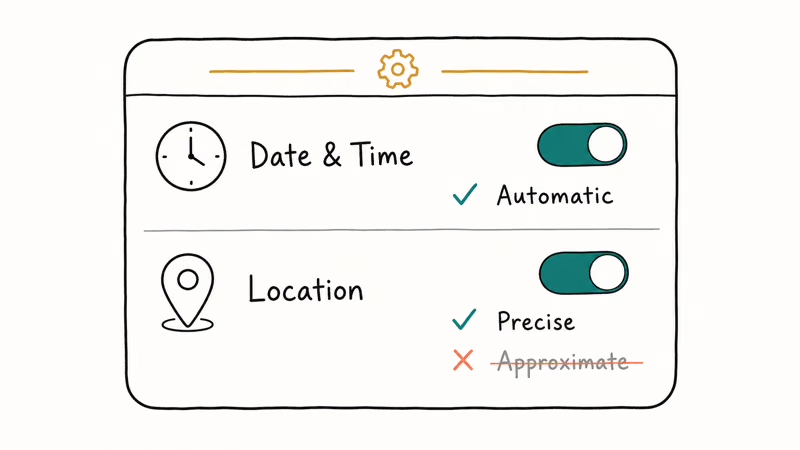
Pokemon GO verifies your login against a server timestamp. If your phone clock is even a few minutes off, the handshake fails and the app hangs. Open Settings and set date and time to automatic so the network supplies the correct time. According to Google’s date and time guidance, enabling automatic date and time keeps Android in sync with your network, which is exactly what the login check needs.
Next, location. In Pokemon GO’s app permissions, set location to Allow and turn on precise location, since approximate location is a frequent cause of an endless spinner. According to Apple’s location services guide, Precise Location must be on for an app to use your exact position, which is what the map needs. If your GPS itself is unreliable, the guide to Pokemon GO GPS signal errors covers the location-specific fixes.
#Clear the Cache and Update the App
If server, clock, and location are all correct and the spinner persists, clear the app cache and update.
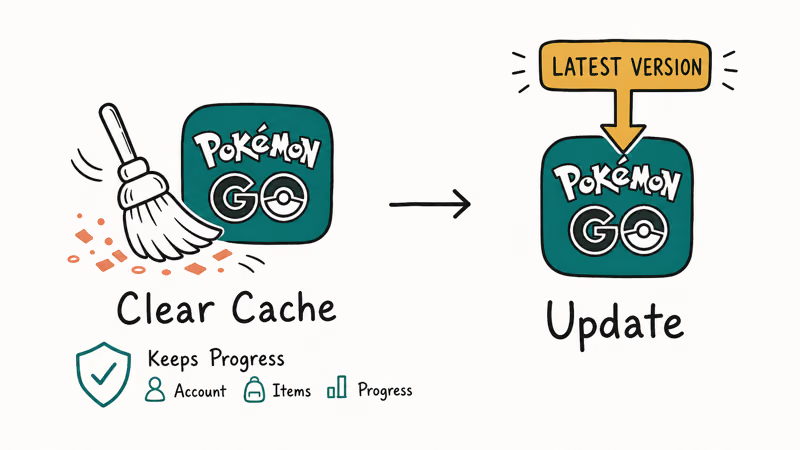
On Android, open Settings, then Apps, then Pokemon GO, then Storage, and tap Clear cache. This removes temporary files that can corrupt and stall loading, and it does not touch your account, items, or progress. On iPhone there’s no cache button, so offload the app from Settings, then General, then iPhone Storage, which clears the cache while keeping your data.
Then update. Open the App Store or Google Play, search Pokemon GO, and install any pending update, since Niantic ships loading and login fixes in app updates. An outdated client can fail to connect to updated servers. Background battery savers can also throttle the app, a pattern covered in the Galaxy battery drain guide, so whitelist Pokemon GO if your phone aggressively kills background apps.
#Reinstall Pokemon GO as a Last Resort
Reinstalling is the last resort, not the first, because it logs you out and forces a full re-download.
Only reinstall after you’ve confirmed the servers are up, your clock is automatic, precise location is granted, the cache is cleared, and the app is current. Before you delete it, make sure you know your login method (Google, Apple, Facebook, or Niantic), or you risk losing access to your account. Write the login down first.
After reinstalling, sign in with the same account you used before so your Trainer, items, and Pokemon all return. A fresh install with the same login restores your progress from Niantic’s servers. If other Google services act up at the same time, the Google Find My Device walkthrough shows how to confirm your Google account is healthy.
One thing to avoid: don’t blame the loading screen on location tools. That’s a separate subject from a genuine load failure, and the Pokemon GO spoofing explainer treats it as its own topic, not a troubleshooting step here.
#Bottom Line
Check the Pokemon GO server status first, then set your phone’s date and time to automatic, since a wrong clock breaks the login handshake behind most stuck loading screens. Grant precise location and clear the app cache before anything drastic. Reinstall only after server, clock, location, and cache steps fail, and confirm your login method first. If background savers keep killing the app, check whether Android Auto connectivity settings interfere with your networking too.
#Frequently Asked Questions
Why is Pokemon GO not loading?
The loading screen hangs when the app can’t reach Niantic’s servers, verify your login, or confirm your location. The three common causes are a server outage, a wrong device clock, and a missing precise-location permission. Check them in that order.
Are the Pokemon GO servers down?
Possibly. Check an outage tracker; many simultaneous reports mean the servers are down.
Does the wrong clock break Pokemon GO?
Yes. The login check compares your phone’s time to the server’s, and a clock that’s off by a few minutes makes that handshake fail. Setting date and time to automatic resolves it more often than any other single fix.
Why does Pokemon GO need location permission?
The game draws the map from your real position, so it needs location access to load past the spinner. Set the permission to precise rather than approximate. Approximate location is a frequent cause of an endless loading screen.
How do I clear the Pokemon GO cache?
On Android, go to Settings, then Apps, then Pokemon GO, then Storage, and tap Clear cache. On iPhone there’s no cache button, so open Settings, then General, then iPhone Storage, and use Offload App, which clears cached files while keeping your data. Neither step deletes your account, items, or progress, since all of that lives on Niantic’s servers and syncs back when you reopen the game. Reopen Pokemon GO afterward to let it rebuild the cache cleanly.
When should I reinstall Pokemon GO?
Reinstall only after server, clock, location, and cache checks fail. Confirm your login method first (Google, Apple, Facebook, or Niantic) so you can sign back in. Signing in with the same account restores your Trainer and items.

Fortnite Stuck on the Loading Screen? Fix It in 2026
Fortnite stuck on the loading screen? Check server status, fix the Windows N Media Pack and DirectX 11 on PC, clear the console cache, and verify files.

Minecraft Keeps Crashing? Java and Bedrock Fixes (2026)
Minecraft keeps crashing on startup or mid-game? Update your GPU driver, remove mods on Java, and reinstall Gaming Services on Bedrock. Fixes for both.

PS5 Controller Not Charging? 9 Fixes That Work (2026)
DualSense not charging? Swap the cable, use a rear port in Rest Mode, clean the USB-C port, and check power settings. 9 fixes for a dead PS5 controller.
Roblox Not Working on School Chromebook? 2026 Guide
Roblox not working on a school Chromebook? Learn why managed devices block apps, the legitimate ways to play, and how to fix real install errors.