Fortnite Stuck on the Loading Screen? Fix It in 2026
Fortnite stuck on the loading screen? Check server status, fix the Windows N Media Pack and DirectX 11 on PC, clear the console cache, and verify files.
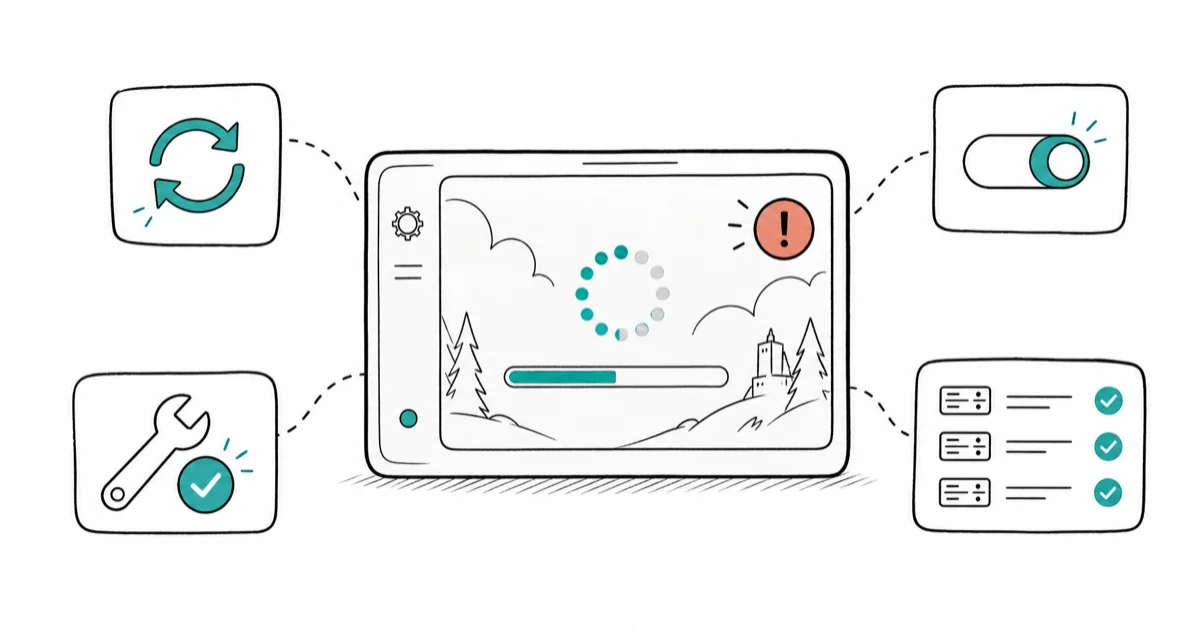
Quick AnswerFortnite usually gets stuck on the loading screen because of a server issue, a missing Windows N Media Feature Pack, or a rendering glitch. Check the server status and restart first, then apply the platform fix.
Fortnite stuck on the loading screen leaves you watching a spinning icon that never drops you into the lobby. The cause depends on your platform, so this guide splits the fix by PC, Xbox, and PlayStation instead of throwing one generic list at every player. On PC, Windows N editions are a known cause because they lack the media components Fortnite expects.
- Check the Fortnite server status before touching any settings, since an outage looks exactly like a frozen client
- Windows N and KN editions need the Media Feature Pack, which Fortnite requires to load
- Switching to DirectX 11 in the launcher bypasses many PC rendering stalls
- Clearing the console cache fixes most Xbox and PlayStation loading loops
- Verify or reinstall game files only after the platform-specific fix fails
#Why Is Fortnite Stuck on the Loading Screen?
A frozen loading screen means the client can’t finish handshaking with Epic’s servers or can’t initialize the game engine. Both look identical from your couch, so the cause sits in one of a few buckets.
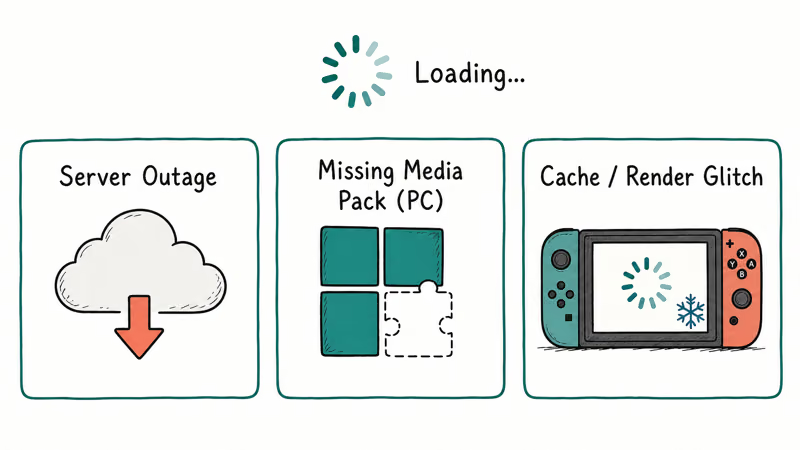
Server outages are the first. When Epic takes the servers down, every client hangs at load.
A missing Windows component is the second, and it’s PC-specific. Windows N and KN editions ship without media features, and Fortnite leans on those to render its loading sequence.
A rendering glitch is the third. The default DirectX 12 path on PC can stall on some GPUs and drivers, and the game gets stuck before the lobby appears. On consoles, a corrupt local cache plays the same role and traps the game mid-load.
#Check the Servers Before You Touch Your Device
Start here every time, because fixing your device does nothing during an outage. Open the Epic Games server status page and check whether Fortnite shows degraded or down. If Epic reports an incident, no local change will help, so the only move is to wait for the servers to recover before you troubleshoot anything else.
If the servers are green, the problem is local. Restart the game, then power-cycle your router by unplugging it for 30 seconds. A stale network session often connects you halfway, then hangs.
Test your wider connection next. If other apps also stall, the issue is your network rather than Fortnite. A flaky line can mimic a game freeze, and the same checks that fix a Valorant FPS drop often steady a Fortnite connection too. Once you’ve ruled out servers and network, move to the platform fix below.
#Fix PC Loading: Media Pack and DirectX 11
This is the fix that generic lists bury, and it’s the most common PC cause. According to Epic’s infinite loading help for Windows, the Windows N Media Feature Pack is required for Fortnite to load on N and KN editions of Windows.
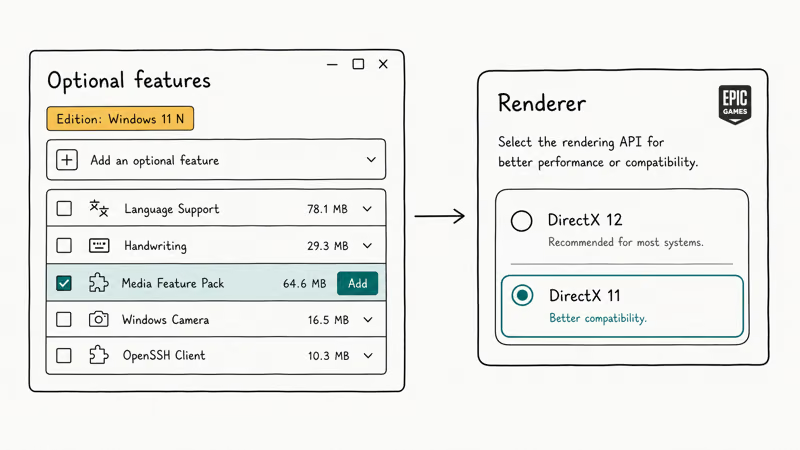
Check your edition first. Go to Settings > System > About and read the Edition line. If it ends in N or KN, you’re missing the media features that the game needs.
Install the pack from Settings > Apps > Optional features > Add an optional feature, search for Media Feature Pack, and install it. Microsoft’s documentation on the Media Feature Pack for Windows N states that N editions exclude Windows Media Player and related technologies that some apps depend on. Restart the PC afterward so the components register.
If you’re not on an N edition, switch to DirectX 11 in Fortnite’s Epic Games Launcher settings. DirectX 11 sidesteps DX12 stalls on some GPU and driver combinations.
Update your graphics driver while you’re here. An outdated GPU driver causes both loading hangs and crashes. If the PC also throws a blue screen during the freeze, our Windows 11 BSOD fix covers the driver rollback steps. A driver swap that smooths Fortnite often helps stutter in other titles too, the same way our Minecraft low FPS fix leans on a clean GPU driver.
#Clear the Console Cache on Xbox
Consoles store a local cache that gets corrupt after a patch, and that corruption traps the game on the loading screen. Clearing that cache is the console equivalent of the PC media fix.
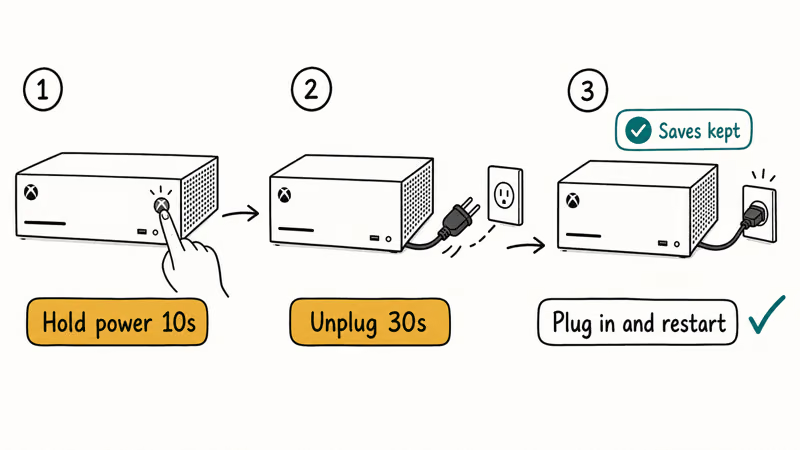
On Xbox, hold the power button on the console for 10 seconds until it fully shuts off, unplug the power cable for 30 seconds, then plug it back in and restart. This power-cycle clears the local cache without touching saves. According to Epic’s Xbox loading help, holding the power button for 10 seconds and then checking the console’s MAC address settings resolves stubborn Xbox loading stalls.
#Rebuild the Cache on PlayStation
On PlayStation, close Fortnite fully, then restart the console. That alone clears a light cache stall.
For a deeper clean on PS5, boot into Safe Mode and run Clear Cache and Rebuild Database, which rebuilds the system index without erasing games. A console that won’t even restart cleanly may have a separate fault, like the one in our guide on why an Xbox keeps turning off.
#When Should You Verify or Reinstall the Game?
Save this for last. Verifying or reinstalling is slow, and the steps above fix the common cases faster.
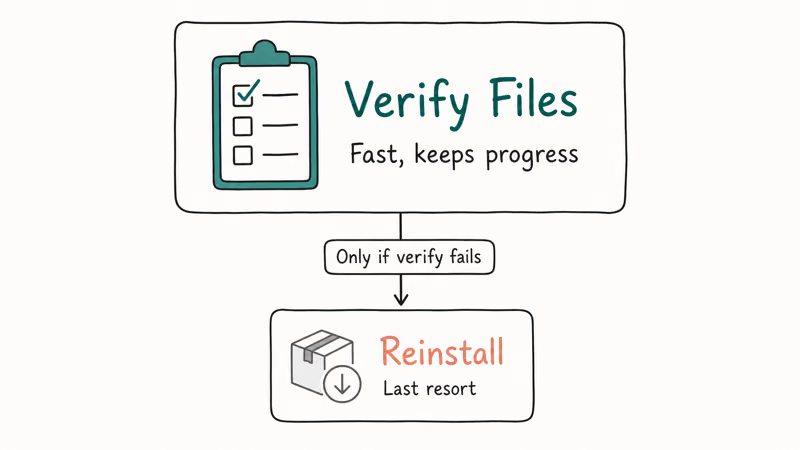
Verify first, since it’s quicker than a full reinstall. On the Epic Games Launcher, open Fortnite’s settings menu and click Verify. This checks every game file against Epic’s records and re-downloads only the damaged ones, which fixes a load hang caused by a single corrupt file without the wait of a full reinstall and without losing your settings or progress.
Reinstall only if verifying fails. A clean reinstall wipes any broken install state, but it pulls the full download again, so reserve it for when nothing else works. The same patience pays off with other corrupted-file problems, like a disk write error on Steam, where a verify pass usually beats a reinstall.
Still stuck after a reinstall? At that point the cause is likely account-side or hardware, and Epic support is the right escalation. Bring your platform, edition, and the steps you’ve already tried so they can skip the basics.
#Bottom Line
Check the Fortnite server status and restart the game and router first, since outages and temporary glitches cause many stalls. On Windows N editions install the Media Feature Pack and try DirectX 11 rendering, and on Xbox or PlayStation clear the console cache. Verify or reinstall game files only after the platform fix fails.
#Frequently Asked Questions
Why is Fortnite stuck on the loading screen?
It’s usually a server outage, a missing Windows N Media Feature Pack on PC, a DirectX rendering stall, or a corrupt console cache. Check the server status first, then apply the fix that matches your platform.
Is Fortnite down right now?
Check the Epic Games server status page. If Fortnite shows degraded or down, the freeze is on Epic’s side.
What is the Windows N Media Feature Pack fix?
Windows N and KN editions ship without the media features Fortnite needs to load. Installing the Media Feature Pack from Optional features adds those components, and a restart afterward lets the game load normally. Microsoft excludes these features from N editions for regulatory reasons, so the game has nothing to draw on until you add them back.
Does switching to DirectX 11 help Fortnite load?
Often, yes. The default DirectX 12 path stalls on some GPU and driver combinations, and forcing DirectX 11 in the Epic Games Launcher bypasses the stall.
How do I clear the Fortnite cache on Xbox?
Hold the console power button for 10 seconds to shut it down, unplug the power cable for 30 seconds, then plug it back in and restart. This power-cycle clears the cache without touching your saves or games. The same routine works on Xbox Series X, Series S, and Xbox One, and it’s safe to repeat as often as you need.
When should I reinstall Fortnite?
Reinstall only after the server check, the platform fix, and a file verify all fail. Verifying re-downloads just the damaged files and is much faster, so try it before committing to the full reinstall.

Minecraft Keeps Crashing? Java and Bedrock Fixes (2026)
Minecraft keeps crashing on startup or mid-game? Update your GPU driver, remove mods on Java, and reinstall Gaming Services on Bedrock. Fixes for both.

Pokemon GO Not Loading? Fix the Loading Screen 2026
Pokemon GO not loading or stuck on the Pokeball? Check server status, fix automatic date and time, grant location permission, clear the cache, and update.

PS5 Controller Not Charging? 9 Fixes That Work (2026)
DualSense not charging? Swap the cable, use a rear port in Rest Mode, clean the USB-C port, and check power settings. 9 fixes for a dead PS5 controller.
Roblox Not Working on School Chromebook? 2026 Guide
Roblox not working on a school Chromebook? Learn why managed devices block apps, the legitimate ways to play, and how to fix real install errors.