PS5 Controller Not Charging? 9 Fixes That Work (2026)
DualSense not charging? Swap the cable, use a rear port in Rest Mode, clean the USB-C port, and check power settings. 9 fixes for a dead PS5 controller.
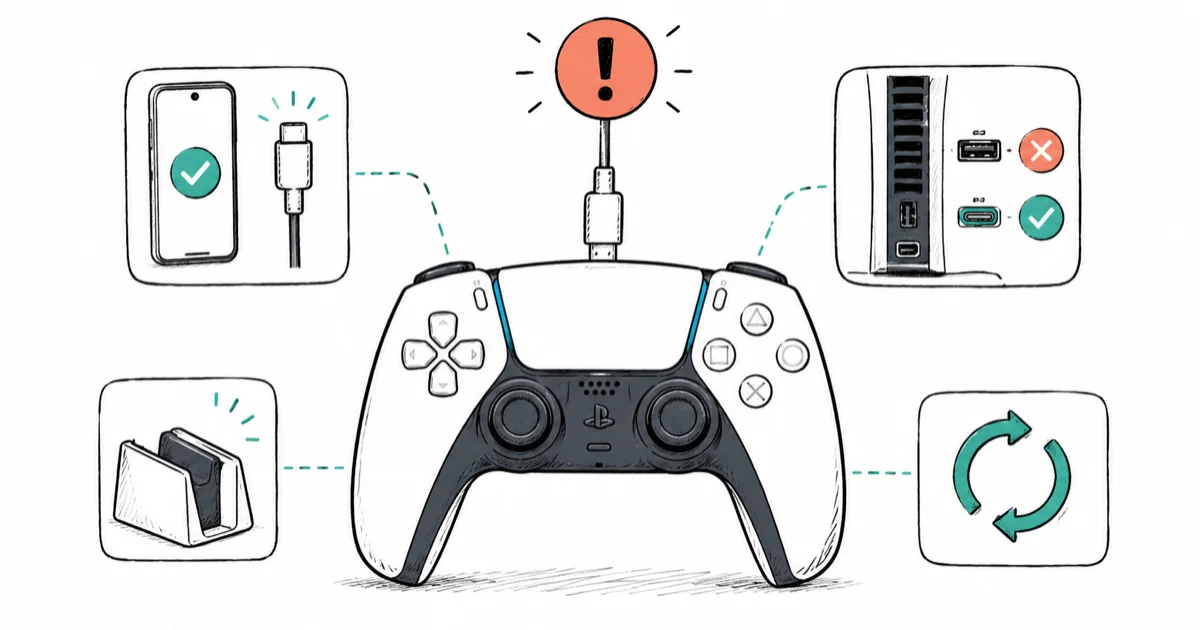
Quick AnswerMost DualSense charging failures are a bad or loose USB-C cable, so test the cable on a phone first. Then plug the controller into a rear console port instead of the front Type-A port, which has a known Rest Mode quirk.
A PS5 controller not charging usually strikes mid-session, when the DualSense dies and the cable does nothing. You plug it in, the light bar stays dark, and the controller refuses to charge in Rest Mode overnight. The good news is that the most common cause is the cheapest to fix.
The usual failure chain is simple: start with the cable, then the port, then Rest Mode settings, and only then consider battery wear. The steps below run from the fastest, cheapest checks to the realistic verdict on an aging battery.
- A bad or loose USB-C cable causes most DualSense charging failures, so test the cable on a phone before anything else
- The front Type-A port has a Rest Mode charging quirk, and a rear console port is more reliable for overnight charging
- A dirty or lint-packed USB-C port stops the connector seating, and careful cleaning often restores charging
- Rest Mode only charges if “Supply Power to USB Ports” is set to enable charging, a setting most guides skip
- A controller that charges but drains within an hour or two has an aging battery, and a charging station is the realistic fix
#Why Is Your PS5 Controller Not Charging?
A DualSense that won’t charge almost always comes down to one of a few causes, and the cable is at the top of the list.
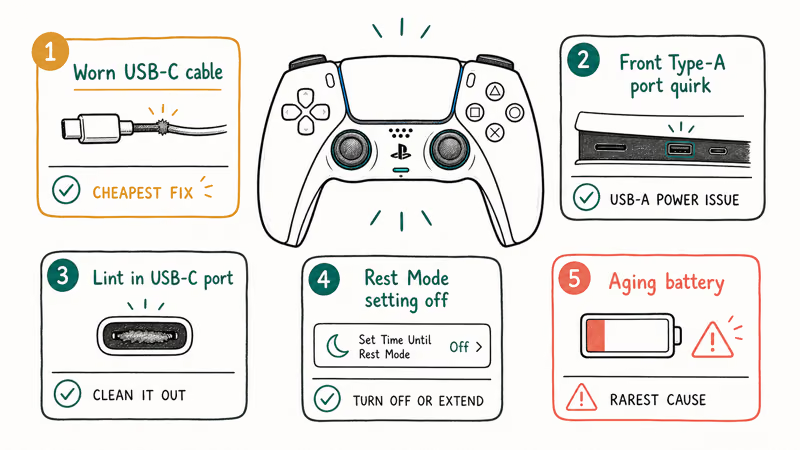
The usual culprits are a worn or loose USB-C cable, the front Type-A port’s Rest Mode quirk, lint or debris packed into the controller’s USB-C port, the Rest Mode power setting being off, or an aging battery after a couple of years of use. Hardware failure of the charging circuit happens, but it’s the rarest cause, so don’t assume it first.
Knowing the likely cause shapes the order of fixes. Cable and port issues are quick and free to test, so start there. If the controller charges but won’t hold the charge, that’s a battery problem, covered at the end.
#Test the USB-C Cable and Use a Rear Console Port
Start with the cable, because it’s the single most common cause and the easiest to rule out.
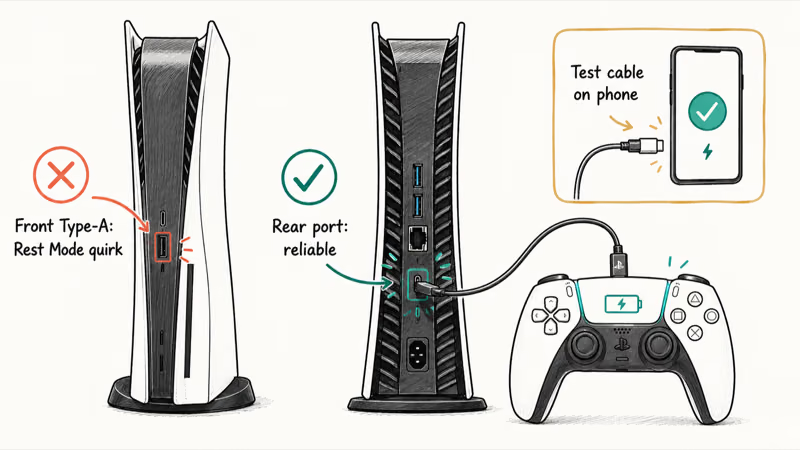
Test your USB-C cable on a phone or another device. If it doesn’t charge the phone either, the cable is the problem, and a fresh cable fixes it. Many cheap cables are charge-only or wear out at the connector, so use a known-good data cable. The cable that ships with the PS5 works best.
Then mind which port you use. The PS5’s front USB-A (Type-A) port has a known quirk where it won’t reliably charge a DualSense in Rest Mode, so plug the controller into a rear console port instead for overnight charging. If the whole console seems off, the PS5 won’t turn on guide covers console-side power problems.
#Clean the USB-C Port and Remove Accessories
If the cable is good and the port choice is right, look at the controller’s port itself.
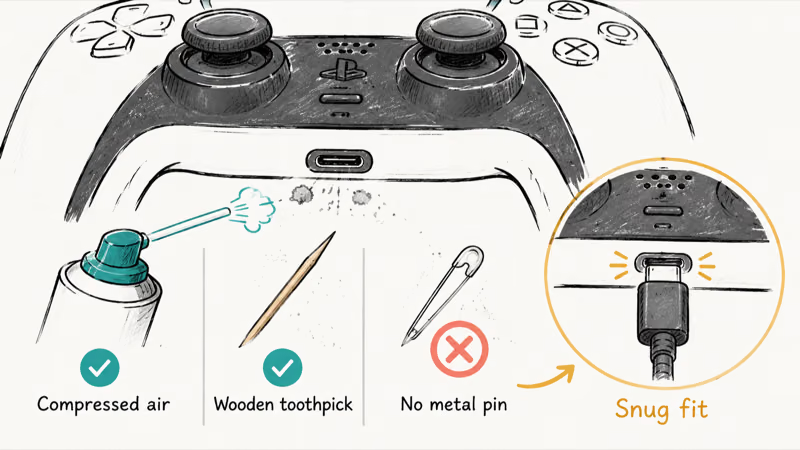
The DualSense’s USB-C port collects pocket lint and dust, which stops the connector from seating fully. Clean it with a short burst of compressed air, or gently dislodge debris with a wooden toothpick or plastic pick. Never use a metal pin, since that risks shorting or bending the contacts. After cleaning, the cable should click in snugly rather than feeling loose.
Also remove any accessories. Third-party battery grips, charging docks, and attached headsets can interfere with charging or block the port. Plug the bare controller straight into the console with the official cable to get a clean test. A loose-feeling connection after this points to a worn port that may need service.
#Soft Reset and Re-Pair the DualSense Controller
If the hardware checks out, a firmware glitch may be stopping the charge from registering.
A soft reset clears temporary glitches. Turn the controller off from the on-screen menu (hold the PS button, choose the controller, then Turn Off), then hold the PS button to power it back on. This is gentler than the hard reset pinhole and fixes phantom states. For comparison, the pinhole reset is the same approach used for analog drift, which the PS5 controller stick drift guide covers.
If the controller still won’t charge or connect, re-pair it. Go to Settings > Accessories > Controllers (General) > Bluetooth, delete the controller, restart the PS5, then reconnect by plugging in via USB. A clean re-pair forces the system to re-handshake with the controller, which sometimes restores charging recognition. The same charging logic applies to the older pad, so the PS4 controller not charging guide is a useful cross-reference.
#Does Rest Mode Charging Need a Setting Change?
Yes, and this is the setting most guides skip entirely.
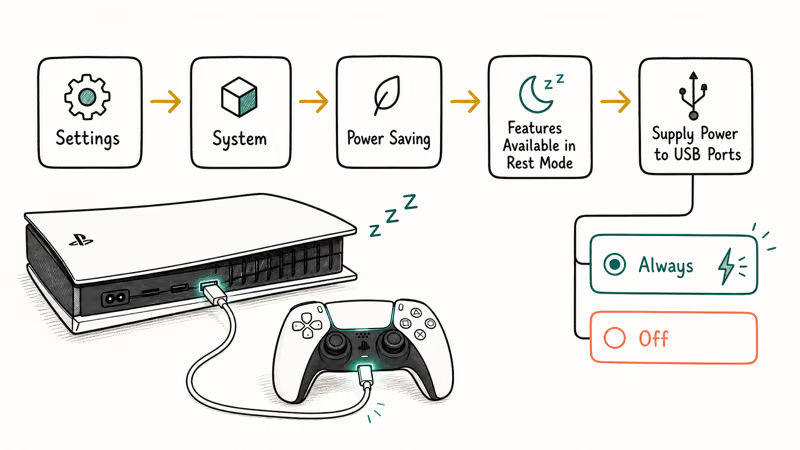
By default, the PS5 may not supply power to its USB ports during Rest Mode, so your controller sits plugged in all night and charges nothing. To fix it, go to Settings > System > Power Saving > Features Available in Rest Mode > Supply Power to USB Ports, and set it to Always or 3 hours rather than off.
With that enabled, the rear port delivers charge during Rest Mode. According to PlayStation, the DualSense charges through the console’s USB ports, and the Rest Mode setting governs whether that happens while the system sleeps, as covered in its controller charging support. Use that setting before assuming the controller or cable is dead.
A hot or sluggish console can also affect Rest Mode, which the why is my PS5 lagging guide addresses.
#Update Controller Firmware and System Software
Outdated firmware can cause odd charging and connection behavior, so keep both current.
Connect the controller by USB and go to Settings > Accessories > Controllers (General) > Device Software Version to check for and install a controller firmware update. Sony pushes firmware that fixes charging and connectivity bugs, so an out-of-date controller can misbehave on a fully working console.
While you’re there, update the system software under Settings > System > System Software. iFixit’s DualSense troubleshooting states that you should work through the cable, then the port, then the battery in that order.
Asurion’s PS5 charging guide recommends Rest Mode and port-cleaning steps before assuming a dead battery. Cross-platform charging quirks overlap, so the Joy-Con drift guide helps Nintendo owners too.
#Bottom Line
Start with the cable, because a bad or loose USB-C cable causes most DualSense charging failures. Test the cable on a phone, then use a rear console port rather than the front Type-A port. If charging still fails, clean the USB-C port and confirm Rest Mode is set to supply power to the USB ports. If the controller charges but drains fast, the battery is aging, and a charging station is the realistic fix.
#Frequently Asked Questions
Why won’t my PS5 controller charge in Rest Mode?
Usually because the Rest Mode power setting is off. Go to Settings > System > Power Saving > Features Available in Rest Mode > Supply Power to USB Ports and set it to Always or 3 hours. Also use a rear console port, since the front Type-A port has a Rest Mode charging quirk that often leaves the controller dead by morning.
How do I know if it’s the cable or the controller?
Test the USB-C cable on a phone. If it charges the phone, the cable is fine and the controller or its port is the issue. If not, the cable is bad.
What does the orange light on the controller mean?
A slow-pulsing orange (amber) light bar means the controller is charging normally. If it doesn’t appear when you plug in, the controller isn’t getting power, so check the cable, the port choice, and a clean USB-C connection. A solid light or no light at all usually points to a cable or port problem rather than a battery fault.
Can a dirty USB-C port stop the controller from charging?
Yes. Lint and dust pack into the port and stop the connector seating, so the cable looks plugged in but carries no charge. Clean it with compressed air or a wooden toothpick, never a metal pin.
How long does a DualSense take to fully charge?
A fully drained DualSense takes roughly 3 hours to charge completely from the console or a USB charger. If yours charges much faster and then dies quickly, the battery is likely aging rather than fully charging. Charging while the console is fully on is faster than charging in Rest Mode.
Is my controller battery dead, and can it be replaced?
If the controller charges normally but drains within an hour or two of play, the lithium battery has aged, which is common after two or three years. A charging station keeps a tired controller usable, and the battery can be replaced, though it requires opening the controller. For many people a battery replacement or a charging dock is cheaper than a new controller.

Fortnite Stuck on the Loading Screen? Fix It in 2026
Fortnite stuck on the loading screen? Check server status, fix the Windows N Media Pack and DirectX 11 on PC, clear the console cache, and verify files.

Minecraft Keeps Crashing? Java and Bedrock Fixes (2026)
Minecraft keeps crashing on startup or mid-game? Update your GPU driver, remove mods on Java, and reinstall Gaming Services on Bedrock. Fixes for both.

Pokemon GO Not Loading? Fix the Loading Screen 2026
Pokemon GO not loading or stuck on the Pokeball? Check server status, fix automatic date and time, grant location permission, clear the cache, and update.
Roblox Not Working on School Chromebook? 2026 Guide
Roblox not working on a school Chromebook? Learn why managed devices block apps, the legitimate ways to play, and how to fix real install errors.