Steam Download Slow? Fix Slow Download Speed in 2026
Steam download slow despite fast internet? Change the download region, remove bandwidth limits, check for a disk bottleneck, and clear the download cache.
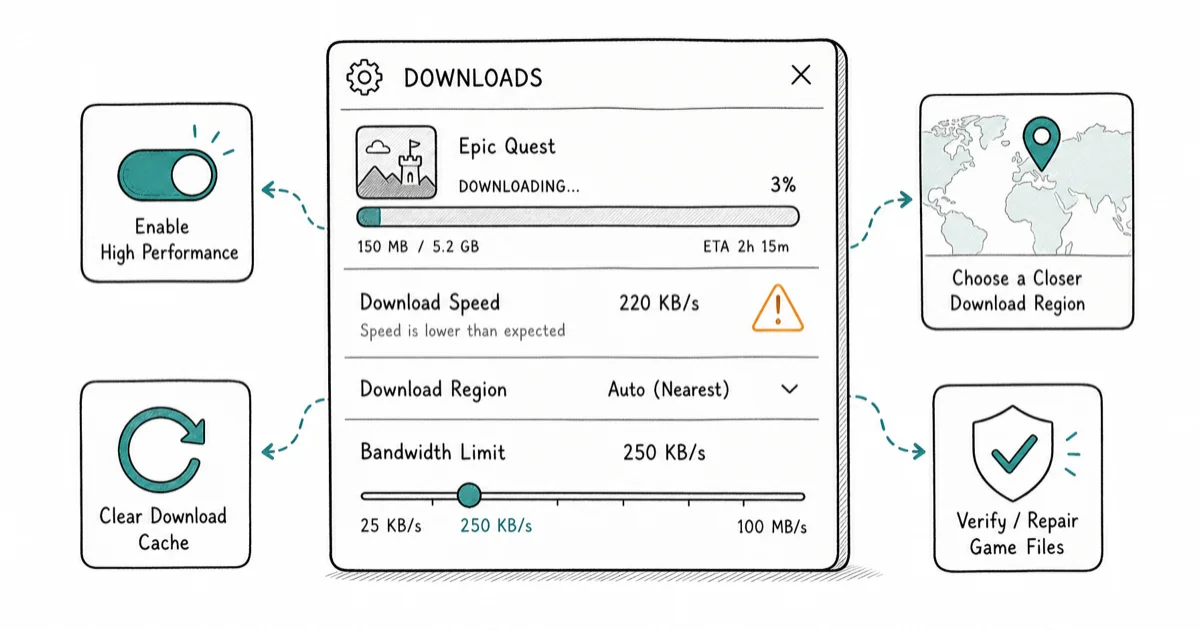
Quick AnswerSteam downloads are usually slow from a congested or wrong download region or a bandwidth limit in Steam settings. Switch to a nearby region and set the speed limit to no limit.
A slow Steam download means the install crawls, fluctuates, or stalls even though your internet is fast. The cause is rarely your internet plan. It’s usually a congested or mis-selected download region, a bandwidth limit hiding in Steam’s settings, or a disk that can’t write fast enough. This guide works through those in the order that fixes the most cases.
- A congested or wrong download region is the most common cause of slow Steam downloads
- Steam reports speed in MB per second, and 1 MB/s equals 8 Mbps, so check the units first
- A bandwidth limit left on in Steam settings silently caps every download
- A slow HDD can bottleneck downloads because Steam writes and decompresses files as it goes
- Clearing the download cache is a clean reset when speeds stay erratic after other fixes
#Why Is My Steam Download So Slow?
Steam downloads from a network of regional content servers, not one central source. According to Wikipedia’s content delivery network entry, these networks improve speed through geographic distribution, so the server your client picks matters more than your raw bandwidth. When that server is congested or far away, your download crawls even on a gigabit line.
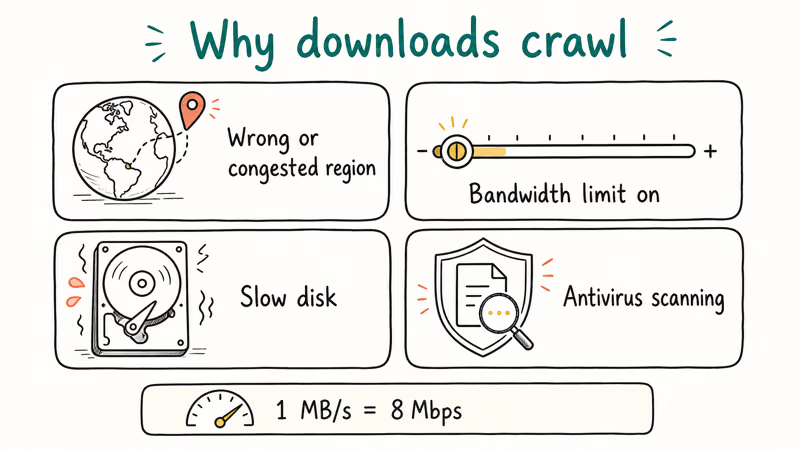
The other big causes are a bandwidth cap you forgot you set, a disk that can’t keep up with writes, and security software scanning every file as it lands.
Before anything else, check the units. Steam shows download speed in megabytes per second (MB/s), while your ISP advertises megabits per second (Mbps). They differ by 8x, so a 6 MB/s download on a 50 Mbps plan is actually using your full speed, not a fraction of it.
Steam reports speed in megabytes per second (MB/s), but your plan is sold in megabits per second (Mbps), and there are 8 bits in a byte. A rate that looks low in MB/s can sit close to your plan’s real ceiling once you convert and count overhead, so the “slow” download may already be using the connection well.
#Change Your Steam Download Region
This is the first real fix, and it resolves most truly slow downloads. Steam guesses your region from your IP address, and that guess is often wrong or points at an overloaded server.
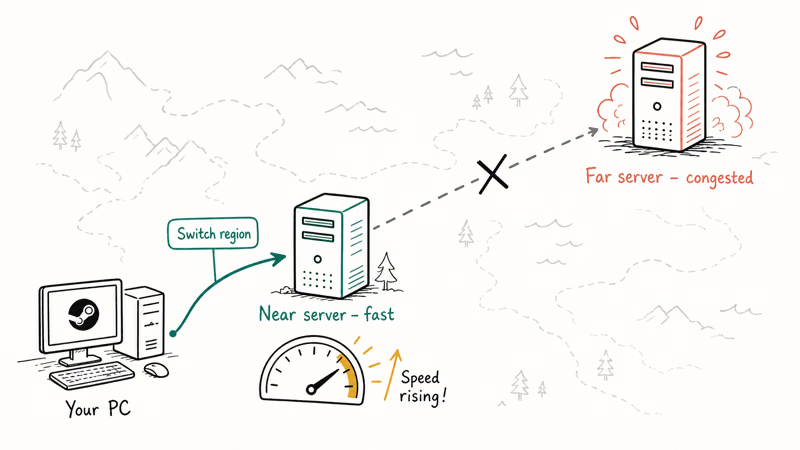
Open Steam > Settings > Downloads > Download Region and pick a server geographically close to you. Every region change restarts Steam, so give it a moment. According to Steam’s slow-downloads support page, connecting to 1 congested or distant content server is a leading cause of poor speeds, and switching regions is the documented fix laid out in Steam’s official guidance.
If the nearest region is busy, try the next-closest one. A lightly loaded nearby server can beat an overloaded local server during peak evening hours, so switch regions, restart Steam, and compare the rate after the download settles.
#Remove Bandwidth Limits and Background Throttling
A surprising number of “slow” downloads are self-inflicted. Steam has a download-speed limiter, and if it’s set, every download obeys it.
In Steam > Settings > Downloads, find Limit bandwidth to and set it to No limit. While you’re there, check Throttle downloads while streaming and disable it if you’re not streaming. Steam’s download management guide covers these controls and the scheduling options that can pause downloads at the wrong times.
Background apps and other devices also compete for bandwidth. A console updating, a phone backing up, or someone streaming 4K next door all eat into what Steam gets. If your whole connection feels slow, our guide on a Wi-Fi connected but no internet state helps rule out a router-level fault first.
#Check for a Slow Disk Bottleneck
Here’s the cause generic fix-lists skip entirely. Steam doesn’t just download a file, it writes and decompresses game data as it arrives, so a slow drive can cap the download rate regardless of your internet speed.
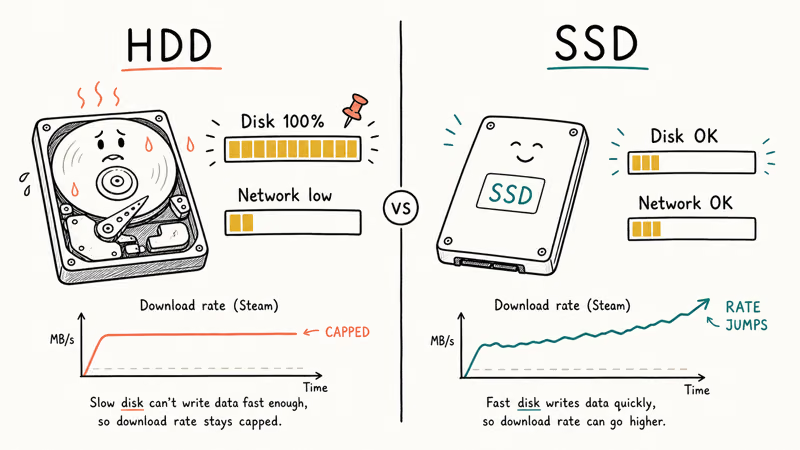
On a mechanical HDD, this shows up as a download that sits at a low, steady rate while the disk activity light stays pinned. The drive, not the network, is the bottleneck. Installing to an SSD usually removes the cap outright, and you’ll see the rate jump the moment the writes can keep up. If you’re shopping for one, our roundup of the best SSD for gaming covers drives that handle Steam’s write load comfortably.
You can confirm it by watching disk usage during the download. If the disk reads 100% busy while the network sits idle, the drive is the limit. Our guide on Windows 100% disk usage walks through reducing disk strain, which directly helps download throughput, and the Valorant FPS drop fix covers related performance settings if the same machine also stutters in-game.
#Clear the Download Cache and Check Antivirus
Clear the cache when speeds stay erratic after the region and bandwidth fixes. It forces Steam to rebuild its download state from scratch without touching installed games.
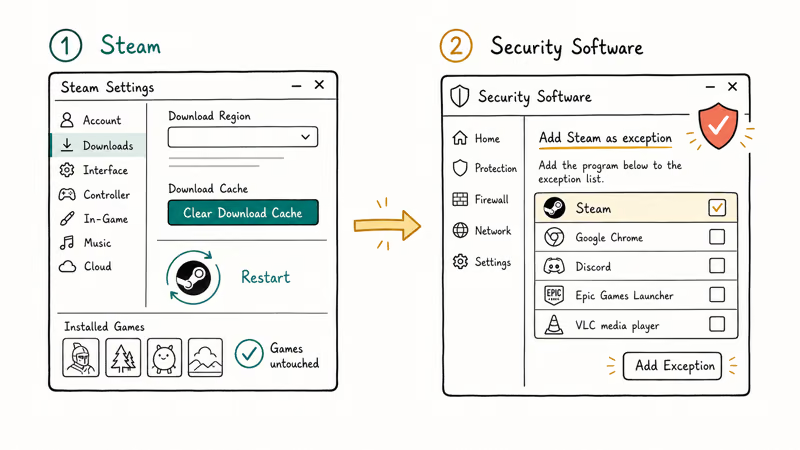
Go to Steam > Settings > Downloads and choose Clear Download Cache. Steam signs you out and restarts, then re-establishes a clean connection to the content servers. This is also the right step if a download is stuck at 0 bytes per second, which usually means a broken connection to the server rather than a speed problem.
If a specific download still won’t move after a cache clear, the issue may be antivirus interference. Add Steam as an exception in your security software, since real-time scanning of every incoming file can throttle the write speed to a crawl.
#When Should You Suspect Your Internet Plan?
You reach this point only after the region, bandwidth, disk, and cache fixes all check out. Steam’s support page recommends 1 final test before blaming the platform: run a speed test on the same machine.
If the speed test returns far below your plan and a wired device is just as slow, the bottleneck is your connection or ISP, not Steam. If only Steam is slow while everything else is fast, return to the region and antivirus steps, since the problem is local to Steam rather than your line. Hardware faults are a separate track, and our guide on a Steam Deck black screen covers device-level issues if you’re on Valve’s handheld.
#Bottom Line
Switch to a nearby, less congested download region and confirm no bandwidth limit is set in Steam first, because those fix most slow downloads. Close background apps and check whether a slow HDD is the real bottleneck by watching disk usage during the download. Clear the download cache as a clean reset when speeds stay erratic, and remember to check MB/s versus Mbps before assuming anything is wrong.
#Frequently Asked Questions
Why is my Steam download so slow?
Most often a congested or mis-selected download region, or a bandwidth limit set in Steam’s settings. Switch to a nearby region and clear the limit.
Does the download region affect Steam speed?
Yes, more than almost anything else. Steam pulls from regional content servers, and a congested or distant one throttles your speed even on a fast line. Pick the closest lightly-loaded region in Downloads settings, and if the nearest server is busy during peak evening hours, try the next-closest one, since a lightly-loaded server two states away often beats a saturated local one.
How do I remove the Steam download limit?
Open Steam, go to Settings, then Downloads, and set Limit bandwidth to No limit. Also disable throttling while streaming if it’s on. Restart Steam so the change takes effect.
Can a slow hard drive cap Steam downloads?
Absolutely. Steam writes and decompresses files as they download, so a slow HDD becomes the bottleneck while the network sits idle. Watch your disk usage during a download, and if the disk is pinned at 100% while the network is low, move the install to an SSD to lift the cap.
How do I clear the Steam download cache?
Go to Settings, then Downloads, and click Clear Download Cache. Steam restarts and rebuilds a clean connection to its servers. Your installed games stay untouched.
Why does Steam download at 0 bytes per second?
A 0 bytes per second rate usually means a broken connection to the content server, not a speed problem. Change your download region, clear the download cache, and restart Steam. If it persists, check whether antivirus or a firewall is blocking Steam’s connection.

Fortnite Stuck on the Loading Screen? Fix It in 2026
Fortnite stuck on the loading screen? Check server status, fix the Windows N Media Pack and DirectX 11 on PC, clear the console cache, and verify files.

Minecraft Keeps Crashing? Java and Bedrock Fixes (2026)
Minecraft keeps crashing on startup or mid-game? Update your GPU driver, remove mods on Java, and reinstall Gaming Services on Bedrock. Fixes for both.

Pokemon GO Not Loading? Fix the Loading Screen 2026
Pokemon GO not loading or stuck on the Pokeball? Check server status, fix automatic date and time, grant location permission, clear the cache, and update.

PS5 Controller Not Charging? 9 Fixes That Work (2026)
DualSense not charging? Swap the cable, use a rear port in Rest Mode, clean the USB-C port, and check power settings. 9 fixes for a dead PS5 controller.