Minecraft Keeps Crashing? Java and Bedrock Fixes (2026)
Minecraft keeps crashing on startup or mid-game? Update your GPU driver, remove mods on Java, and reinstall Gaming Services on Bedrock. Fixes for both.
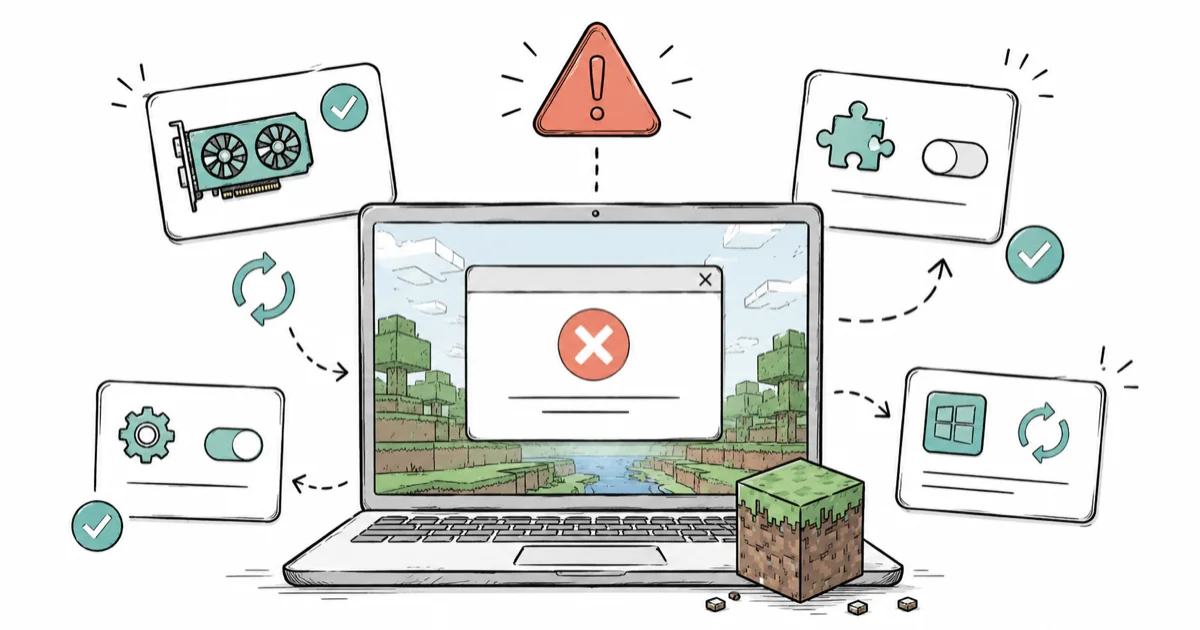
Quick AnswerUpdate your graphics driver first, since an outdated GPU driver is the top crash cause on PC. On Java, remove mods and set useVbo to false. On Bedrock, reinstall Gaming Services.
When Minecraft keeps crashing, the fix depends on which edition you run. Java and Bedrock use different runtimes, so the likely causes split by edition. Start with the general fixes, then jump to your edition’s section.
- An outdated graphics driver is the most common crash cause on PC, so updating it from the manufacturer site fixes a large share of crashes
- On Java Edition, mods are the usual culprit, and setting useVbo to false in options.txt stops crashes that happen before the settings menu loads
- On Bedrock Edition, a corrupt Gaming Services install is the most frequent cause, and reinstalling it through PowerShell is the standard fix
- A freshly broken version can carry a known bug that only a Mojang patch resolves, so check the bug tracker before reinstalling everything
- If your whole PC restarts instead of just the game, that points to a hardware or stability problem, not Minecraft itself
#Why Does Minecraft Keep Crashing?
Crashes come from a handful of repeat offenders. The list: an outdated GPU driver, mods on Java, corrupt game files, an outdated Gaming Services on Bedrock, low memory, or a known version bug. The trick is knowing which edition you run, because the fixes diverge sharply and a Java fix often does nothing for a Bedrock crash.
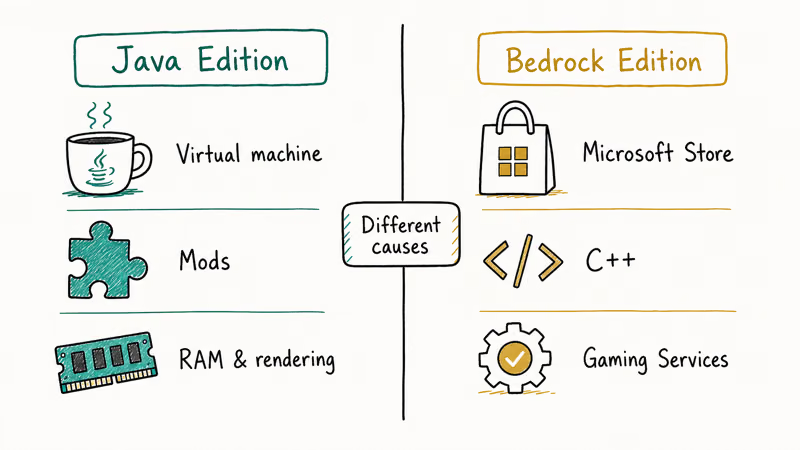
Java Edition runs on a Java virtual machine, supports mods, and is more sensitive to memory and rendering settings. Bedrock Edition is the Windows Store version, runs in C++, and leans on a background app called Gaming Services.
A crash on one rarely shares a cause with the other.
So before you do anything, confirm your edition. Then run the general fixes that help both, and only after that drop into your edition’s section.
#General Fixes for Java and Bedrock
Restart your PC first. It clears memory leaks and stuck processes, and it’s the single most underrated fix. Then check for a Windows update, because driver and platform patches ship through it.
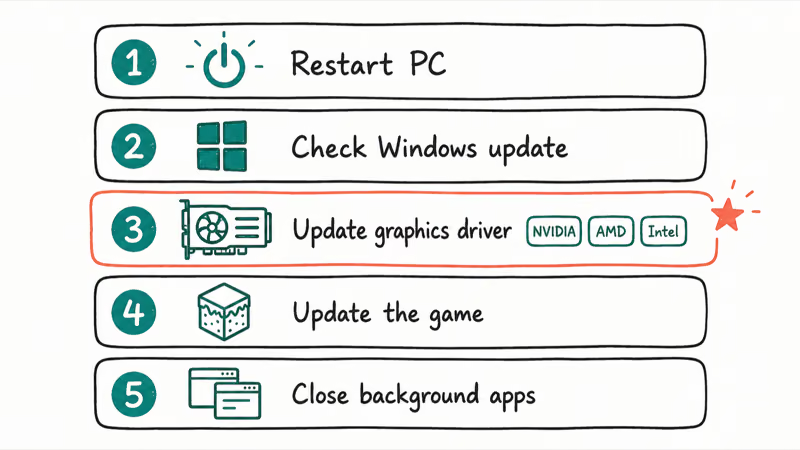
Update your graphics driver next. This matters most. Download the latest driver straight from NVIDIA, AMD, or Intel rather than letting Windows guess, and do a clean install if the option appears. According to Minecraft’s fix-crashes help article, out-of-date drivers are a leading crash trigger across both editions.
Then update the game itself. Launch the Minecraft Launcher and let it pull the newest build for your edition. A stale client often crashes against current servers and content.
Close background apps too. Discord overlays, screen recorders, and overlay tools hook into the game and can crash it. Shut them down and test.
#Fix Java Edition Crashes: Mods and VBOs
Mods cause most Java crashes. To isolate the culprit, move your mods folder out of %APPDATA%\.minecraft and launch vanilla. If it runs, add mods back in small batches until the crash returns, which exposes the bad one.
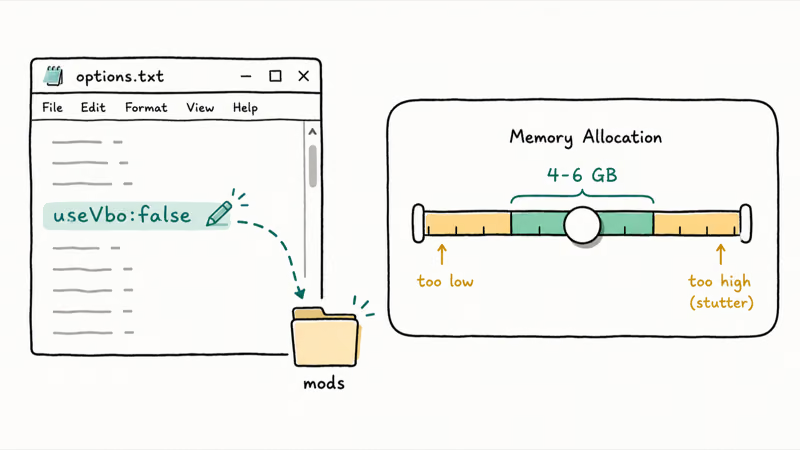
The classic hard-crash fix is the VBO toggle. When Minecraft crashes before you can even open the video settings, edit the config file directly. Open %APPDATA%\.minecraft\options.txt in Notepad, find the useVbo line, and change it to useVbo:false. According to Minecraft’s Java crashes FAQ, editing options.txt is the supported way to change settings you can’t reach in-game.
Memory matters next. Java’s garbage collector pauses to clean large memory pools, so more RAM isn’t always better. Allocate enough RAM for your modpack without giving Minecraft so much memory that garbage collection pauses become their own source of stutter.
Corrupt files are the last Java suspect. Delete the version folder and let the launcher redownload it, which repairs damaged assets without wiping your worlds.
#Fix Bedrock Crashes: Gaming Services and Memory
Bedrock crashes usually trace back to Gaming Services, a background Windows app the game depends on. When it’s corrupt, Bedrock crashes on launch.
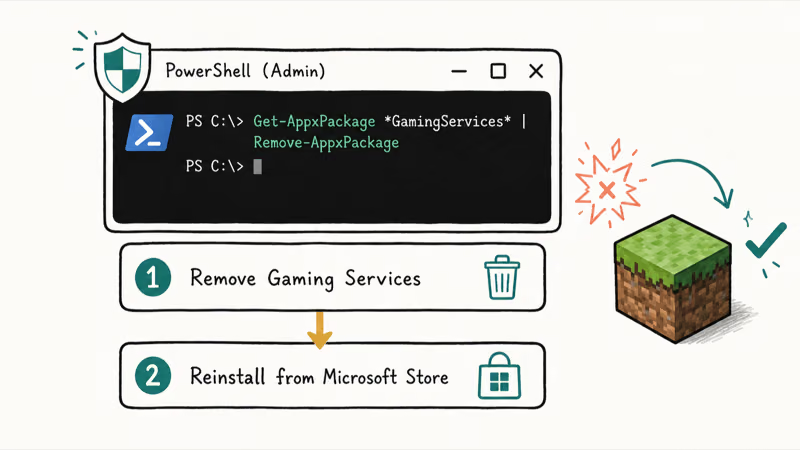
Reinstall it through PowerShell. Open PowerShell as administrator, run the command to remove the Gaming Services package, then reinstall it from the Microsoft Store. According to Microsoft’s guide to repairing apps in Windows, repairing or resetting an app from its Advanced options resolves the install and update errors that take down store games. A corrupt Gaming Services install can keep Bedrock crashing until the package is repaired or reinstalled.
A reset of the app itself helps too. Go to Settings, then Apps, find Minecraft, choose Advanced options, and pick Repair first, then Reset if Repair doesn’t take. Repair keeps your data; Reset clears the app cache.
Watch for known version bugs. A freshly released Bedrock build sometimes ships with a crash or a memory leak that no local fix touches. Mojang tracks these on its bug tracker, and if your crash started the day a new version dropped, the fix may be a patch rather than anything on your end.
#Is Your Whole PC Crashing, Not Just the Game?
This distinction saves hours. If only Minecraft closes and Windows keeps running, it’s a game-level problem, and the edition fixes above apply. If your entire PC freezes, restarts, or blue-screens, that’s a system problem.
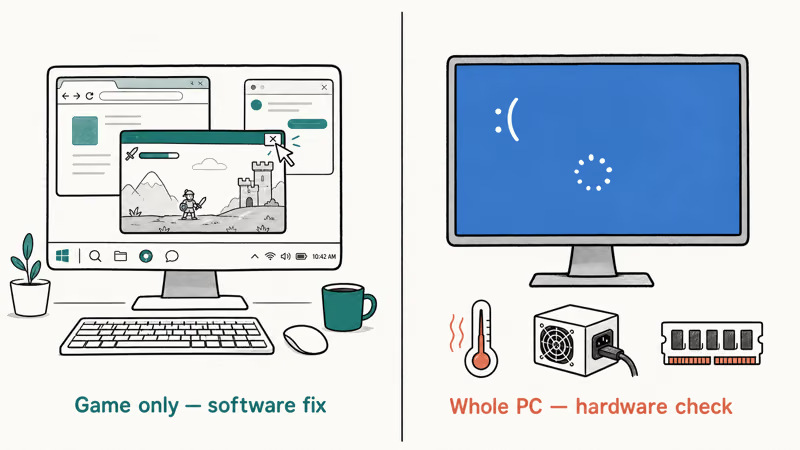
Whole-PC crashes point to overheating, a failing power supply, bad RAM, or an unstable overclock. Check your temperatures under load, reseat RAM, and remove any overclock to test. These aren’t Minecraft issues, even though the game is what triggers them, because a demanding game simply pushes a marginal component past the point where it stays stable.
Run a quick memory test if it keeps happening. Windows has a built-in Memory Diagnostic tool you can launch from the Start menu, and a single bad stick of RAM causes exactly this kind of game-launched crash, where the system runs fine until a demanding app reaches into the faulty memory region and the whole machine falls over.
#Reinstall as a Last Resort
If nothing else works, reinstall the edition. Back up your worlds first. On Java, copy the saves folder out of %APPDATA%\.minecraft; on Bedrock, your worlds sync if you’ve signed in, but export the important ones to be safe.
Then uninstall and reinstall the game through the launcher or the Microsoft Store. A clean install clears corrupt configs that survive a normal repair. It’s slow, so it’s the last thing to try.
#Bottom Line
Start with the fixes that cover both editions: restart, update Windows and the game, and especially update your graphics driver, because an outdated GPU driver is the most common crash cause on PC. On Java, remove your mods to isolate the culprit, and set useVbo to false in options.txt if the game crashes before you reach settings.
On Bedrock, the usual fix is reinstalling Gaming Services. On a freshly broken version, the crash may be a known bug that only a Mojang patch resolves. And if your entire PC restarts rather than just the game, that’s a hardware or stability problem, not Minecraft.
A few related guides help once the game is stable. See our Minecraft low FPS fix and the guide for Minecraft with no sound.
If multiplayer is the problem, here’s what to do when you can’t connect to a Minecraft world.
Play on a handheld? Our Steam Deck not charging guide keeps it powered, and the Steam Deck black screen fix covers a dead display.
#Frequently Asked Questions
Why does Minecraft crash right on startup?
Startup crashes usually come from an outdated graphics driver, a bad mod on Java, or a corrupt Gaming Services install on Bedrock. Update your GPU driver first, then check your edition’s specific cause. If it crashed right after a version update, a known bug on Mojang’s tracker may be the reason.
How do I disable VBOs if I can’t open settings?
Open %APPDATA%\.minecraft\options.txt in Notepad, find the useVbo line, change it to useVbo
My Java works but Bedrock crashes, why?
The two editions share almost nothing under the hood. Bedrock depends on the Gaming Services background app and the Microsoft Store, while Java runs on a Java virtual machine. A corrupt Gaming Services install crashes Bedrock while leaving Java completely untouched, which is exactly why one edition can run perfectly while the other won’t even reach the menu, so reinstall Gaming Services as your first move.
How do I reinstall Gaming Services for Bedrock?
Open PowerShell as an administrator, run the command to remove the Gaming Services package, then reinstall it from the Microsoft Store. Microsoft documents the exact commands. A reinstall replaces the corrupt files behind most Bedrock launch crashes.
Could mods be causing the crashes?
On Java, almost certainly. Move your mods folder out of the .minecraft directory and launch vanilla to confirm, then add mods back in small batches. Outdated mods that don’t match your version are the usual culprit.
Why does my whole PC restart when I play Minecraft?
A full PC restart points to a hardware or stability problem, not the game itself. Overheating, a failing power supply, bad RAM, or an unstable overclock can all crash the system under the load Minecraft puts on it, and the game is simply the trigger that exposes a component already running on the edge. Check temperatures under load, reseat your RAM, run the built-in Windows Memory Diagnostic, and remove any overclock to test.

Fortnite Stuck on the Loading Screen? Fix It in 2026
Fortnite stuck on the loading screen? Check server status, fix the Windows N Media Pack and DirectX 11 on PC, clear the console cache, and verify files.

Pokemon GO Not Loading? Fix the Loading Screen 2026
Pokemon GO not loading or stuck on the Pokeball? Check server status, fix automatic date and time, grant location permission, clear the cache, and update.

PS5 Controller Not Charging? 9 Fixes That Work (2026)
DualSense not charging? Swap the cable, use a rear port in Rest Mode, clean the USB-C port, and check power settings. 9 fixes for a dead PS5 controller.
Roblox Not Working on School Chromebook? 2026 Guide
Roblox not working on a school Chromebook? Learn why managed devices block apps, the legitimate ways to play, and how to fix real install errors.