Roblox Not Working on School Chromebook? 2026 Guide
Roblox not working on a school Chromebook? Learn why managed devices block apps, the legitimate ways to play, and how to fix real install errors.
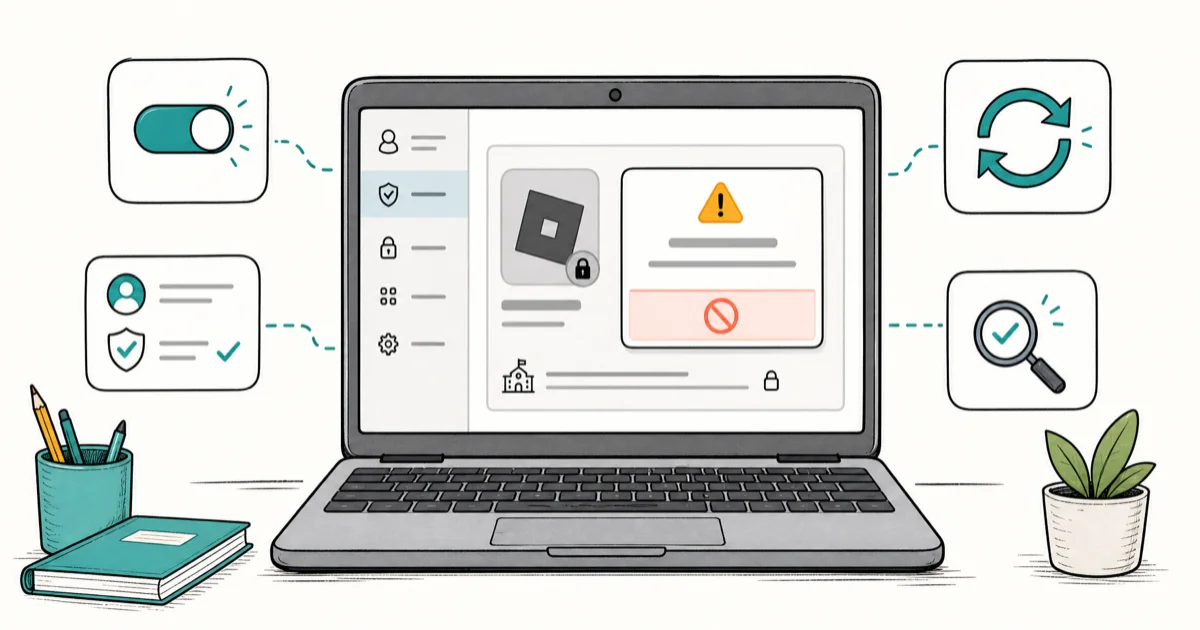
Quick AnswerRoblox usually does not work on a school Chromebook because an administrator policy blocks the app or Google Play. The legitimate options are asking the admin to allow it or using a personal device.
Roblox not working on a school Chromebook is almost always a policy, not a glitch. School Chromebooks are managed devices, which means an IT administrator controls what installs and runs, and Roblox or the Google Play Store is usually blocked on purpose. This guide explains why that happens on a managed device you use but don’t own, and it covers the legitimate paths to play, plus how to fix genuine install errors on a Chromebook where Roblox is actually allowed.
This guide is for your own device or a managed device used with permission. It does not describe bypassing administrator policy, security controls, or device restrictions, which can violate school rules and applicable terms.
- A school Chromebook is a managed device, so an administrator policy, not a bug, usually blocks Roblox
- The legitimate options are asking the IT admin to allowlist Roblox or playing on a personal device at home
- Don’t try to bypass managed restrictions, since that breaks school policy and can have consequences
- On a Chromebook where Roblox is allowed, most failures are an outdated Chrome OS or a Play Store cache problem
- Roblox needs a supported Chromebook and the Google Play Store enabled to install the app
#Why Is Roblox Not Working on a School Chromebook?
On a school Chromebook, the most common reason Roblox won’t open or install is that your school’s administrator has restricted it. Schools enroll Chromebooks in a management console and apply policies that block games, app stores, and certain websites during the day. That’s working as intended from the school’s point of view, not a fault on your device.
A second reason is technical: even where Roblox is permitted, the Chromebook may be too old, run an outdated Chrome OS, or have the Google Play Store turned off by policy. According to Google’s managed Chromebook documentation, administrators control which apps and features are available on enrolled devices, which is why the same install steps that work at home can fail at school.
#Is the Chromebook Managed by an Administrator?
Before anything else, confirm whether the device is managed, because that single fact decides what you can legitimately do.
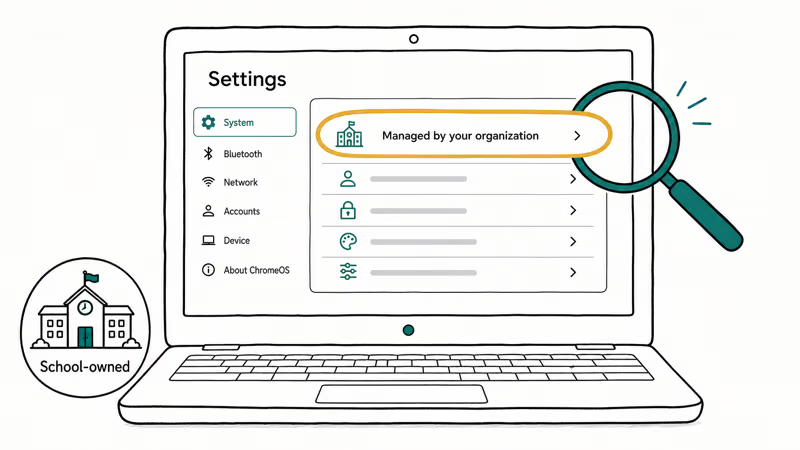
Look for a building or organization name on the sign-in screen, or open Settings and check for an “managed by your organization” notice. A managed Chromebook is owned by the school, and the school sets the rules for it. According to Roblox’s Chromebook help, Roblox runs on supported Chromebooks through the Google Play Store, so if the Play Store itself is blocked, the app simply can’t be installed there.
If the device is managed and Roblox is blocked, the honest answer is that the block is a policy decision. The right move is to talk to the people who set the policy, not to work around it. A working management policy keeps blocked apps blocked through normal device settings.
#Legitimate Ways to Play Roblox
If your school Chromebook blocks Roblox, you still have clear, policy-respecting options.
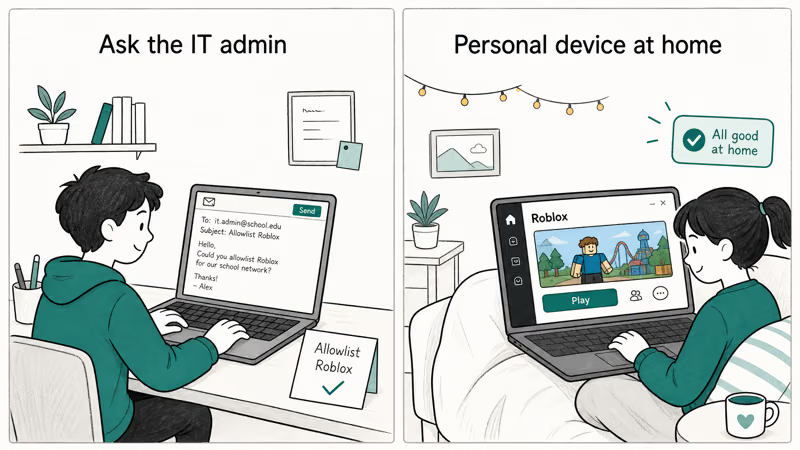
First, ask. Email or speak with your school’s IT administrator or teacher and ask whether Roblox can be allowlisted, especially if it’s for a class project or an approved after-school activity. Admins can add specific apps to the allowed list, and a polite, specific request is the fastest legitimate route. Explain the purpose, since educational use is often treated differently from general gaming.
Second, use a personal device. Roblox runs on home computers, phones, tablets, and personal Chromebooks, so play there outside school hours. This keeps you fully within school policy while still letting you enjoy the game. A personal device at home is the cleanest answer for most students, and the Discord at school explainer takes the same honest, policy-respecting approach to a related question.
#Fix Install Errors on an Allowed Chromebook
This section applies only when Roblox is permitted on your Chromebook, such as a personal Chromebook or a school device where the admin already allows it.
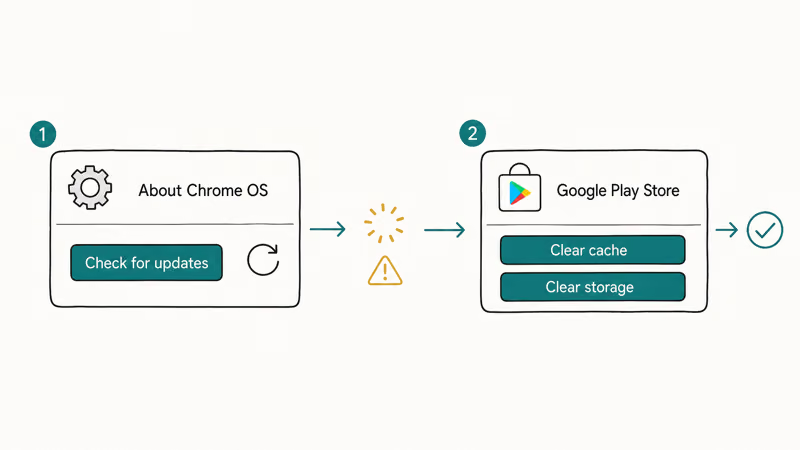
If the Play Store is available but Roblox won’t install or crashes, start with updates. Open Settings, then About Chrome OS, and select Check for updates, then restart. An outdated Chrome OS is a frequent cause of Play Store app failures. Roblox needs a current system to run smoothly.
Next, clear the Play Store data. Open Settings, then Apps, then Google Play Store, and use Clear cache and then Clear storage, then sign back in and retry the install. This resolves most stuck-download and error-code problems without affecting your account. If your keyboard or input also misbehaves during setup, the Chromebook keyboard not working guide covers those separately, and a Roblox error code 524 walkthrough handles in-game join errors once you’re past install.
#Confirm Roblox Supports Your Chromebook
Even on an allowed device, Roblox needs a reasonably current Chromebook to run. Older models that no longer receive Chrome OS updates, or that lack Google Play, can’t install the app.
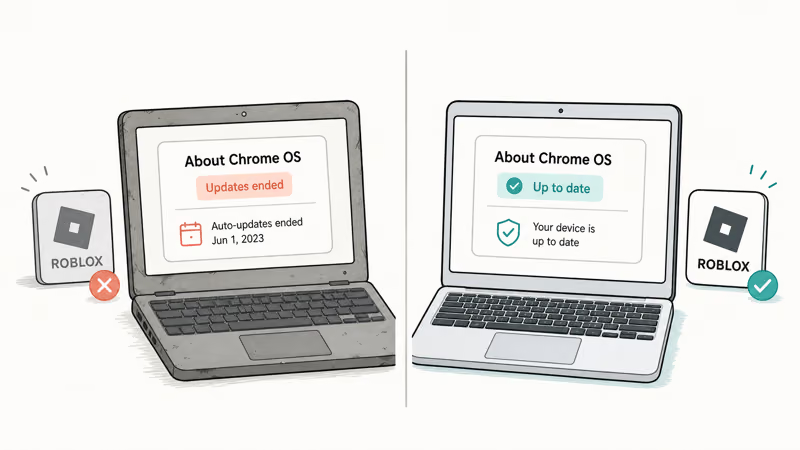
Check your device’s update status in Settings, then About Chrome OS. If your Chromebook has reached its auto-update expiration, it stops getting the system updates Roblox depends on. According to Google’s Chromebook update schedule guidance, keeping Chrome OS current is what lets Play Store apps stay compatible. If the device is past its update window, Roblox may refuse to install until you move to supported hardware; that’s a hardware-support limit, not a policy block.
#Use a Personal Device When the Policy Stands
Switch to a personal device whenever the school Chromebook block is a policy you can’t or shouldn’t change.
If the IT admin declines to allowlist Roblox, that decision stands. A personal computer, phone, or tablet at home is the right place to play instead. Respect the policy and game elsewhere.
A personal Chromebook or laptop also gives you a smoother experience, since you control updates and storage. If you’re choosing hardware, the notes on how to check PC requirements help you judge whether a machine is up to date, and a good best portable monitor makes a personal Chromebook far more comfortable for longer play sessions at home.
#Bottom Line
On a school-managed Chromebook the block is an administrator policy, so the legitimate route is to ask the admin to allowlist Roblox or to play on a personal device at home. Where the app is allowed, fix install errors by updating Chrome OS and clearing the Play Store cache and storage. Don’t try to bypass managed restrictions, since respecting the policy protects both your account and your standing at school.
#Frequently Asked Questions
Why is Roblox blocked on my school Chromebook?
Because the device is managed, and an administrator policy blocks Roblox or the Play Store on purpose.
Can I install Roblox on a managed Chromebook?
Only if the administrator allows it. On a managed device the admin controls the Play Store and the allowed app list, so you can’t install Roblox unless it’s been permitted. Ask your IT admin if you need it for school.
Is there a legitimate way to play Roblox at school?
Yes. Ask the IT administrator to allowlist Roblox for an approved purpose, or play on a personal device after hours.
Why won’t Roblox install from Google Play?
On an allowed Chromebook, the usual causes are an outdated Chrome OS or a corrupted Play Store cache. Update the system and restart, then clear the Play Store cache and storage. On a managed device, a missing Play Store usually means the admin disabled it.
Does the browser version of Roblox work?
Roblox primarily installs as an app from the Google Play Store on supported Chromebooks rather than running as a full browser game. Where the Play Store is blocked by school policy, app installation simply isn’t available on that device. The right path is to ask the administrator to allow it, or to use a personal device at home. Treat the managed restriction as final and play elsewhere.
Should I use a personal device for Roblox?
For most students, yes. A home computer, phone, tablet, or personal Chromebook lets you play Roblox without touching school policy at all. It’s the simplest answer when a managed school Chromebook blocks the app.

Fortnite Stuck on the Loading Screen? Fix It in 2026
Fortnite stuck on the loading screen? Check server status, fix the Windows N Media Pack and DirectX 11 on PC, clear the console cache, and verify files.

Minecraft Keeps Crashing? Java and Bedrock Fixes (2026)
Minecraft keeps crashing on startup or mid-game? Update your GPU driver, remove mods on Java, and reinstall Gaming Services on Bedrock. Fixes for both.

Pokemon GO Not Loading? Fix the Loading Screen 2026
Pokemon GO not loading or stuck on the Pokeball? Check server status, fix automatic date and time, grant location permission, clear the cache, and update.

PS5 Controller Not Charging? 9 Fixes That Work (2026)
DualSense not charging? Swap the cable, use a rear port in Rest Mode, clean the USB-C port, and check power settings. 9 fixes for a dead PS5 controller.